
Security · Published
How to check if a downloaded EXE file is safe
Before you run a downloaded EXE, check three things: that it came from the developer's own website, that its digital signature is valid and names that developer, and that a right-click Scan with Microsoft Defender finds nothing. For a second opinion, look the file up on VirusTotal, and if the developer publishes a SHA-256 hash, compare it with Get-FileHash in PowerShell.
The first three checks take a minute and cover most downloads. VirusTotal and the hash are worth it for unsigned programs and anything that triggers a warning. If doubts remain, run the file in Windows Sandbox on Windows 11 Pro or in Sandboxie-Plus on Home.
Method 1: Check the source and the digital signature
Fake download sites, ads disguised as download buttons and repackaged installers are the usual way malware arrives. Get the installer from the developer's own site or official GitHub releases. ExeDepot's download buttons point only to the developer's server or official download page, but the checks below still apply to any file.
- In File Explorer, right-click the EXE and choose Properties.
- Open the Digital Signatures tab. If the tab is empty or missing, the file is not signed.
- Select the signature in the list and choose Details. The window should say This digital signature is OK.
- Check the signer name. It must be the company or developer you expected, not a similar-looking or unrelated name.
A valid signature proves who signed the file and that it has not changed since; it does not prove the program is harmless. Many honest open-source tools are unsigned, so a missing signature is a reason for the extra checks below, not proof of malware.
Method 2: Read SmartScreen and scan with Microsoft Defender
Microsoft Defender SmartScreen checks a downloaded program and its signing certificate against Microsoft's reputation data. A blue Windows protected your PC window means the file has no established reputation yet, which Microsoft says can happen to new releases even when they are signed.
- If SmartScreen appears, select More info and read the App and Publisher lines. Unknown publisher means the file is unsigned.
- Choose Don't run if the publisher does not match the developer or you are unsure where the file came from.
- Before running any download, right-click it, choose Show more options and select Scan with Microsoft Defender. Windows Security opens and shows the result.
If Defender reports a threat, delete the file. If another antivirus is installed, Defender turns itself off and you scan with that product instead; see our free antivirus comparison.
Method 3: Look the file up on VirusTotal
VirusTotal is a free website, not a program you install, that checks a file against dozens of antivirus engines at once.
- Open virustotal.com in your browser.
- Drag the EXE onto the File tab, or paste its SHA-256 hash on the Search tab to look up an existing report without uploading anything.
- Read the detection count. One or two hits from lesser-known engines are often false positives; many hits mean you should not run the file.
VirusTotal shares uploaded files with its security partners, so do not upload installers that contain private data or license keys. Sysinternals Suite includes Sigcheck, a Microsoft command-line tool that shows a file's signature details and can query VirusTotal by hash: run sigcheck -vt -v followed by the file path.
Method 4: Compare the SHA-256 hash
Many developers publish a SHA-256 checksum next to the download. A matching hash means your file is byte-for-byte the one they released.
- Open Start, type PowerShell and open Windows PowerShell.
- Type Get-FileHash followed by the path to the file, for example Get-FileHash $HOME\Downloads\setup.exe, and press Enter. SHA256 is the default algorithm.
- Compare the Hash value with the one on the developer's download page. Every character must match; letter case does not matter.
Take the published hash from the developer's own site. A match proves the file is unchanged, not that the original is safe. Avoid MD5 and SHA1 values, which Microsoft no longer considers secure against tampering.
Method 5: Run it in Windows Sandbox first
Windows Sandbox is a disposable copy of Windows in a window; everything inside it is deleted when you close it. Microsoft supports it on Windows 11 Pro, Enterprise and Education, not on Home.
- Type Turn Windows features on or off in the taskbar search, tick Windows Sandbox, select OK and restart if asked. If the option is missing, enable virtualization in the BIOS or UEFI.
- Open Windows Sandbox from the Start menu, copy the EXE on your PC and paste it into the Sandbox window.
- Run it inside the Sandbox and watch what it does. Close the window to discard everything.
Networking is on by default, so a program inside the Sandbox can still reach the internet and your local network. On Windows Home, use Sandboxie-Plus instead.
What to do if you already ran a suspicious EXE
Disconnect from the internet and run a Full scan or the Microsoft Defender Antivirus (offline scan) from Windows Security, Virus & threat protection, Scan options. The offline scan runs before Windows loads, where malware has a harder time hiding.
Then get a second opinion from Malwarebytes Free, HitmanPro or Kaspersky Virus Removal Tool. Process Explorer can check the hashes of all running processes on VirusTotal, which helps find what the file started. Change passwords from another, clean device.
Free tools for this job
| App | Best for | License | Price | Download |
|---|---|---|---|---|
 Malwarebytes |
A free second scan after a risky download | Freeware | Free | Review |
 HitmanPro |
A portable second opinion without installation | Shareware | $24.95, per year for 1 PC | Review |
 Kaspersky Virus Removal Tool |
Cleaning a PC where a suspicious EXE already ran | Freeware | Free | Review |
 Process Explorer |
Checking what is running against VirusTotal | Freeware | Free | Review |
 Sysinternals Suite |
Sigcheck and Autoruns for deeper checks | Freeware | Free | Review |
 Sandboxie-Plus |
Testing unknown programs on Windows Home | Freeware | Free | Review |
1. Malwarebytes — Malware Scanner
Best for: A free second scan after a risky download
- Freeware
- Free
- Security
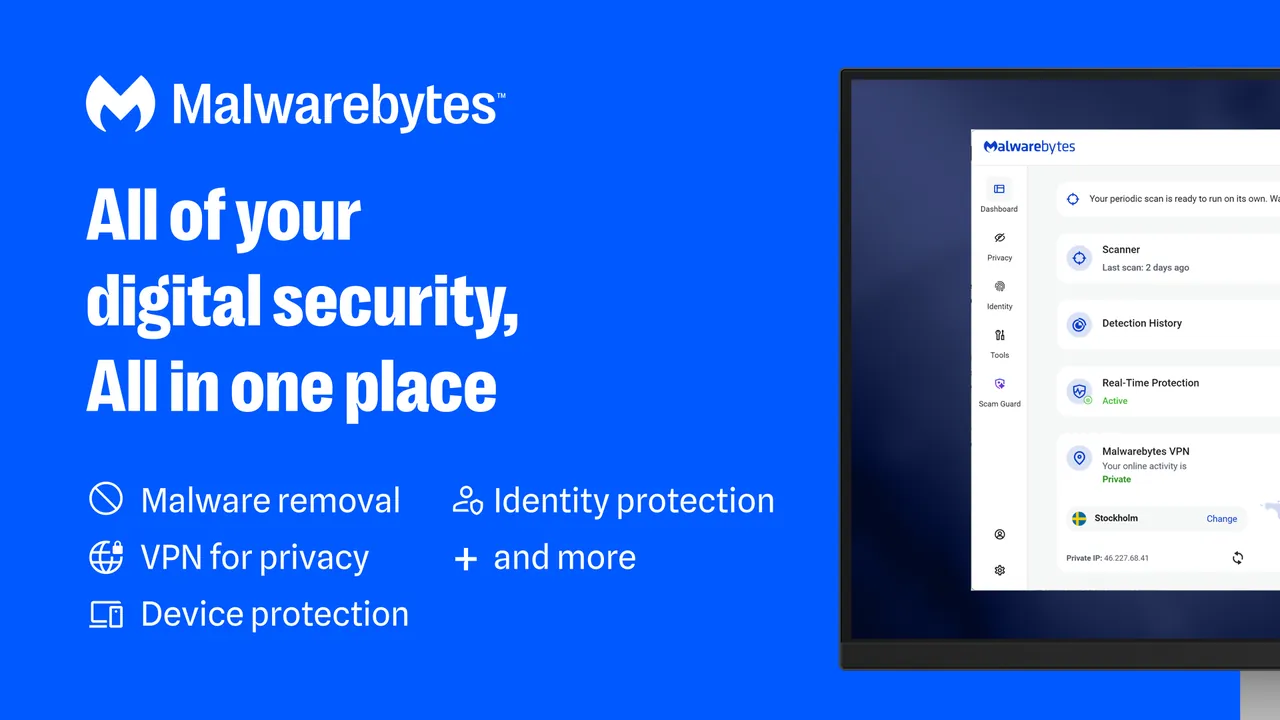
Malwarebytes Free scans on demand and removes malware already on the PC, next to Microsoft Defender. Real-time protection is part of the paid Premium plan, and a 14-day Premium trial starts after installation.
Pros
- Free on-demand scanning and removal
- Clear list of free and paid features
- Trial can be turned off right away
Cons
- No real-time protection in the free version
- Installs with a 14-day Premium trial and shows upgrade prompts
- Closed source
2. HitmanPro — Malware Scanner
Best for: A portable second opinion without installation
- Shareware
- $24.95, per year for 1 PC
- Security
HitmanPro runs from a single file, looks for malicious behavior as well as known signatures and checks suspicious files against four security labs. Scanning is free; removing what it finds needs a one-time 30-day free license and then a $24.95 yearly license.
Pros
- Scanning is free and unlimited
- Portable, no installation needed
- Runs next to any existing antivirus
Cons
- Removal after the one-time 30-day license requires a paid license
- No real-time protection without HitmanPro.Alert
- Windows only
3. Kaspersky Virus Removal Tool — Malware Scanner
Best for: Cleaning a PC where a suspicious EXE already ran
- Freeware
- Free
- Security
Kaspersky Virus Removal Tool is a free portable scanner built to remove active infections, including malware that blocks a regular antivirus. It gives no real-time protection, needs a fresh download of about 120 MB for new signatures, and Kaspersky's sales are banned in the US.
Pros
- Free and portable, no installation
- Cleans active infections that block other antivirus tools
- Can run alongside any installed antivirus
Cons
- No real-time protection, scans only when you start it
- Kaspersky is a Russian company and its software sales are banned in the US since 2024
- Large download of about 120 MB that you need to fetch again for new signatures
4. Process Explorer — Task Manager
Best for: Checking what is running against VirusTotal
- Freeware
- Free
- Utilities
Process Explorer from Microsoft Sysinternals shows every running process with its owner and loaded DLLs and can check their hashes on VirusTotal. It only sees programs that are already running, so it does not replace the checks before you run a file.
Pros
- Finds which process locks a file
- Detailed handle and DLL views
- Official Microsoft tool, no ads
Cons
- Current version requires Windows 11; Windows 10 is not listed as supported
- Dense interface made for technical users
- Closed source
5. Sysinternals Suite — System Troubleshooting Tools
Best for: Sigcheck and Autoruns for deeper checks
- Freeware
- Free
- Utilities
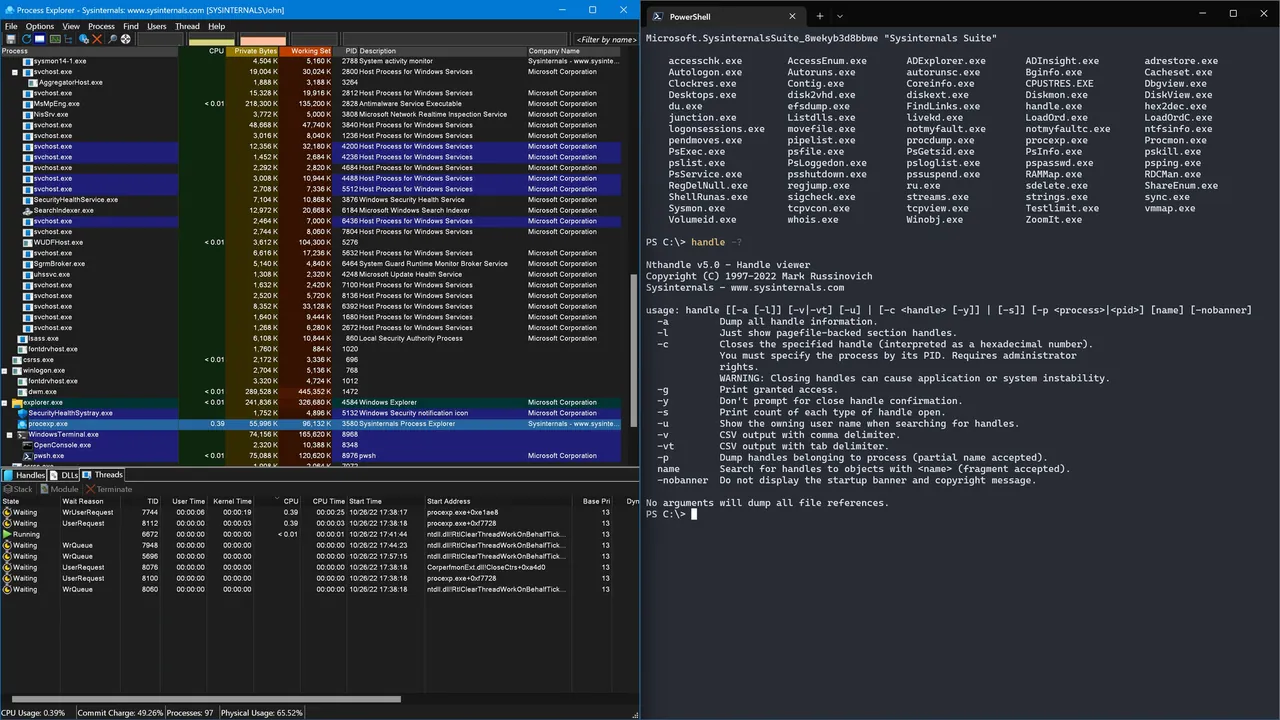
Sysinternals Suite bundles Sigcheck, which verifies signatures and queries VirusTotal from the command line, and Autoruns, which lists everything set to start with Windows. The tools are free and portable but made for technical users.
Pros
- Official Microsoft tools, free
- Over 70 utilities in one download
- Portable, no installation
Cons
- Aimed at technical users
- No shared launcher; each tool is a separate EXE
- Some tools are flagged or blocked by security software because they can be misused
6. Sandboxie-Plus — Sandbox
Best for: Testing unknown programs on Windows Home
- Freeware
- Free
- Security
Sandboxie-Plus runs a program in a box whose file and registry changes you can delete afterwards, without a virtual machine, so it works where Windows Sandbox is not available. It is free for personal use only, and the stronger security-hardened boxes need a paid certificate.
Pros
- Much lighter than a virtual machine
- Unlimited sandboxes and snapshots in the free version
- Active development with frequent releases
Cons
- Privacy and security enhanced boxes, encryption and DNS filtering need a paid certificate
- Commercial and educational use requires a business certificate
- Free version shows support reminders
Frequently asked questions
How can I tell if an EXE file is a virus without running it?
Right-click it and choose Scan with Microsoft Defender, check the Digital Signatures tab in Properties, and look up the file on virustotal.com. Together these catch most known malware without opening the file.
Does a digital signature mean a file is safe?
No. It proves who signed the file and that it was not changed afterwards. Malware has been signed with stolen or purchased certificates, so the signer name must also be the developer you expected.
Is it safe to click Run anyway on a SmartScreen warning?
Only if the file came from the developer's own site, the publisher name matches and a Defender scan is clean. SmartScreen also warns about new versions of legitimate programs.
How do I check the SHA-256 hash of a file on Windows?
Open PowerShell and run Get-FileHash followed by the file path. It uses SHA-256 by default; compare the result with the hash on the developer's download page.
Is VirusTotal safe to use?
Yes, and searching by hash uploads nothing. VirusTotal says uploaded files are shared with its security partners and the security community, so do not upload anything that contains personal data.
ExeDepot does not host installers. Every download button opens the developer's own server or official download page. Prices and licenses come from each developer's site and were checked on .