
Security · Updated
The best password managers for Windows
A password manager stores your logins in an encrypted vault, generates a different strong password for every site and fills them in for you. The first decision is where the vault lives: on the provider's servers with end-to-end encryption, so it syncs to your phone automatically, or in a local file you control and sync yourself.
The second decision is price. Several good apps are free with no limit on passwords, but free plans differ a lot: some sync to every device, some work on one device only, and some cap the number of items. Paid plans mostly add a built-in 2FA code generator, file attachments, security reports, sharing and emergency access.
Our picks at a glance
| App | Best for | License | Price | Download |
|---|---|---|---|---|
 Bitwarden Bitwarden |
The best free password manager with sync | Open source | Free | Review |
 Proton Pass Proton Pass |
Free sync plus hide-my-email aliases | Open source | Free | Review |
 KeePassXC KeePassXC |
An offline vault with no account | Open source | Free | Review |
 1Password 1Password |
A polished paid manager for individuals and families | Free trial | $35.88, first year ($2.99/month billed annually), then $3.99/month | Review |
 KeePass KeePass |
Windows power users who like plugins | Open source | Free | Review |
 RoboForm RoboForm |
Filling long forms and desktop app logins | Freeware | Free | Review |
 NordPass NordPass |
A free manager for one computer | Freeware | Free | Review |
 Enpass Enpass |
Syncing through your own cloud storage | Freeware | Free | Review |
 Keeper Password Manager Keeper Password Manager |
Paid sharing and emergency access for families | Free trial | $42.99, per year, Keeper Unlimited for 1 user | Review |
1. Bitwarden — Password Manager
Best for: The best free password manager with sync
- Open source
- Free
- Security
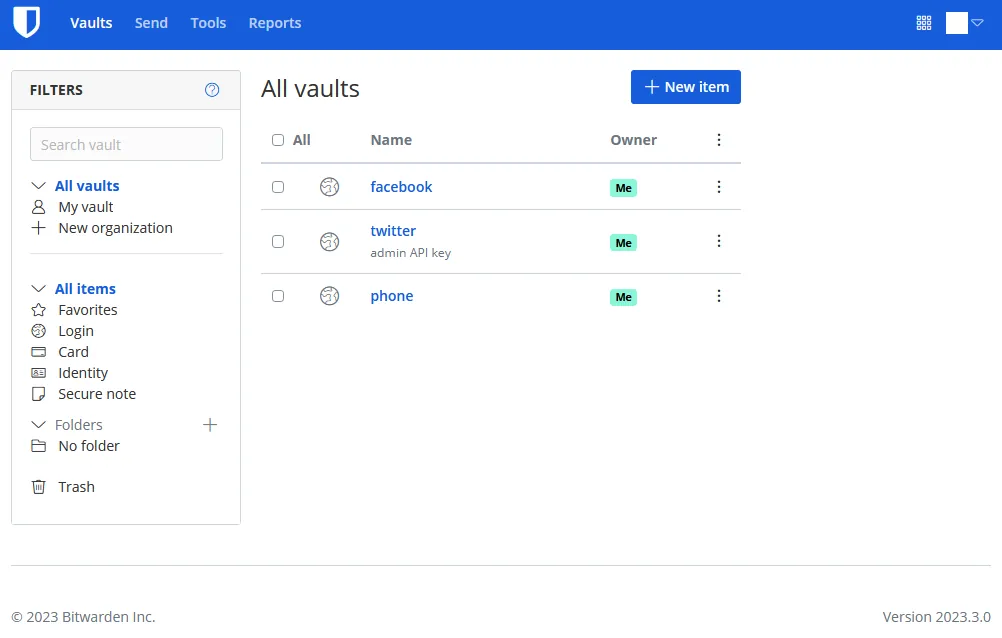

Bitwarden's free plan covers unlimited passwords on unlimited devices with sync, browser autofill for every major browser, a password generator, encrypted export and sharing with one other person. Few paid products offer more for everyday use, and the apps are open source under the GPL v3. You can even host the server yourself.
The built-in 2FA code generator, file attachments, vault health reports and emergency access need Premium, billed annually. Without self-hosting, your encrypted vault sits on Bitwarden's servers; if you do not want it in any company's cloud, KeePassXC keeps it in a local file.
Pros
- Unlimited passwords and devices for free
- Open source
- Apps for every major platform
Cons
- 2FA code generator, attachments and health reports require Premium
- Requires a Bitwarden account and cloud sync unless you self-host
2. Proton Pass — Password Manager
Best for: Free sync plus hide-my-email aliases
- Open source
- Free
- Security
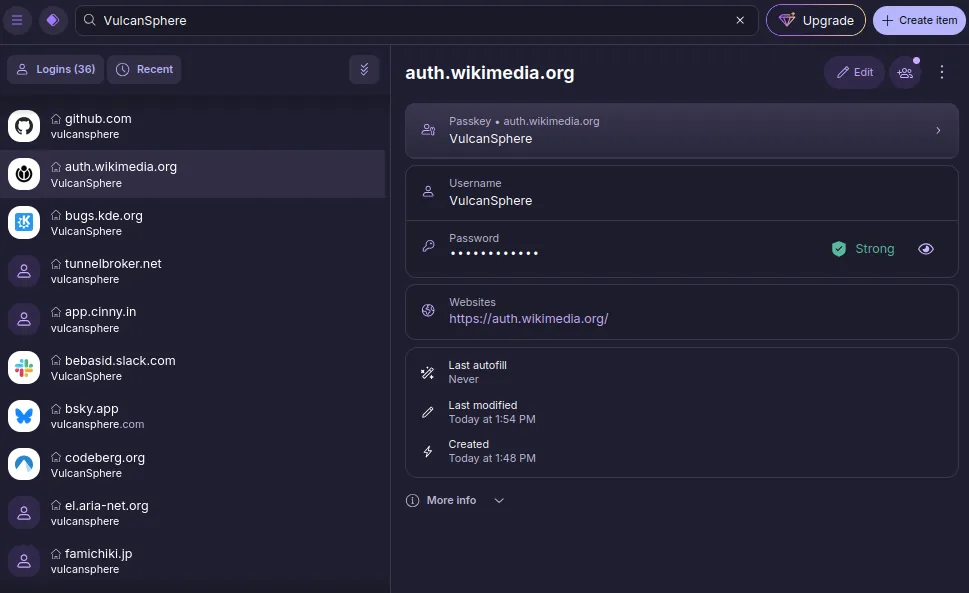

Proton Pass matches Bitwarden on the essentials: unlimited logins, notes and devices on the free plan, end-to-end encryption, open-source and audited apps. Its extra is hide-my-email aliases that forward to your real inbox, so you can sign up for services without giving out your address; the free plan includes 10.
It needs a Proton account, and the built-in 2FA authenticator and unlimited vaults are part of the paid Pass Plus plan. It is the natural choice if you already use Proton Mail or Proton VPN.
Pros
- Unlimited passwords and devices on the free plan
- Email aliases included
- Open source and audited
Cons
- Built-in 2FA authenticator and unlimited vaults require Pass Plus
- Requires a Proton account and cloud sync
- Only 10 email aliases on the free plan
3. KeePassXC — Password Manager
Best for: An offline vault with no account
- Open source
- Free
- Security
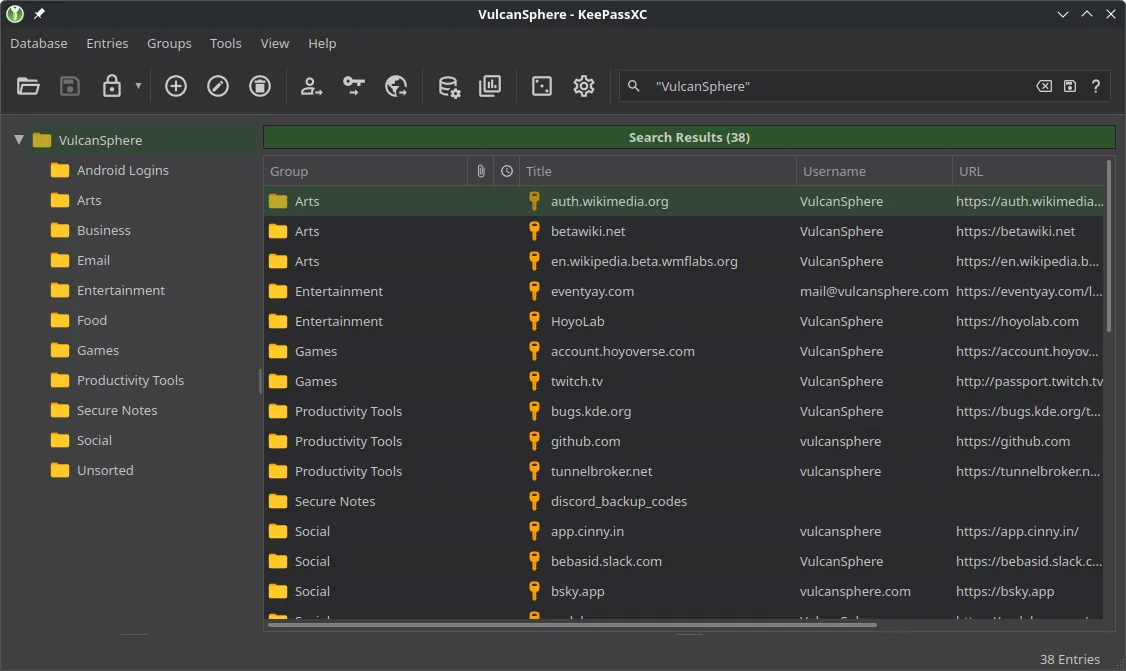

KeePassXC stores everything in one encrypted KDBX file on your PC, protected by a master password and optionally a key file or hardware key. No account, no subscription, and no company holds your vault. It still has modern features: browser autofill through the KeePassXC-Browser extension, TOTP codes for 2FA and a health check for weak and breached passwords.
Syncing is your job. Many people keep the file in a cloud folder and open it on phones with compatible apps such as KeePassDX or Strongbox, since there is no official mobile app. Compared with the original KeePass, the interface is more modern and browser integration is built in.
Pros
- No account or subscription
- You control the encrypted file
- Built-in 2FA codes
Cons
- Sync between devices is up to you
- No official mobile app
- Setup takes a few minutes
4. 1Password — Password Manager
Best for: A polished paid manager for individuals and families
- Free trial
- $35.88, first year ($2.99/month billed annually), then $3.99/month
- Security
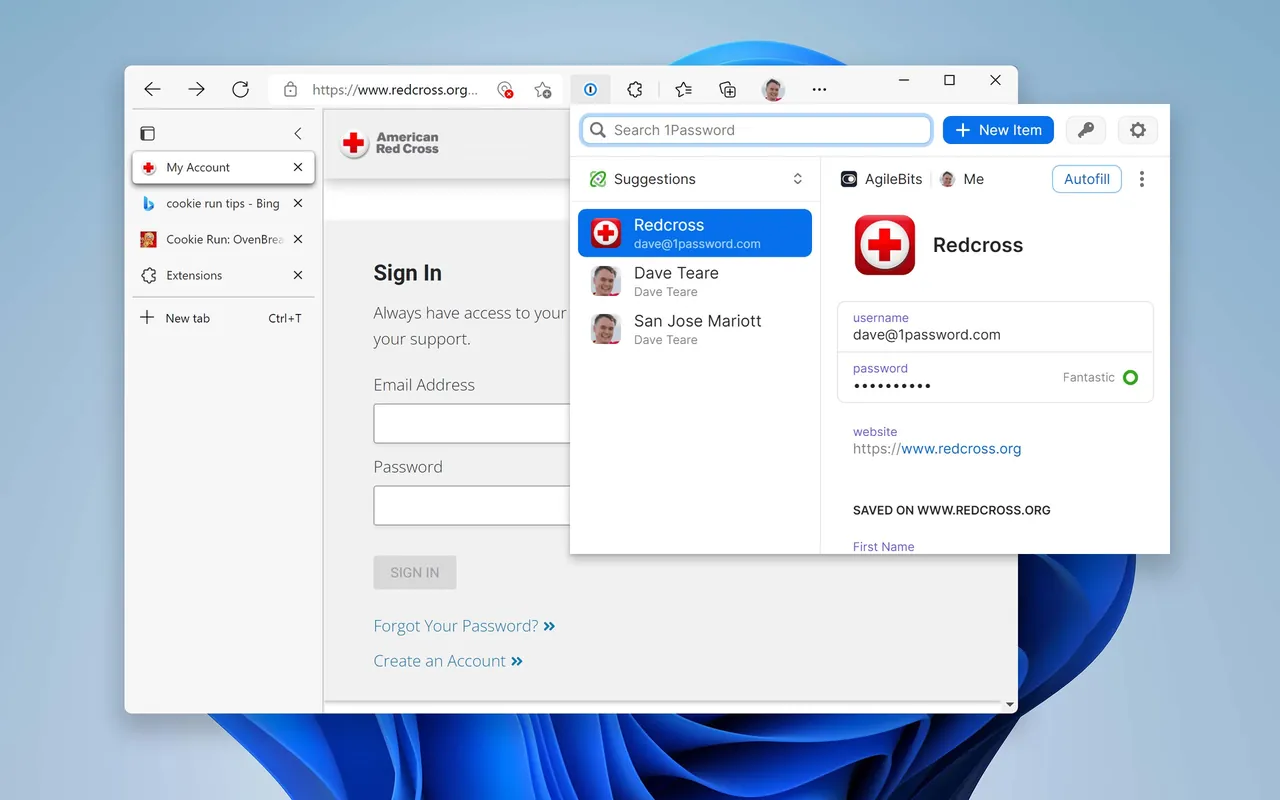
1Password is the pick if you are willing to pay for polish. Vaults are encrypted with your account password plus a Secret Key created on your device, Watchtower warns about weak, reused and breached logins, it stores passwords, passkeys, documents and SSH keys, and Travel Mode hides chosen vaults when you cross borders.
There is no free plan, only a 14-day trial, and billing starts automatically when it ends. The Individual plan costs $2.99 per month billed annually in the first year ($35.88), then $3.99 per month. If you stop paying, you can still sign in to view and export your data. Bitwarden gives most of the same basics for free.
Pros
- Strong encryption with an extra Secret Key
- Apps for Windows, macOS, Linux, Android and iOS
- Watchtower breach and weak-password alerts
Cons
- No free plan, only a 14-day trial
- Billed automatically when the trial ends unless cancelled
- Regular price is higher than the first-year promotion
5. KeePass — Password Manager
Best for: Windows power users who like plugins
- Open source
- Free
- Security
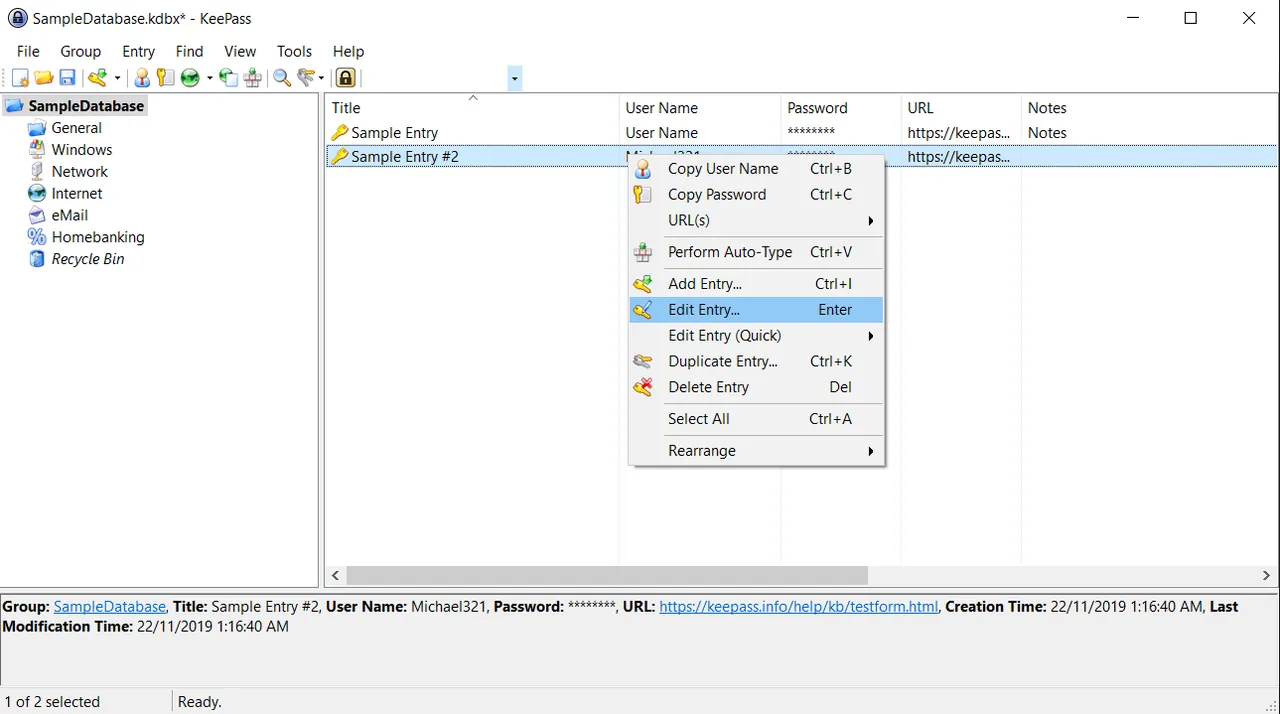

KeePass is the original offline password manager, around since 2003. Like KeePassXC it uses one encrypted KDBX database, but it can be unlocked with a master password, a key file, your Windows user account or a combination, and its plugin system adds browser integration, sync and extra key providers.
Instead of browser autofill it relies on Auto-Type, a global hotkey that types your login into the active window. The interface looks dated, browser autofill needs a third-party plugin, and there are no official mobile apps.
Pros
- No account or cloud needed
- Strong encryption and key file support
- Large plugin library
Cons
- Interface looks dated
- Browser autofill needs a third-party plugin
- No official mobile apps
6. RoboForm — Password Manager
Best for: Filling long forms and desktop app logins
- Freeware
- Free
- Security
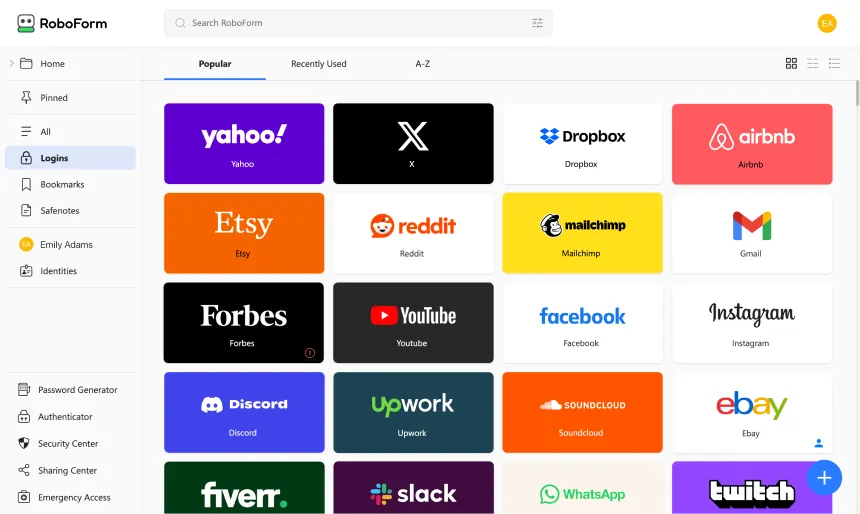
RoboForm is still the strongest at filling long web forms with names, addresses and payment details, and on Windows it can save and fill logins for desktop applications, not only websites. Unusually, the free plan includes a built-in TOTP authenticator and compromised password alerts.
The free plan works on one device only. Premium costs $2.49 per month billed annually ($29.88 per year) and adds sync on all devices, sharing and emergency access. The app is closed source, unlike Bitwarden.
Pros
- Unlimited passwords on the free plan
- Excellent web form filling
- Free TOTP authenticator and breach alerts
Cons
- Free plan works on a single device only
- Sharing and emergency access need Premium
- Closed source
7. NordPass — Password Manager
Best for: A free manager for one computer
- Freeware
- Free
- Security
NordPass, from the makers of NordVPN, stores unlimited passwords, passkeys, cards and notes on the free plan, with autosave, autofill and import from other managers. The vault is encrypted on your device with XChaCha20, and the desktop app and extension have been audited by Cure53.
Access on multiple devices, Password Health, the breach scanner and file attachments are Premium features, so the free plan suits one-computer users only. It is closed source and needs a Nord Account; Proton Pass gives free sync instead.
Pros
- No limit on stored passwords on the free plan
- Clean, simple apps and browser extensions
- Desktop app and extension audited by Cure53
Cons
- Free plan does not include access on multiple devices
- Password Health, breach alerts and file attachments need Premium
- Closed source and requires a Nord Account
8. Enpass — Password Manager
Best for: Syncing through your own cloud storage
- Freeware
- Free
- Security
Enpass never stores your vault on its own servers. The encrypted vault stays on your PC or syncs through a cloud account you already own: iCloud, Google Drive, OneDrive, Dropbox, Box or Nextcloud. That is a middle ground between a cloud service like Bitwarden and a local file like KeePassXC, with autofill and Windows Hello unlock included.
The free plan is small at 25 items in one vault. Premium is listed from $1.99 per month billed annually, or $99.99 for a lifetime license, so you can avoid a subscription. The app is closed source, although its SQLCipher encryption engine is open source.
Pros
- Vault never stored on Enpass servers
- Sync through a cloud account you already have
- Lifetime license option
Cons
- Free plan limited to 25 items in one vault
- Security dashboard, authenticator and breach alerts need Premium
- Closed-source app, although the encryption engine is open source
9. Keeper Password Manager — Password Manager
Best for: Paid sharing and emergency access for families
- Free trial
- $42.99, per year, Keeper Unlimited for 1 user
- Security
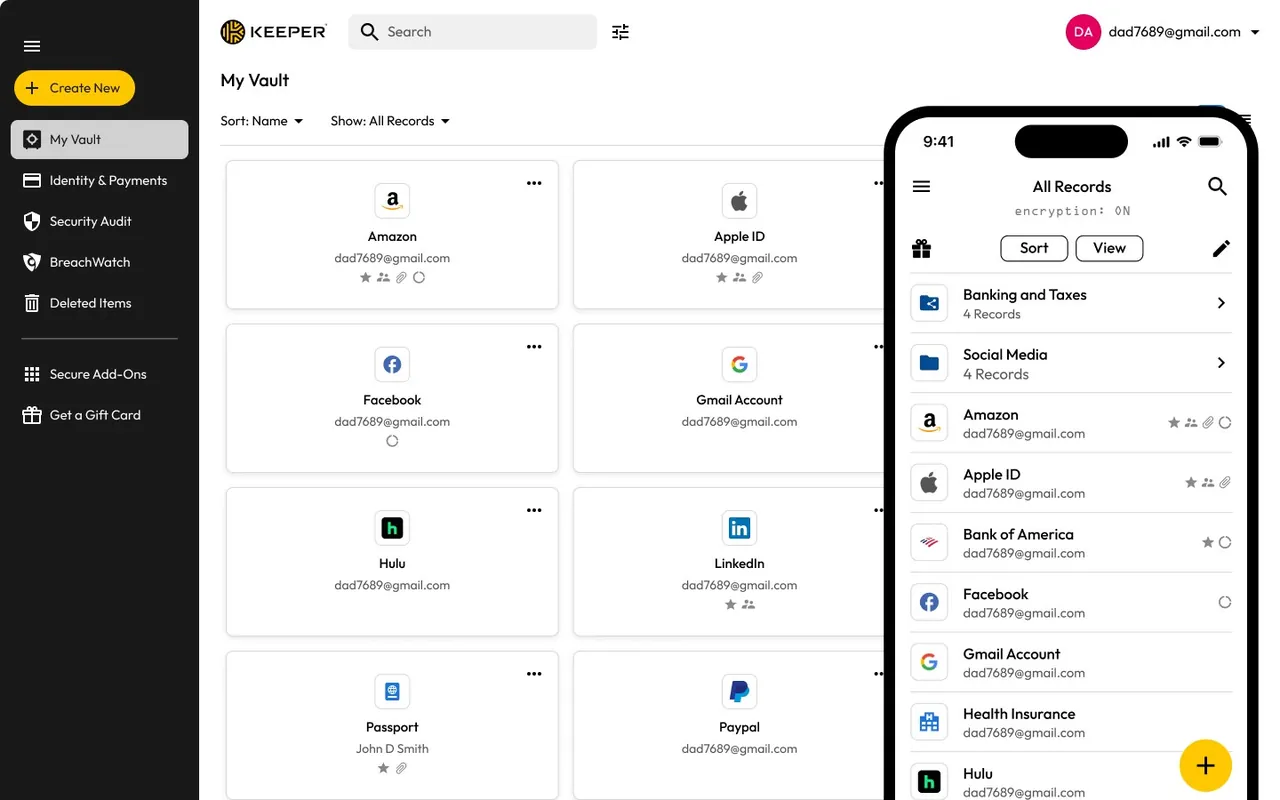
Keeper is a polished paid manager with zero-knowledge AES-256 encryption, Windows Hello unlock, passkeys, secure sharing including one-time shares with non-users, and emergency access for up to five trusted contacts. Keeper Family covers 5 users.
On Windows it is effectively paid only: the free plan works on one mobile device with 10 records, so the desktop app needs the 30-day trial or a subscription such as Keeper Unlimited at $42.99 per year. BreachWatch and extra file storage cost more, and the current Windows app requires Windows 11.
Pros
- Zero-knowledge AES-256 encryption
- Windows Hello unlock and passkey support
- Emergency access and secure sharing
Cons
- Free plan does not include the Windows app; desktop use needs a subscription after 30 days
- Dark web monitoring and file storage cost extra
- Current Windows app requires Windows 11
Cloud sync or a local file?
Cloud managers such as Bitwarden, Proton Pass and 1Password encrypt the vault on your device before it is uploaded, so the provider cannot read it, and every device stays in sync without effort. Your security then depends on your master password and on the provider's design.
KeePassXC and KeePass keep the vault in a file only you hold. That removes the provider from the picture, but you are responsible for backups and for syncing the file to other devices. Enpass sits in between and syncs through your own cloud storage.
What free plans really include
Free with sync on every device: Bitwarden and Proton Pass. Free on one device only: RoboForm and NordPass. Free with an item limit: Enpass at 25 items. Free and offline with no limits: KeePassXC and KeePass. 1Password has no free plan, and Keeper's free plan does not cover the Windows app.
Do you need the 2FA code generator?
A built-in authenticator stores the six-digit 2FA codes next to the password, which is convenient but puts both factors in one vault. Free options that include it are KeePassXC and RoboForm; Bitwarden and Proton Pass reserve it for their paid plans. A separate authenticator app keeps the two factors apart.
Frequently asked questions
What is the best free password manager for Windows?
Bitwarden for most people, because the free plan syncs unlimited passwords to unlimited devices. Choose KeePassXC if you want an offline vault with no account, and Proton Pass if you also want email aliases.
Is Bitwarden better than 1Password?
Bitwarden is free for unlimited passwords and devices and is open source. 1Password has no free plan but adds Travel Mode, Watchtower and a more polished app. For most users Bitwarden covers the essentials; 1Password suits people who want to pay for convenience.
Is KeePass or KeePassXC better?
Both use the same KDBX database format. KeePassXC has a modern interface, built-in browser integration and runs on Windows, macOS and Linux. KeePass is the original Windows app with Auto-Type and a large plugin system but needs a plugin for browser autofill.
Is 1Password free?
No. 1Password has a 14-day trial, then the Individual plan costs $2.99 per month billed annually in the first year and $3.99 per month after that.
Can the password manager company see my passwords?
With Bitwarden, Proton Pass, 1Password, NordPass and Keeper, the vault is encrypted on your device before it is synced, so the company cannot read it. With KeePassXC and KeePass, the vault never leaves your PC unless you copy it.
ExeDepot does not host installers. Every download button opens the developer's own server or official download page. Prices and licenses come from each developer's site and were checked on .