
AI tools · Updated
The best apps to run local LLMs on Windows
Running a language model on your own PC means your prompts never leave the computer, there is no monthly fee and the assistant keeps working without internet. The trade-off is hardware: the model has to fit into your RAM or graphics memory, and even a good local model is weaker than the best cloud models such as those behind ChatGPT or Claude.
All apps below are free to use for local models. They differ in who they are built for: some are engines for developers, some are chat apps for everyday users, and some focus on answering questions about your own documents. Most of them use the same llama.cpp engine and the same GGUF model files, so the model you download matters as much as the app.
Our picks at a glance
| App | Best for | License | Price | Download |
|---|---|---|---|---|
 LM Studio LM Studio |
Beginners who want the most polished all-in-one app | Freeware | Free | Review |
 Ollama Ollama |
Developers and a backend for other AI apps | Open source | Free | Review |
 Jan Jan |
A private, open-source ChatGPT replacement | Open source | Free | Review |
 AnythingLLM AnythingLLM |
Asking questions about your own documents | Open source | Free | Review |
 GPT4All GPT4All |
PCs without a gaming graphics card | Open source | Free | Review |
 KoboldCpp KoboldCpp |
Enthusiasts, story writing and roleplay | Open source | Free | Review |
 Msty Studio Msty Studio |
Mixing local models and cloud AI in one window | Freeware | Free | Review |
 AMD GAIA AMD GAIA |
Owners of AMD Ryzen AI laptops | Open source | Free | Review |
1. LM Studio — Local LLM Runner
Best for: Beginners who want the most polished all-in-one app
- Freeware
- Free
- AI tools
LM Studio is the easiest place to start. You search for an open model such as Qwen, Gemma, Mistral or gpt-oss inside the app, and it shows which versions fit your hardware before you download several gigabytes. After that, chat works fully offline.
It is not only a chat window. You can attach documents to a conversation, connect MCP servers for tools, and turn on a local server with an OpenAI-compatible API, so coding tools and scripts can use the model you loaded. The catch is that LM Studio is closed source, and it needs a CPU with AVX2 and ideally 16 GB of RAM or more.
Pros
- Free to use
- Polished model search and download
- Works offline after models are downloaded
Cons
- Closed source
- Needs an AVX2 CPU and lots of RAM
- Large installer and model files
2. Ollama — Local LLM Runner
Best for: Developers and a backend for other AI apps
- Open source
- Free
- AI tools

Ollama is the engine many other apps are built around. One command, such as ollama run with a model name, downloads and starts a model, and Ollama then serves it on localhost port 11434. Chat apps like AnythingLLM, Msty Studio and Cherry Studio, and AI coding tools can all connect to it.
On Windows it installs without administrator rights, sits in the tray and supports NVIDIA and AMD Radeon GPUs. Its own interface is basic, so many people pair it with a separate chat app. Ollama also offers cloud models, but those need sign-in, mostly a paid plan, and send your prompts to its servers.
Pros
- Free and open source
- Simple model download and run
- Local API used by many other apps
Cons
- Basic interface compared with full chat apps
- Large models need a strong GPU and a lot of disk space
- Cloud models need an account and mostly a paid plan
3. Jan — Local LLM Runner
Best for: A private, open-source ChatGPT replacement
- Open source
- Free
- AI tools

Jan looks and feels like a ChatGPT-style chat app, but everything runs on your PC. It downloads models from inside the app and runs them through a bundled llama.cpp engine with acceleration on NVIDIA, AMD and Intel Arc graphics. Chats and settings stay in a local folder.
Unlike LM Studio, Jan is open source under the Apache License 2.0. It also has a local OpenAI-compatible API and MCP support, and you can add cloud providers with your own API key if you sometimes need a stronger model. For good speed, plan on a GPU with at least 6 GB of video memory.
Pros
- Free and open source
- Runs offline with data kept on your PC
- Simple in-app model downloads
Cons
- Needs an AVX2 CPU and plenty of RAM
- Local models are weaker than top cloud models
- Model files take a lot of disk space
4. AnythingLLM — AI Chat App
Best for: Asking questions about your own documents
- Open source
- Free
- AI tools
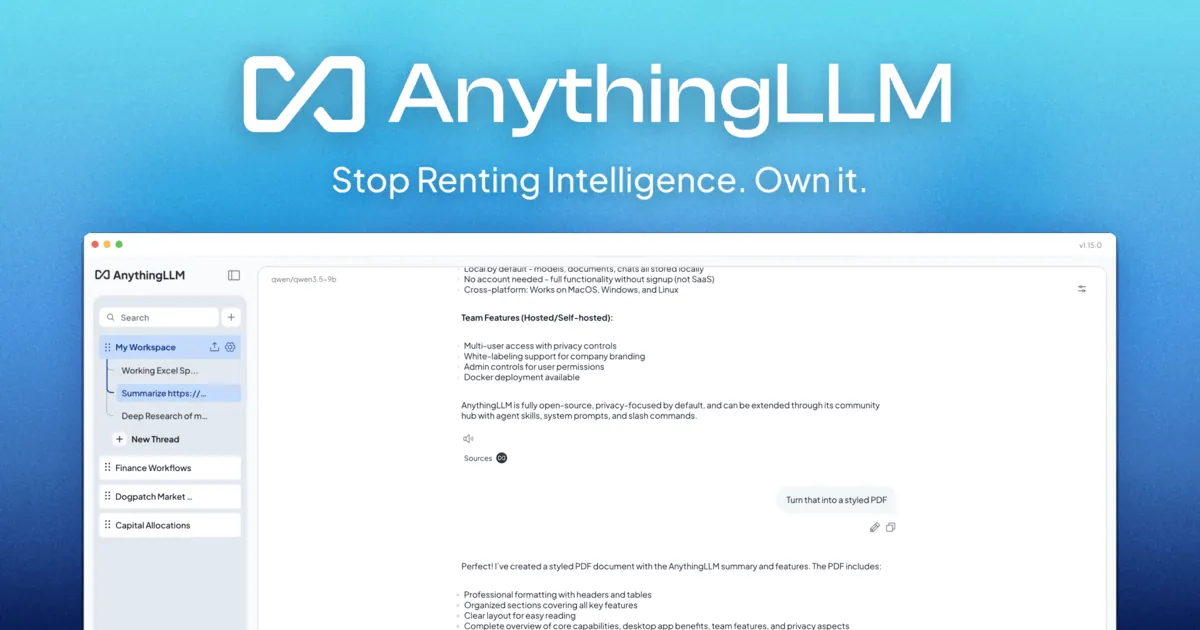
AnythingLLM is built around workspaces: you add PDFs, documents or web pages, and the model answers using that material. The desktop version bundles a local model provider, an embedder and a vector database, so document search works without installing anything else.
It can also use Ollama or LM Studio as the model engine, and its agents can browse the web, summarize files and use MCP tools. There are many settings to learn, and the desktop app is single-user; multi-user accounts are only in the self-hosted Docker version.
Pros
- Free and open source
- Works fully locally with built-in components
- Strong document chat and workspaces
Cons
- Many settings to learn
- Desktop version is single-user
- Local models need a strong PC
5. GPT4All — Local LLM Runner
Best for: PCs without a gaming graphics card
- Open source
- Free
- AI tools

GPT4All from Nomic AI was designed to run on ordinary hardware. It works on the CPU alone and uses NVIDIA or AMD GPUs through Vulkan when they are available, so an office laptop can still run small models. Its LocalDocs feature indexes folders on your PC and lets the model answer from them offline.
The downside is pace: the last desktop release, 3.10, came out in February 2025, and newer apps add features faster. It remains a simple, MIT-licensed option if you want local chat with minimal setup.
Pros
- Free and open source
- Runs on ordinary PCs without a GPU
- LocalDocs chat with your own files
Cons
- No new desktop release since February 2025
- CPU-only speed is slow with bigger models
- Fewer features than newer local AI apps
6. KoboldCpp — Local LLM Runner
Best for: Enthusiasts, story writing and roleplay
- Open source
- Free
- AI tools
KoboldCpp is a single executable: no installer, no dependencies. It opens a launcher with detailed control over context size, GPU offloading and sampling, then serves the KoboldAI Lite web interface for chat, stories and roleplay, plus an API for other front ends.
Models are not included; you download GGUF files yourself, for example from Hugging Face. Download KoboldCpp only from its GitHub releases: the developers warn that koboldcpp.com is a fake site.
Pros
- Free and open source
- No installation, one file
- Very detailed control over generation
Cons
- Models must be found and downloaded separately
- Many technical settings
- Fake download sites exist; only the GitHub releases are official
7. Msty Studio — AI Chat App
Best for: Mixing local models and cloud AI in one window
- Freeware
- Free
- AI tools
Msty Studio connects local engines such as Ollama and llama.cpp and cloud providers in one model hub. Split Chats run several models side by side, which is a quick way to see whether a local model is good enough for a task before paying for an API.
The free plan covers chat, Agent Mode and Split Chats, but personas, Knowledge Stacks and MCP tools are limited, and the full feature set needs the Aurum subscription at $149 per year. The app is closed source and sends no telemetry.
Pros
- Local and cloud models in one app
- Data stays on your PC with no telemetry
- Agent Mode and Split Chats on the free plan
Cons
- Personas, Knowledge Stacks and MCP tools are limited on the free plan
- Aurum costs $149 per year
- No sync between devices and closed source
8. AMD GAIA — Local AI Agent
Best for: Owners of AMD Ryzen AI laptops
- Open source
- Free
- AI tools
GAIA is AMD's open-source local AI agent. On a Ryzen AI PC it runs models on the NPU and integrated graphics, answers from your indexed documents, edits files and queries spreadsheets, and asks for approval before it writes anything or runs a command.
It is clearly tuned for AMD's own chips: AMD lists a Ryzen AI 300-series processor as the minimum, and the first launch downloads a model of about 6 GB. On other hardware, the general-purpose apps above are a better choice.
Pros
- Free and open source
- Runs locally on the Ryzen AI NPU
- Asks before acting on files
Cons
- Built and tuned for AMD Ryzen AI hardware
- Large model download on first launch
- Young project that changes quickly
How much hardware do you need?
The model size decides almost everything. Small models with 3 to 8 billion parameters run on 16 GB of RAM and a GPU with 6 to 8 GB of video memory, and they handle summaries, drafts and simple coding questions. Models with 14 to 32 billion parameters need 12 to 24 GB of video memory for comfortable speed. If the model does not fit into the GPU, the apps split it between GPU and CPU, which works but is much slower.
Plan for disk space as well: a single model file is usually 2 to 20 GB. LM Studio and Jan need a CPU with AVX2, which nearly every PC from the last ten years has. GPT4All is the most forgiving option for older or GPU-less machines.
Engine or chat app?
If you want one program that does everything, pick LM Studio or Jan. If you want to use local models from many tools, such as a coding assistant in VS Code, a chat app and your own scripts, install Ollama as the engine and add a front end you like. The local API of LM Studio and Jan can play the same role.
Is local AI really private?
With local models, yes: prompts and documents are processed on your PC. Privacy ends the moment you switch to a cloud model inside the same app. Ollama cloud models, API keys added to Jan, AnythingLLM or Msty Studio, and the Fireworks option in GAIA all send your text to an outside provider.
Frequently asked questions
What is the best app to run LLMs locally on Windows?
For most people, LM Studio is the easiest start because it finds models that fit your hardware. Choose Jan if you want open source, and Ollama if you need an engine for other apps and tools.
Is Ollama better than LM Studio?
They solve different problems. Ollama is an open-source engine with a command line and a local API that other apps use. LM Studio is a closed-source desktop app with a full interface, model search and its own API server. Both run the same kind of GGUF models locally.
Can I run a local LLM without a GPU?
Yes. GPT4All and the other apps can run models on the CPU, but only small models are usable, and answers appear noticeably slower than on a graphics card.
Are local LLM apps free?
Yes. Ollama, Jan, GPT4All, KoboldCpp, AnythingLLM and AMD GAIA are open source, and LM Studio is freeware. Msty Studio has a free plan and a paid Aurum subscription. Optional cloud models are billed by their providers.
Do local models work offline?
Yes. Once a model file is downloaded, all apps in this guide can run it without an internet connection.
ExeDepot does not host installers. Every download button opens the developer's own server or official download page. Prices and licenses come from each developer's site and were checked on .