
Graphics · Published
How to convert HEIC to JPG on Windows 11 for free
HEIC is the photo format iPhones and iPads use by default. Apple calls it HEIF: it keeps the same visual quality as JPEG in a smaller file, but many Windows programs, websites and older devices cannot open it. Converting to JPG fixes that.
The quickest free route for a handful of photos is Microsoft's codecs plus Paint. For a folder of hundreds of pictures, a batch converter such as XnConvert does the job in one pass. If you want the iPhone to stop producing HEIC files in the first place, change one camera setting. All four methods are below. If you only want to view HEIC photos without converting them, see how to open HEIC files on Windows 11.
Method 1: Microsoft's extensions and Paint
Windows 11 does not open HEIC photos out of the box. Microsoft's support page says you need two extensions from the Microsoft Store, even if you only work with photos and never with video:
- Install HEIF Image Extensions from the Microsoft Store. It is free.
- Install HEVC Video Extensions from the Microsoft Store. Microsoft lists it at $0.99. HEIC photos are compressed with the HEVC codec, so the HEIF extension alone is not enough.
- Restart the Photos app. HEIC files now open in Photos and get thumbnails in File Explorer.
- Right-click a HEIC file, choose Open with and pick Paint.
- In Paint, choose File, then Save as, then JPEG picture, and save the copy.
This is fine for a few photos, but you save every file by hand. If the extensions are installed and a photo still does not open, uninstall the HEIF extension, install HEVC first and then HEIF again: the order matters on some PCs.
Method 2: Convert a whole folder with XnConvert
XnConvert is a free batch converter for private use that reads HEIC directly, so you do not need to buy the HEVC extension. It converts a whole folder in one run:
- Download XnConvert from the official XnView site and install it.
- On the Input tab, click Add files or Add folder and select your HEIC photos.
- Skip the Actions tab, or add a Resize action if the photos are going to a website or an email.
- On the Output tab, choose a destination folder and set the format to JPG. Open the format settings to set the JPEG quality; around 90 keeps the photos visually identical in a bigger file than HEIC.
- Click Convert. The JPG copies appear in the destination folder, and the originals stay untouched.
Save the settings as a preset if you convert phone photos regularly. XnConvert is free for private, educational and non-profit use; a company needs a paid license.
Method 3: Convert inside an image viewer
If you also want a better photo viewer than the Photos app, XnView MP reads HEIC, AVIF and camera RAW and contains the same batch converter as XnConvert. Select the photos in its browser, open Tools, then Batch convert, and choose JPG as the output.
FastStone Image Viewer can also batch-convert HEIC to JPG, but it relies on Microsoft's codecs from Method 1 to read HEIC. Format Factory converts HEIC as part of a larger video and audio toolbox; read every setup screen, because its installer can show partner offers.
Method 4: Stop the iPhone from saving HEIC
Apple documents two settings that avoid HEIC on Windows altogether:
- For new photos: open Settings on the iPhone, tap Camera, tap Formats and choose Most Compatible. New photos are saved as JPEG and videos as H.264.
- For transfers over USB: open Settings, tap Apps, tap Photos, and under Transfer to Mac or PC choose Automatic instead of Keep Originals. Photos copied to a Windows PC over a cable are then converted to JPEG on the way.
Most Compatible files take more space on the phone and in iCloud. Apple also notes that photos sent by AirDrop, Messages or email may be converted to JPEG automatically when the receiving device does not support HEIF.
Does converting HEIC to JPG lose quality?
Both formats are lossy, so every conversion recompresses the image. At a JPEG quality of 85 to 95 the difference is not visible in normal viewing, but the JPG is usually larger than the original HEIC. Keep the HEIC originals if you might edit the photos later, and convert copies for sharing.
Live Photos are a special case: the HEIC file holds the still picture, and the motion part is a separate video file. Converting the HEIC keeps the still image only.
Free tools for this job
| App | Best for | License | Price | Download |
|---|---|---|---|---|
 XnConvert |
Converting hundreds of HEIC photos at once | Freeware | Free | Review |
 XnView MP |
Browsing iPhone photos and converting from the same window | Freeware | Free | Review |
 FastStone Image Viewer |
Viewing, fixing and converting photos in one program | Freeware | Free | Review |
 Format Factory |
Occasional conversions of photos, video and audio in one tool | Freeware | Free | Review |
1. XnConvert — Batch Image Converter
Best for: Converting hundreds of HEIC photos at once
- Freeware
- Free
- Graphics
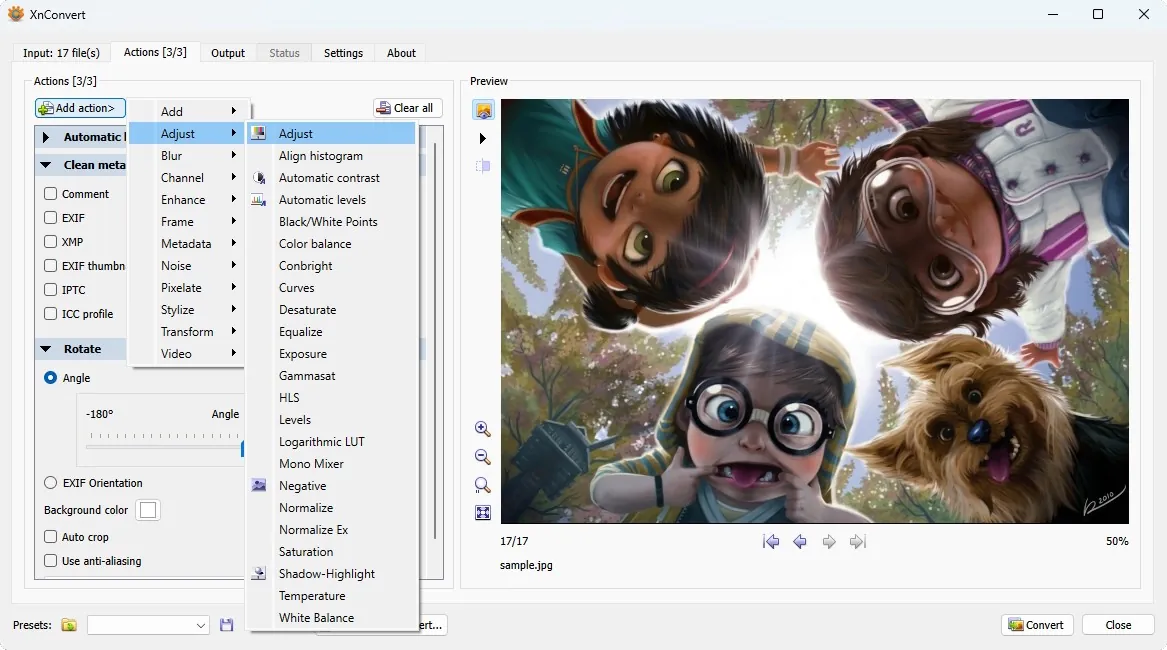
XnConvert reads more than 500 formats, including HEIC, and exports to about 70, with resize, crop, watermark and metadata actions you can chain into a reusable preset. Watch folders convert new photos automatically as they arrive.
Pros
- Huge format support
- 80+ chainable actions
- Saved presets and watch folders
Cons
- Companies must buy a license
- Many options can be confusing at first
2. XnView MP — Image Viewer and Organizer
Best for: Browsing iPhone photos and converting from the same window
- Freeware
- Free
- Graphics
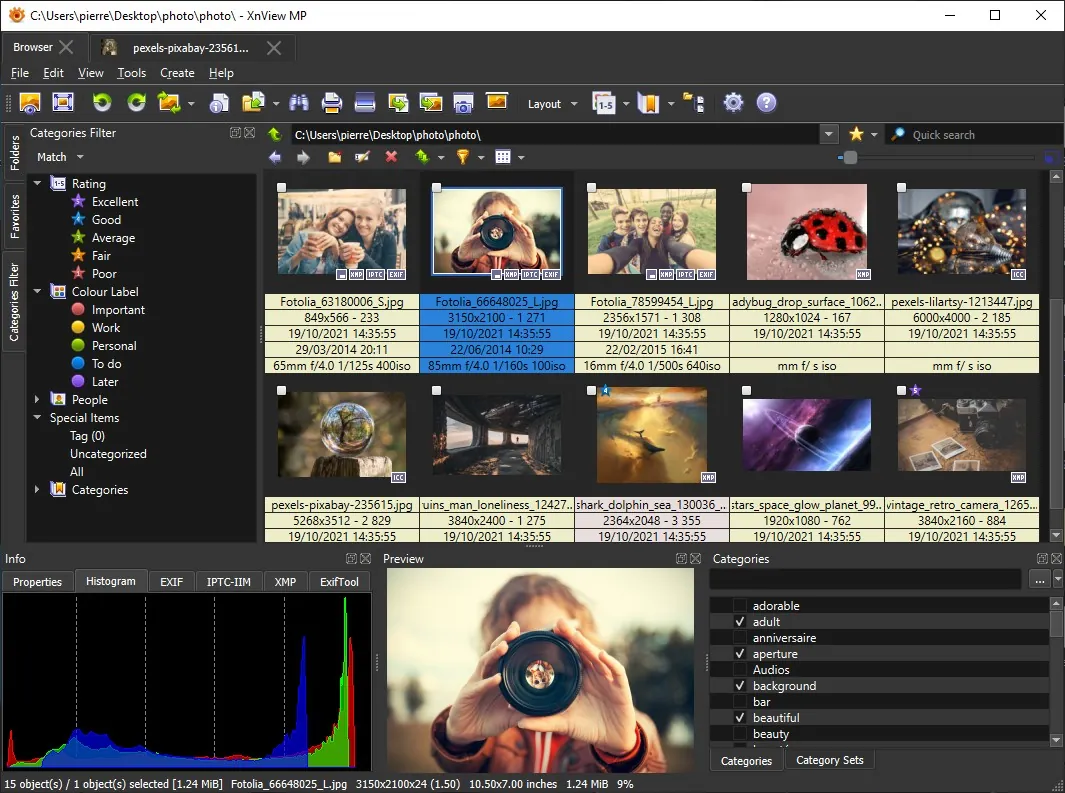
XnView MP is a photo browser for HEIC, AVIF, JPEG XL and RAW with the XnConvert engine built in, plus EXIF, IPTC and XMP editing. Like XnConvert, it is free for private use only.
Pros
- Handles HEIC, AVIF, JPEG XL and RAW
- Strong batch processing
- Full EXIF, IPTC and XMP editing
Cons
- Paid license required in companies
- Many settings can overwhelm new users
3. FastStone Image Viewer — Image Viewer
Best for: Viewing, fixing and converting photos in one program
- Freeware
- Free
- Graphics
FastStone Image Viewer combines a viewer, a light editor and a batch converter. It needs Microsoft's HEIF and HEVC extensions to read HEIC, and it is free for personal and educational use.
Pros
- Viewer, editor and batch converter in one
- Reads camera RAW, HEIC, PSD and PDF
- Compare up to four images
Cons
- Free only for personal and educational use
- Windows only
- HEIC support depends on Microsoft's codecs
4. Format Factory — Media Converter
Best for: Occasional conversions of photos, video and audio in one tool
- Freeware
- Free
- Video
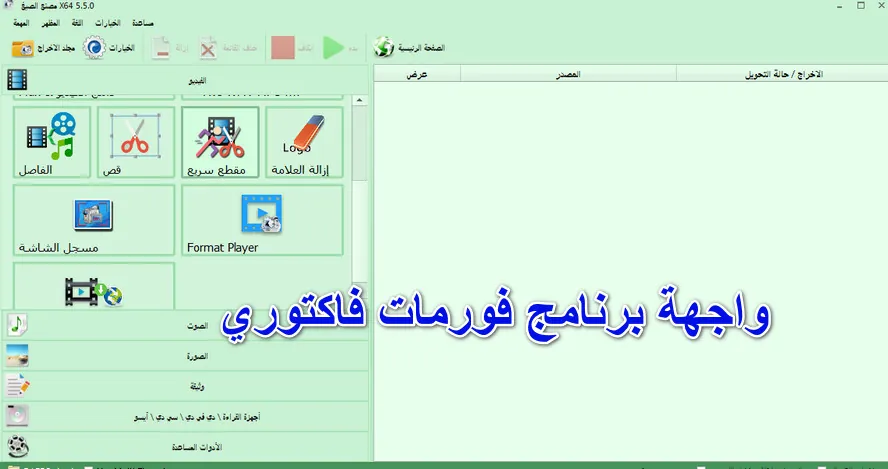

Format Factory converts HEIC and WebP images alongside video, audio and PDF files, and it is free even for commercial use. The installer is served over plain HTTP and can include offers, so it is a weaker choice than XnConvert for photos alone.
Pros
- Huge range of formats and tools in one app
- Rips DVD, Blu-ray and audio CDs
- Free for commercial use
Cons
- Installer is downloaded over plain HTTP, not HTTPS
- Setup and the app may show partner offers and promotions
- Cluttered interface with limited encoder control
Frequently asked questions
Can Windows 11 convert HEIC to JPG without extra software?
Not without Microsoft's extensions. Once HEIF Image Extensions and HEVC Video Extensions are installed from the Microsoft Store, you can open a HEIC photo in Paint and save it as a JPEG picture.
Is the HEVC extension really paid?
Microsoft's support page lists HEVC Video Extensions at $0.99 and says it is needed for HEIC photos too. If you do not want to pay, XnConvert and XnView MP read HEIC without it.
How do I convert many HEIC files to JPG at once?
Use a batch converter. In XnConvert, add the folder on the Input tab, choose JPG on the Output tab and click Convert. It processes every photo in one run.
Are online HEIC to JPG converters safe?
They upload your photos to someone else's server, which is a privacy risk for personal pictures and documents. A desktop converter keeps the files on your PC.
Why does my iPhone save photos as HEIC?
HEIC files take less space than JPEG at the same quality. You can switch to JPEG in Settings, Camera, Formats, Most Compatible, at the cost of larger files.
Does converting to JPG keep the photo's date and location?
It can. XnConvert edits or removes EXIF and IPTC data as part of a batch, so you decide whether the date taken and the GPS location go into the JPG copies. Check that setting before posting photos publicly.
ExeDepot does not host installers. Every download button opens the developer's own server or official download page. Prices and licenses come from each developer's site and were checked on .