
Graphics · Published
The best free photo editors for Windows
Most photo edits come down to a few jobs: crop and straighten, fix exposure and color, remove a blemish or an object, and combine images on layers. Every free editor below handles the first two. They differ in how far they go beyond that, how easy they are to learn, and whether they open the Photoshop PSD files that clients and templates often come in.
Adobe Photoshop is the reference most tutorials assume, but it is sold only as a subscription. The free picks come first, ordered from the most complete to the simplest, followed by three paid editors with free trials for people who want Photoshop-style tools or AI effects.
Our picks at a glance
| App | Best for | License | Price | Download |
|---|---|---|---|---|
 GIMP |
The most complete free photo editor | Open source | Free | Review |
 Affinity |
Professional photo, vector and layout tools for free | Freeware | Free | Review |
 Paint.NET |
Quick edits that are easy to learn | Freeware | Free | Review |
 PhotoDemon |
A portable editor that runs from a USB stick | Open source | Free | Review |
 Pinta |
Beginners who outgrew Paint | Open source | Free | Review |
 Adobe Photoshop |
The industry standard, if you work with PSD files daily | Free trial | $19.99, per month, annual Photography plan | Review |
 Corel PaintShop Pro |
Photoshop-style editing without a subscription | Free trial | $79.99, one-time license (PaintShop Pro 2023 Standard, list price; often on sale) | Review |
 Luminar |
Striking landscape and portrait edits with AI | Free trial | $129, one-time license (Desktop Only) | Review |
1. GIMP — Image Editor
Best for: The most complete free photo editor
- Open source
- Free
- Graphics
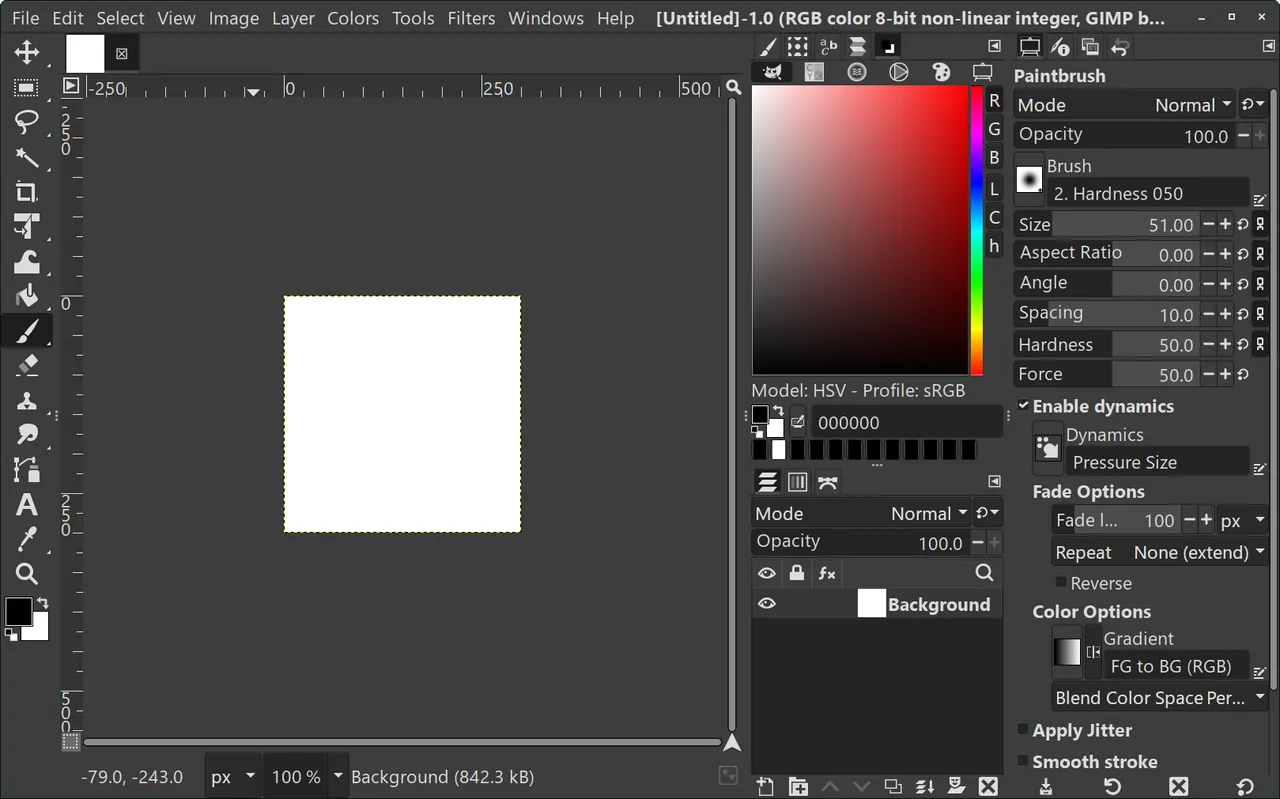

GIMP has been developed by volunteers since 1995 and covers the full toolkit: a layer stack with masks, blend modes and groups, paths and foreground selection, healing and clone tools, and scripting in Python or Script-Fu. Since the 3.x series, many filters are non-destructive, so you can change or remove them after applying. It opens PSD files with their layers and is free for commercial use.
Coming from Photoshop, expect to relearn some habits, and very complex PSD files with Photoshop-only effects may not look identical. It is not built for a full CMYK print workflow. If GIMP feels like too much, Paint.NET is much quicker to learn.
Pros
- Professional feature set
- Non-destructive filters in 3.x
- Opens PSD files
Cons
- Different workflow from Photoshop
- Complex PSD files may not match exactly
- Large download
2. Affinity — Design and Photo Editor
Best for: Professional photo, vector and layout tools for free
- Freeware
- Free
- Graphics
Affinity began as three paid apps from Serif, Affinity Photo, Designer and Publisher. After Canva bought Serif, they were merged into one free app with Pixel, Vector and Layout studios working on the same document. It imports PSD, AI, IDML and DWG files with their layers and opens files from Affinity V1 and V2.
You must sign in with a Canva account, and the AI tools such as Generative Fill need a paid Canva plan. Files saved in the new app do not open in Affinity V1 or V2. If you do not want any online account, GIMP is the most capable alternative.
Pros
- Full professional toolset for free
- Photo, vector and layout tools in one app
- Imports Adobe file formats
Cons
- Requires a Canva account to use
- AI features only with a paid Canva plan
- Files saved in the new app do not open in Affinity V1 or V2
3. Paint.NET — Photo Editor
Best for: Quick edits that are easy to learn
- Freeware
- Free
- Graphics
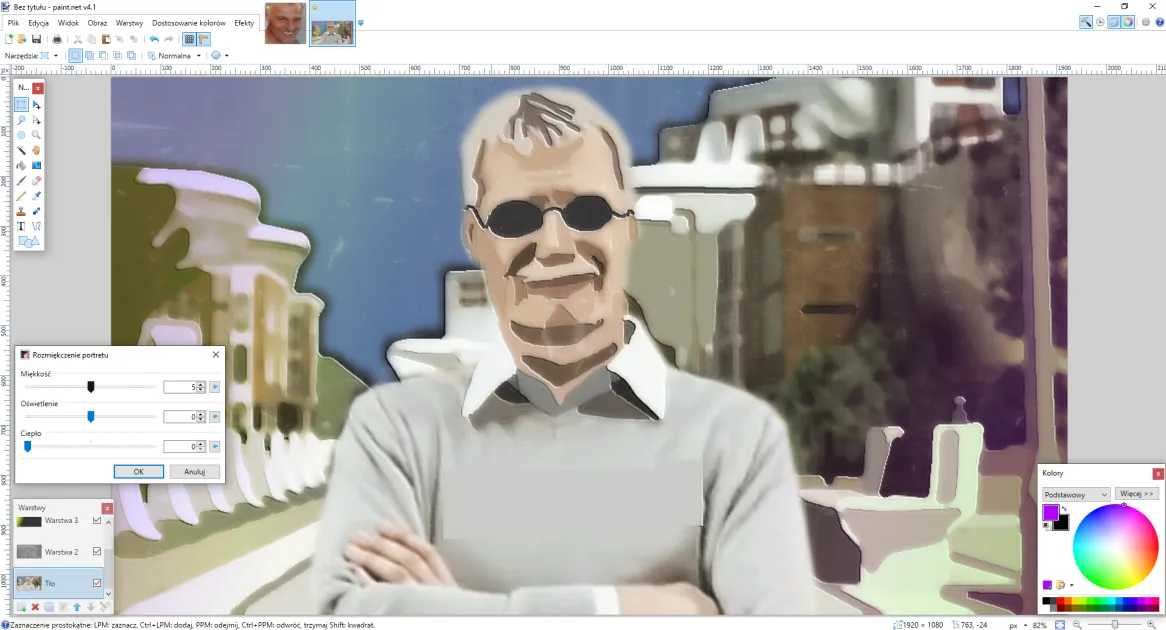

Paint.NET sits between Windows Paint and full editors like GIMP. It has layers with blend modes, curves, levels and hue adjustments, effects, unlimited history and hundreds of community plugins, and it renders on the graphics card, so even large images stay responsive. It is not Microsoft Paint but a separate, much more capable app by Rick Brewster.
The download on paint.net is free; the paid Microsoft Store version is the same app sold to support the developer. It runs only on Windows, is closed source and needs a free plugin to open PSD files. For professional retouching or print work, GIMP or Affinity go further.
Pros
- Easy to learn
- Fast
- Layers and plugins
Cons
- Windows only
- Closed source
- PSD support requires a plugin
4. PhotoDemon — Photo Editor
Best for: A portable editor that runs from a USB stick
- Open source
- Free
- Graphics
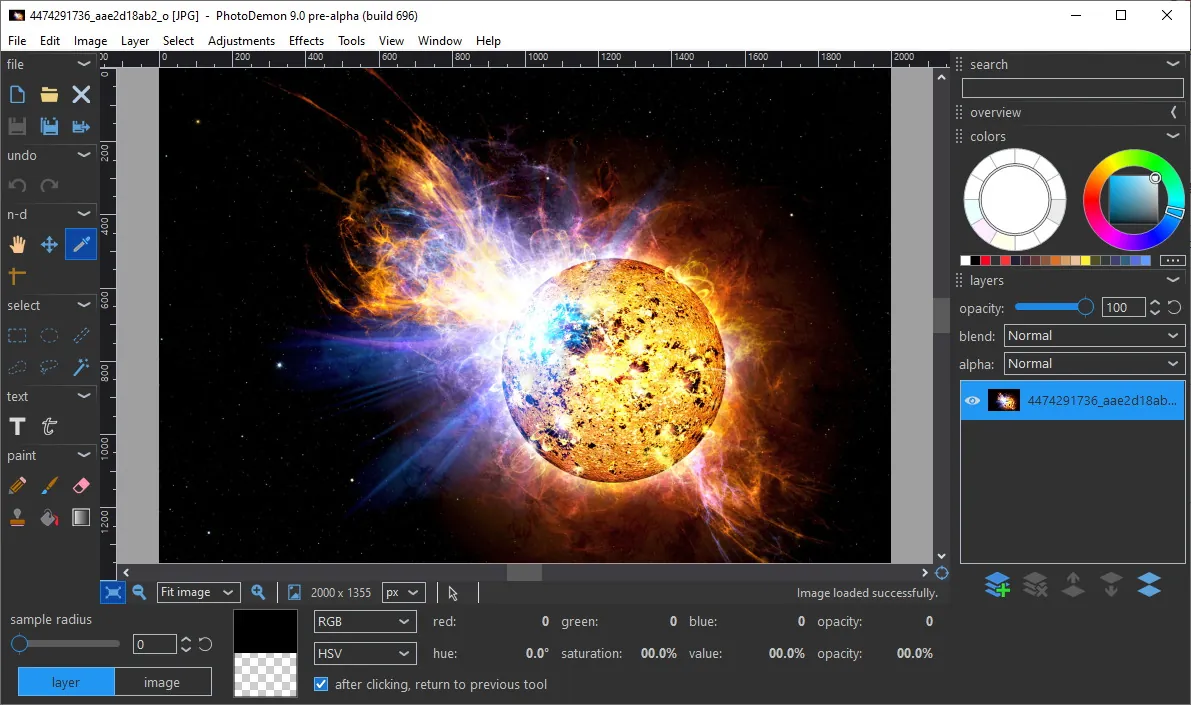

PhotoDemon packs more than 200 tools into a 22 MB download that you unzip and run, with no installation and no registry changes. It has layers and editable text, content-aware fill and noise removal, opens PSD, PaintShop Pro PSP, GIMP XCF and major camera RAW formats, and a macro recorder with a batch processor applies the same edits to whole folders.
It is Windows-only and a 32-bit app, so images larger than about 2 GB cannot be opened, and as a portable app it creates no Start menu shortcut. It is open source under a BSD license with no paid version.
Pros
- Free, open source, no installation
- Over 200 tools in a small download
- Opens PSD, XCF and RAW files
Cons
- Windows only
- 32-bit only, so images over about 2 GB cannot be opened
- No installer, so no Start menu shortcut is created
5. Pinta — Image Editor
Best for: Beginners who outgrew Paint
- Open source
- Free
- Graphics
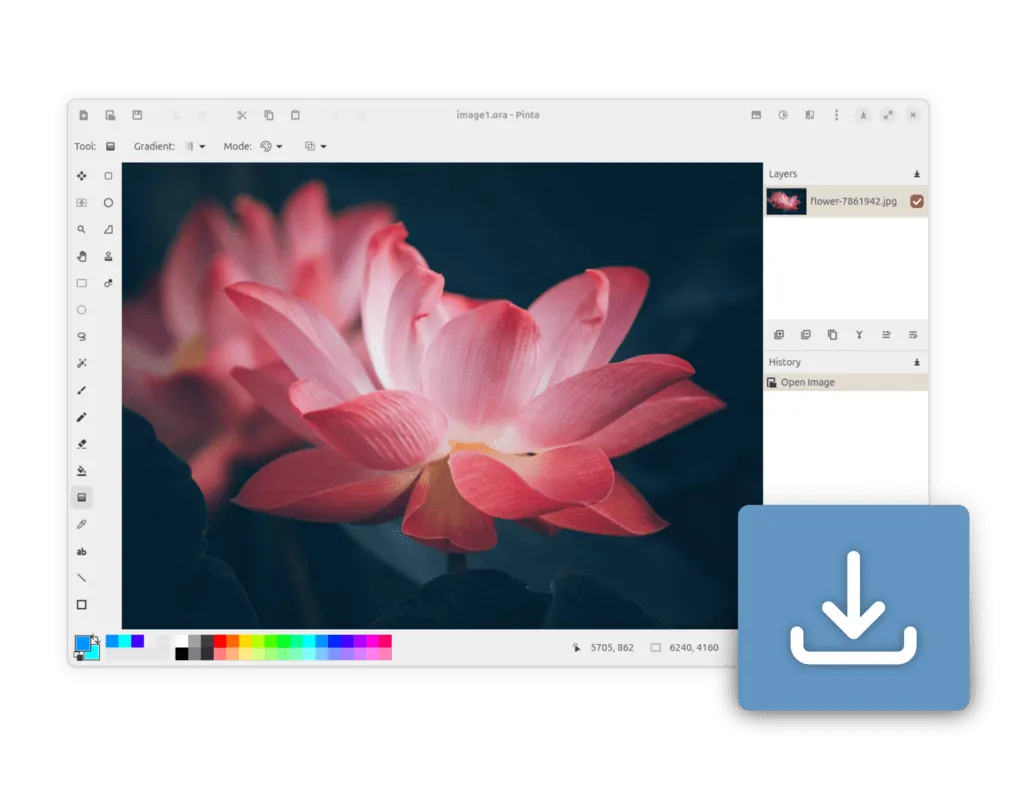
Pinta is a simple open-source editor modeled on Paint.NET, with layers, live effect previews, selection, crop, clone stamp, magic wand and unlimited undo. Unlike Paint.NET, it also runs on macOS and Linux, so the same tool works on every computer you use.
It lacks the advanced tools of GIMP or Krita: there are no masks, no raw photo editing and no CMYK support. For drawing rather than photo editing, Krita is the better free choice.
Pros
- Very easy to learn
- Layers and live effect previews
- MIT-licensed, no ads
Cons
- Limited tools compared with GIMP or Krita
- No raw photo or CMYK support
6. Adobe Photoshop — Photo Editor
Best for: The industry standard, if you work with PSD files daily
- Free trial
- $19.99, per month, annual Photography plan
- Graphics
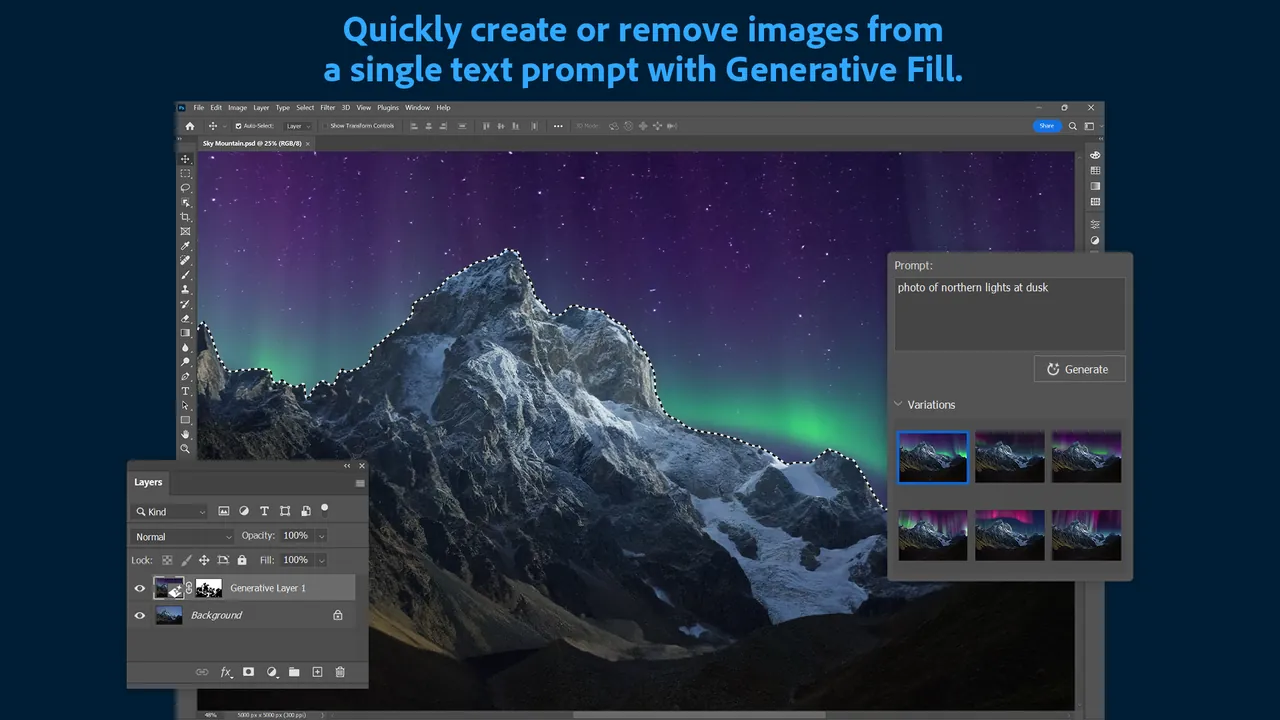
Photoshop is still the reference tool for retouching and compositing. Adjustment layers, masks and smart objects keep edits non-destructive, Select Subject finds people and objects automatically, Generative Fill uses Adobe Firefly to add or remove content from a text prompt, and Camera Raw opens RAW photos from most cameras.
There is no one-time purchase: Photoshop costs US$22.99 per month alone or US$19.99 per month in the Photography plan with Lightroom, both on annual plans. The 7-day trial needs an Adobe account and a payment card and turns into a paid plan unless you cancel. Annual plans charge a fee if cancelled early.
Pros
- Industry-standard PSD workflow
- Strong automatic selections
- Generative Fill built in
Cons
- Subscription only, no one-time license
- 7-day trial requires a payment card and turns into a paid plan
- Annual plans charge a fee if cancelled early
7. Corel PaintShop Pro — Photo Editor
Best for: Photoshop-style editing without a subscription
- Free trial
- $79.99, one-time license (PaintShop Pro 2023 Standard, list price; often on sale)
- Graphics
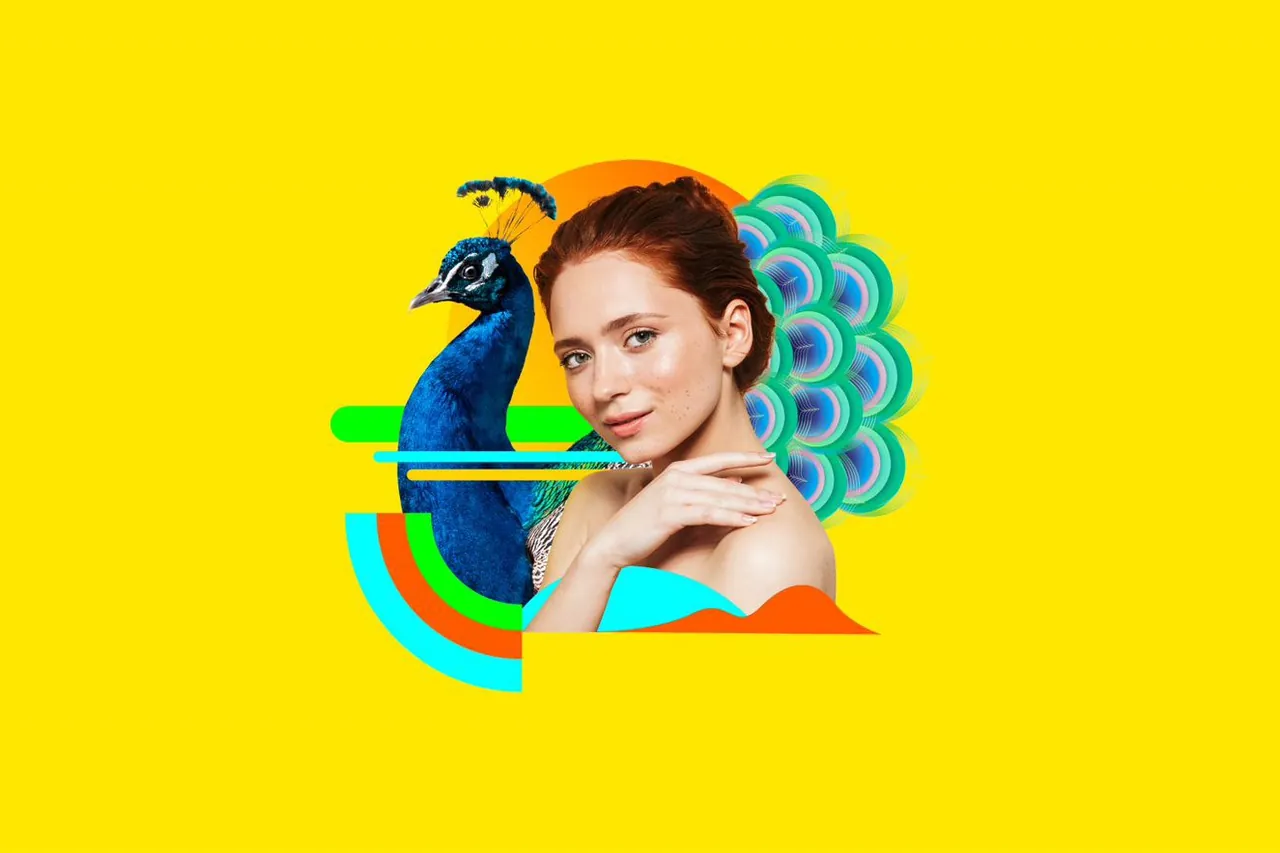
PaintShop Pro covers what most home users want from Photoshop: non-destructive layers, masks, retouching, RAW editing through the built-in AfterShot Lab for more than 800 camera models, AI upsampling and denoise, and scripts for batch watermarks or resizing. It reads and writes PSD files and supports Photoshop plugins and brushes.
It is sold as a one-time license: PaintShop Pro 2023 Standard lists at $79.99 and Ultimate at $99.99, both often discounted. The full 30-day trial needs no card, but the program stops working when it ends. It is Windows-only, still on the 2023 release, and the installer promotes other Corel products.
Pros
- One-time license, no subscription
- Layers, masks and RAW editing in one app
- Supports Photoshop plugins and brushes
Cons
- Stops working when the 30-day trial ends
- Windows only, no Mac version
- Still on the 2023 release; installer promotes other Corel products
8. Luminar — AI Photo Editor
Best for: Striking landscape and portrait edits with AI
- Free trial
- $129, one-time license (Desktop Only)
- Graphics
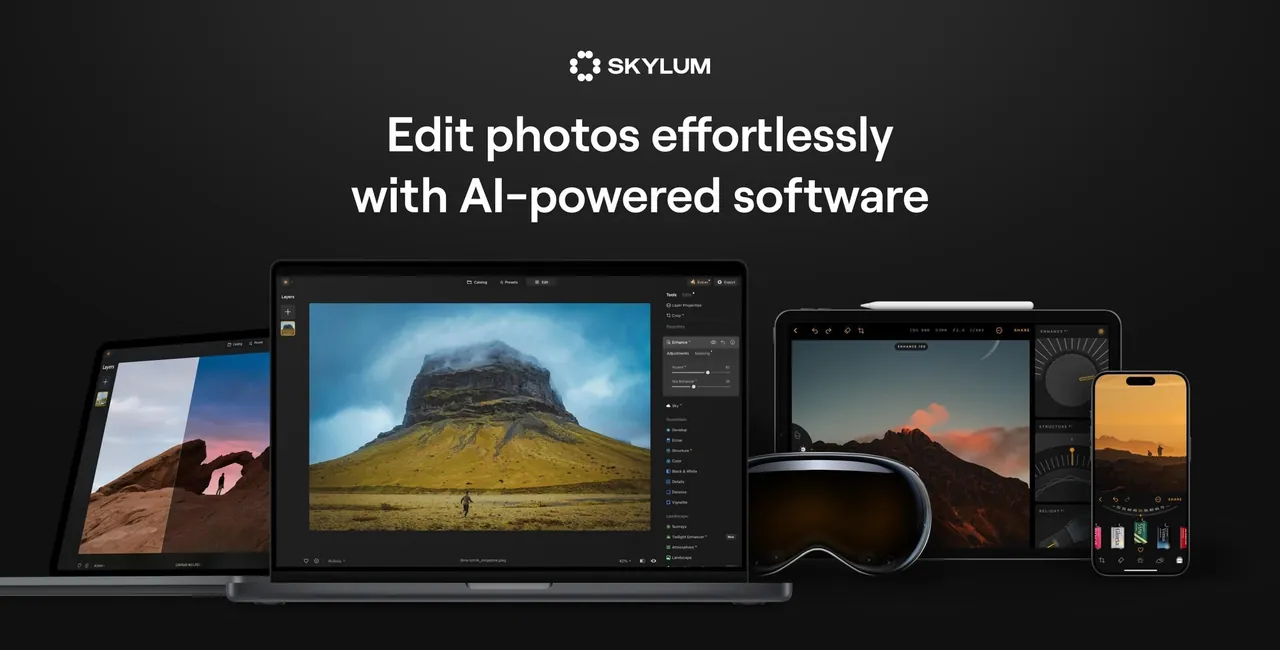
Luminar, renamed from Luminar Neo in 2026, gets dramatic results in a few clicks: Sky AI replaces and relights the sky, Light Depth adjusts foreground and background light separately, and portrait tools retouch skin and faces automatically. It also runs as a plug-in inside Photoshop and Lightroom.
The Desktop Only license costs US$129 once and covers two computers. The core AI tools keep working, but GenErase, GenSwap, GenExpand, Restoration and the AI Assistant are included only for the first year and then need a Luminar Prime subscription. The 7-day trial is requested with an email address, and its photo library features are basic.
Pros
- One-time license
- Fast AI sky and light tools
- Works as a Photoshop and Lightroom plug-in
Cons
- Generative AI tools need a subscription after the first year
- Basic photo organizing compared with Lightroom Classic
- Big upgrades may cost extra
GIMP vs Paint.NET vs Affinity
Paint.NET is the fastest to learn and fine for screenshots, web images and everyday fixes. GIMP has the deepest free toolset, with masks, paths, non-destructive filters and scripting, but takes longer to get comfortable with. Affinity feels closest to a professional Adobe-style app and adds vector and layout tools, at the price of a mandatory Canva account.
If you receive PSD files, GIMP, Affinity and PhotoDemon open them without plugins. Paint.NET needs a free community plugin. None of the free editors reproduces every Photoshop-only effect exactly.
When a paid editor is worth it
Pay for Photoshop if clients, print shops or a team expect PSD files with Photoshop behavior, or if you rely on Generative Fill. Choose PaintShop Pro if you want similar layer editing and RAW tools for a one-time price on Windows. Luminar suits hobby photographers who want quick AI looks rather than manual masking.
For RAW development and organizing a large photo library, a dedicated RAW editor such as darktable or RawTherapee is a better fit than any of the editors above.
Drawing is a different job
Photo editors are built around selections and adjustments. If you paint or draw with a pen tablet, Krita has far better brushes and stroke stabilizers, and it also opens and saves PSD files with layers.
Frequently asked questions
What is the best free photo editor for Windows?
GIMP if you want the most features, Paint.NET if you want something quick and simple, and Affinity if you want a professional Adobe-style app and do not mind a Canva account.
Is there a free version of Photoshop?
No. Photoshop has a 7-day trial that needs a payment card, then costs US$22.99 per month alone or US$19.99 per month in the Photography plan. GIMP and Affinity are the closest free alternatives.
Is GIMP as good as Photoshop?
For most photo editing and web graphics it does the job well. Photoshop still leads in AI tools, print workflows and exact compatibility with complex PSD files.
Which free photo editor opens PSD files?
GIMP, Affinity, PhotoDemon and Krita open PSD files with layers. Paint.NET needs a free plugin.
Is Affinity really free?
Yes. All pixel, vector and layout tools are free with a free Canva account. Only the Canva AI tools need a premium Canva plan.
What is the easiest photo editor for beginners?
Paint.NET on Windows, or Pinta if you also use a Mac or Linux. Both have layers and effects without the learning curve of GIMP.
ExeDepot does not host installers. Every download button opens the developer's own server or official download page. Prices and licenses come from each developer's site and were checked on .