
Graphics · Published
How to open HEIC files on Windows 11
To open HEIC files on Windows 11, install two extensions from the Microsoft Store: HEIF Image Extensions, which is free, and HEVC Video Extensions, which Microsoft lists at $0.99. Restart the Photos app, and HEIC photos open with a double-click. Microsoft says you need both, even if you only view photos.
If you do not want to pay for the HEVC extension, a free viewer such as ImageGlass or XnView MP reads HEIC on its own. If you only need to look at a few photos once, the OneDrive website shows them in any browser. This guide covers viewing; to turn HEIC files into JPG, see our HEIC to JPG guide.
Method 1: Microsoft's HEIF and HEVC extensions
This is the option Microsoft calls the easiest on its support page for the Photos app error "You need an extension to use this file":
- Open the Microsoft Store and search for HEIF Image Extensions. Install it; it is free.
- Search for HEVC Video Extensions and buy it. Microsoft lists it at $0.99.
- Close and reopen the Photos app.
- Double-click a HEIC file. It now opens in Photos like a JPEG.
The Store description of HEIF Image Extensions explains why the paid part is needed: the HEIF extension handles the container, but images stored in .heic files are compressed with HEVC, so the HEVC Video Extensions package must be installed too. The same package also lets Windows play HEVC videos from an iPhone. Because the extensions add HEIC support to Windows itself rather than to one app, other programs that use Windows codecs, such as FastStone Image Viewer, can read HEIC once they are installed.
Method 2: A free viewer that reads HEIC without the codec
Some third-party viewers include their own HEIC decoder, so they work without buying anything from the Store:
- Download ImageGlass or XnView MP from the developer's official site and install it.
- Right-click a HEIC file, choose Open with, then Choose another app, and pick the viewer.
- To make it the default, open Settings, then Apps, then Default apps. Type .heic in the search box, select the result and choose the viewer.
ImageGlass opens more than 90 formats without extra codecs, including HEIC, and is free under the GPLv3 even for commercial use. XnView MP adds a thumbnail browser, metadata editing and batch tools, but it is free only for private, educational and non-profit use. Note that the default app setting changes how HEIC files open, not whether File Explorer shows thumbnails for them.
Method 3: View HEIC photos on the OneDrive website
Microsoft's support page offers OneDrive as an option for photos. OneDrive for iPhone uploads HEIF photos in their original format, and Microsoft says you can view HEIF and HEVC files on the OneDrive website in any browser, without installing anything on the PC:
- Upload the photos with the OneDrive app on the iPhone, or copy the HEIC files from the PC into your OneDrive folder.
- Open onedrive.com in a browser on the PC and sign in with the same Microsoft account.
- Open the folder with the files and click a picture to view it.
Microsoft also notes that after you download these files to a Windows PC, you may still need a codec to open them locally. The free plan has 5 GB of storage, which a phone camera roll fills quickly.
Thumbnails in File Explorer
File Explorer draws thumbnails with the codecs installed in Windows, so HEIC thumbnails appear once the HEIF and HEVC extensions from Method 1 are installed. Viewers such as ImageGlass decode HEIC inside their own window, so installing one is not a reliable way to get thumbnails in File Explorer.
If thumbnails still do not appear after installing the extensions, open File Explorer, click the See more menu (three dots), choose Options, open the View tab and clear Always show icons, never thumbnails. Then switch the folder to Medium icons or larger, because the List and Details views do not show thumbnails.
Live Photos and iPhone videos
A Live Photo copied to Windows arrives as two files with the same name: a HEIC still image and a short MOV video clip. On the PC they are separate files: open the still with any of the methods above and play the MOV as a normal video. Keep both files with their original names if you want to put them back on an Apple device later.
iPhones in their default High Efficiency camera mode record video as HEVC. Those clips, including the motion part of Live Photos, play in Windows apps only after you install HEVC Video Extensions, or in a player with its own decoder. If you would rather have JPEG and H.264 files, Apple's Most Compatible camera setting and the transfer options are explained in the HEIC to JPG guide.
Free tools for this job
| App | Best for | License | Price | Download |
|---|---|---|---|---|
 ImageGlass |
Opening HEIC for free without buying the HEVC codec | Open source | Free | Review |
 XnView MP |
Browsing and sorting a large folder of iPhone photos | Freeware | Free | Review |
 FastStone Image Viewer |
Viewing and fixing photos once Microsoft's extensions are installed | Freeware | Free | Review |
 Microsoft OneDrive |
Viewing iPhone photos in a browser without installing codecs | Freeware | Free | Review |
1. ImageGlass — Image Viewer
Best for: Opening HEIC for free without buying the HEVC codec
- Open source
- Free
- Graphics


ImageGlass reads HEIC, WebP, JPEG XL and camera RAW out of the box and preloads neighboring images, so flipping through a phone backup stays fast. It is a viewer only: there are no albums, tags or ratings, and some workflow tools are in the paid Pro edition.
Pros
- Free and open source, including commercial use
- Opens 90+ formats without extra codecs
- Fast folder browsing
Cons
- HDR tone mapper, free panning and file watcher require the paid Pro edition
- No library features such as tags, ratings or albums
2. XnView MP — Image Viewer and Organizer
Best for: Browsing and sorting a large folder of iPhone photos
- Freeware
- Free
- Graphics
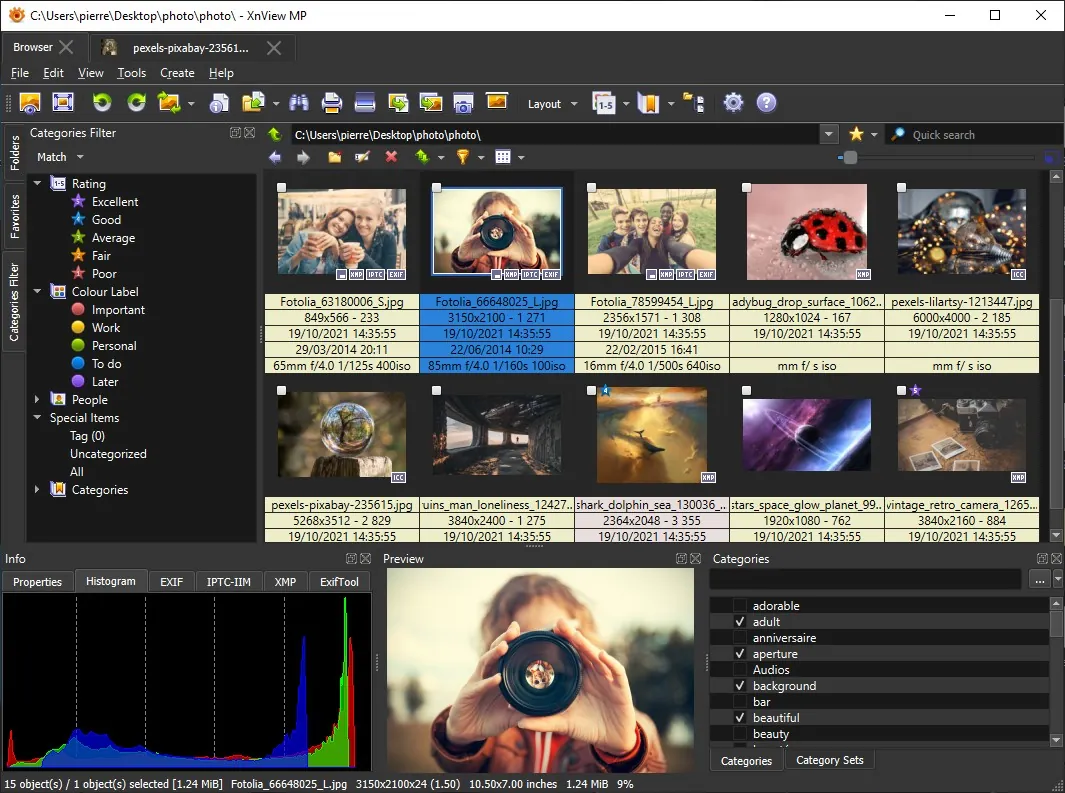
XnView MP reads HEIC without Microsoft's codecs and adds a thumbnail browser, EXIF and XMP editing and batch rename. Companies need a paid license, and the many settings take time to learn.
Pros
- Handles HEIC, AVIF, JPEG XL and RAW
- Strong batch processing
- Full EXIF, IPTC and XMP editing
Cons
- Paid license required in companies
- Many settings can overwhelm new users
3. FastStone Image Viewer — Image Viewer
Best for: Viewing and fixing photos once Microsoft's extensions are installed
- Freeware
- Free
- Graphics
FastStone Image Viewer combines a full-screen viewer, side-by-side compare and light editing. It reads HEIC through Microsoft's HEIF and HEVC extensions, so it does not save you the $0.99, and it is free for personal and educational use only.
Pros
- Viewer, editor and batch converter in one
- Reads camera RAW, HEIC, PSD and PDF
- Compare up to four images
Cons
- Free only for personal and educational use
- Windows only
- HEIC support depends on Microsoft's codecs
4. Microsoft OneDrive — Cloud Storage App
Best for: Viewing iPhone photos in a browser without installing codecs
- Freeware
- Free
- Internet

OneDrive's website displays HEIC and HEVC files in any browser, and the app is already part of Windows 11. The free 5 GB is small for a photo library, and files you download still need a codec to open locally.
Pros
- Preinstalled and deeply integrated with Windows
- Files On-Demand saves disk space
- Works well with Microsoft Office
Cons
- Only 5 GB of free storage
- Windows pushes folder backup aggressively
- Files are not end-to-end encrypted
Frequently asked questions
Why can't Windows 11 open HEIC files?
HEIC images are compressed with the HEVC codec, which Windows 11 does not include by default. Microsoft's Photos app asks for an extension until you install HEIF Image Extensions and HEVC Video Extensions from the Microsoft Store.
Is the HEIF extension free?
HEIF Image Extensions is free, but Microsoft says you also need HEVC Video Extensions, listed at $0.99, to view .heic photos. Free viewers such as ImageGlass and XnView MP open HEIC without either extension.
Can I open HEIC files without the Microsoft Store?
Yes. ImageGlass and XnView MP are installed from their developers' websites and decode HEIC themselves. You can also view the photos on the OneDrive website in a browser.
Why don't HEIC thumbnails show in File Explorer?
File Explorer needs Microsoft's HEIF and HEVC extensions to draw HEIC thumbnails. If they are installed, check that Always show icons, never thumbnails is cleared in File Explorer Options on the View tab.
Can Windows 11 play Live Photos?
On a PC a Live Photo is a HEIC still plus a separate MOV clip with the same name. You view them as two files, and an HEVC clip plays only with HEVC Video Extensions or a player that has its own HEVC decoder.
How do I stop my iPhone from making HEIC files?
On the iPhone, open Settings, then Camera, then Formats, and choose Most Compatible. New photos are then saved as JPEG; existing HEIC files stay as they are.
ExeDepot does not host installers. Every download button opens the developer's own server or official download page. Prices and licenses come from each developer's site and were checked on .