
Graphics · Published
The best free Photoshop alternatives for Windows
Photoshop covers several different jobs: retouching and compositing photos on layers, developing RAW files from a camera through Camera Raw, painting and illustration, and quick graphics for the web. Adobe sells it only as a subscription, US$22.99 per month alone or US$19.99 per month in the Photography plan with Lightroom, both on annual plans, and the 7-day trial needs a payment card. The price, not the features, is why most people look for an alternative.
No single free app replaces all of Photoshop, so the picks below are matched to those jobs. Each entry says which part of Photoshop it covers and what does not carry over, especially from PSD files, which no other app opens with every feature intact. For a broader ranking that also includes paid editors, see our free photo editor comparison.
Our picks at a glance
| App | Best for | License | Price | Download |
|---|---|---|---|---|
 Affinity |
The closest free match for Photoshop's layered workflow | Freeware | Free | Review |
 GIMP |
Open-source layered editing with no account | Open source | Free | Review |
 Krita |
Digital painting, if you used Photoshop to draw | Open source | Free | Review |
 Paint.NET |
Quick edits for people who never needed full Photoshop | Freeware | Free | Review |
 darktable |
Replacing Lightroom and Camera Raw for RAW photos | Open source | Free | Review |
 RawTherapee |
Detailed RAW development of individual photos | Open source | Free | Review |
1. Affinity — Design and Photo Editor
Best for: The closest free match for Photoshop's layered workflow
- Freeware
- Free
- Graphics

Affinity merges the former Affinity Photo, Designer and Publisher into one free app from Canva. Its Pixel studio covers most of Photoshop's photo work: layers, masks, live filters and adjustments, inpainting and healing brushes, dodge and burn, RAW development, HDR merge, panorama stitching and batch processing with recorded macros. Vector and page layout tools work in the same document, which Photoshop users otherwise get from Illustrator and InDesign.
For PSD files, Affinity says layers come across intact, adjustment layers are mapped to Affinity equivalents, and large PSB files open too. Smart objects are rasterized unless you turn on Import PSD smart objects where possible in Settings, and type stays editable only with the option to import PSD text as text. You need a free Canva account to activate the app, and AI tools such as Generative Fill require a paid Canva plan.
Pros
- Full professional toolset for free
- Photo, vector and layout tools in one app
- Imports Adobe file formats
Cons
- Requires a Canva account to use
- AI features only with a paid Canva plan
- Files saved in the new app do not open in Affinity V1 or V2
2. GIMP — Image Editor
Best for: Open-source layered editing with no account
- Open source
- Free
- Graphics
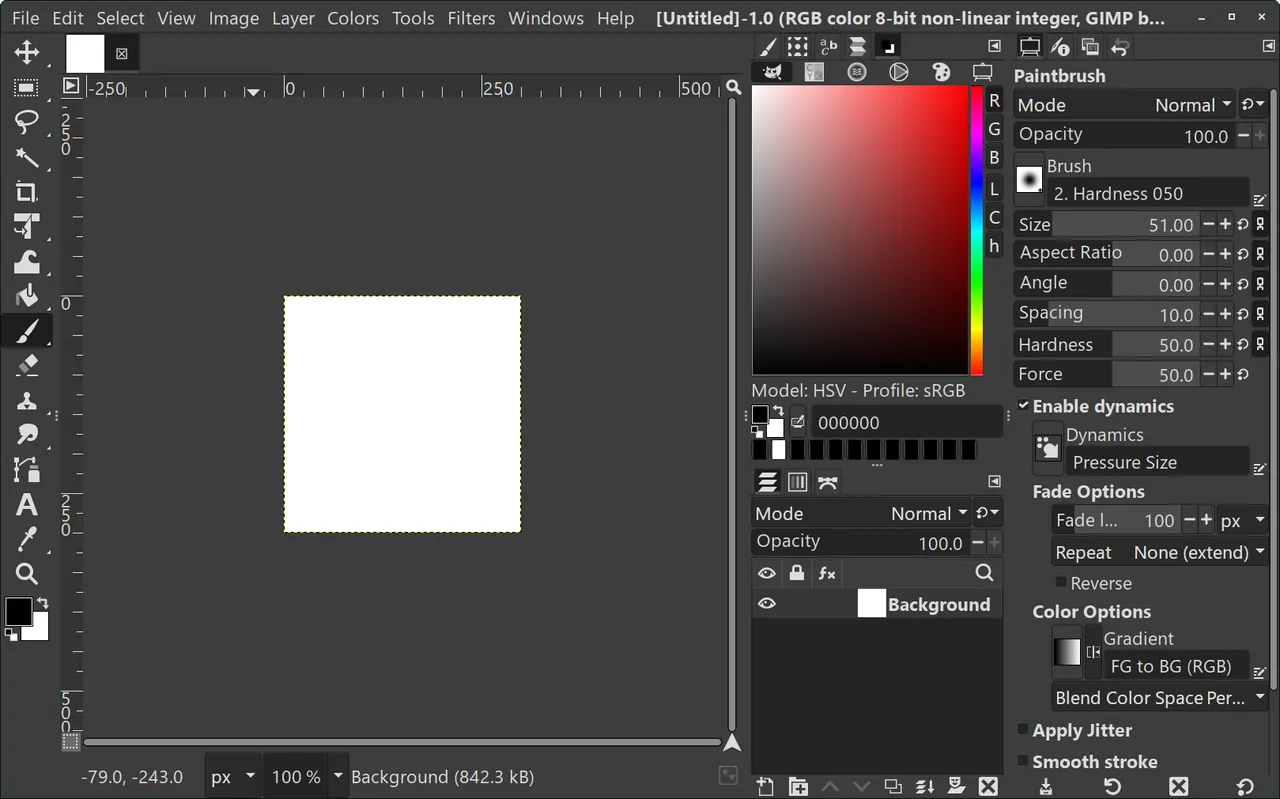

GIMP replaces Photoshop's core editing tools: layers with masks and blend modes, paths and selections, healing and clone tools, and scripting in Python or Script-Fu. Since GIMP 3.0 most filters stay editable after you apply them, and GIMP 3.2 added vector layers, link layers that work like Photoshop's linked smart objects, and an adjustment-layer workflow: filters on an empty layer group in Pass through mode affect every layer below. It also imports Photoshop Curves (.acv) and Levels (.alv) presets and .pat patterns.
PSD support is good for plain layers but not complete. GIMP opens and exports PSD and PSB files and imports some layer styles, such as Drop Shadow, Inner Shadow and Outer Glow, but importing adjustment layers and most layer effects from PSD is still listed as work in progress on GIMP's roadmap. Menus and shortcuts differ from Photoshop, and it has no full CMYK print workflow.
Pros
- Professional feature set
- Non-destructive filters in 3.x
- Opens PSD files
Cons
- Different workflow from Photoshop
- Complex PSD files may not match exactly
- Large download
3. Krita — Digital Painting App
Best for: Digital painting, if you used Photoshop to draw
- Open source
- Free
- Graphics
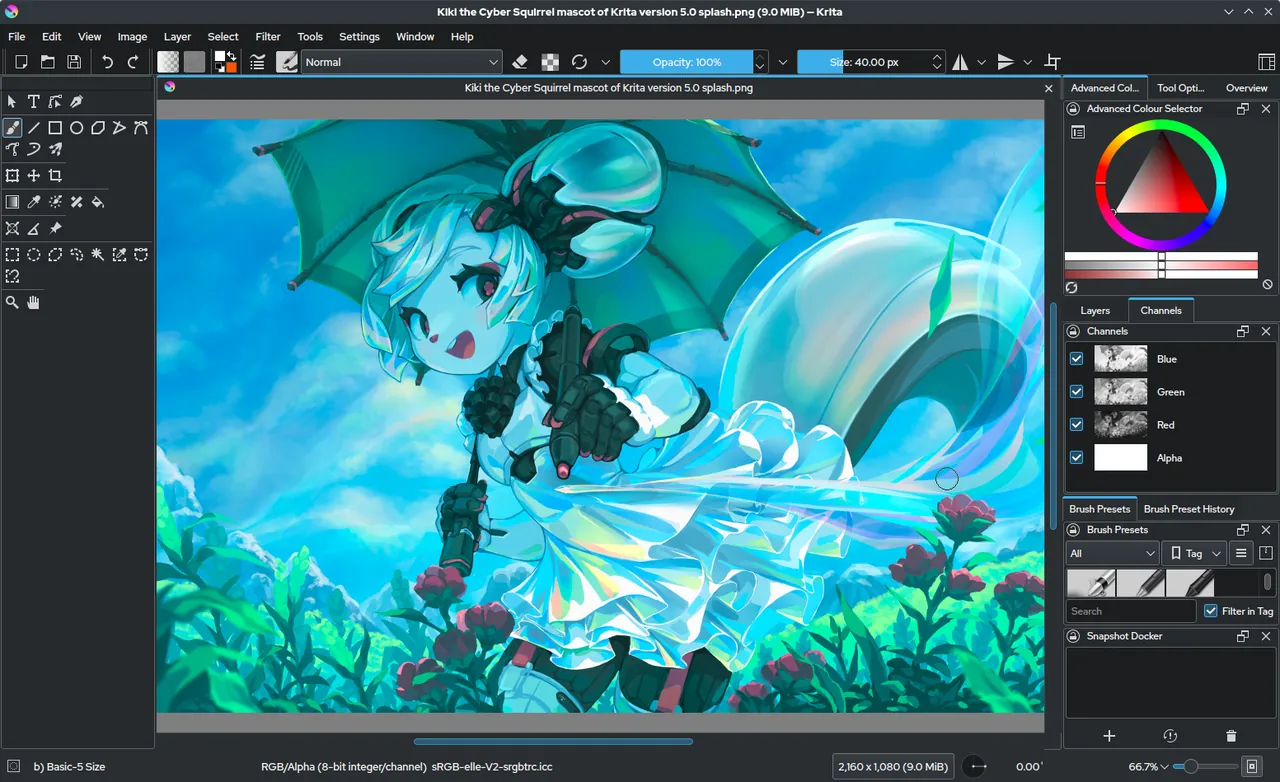

If your Photoshop work is painting or illustration rather than photo retouching, Krita is the better replacement. It has dozens of brush engines, stroke stabilizers, a wrap-around mode for seamless textures and frame-by-frame animation, and it is designed for pen tablets. Krita ships a Photoshop-compatible shortcut scheme in Settings, Configure Krita, Keyboard Shortcuts; the Krita FAQ advises choosing the matching Photoshop profile in Canvas Input Settings too, so the two do not conflict.
Krita loads and saves raster layers, blending modes, layer styles, vector shapes, text layers, layer groups and transparency masks in PSD files. Adjustment layers are not on that list, and the Krita manual recommends other formats than PSD where possible. It is not built for photo retouching or page layout.
Pros
- Excellent brushes
- Built for pen tablets
- Includes animation tools
Cons
- Not designed for photo editing
- Many panels can overwhelm beginners
4. Paint.NET — Photo Editor
Best for: Quick edits for people who never needed full Photoshop
- Freeware
- Free
- Graphics
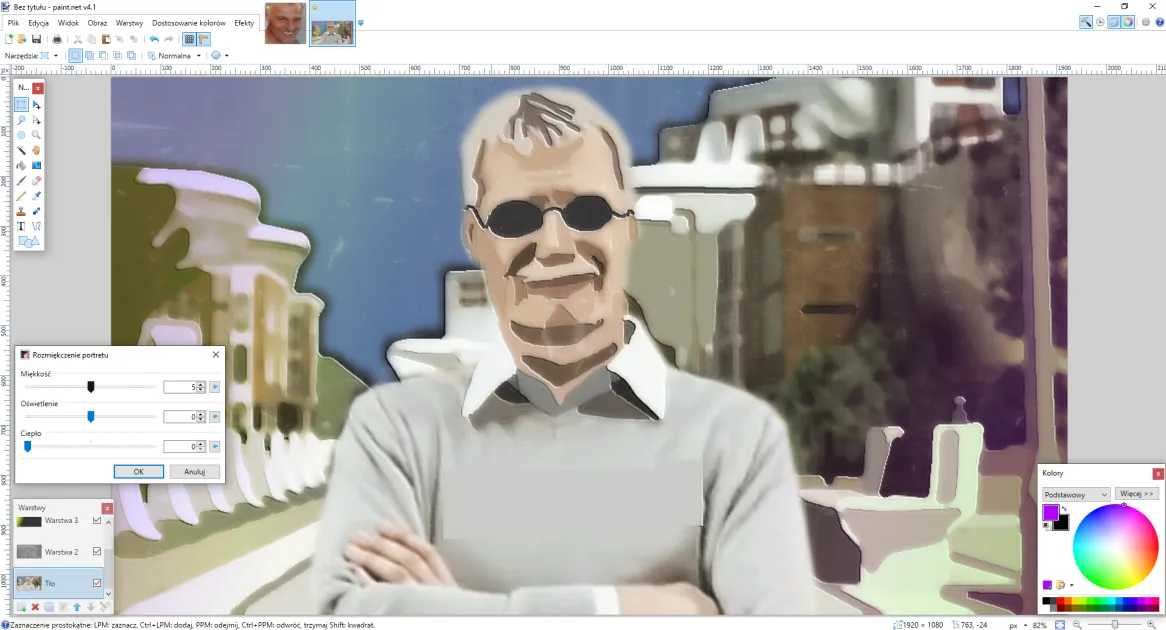

Many people pay for Photoshop just to crop, resize, fix exposure or remove a small blemish. Paint.NET handles those jobs with layers and blend modes, curves and levels, effects and unlimited history, and it renders on the graphics card, so large images stay responsive. Hundreds of free community plugins add effects and file formats.
PSD files need a plugin. The PSD plugin loads and saves 8-bit RGB images with raster layers and common blend modes, but vector features do not carry over and Paint.NET has no layer groups, so complex PSD files lose their structure. Paint.NET's documentation says to download plugins only from its official forum. It is closed source and runs only on Windows.
Pros
- Easy to learn
- Fast
- Layers and plugins
Cons
- Windows only
- Closed source
- PSD support requires a plugin
5. darktable — RAW Photo Editor
Best for: Replacing Lightroom and Camera Raw for RAW photos
- Open source
- Free
- Graphics
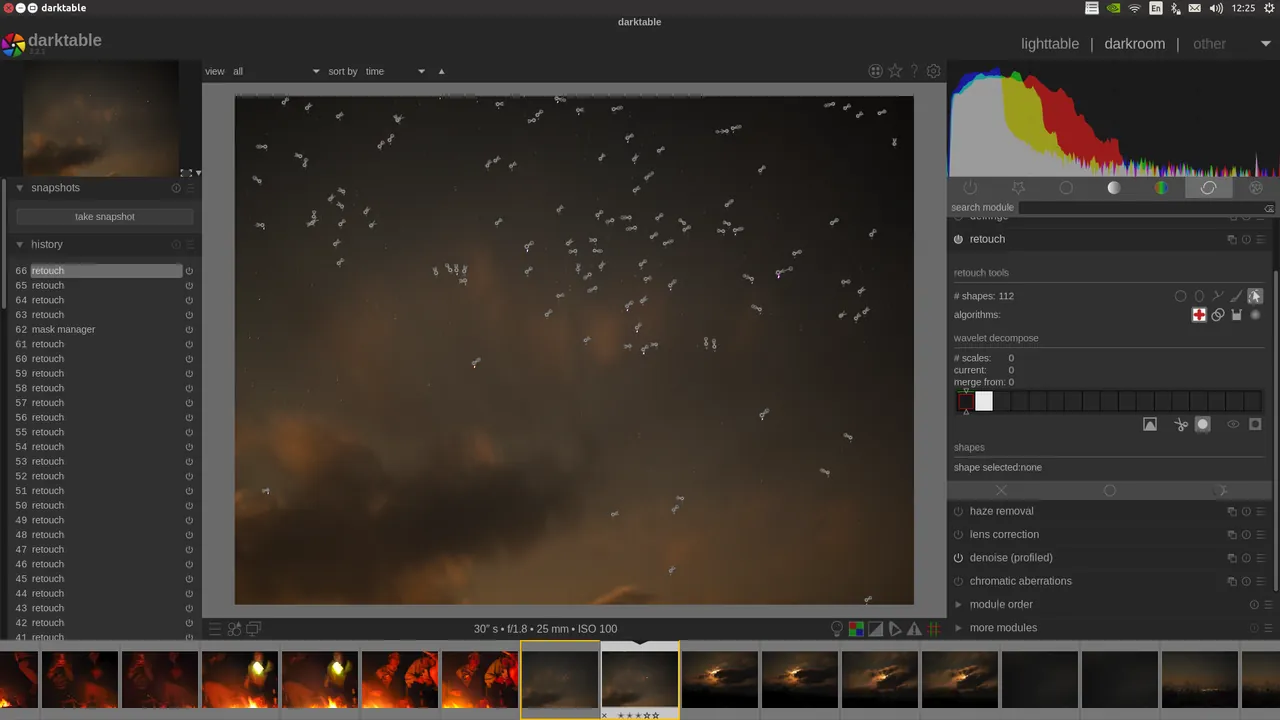

If what you use most is Camera Raw or Lightroom, the right replacement is a RAW developer, not a layer editor. darktable keeps your photos in a lighttable library with ratings, tags and color labels, develops them in the darkroom with non-destructive modules, and stores every edit in its database and in XMP sidecar files, so the original file is never changed. It also supports tethered shooting.
It does not composite layers like Photoshop, and its modules work differently from Lightroom's sliders, so expect a real learning curve. GIMP 3.2 can use darktable as its RAW loader, so you can develop a photo in darktable and continue with layers in GIMP.
Pros
- Originals are never modified
- Professional color management
- GPU acceleration via OpenCL
Cons
- Steep learning curve
- Workflow differs from Lightroom
- Large number of modules can be confusing
6. RawTherapee — Raw Photo Editor
Best for: Detailed RAW development of individual photos
- Open source
- Free
- Graphics
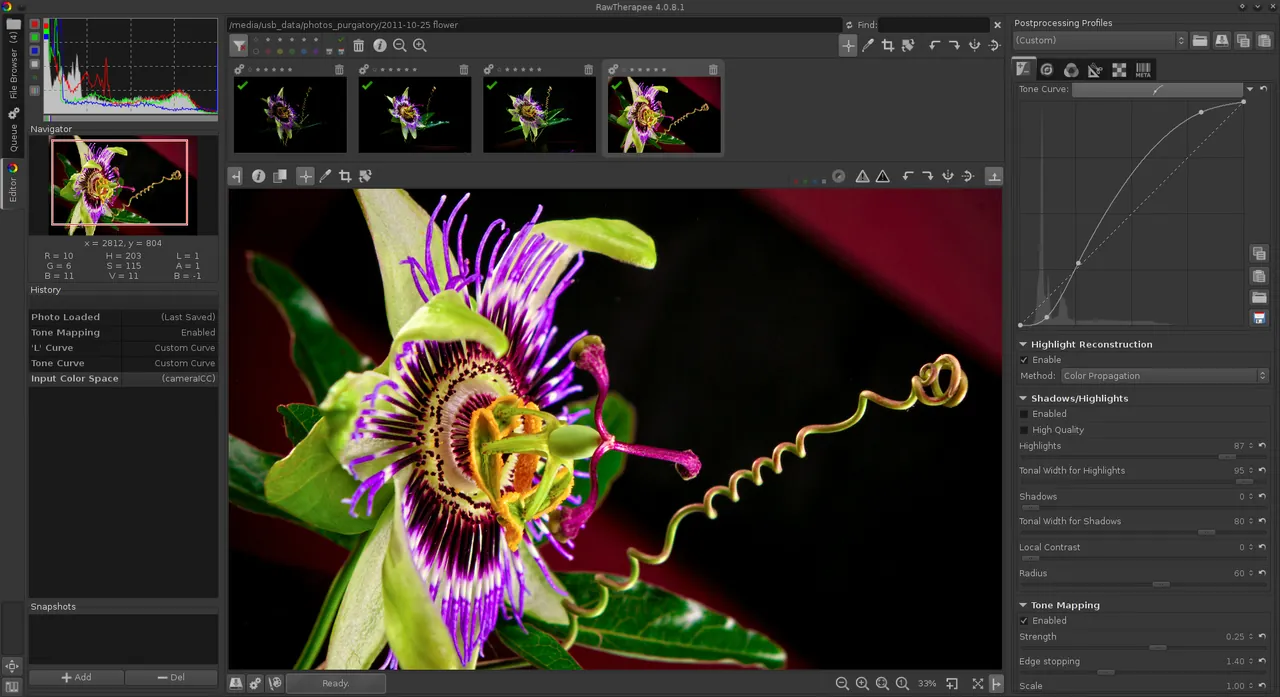

RawTherapee concentrates on getting the most out of each RAW file: a 32-bit floating point engine, several demosaicing algorithms including two on the same image, pixel-shift support, dark frame subtraction, flat field and hot or dead pixel correction, plus noise reduction and color tools. Edits are saved in sidecar files, and a batch queue processes many photos with the same settings.
It has no photo library like Lightroom or darktable, no layers and a dense interface, so it replaces Camera Raw rather than Photoshop itself. Like darktable, it can act as GIMP's RAW loader when an edit needs layers.
Pros
- Excellent raw processing quality
- Non-destructive workflow
- Free, no subscription
Cons
- Dense interface with a steep learning curve
- No photo library or catalog
- No layers, clone stamp or healing brush like a full photo editor
Which Photoshop job are you replacing?
Layered photo editing, retouching and compositing: Affinity is the closest match in workflow, and GIMP if you want open source with no account. Painting and illustration: Krita. Crops, resizes and quick fixes: Paint.NET. RAW development and photo libraries, the Lightroom side of the Photography plan: darktable or RawTherapee.
Logos, icons and other vector work were never Photoshop's strength. Affinity's Vector studio or Inkscape, a free vector editor that imports AI files, are better fits than any pixel editor. For manga and comics, MediBang Paint adds screentones and panel tools.
PSD files: what survives in each app
PSD is Photoshop's internal format, and as the Krita manual points out, it has no official specification online, so every other app reads only part of it. The safest rule is to keep the original PSD, edit a copy and save your work in the new app's own format.
Affinity: layers, adjustment layers mapped to its own, PSB files, and smart objects and editable text when you enable the import options. GIMP: layers, some layer styles and PSB files; PSD adjustment layers and most layer effects are not imported yet. Krita: raster layers, blend modes, layer styles, vector shapes, text, groups and transparency masks, but not adjustment layers. Paint.NET with the PSD plugin: flat raster layers with common blend modes, 8-bit RGB only.
If you exchange PSD files with clients every day, test a few of their real files before cancelling your Adobe plan. Photoshop-only features, such as some smart object options and complex layer effects, may be flattened or look different.
Shortcuts, presets and plugins
Muscle memory is the hardest part of switching. Krita is the app here with a documented Photoshop shortcut scheme; pick the Photoshop profile for both keyboard shortcuts and canvas input. GIMP 3.2 imports Photoshop Curves and Levels presets and .pat patterns, so some saved looks carry over.
Photoshop plugins are written for Photoshop, so check with each plugin's developer before assuming it works elsewhere. GIMP and Paint.NET have their own plugin communities, and Paint.NET's documentation warns to download plugins only from its official forum, because plugins come from third-party developers.
RAW and Lightroom-style work vs layered editing
Photoshop users who shoot RAW usually split the work between Camera Raw or Lightroom and Photoshop's layers. The free equivalents split the same way. darktable covers the library and develop steps; RawTherapee covers development only. Both are non-destructive and never modify the RAW file.
When a photo needs layers after development, GIMP 3.2 can open RAW files through darktable, RawTherapee or ART as plug-ins, so you develop first and composite second. Affinity keeps both steps in one app with its own RAW development. If you rely on Lightroom's catalog, Lightroom Classic is sold only in the same Photography plan as Photoshop.
Frequently asked questions
What is the best free alternative to Photoshop?
Affinity is the closest in workflow and opens PSD files with adjustment layers, but it needs a free Canva account. GIMP is the best open-source option with no account. For painting choose Krita, and for RAW photos darktable.
Is there a free version of Photoshop?
No. Photoshop has a 7-day trial that needs a payment card, then costs US$22.99 per month alone or US$19.99 per month in the Photography plan, both on annual plans.
Which free Photoshop alternative handles PSD files best?
Affinity, according to its documentation: layers stay intact, adjustment layers are converted, and smart objects and text can stay editable with the right import settings. GIMP and Krita open layered PSD files but do not import adjustment layers.
Is Affinity really free?
Yes. Canva says every tool in the Pixel, Vector and Layout studios is free with a free Canva account, with no time limit. Only the Canva AI tools, such as Generative Fill, need a premium Canva plan.
Can I use Photoshop shortcuts in a free editor?
In Krita, yes: it ships a Photoshop-compatible shortcut scheme for the keyboard and canvas. Among the other picks, GIMP 3.2 at least imports Photoshop Curves and Levels presets and patterns.
Is there a free alternative to Lightroom and Camera Raw?
Yes. darktable replaces the library and RAW development, and RawTherapee offers detailed RAW development without a library. Both are open source and never change the original file.
ExeDepot does not host installers. Every download button opens the developer's own server or official download page. Prices and licenses come from each developer's site and were checked on .