
Graphics · Published
How to convert PSD to PNG using GIMP
To convert a PSD to PNG in GIMP, open the PSD with File, then Open, check the Layers panel, then choose File, then Export As, type a name ending in .png and click Export. GIMP merges the visible layers into one PNG and keeps transparency. The original PSD is not changed.
GIMP is the right tool when you need to look at the layers first, hide some of them or fix something before exporting. If the PSD relies on Photoshop-only features, Krita or Affinity may render it closer to the original. For a folder of PSDs that only need a flat PNG each, a batch converter such as XnConvert is faster.
Method 1: Export a PSD as PNG in GIMP 3
These steps use the menu names from the GIMP 3.0 manual on docs.gimp.org:
- Download GIMP from gimp.org and install it.
- Choose File, then Open (Ctrl+O), select the PSD and click Open.
- If GIMP shows a compatibility warning, read the list. Since the 3.0 development series, GIMP lists the PSD features it could not import, so you know before exporting what may look different.
- Open the Layers panel with Windows, then Dockable Dialogs, then Layers (Ctrl+L). Click the eye icon next to any layer you do not want in the PNG. Only visible layers end up in the export.
- Choose File, then Export As (Shift+Ctrl+E). In the Name field, replace the extension with .png, choose a folder and click Export.
- In the Export Image as PNG dialog, leave Pixel format at its default unless you need a specific 8-bit or 16-bit output. Set Compression level to 9: PNG compression is lossless, so a higher level only makes the file smaller and the export slightly slower.
- Leave Save layer offset unchecked. The GIMP manual says its PNG offset support is not compatible with other applications. Click Export.
After the first export, File, then Export to followed by the file name repeats the export with the same settings, which is handy if you go back and change a layer.
What does not survive the conversion
PNG stores one flat image with optional transparency. The GIMP manual states that only its own XCF format keeps everything about an image; every other format keeps some properties and loses others. In a PNG, all layers, groups, masks and text become fixed pixels. You cannot edit the text or move a layer in the PNG afterwards, so keep the PSD as your working file.
The bigger risk is the import step. PSD has no public specification, and GIMP's card on this site notes that very complex PSD files with Photoshop-specific effects may be flattened or look different. If the compatibility warning lists missing features, compare the GIMP canvas with a preview of the original before exporting. GIMP's PSD importer has been improved in recent releases, for example it now groups Photoshop clipping layers so the result matches the merged image more closely.
If GIMP's result does not match, try Krita, which the Krita manual says loads layer styles, vector shapes, text layers, layer groups and transparency masks from PSD, or Affinity, which imports PSD files with their layers.
Method 2: Other editors that open PSD
In Krita, open the PSD with File, then Open, check the layer stack, then use File, then Export and choose PNG as the file type. Krita is a painting app, so it suits illustrations and drawn artwork better than photo composites.
Affinity imports PSD, AI and IDML files with their layers and exports PNG from the File menu. It is free, but you need to sign in with a Canva account before you can use it.
PhotoDemon is a portable editor that opens PSD files without installation, which helps on a PC where you cannot install software. As a 32-bit app it cannot open images larger than about 2 GB.
Paint.NET does not open PSD out of the box. Its card notes that a free community plugin adds PSD support, so it is only worth it if you already use Paint.NET.
Method 3: Convert a folder of PSD files at once
GIMP opens one file at a time. If you have dozens of PSDs and only need a flat PNG of each, use XnConvert:
- On the Input tab, click Add files or Add folder and select the PSD files.
- On the Output tab, choose a destination folder and set the format to PNG.
- Click Convert. Each PSD becomes one PNG in the destination folder, and the originals stay untouched.
You do not get to hide or fix layers this way, so check a few results against the originals. XnView MP uses the same engine and is useful to browse PSD thumbnails before converting. Both are free for private and educational use only; a company needs a paid license.
Free tools for this job
| App | Best for | License | Price | Download |
|---|---|---|---|---|
 GIMP |
Checking and adjusting layers before exporting a PNG | Open source | Free | Review |
 Krita |
Illustrations and painted PSD artwork | Open source | Free | Review |
 Affinity |
Layered design files from Photoshop | Freeware | Free | Review |
 XnConvert |
Turning many PSD files into PNG in one run | Freeware | Free | Review |
 PhotoDemon |
Converting a PSD on a PC without installing anything | Open source | Free | Review |
 Paint.NET |
People who already edit in Paint.NET | Freeware | Free | Review |
1. GIMP — Image Editor
Best for: Checking and adjusting layers before exporting a PNG
- Open source
- Free
- Graphics
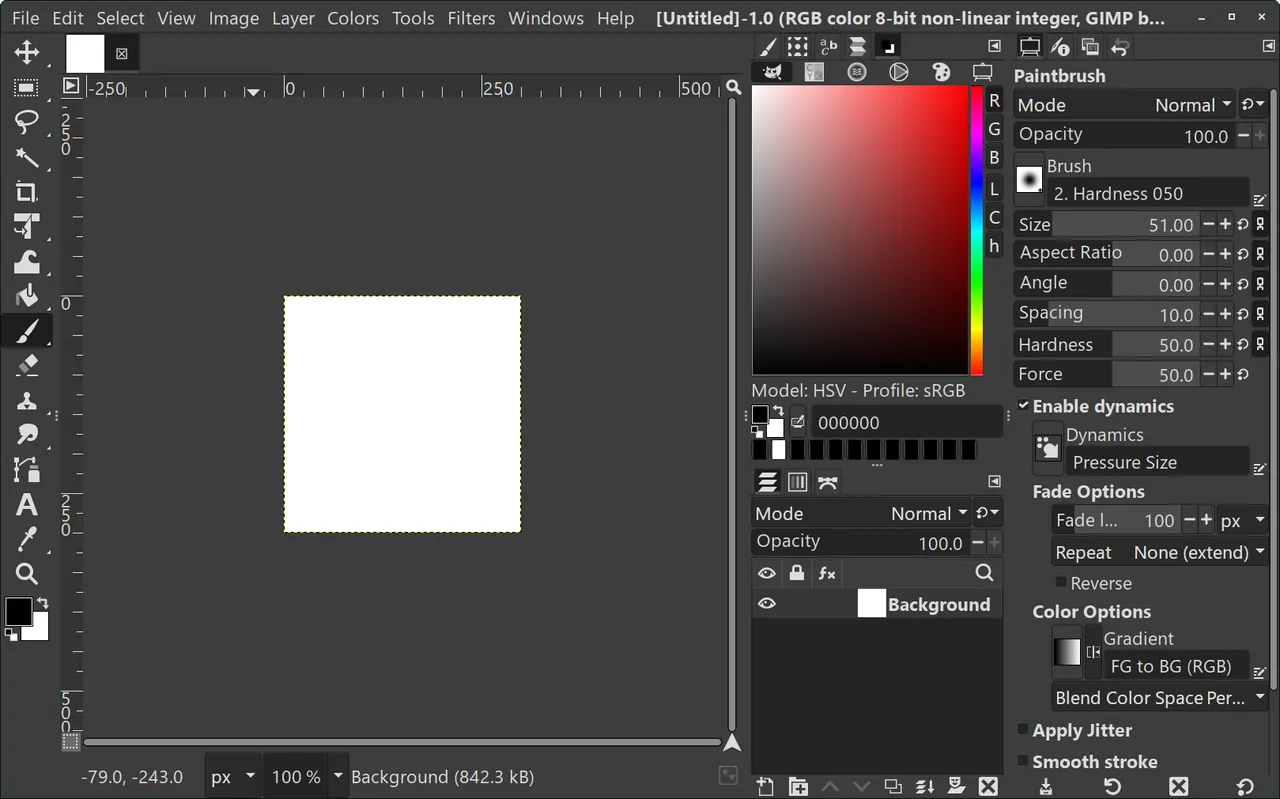

GIMP opens PSD files with their layers, warns about features it could not import and exports PNG with control over bit depth, compression and metadata. Files built around Photoshop-only effects may not look identical.
Pros
- Professional feature set
- Non-destructive filters in 3.x
- Opens PSD files
Cons
- Different workflow from Photoshop
- Complex PSD files may not match exactly
- Large download
2. Krita — Digital Painting App
Best for: Illustrations and painted PSD artwork
- Open source
- Free
- Graphics
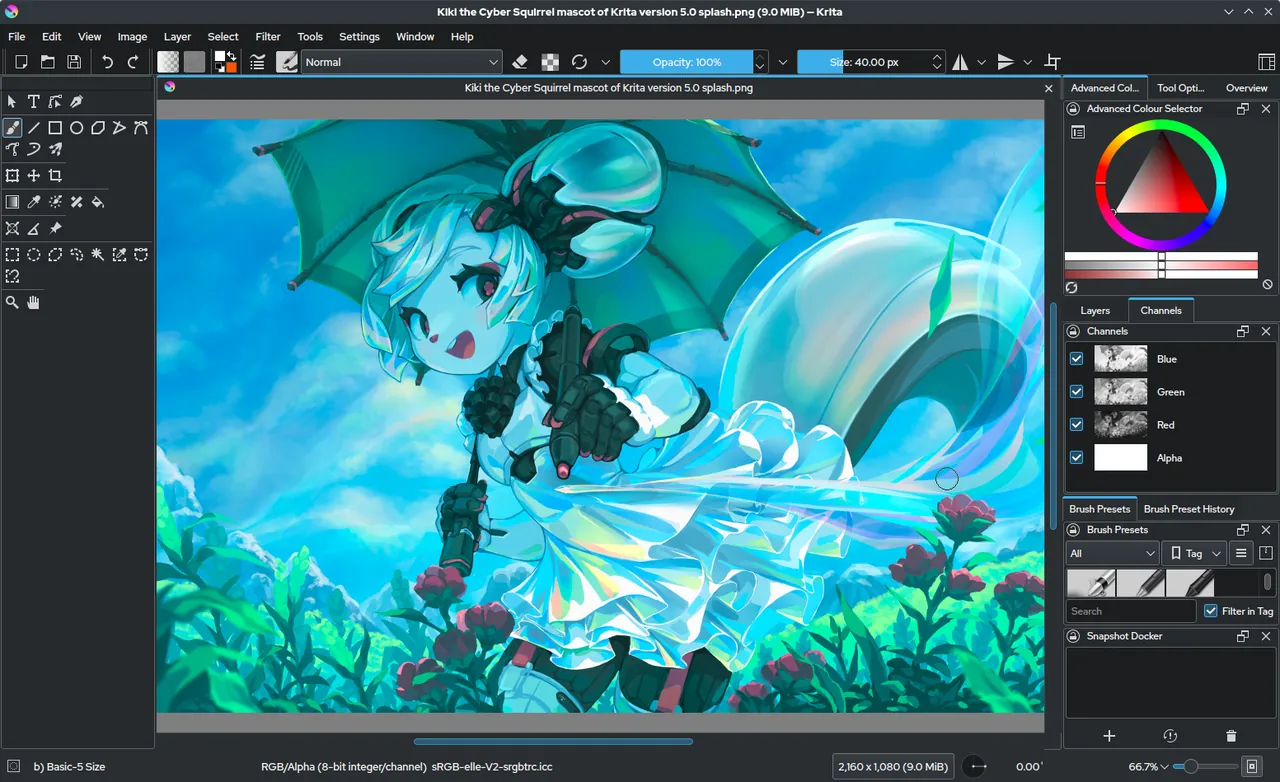

Krita loads layer styles, text layers, vector shapes and layer groups from PSD, according to its manual, and exports PNG. Its tools are built for painting, not for retouching photos.
Pros
- Excellent brushes
- Built for pen tablets
- Includes animation tools
Cons
- Not designed for photo editing
- Many panels can overwhelm beginners
3. Affinity — Design and Photo Editor
Best for: Layered design files from Photoshop
- Freeware
- Free
- Graphics

Affinity imports PSD files with layers preserved and has full pixel, vector and layout tools. The free app requires a Canva account, and the AI tools need a paid Canva plan.
Pros
- Full professional toolset for free
- Photo, vector and layout tools in one app
- Imports Adobe file formats
Cons
- Requires a Canva account to use
- AI features only with a paid Canva plan
- Files saved in the new app do not open in Affinity V1 or V2
4. XnConvert — Batch Image Converter
Best for: Turning many PSD files into PNG in one run
- Freeware
- Free
- Graphics
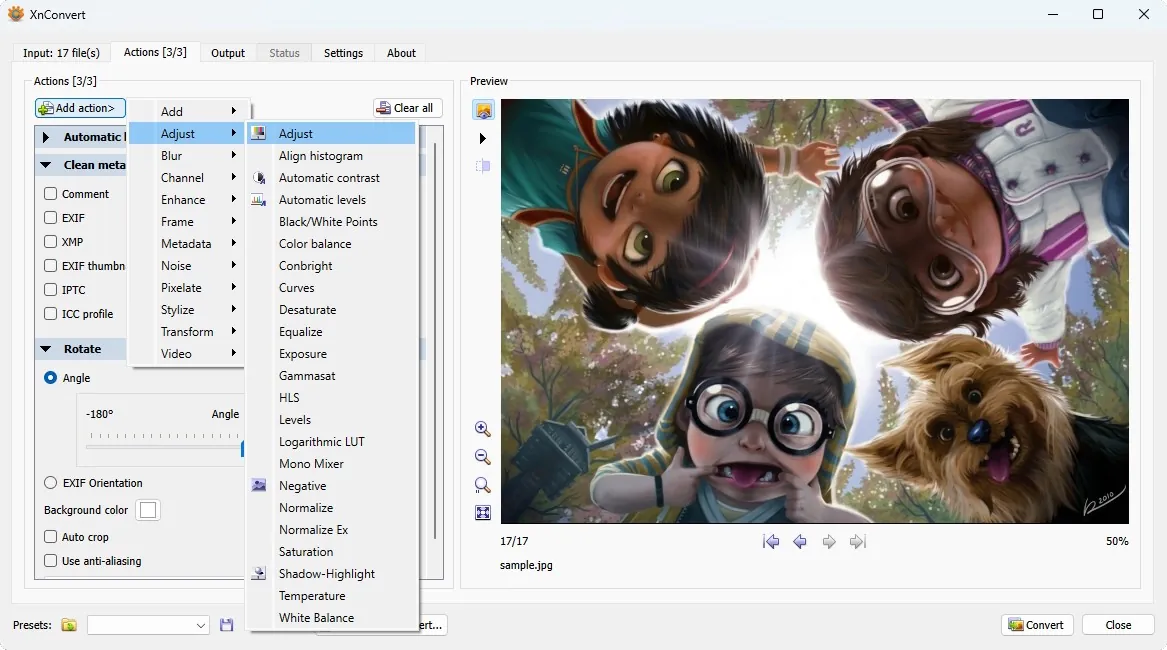
XnConvert reads PSD among more than 500 formats and writes PNG in batches, with resize and rename actions you can save as a preset. It gives no control over individual layers.
Pros
- Huge format support
- 80+ chainable actions
- Saved presets and watch folders
Cons
- Companies must buy a license
- Many options can be confusing at first
5. PhotoDemon — Photo Editor
Best for: Converting a PSD on a PC without installing anything
- Open source
- Free
- Graphics
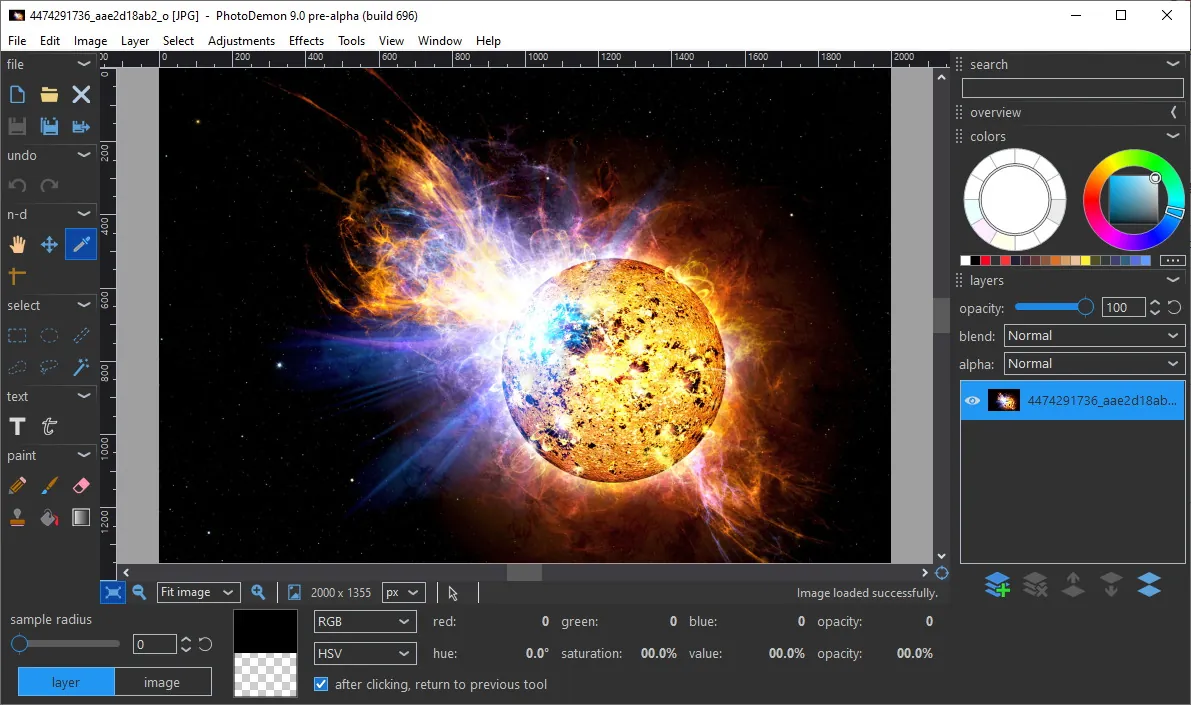

PhotoDemon runs from a folder or USB stick and opens PSD, XCF and camera RAW files. It is Windows-only and limited to images under about 2 GB.
Pros
- Free, open source, no installation
- Over 200 tools in a small download
- Opens PSD, XCF and RAW files
Cons
- Windows only
- 32-bit only, so images over about 2 GB cannot be opened
- No installer, so no Start menu shortcut is created
6. Paint.NET — Photo Editor
Best for: People who already edit in Paint.NET
- Freeware
- Free
- Graphics

Paint.NET can export PNG easily, but it needs a community plugin to open PSD files at all. Without that plugin it is not an option for this task.
Pros
- Easy to learn
- Fast
- Layers and plugins
Cons
- Windows only
- Closed source
- PSD support requires a plugin
Frequently asked questions
Can GIMP open PSD files with layers?
Yes. GIMP opens PSD files with their layers and shows a compatibility warning listing any Photoshop features it could not import.
How do I save a PSD as PNG in GIMP?
Open the PSD, then choose File, then Export As, change the file name to end in .png and click Export. Save only stores GIMP's own XCF format, so Export As is the command you need.
Does converting PSD to PNG keep transparency?
Yes. PNG supports an alpha channel, and GIMP exports transparent areas as transparent unless you flatten the image first. Image, then Flatten Image fills transparent areas with the background color.
Why does my PNG look different from the PSD in Photoshop?
PSD is Photoshop's internal format without a public specification, so other programs cannot support every feature. Check GIMP's compatibility warning, or try Krita or Affinity, which may render the file more closely.
Is PNG export lossless?
Yes. PNG compression does not discard image data, so the compression level only changes file size and export time, not quality.
Can I convert many PSD files to PNG at once?
Not comfortably in GIMP, which opens files one by one. A batch converter such as XnConvert turns a whole folder of PSDs into PNGs in one run. For more editors that handle PSD, see our free photo editor comparison.
ExeDepot does not host installers. Every download button opens the developer's own server or official download page. Prices and licenses come from each developer's site and were checked on .