
Developer tools · Published
How to convert YAML to JSON in VS Code
VS Code has no built-in YAML to JSON command. The quickest fix is the free YAML ❤️ JSON extension by Daniel Hillmann: right-click a .yaml file in the Explorer and choose Convert to JSON. Without an extension, run a one-line conversion with Python, Node.js or yq in the integrated terminal.
The extension suits occasional conversions and whole folders of config files. The terminal methods suit scripts, CI jobs and anyone who wants to see exactly which parser read the file. Whichever you pick, check the output for the YAML features JSON cannot hold, covered at the end.
Method 1: The YAML ❤️ JSON extension
YAML ❤️ JSON (extension ID hilleer.yaml-plus-json) is published on the Visual Studio Marketplace and on Open VSX, so it installs in VS Code and in VSCodium alike:
- Press Ctrl+P, type ext install hilleer.yaml-plus-json and press Enter. Or open the Extensions view with Ctrl+Shift+X, search for YAML JSON and install the entry by Daniel Hillmann.
- To convert a whole file, right-click it in the Explorer and choose Convert to JSON. Renaming a file from .yaml to .json converts it too, because convertOnRename is on by default.
- To convert part of a file, select the YAML text, press Ctrl+Shift+P and run Convert selection to JSON. The text is replaced in place and the file extension stays the same.
- To look at the result without touching the file, run YAML+JSON: Preview as JSON (from YAML. Opens in new file) from the Command Palette. The JSON opens in a new, unsaved editor.
- To convert a folder, right-click it in the Explorer and choose Convert YAML files to JSON, or select several files and choose Convert selected files to JSON.
Settings live in one yaml-plus-json object in settings.json. Set keepOriginalFiles to always if you want the .yaml file kept next to the new .json file, and set fileExtensions.json to .jsonc if you want YAML comments carried over as // comments. Plain .json cannot store comments, so they are dropped there.
Method 2: A Python one-liner in the integrated terminal
If Python is installed, the PyYAML library from pyyaml.org does the conversion without any extension:
- Open the terminal with Ctrl+` (or Terminal, then New Terminal). It starts in your workspace folder.
- Install the parser once: py -m pip install pyyaml
- Convert the file: py -c "import json, yaml; json.dump(yaml.safe_load(open('config.yaml', encoding='utf-8')), open('config.json', 'w', encoding='utf-8'), indent=2, default=str)"
- Open config.json in the editor and press Shift+Alt+F to format it if you changed the indent.
Use safe_load, not load: the PyYAML documentation warns that yaml.load can run arbitrary Python code from an untrusted file. The default=str part turns YAML dates into strings; without it, json.dump stops with "Object of type date is not JSON serializable". safe_load also refuses files with several documents separated by ---; for those, replace yaml.safe_load(...) with list(yaml.safe_load_all(...)) to get a JSON array.
Method 3: Node.js or yq in the terminal
With Node.js installed, the js-yaml package from npm has a small command-line tool that prints JSON. yq by Mike Farah is a single Windows binary that converts YAML, JSON, XML and TOML. Both print to the terminal, so you redirect the output to a file:
- In the Terminal panel, click the arrow next to the + button and choose Command Prompt. This avoids the file encoding problem described below.
- With Node.js: npx js-yaml config.yaml > config.json. npx asks to download js-yaml on first use, so answer y; a file with several documents becomes a JSON array.
- With yq: install it once with winget install --id MikeFarah.yq, open a new terminal, then run yq -o=json config.yaml > config.json. Add -I=0 for one-line JSON.
If you stay in Windows PowerShell 5.1, the version built into Windows, the > operator saves the file as UTF-16, and many JSON parsers reject it. Command Prompt and PowerShell 7 write UTF-8. yq follows YAML 1.2 and resolves anchors into plain copies of the data; for a multi-document file it prints one JSON document after another, which is not a single valid JSON file.
What YAML loses when it becomes JSON
JSON has objects, arrays, strings, numbers, true, false and null, and nothing else. Check these four things after any conversion:
- Comments: every converter drops # comments in plain JSON. Keep the YAML file as the source if the comments matter, or use the extension's .jsonc output.
- Anchors and aliases: &name and *name are expanded, so shared blocks are copied into every place that referenced them and the JSON file grows.
- Several documents: a file with --- separators either becomes a JSON array (extension, js-yaml, safe_load_all) or fails (safe_load).
- Dates and unquoted values: PyYAML follows YAML 1.1, so country: no becomes false, enabled: on becomes true, zip: 012 becomes 10 and version: 1.10 becomes 1.1. js-yaml follows YAML 1.2 and keeps no and on as strings, but it still reads 012 as 12 and 1.10 as 1.1. Quote any value that must stay text, such as "1.10" or "012".
A changed boolean or a shortened version number raises no error, so compare critical keys with the original before you commit the JSON.
Free tools for this job
| App | Best for | License | Price | Download |
|---|---|---|---|---|
 Visual Studio Code |
Converting with an extension and checking the result in one window | Freeware | Free | Review |
 VSCodium |
The same workflow without Microsoft telemetry | Open source | Free | Review |
 Python |
Scripted conversions you can repeat or adapt | Open source | Free | Review |
 Node.js |
Projects that already use npm | Open source | Free | Review |
1. Visual Studio Code — Code Editor
Best for: Converting with an extension and checking the result in one window
- Freeware
- Free
- Developer tools
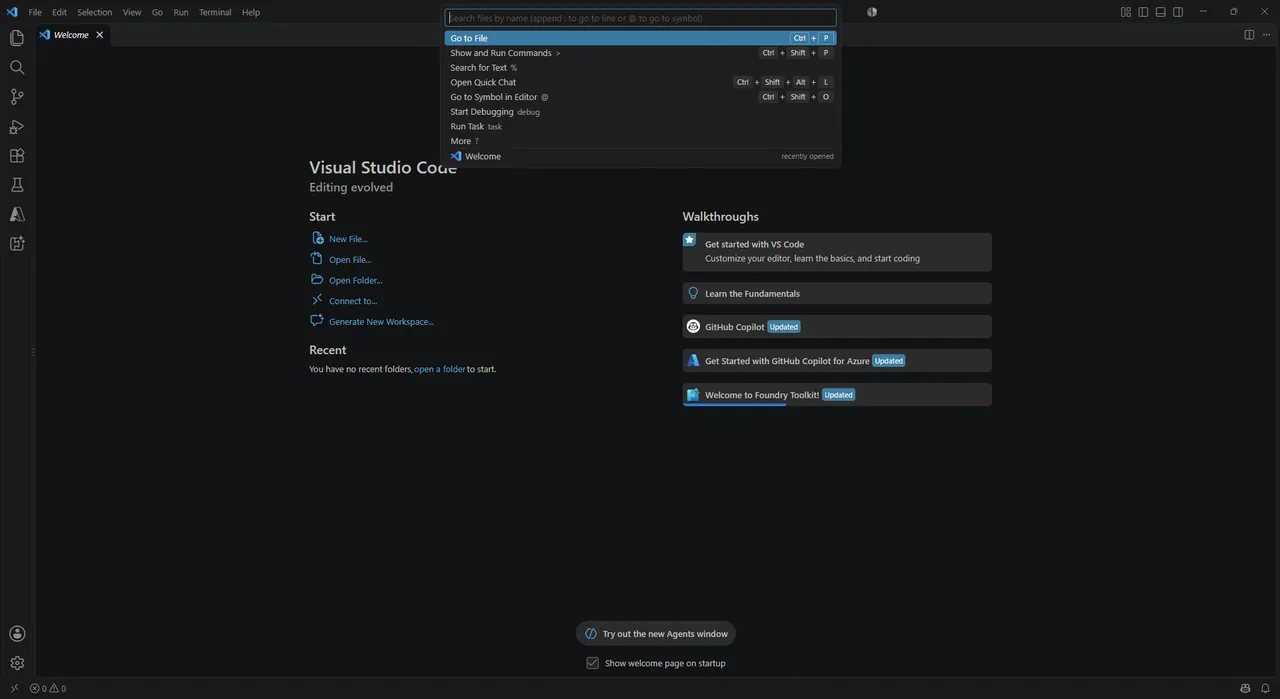

VS Code gets YAML ❤️ JSON from the Visual Studio Marketplace and runs Python, Node.js or yq in its integrated terminal, so every method above works without leaving the editor. Its JSON formatter (Shift+Alt+F) tidies the output, but YAML conversion itself comes only from extensions. If you are still choosing an editor, see our AI code editor comparison.
Pros
- Free for personal and commercial use
- Huge extension ecosystem
- Built-in Git, terminal and debugger
Cons
- Sends telemetry to Microsoft by default (can be turned off in Settings)
- The Microsoft build is proprietary, and Microsoft's own extensions are licensed only for Microsoft products
- AI features are promoted prominently in the interface
2. VSCodium — Code Editor
Best for: The same workflow without Microsoft telemetry
- Open source
- Free
- Developer tools
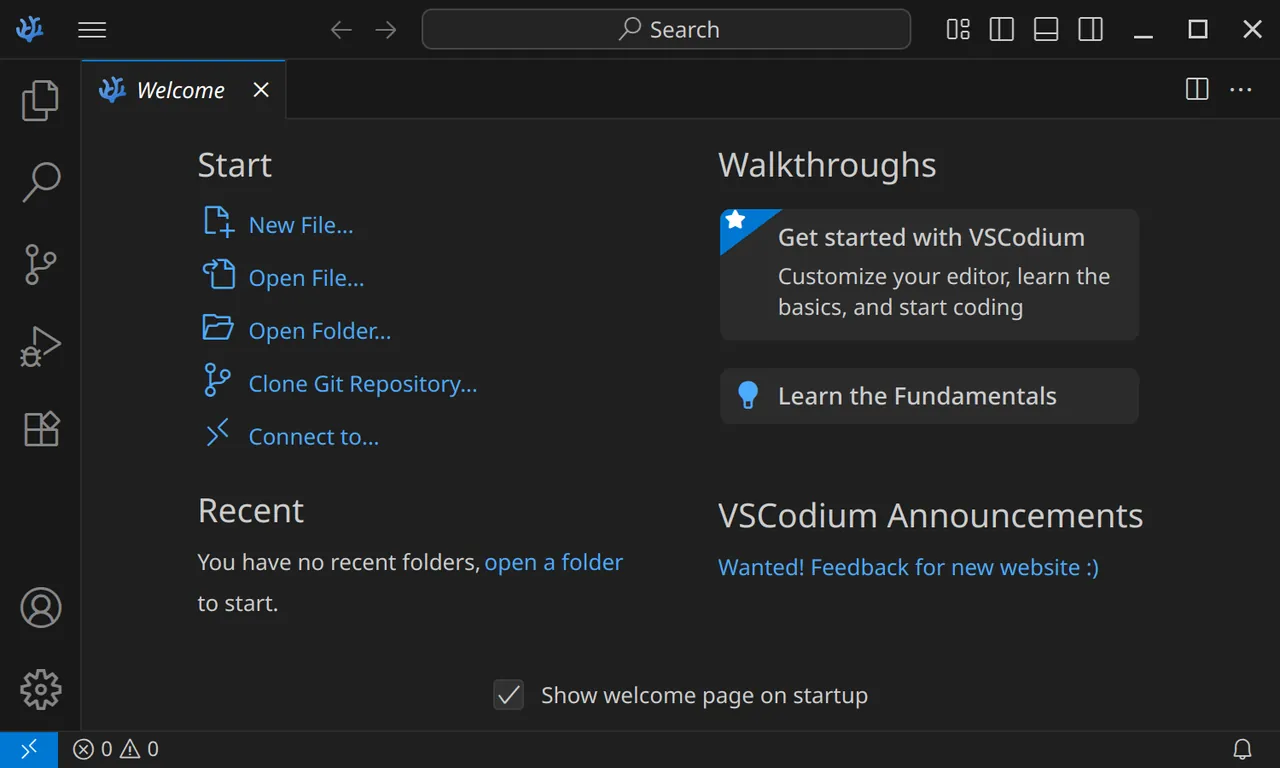

VSCodium installs extensions from Open VSX, and YAML ❤️ JSON is published there too, so the right-click conversion works the same way. Microsoft-only extensions are not available, which does not matter for this task.
Pros
- Free and open source (MIT)
- Telemetry disabled
- Same editor and settings as VS Code
Cons
- Some Microsoft extensions are unavailable or not licensed for VSCodium
- Open VSX has fewer extensions than the Visual Studio Marketplace
3. Python — Programming Language
Best for: Scripted conversions you can repeat or adapt
- Open source
- Free
- Developer tools
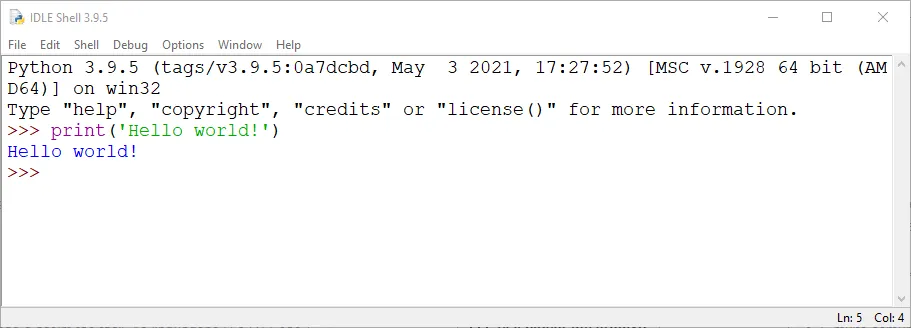

With Python and PyYAML, the conversion is one line, and you can extend it to rename keys or validate values before writing JSON. Watch out for YAML 1.1 rules that turn unquoted no, on and 012 into booleans and numbers.
Pros
- Free and open source
- Huge package ecosystem via pip
- Easy to read and learn
Cons
- Several versions and environments can get confusing
- Slower than compiled languages for heavy number crunching without libraries
- Typing python can open the Microsoft Store if PATH is not set
4. Node.js — JavaScript Runtime
Best for: Projects that already use npm
- Open source
- Free
- Developer tools
Node.js includes npx, which runs the js-yaml command-line tool without a global install and prints the converted JSON. It follows YAML 1.2, so values like no and on stay strings, but you need Command Prompt or PowerShell 7 to redirect the output to a clean UTF-8 file.
Pros
- Free and open source (MIT)
- npm gives access to a huge package registry
- Stable LTS release line
Cons
- npm packages vary widely in quality and security
- Native modules need extra build tools on Windows
- Switching versions requires a separate version manager
Frequently asked questions
Does VS Code have a built-in YAML to JSON converter?
No. VS Code edits and formats both formats but has no command that converts one into the other. Install an extension such as YAML ❤️ JSON or run a converter in the integrated terminal.
How do I convert a YAML selection to JSON in VS Code?
With YAML ❤️ JSON installed, select the YAML text, press Ctrl+Shift+P and run Convert selection to JSON. To see the result without changing the file, run YAML+JSON: Preview as JSON instead.
Why does my converted JSON say false instead of no?
PyYAML follows YAML 1.1, where unquoted yes, no, on and off are booleans. Put quotes around the value in the YAML file, or use js-yaml or yq, which follow YAML 1.2.
Can I keep YAML comments when converting to JSON?
Not in plain JSON, which has no comment syntax. YAML ❤️ JSON can carry comments into JSONC (JSON with comments) if you set fileExtensions.json to .jsonc in its settings.
How do I convert JSON back to YAML in VS Code?
YAML ❤️ JSON works both ways: right-click a .json file and choose Convert to YAML. In the terminal, yq -P -oy file.json prints the JSON as YAML.
Is it safe to paste YAML into an online converter?
Config files often contain API keys, passwords and internal hostnames. Converting locally in VS Code or in the terminal keeps that data on your PC.
ExeDepot does not host installers. Every download button opens the developer's own server or official download page. Prices and licenses come from each developer's site and were checked on .