
AI tools · Updated
The best apps to run Stable Diffusion and Flux locally on Windows
Generating images on your own PC means no subscription, no per-image credits and no upload of your prompts or reference photos. You download open models such as Stable Diffusion XL or Flux once and run them as often as you like, offline. The price is hardware: a dedicated graphics card with enough video memory makes the difference between seconds and minutes per image, and models take tens of gigabytes of disk.
All apps below are free. They differ in how much control they give you and how much setup they hide. Some are a simple prompt box, some are an editor-like canvas, one is a node editor for full control, and some are managers that install other interfaces for you. Check which graphics cards each one supports on Windows before you start, because AMD support varies a lot.
Our picks at a glance
| App | Best for | License | Price | Download |
|---|---|---|---|---|
 Comfy Desktop Comfy Desktop |
Full control and the newest models | Open source | Free | Review |
 InvokeAI InvokeAI |
Artists who want to paint over and refine images | Open source | Free | Review |
 Stability Matrix Stability Matrix |
Trying several interfaces without manual installs | Open source | Free | Review |
 Fooocus Fooocus |
A Midjourney-style prompt box for beginners | Open source | Free | Review |
 Easy Diffusion Easy Diffusion |
Older or modest PCs, including CPU-only | Freeware | Free | Review |
 Amuse Amuse |
A native Windows app for images, video and audio | Open source | Free | Review |
 Pinokio Pinokio |
Experimenting with many open-source AI tools | Open source | Free | Review |
1. Comfy Desktop — AI Image Generator
Best for: Full control and the newest models
- Open source
- Free
- AI tools
.png)
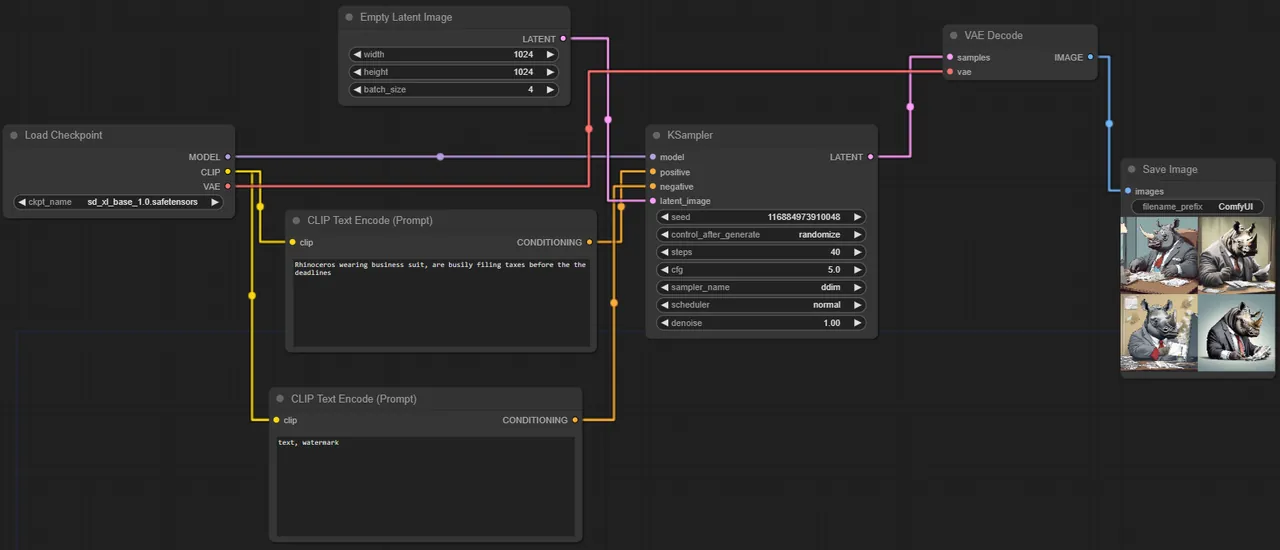
Comfy Desktop is the official launcher for ComfyUI, the open-source node-based engine from Comfy Org. Each installation brings its own Python and prebuilt PyTorch, so there is no manual pip or CUDA setup, and you can run several independent installs side by side. Workflows connect nodes that load models, encode prompts and generate images or video, with open models such as Flux, Wan and LTX.
ComfyUI Manager installs and updates thousands of community custom nodes, and on first launch you can choose the paid Comfy Cloud instead of a local install. The downside is complexity: node workflows are hard for beginners, and in practice you need a dedicated NVIDIA or AMD GPU with plenty of VRAM. If you want to type a prompt and get a picture, Fooocus or Easy Diffusion is a gentler start.
Pros
- Free and open source
- No manual Python or CUDA setup
- Full ComfyUI node editor and extensions
Cons
- Needs a dedicated NVIDIA or AMD GPU for usable speed
- Models consume a lot of disk space
- Node workflows are complex for beginners
2. InvokeAI — Local AI Image Generator
Best for: Artists who want to paint over and refine images
- Open source
- Free
- AI tools
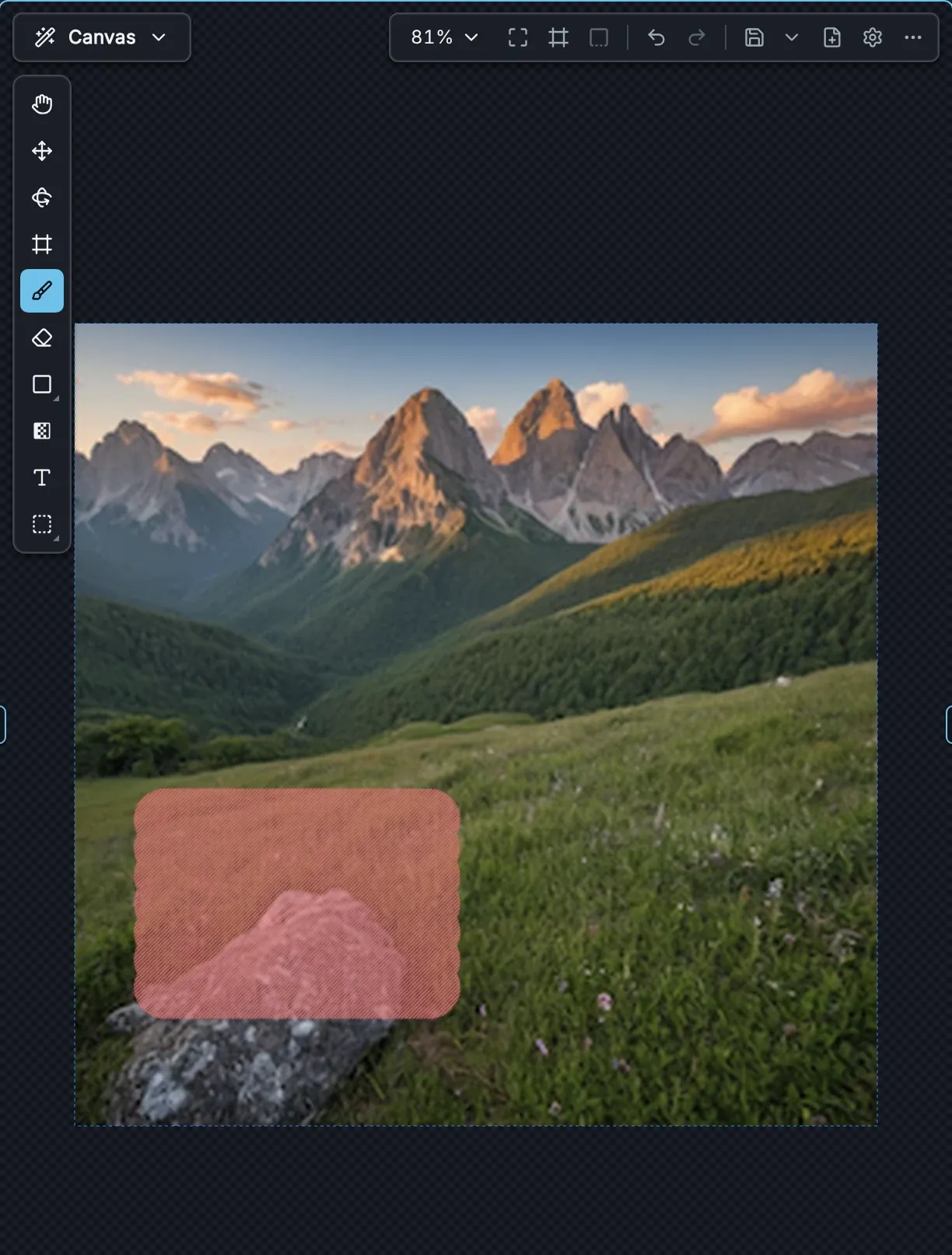

InvokeAI is built around the Unified Canvas, with layers, brushes, masks, inpainting and outpainting, so you can fix and extend an image like in an editor instead of only re-rolling prompts. A node workflow editor is there when you need it, and the Invoke Launcher handles installation and updates. Local models include SD 1.5, SDXL, SD 3.5, FLUX.1, FLUX.2 Klein, Z-Image and Qwen Image.
On Windows it needs an Nvidia or Intel Arc GPU; AMD cards work on Linux only. Invoke's guide lists 4 GB of VRAM for SD 1.5, 8 GB for SDXL and 10 GB for FLUX.1, and newer models need 12 to 24 GB. AMD owners should look at Comfy Desktop instead.
Pros
- Free and open source (Apache 2.0)
- Canvas with layers, inpainting and outpainting
- Node workflows for advanced pipelines
Cons
- No AMD GPU support on Windows
- Newer models need 12–24 GB of VRAM
- Model files take tens of gigabytes
3. Stability Matrix — AI Image Tool Manager
Best for: Trying several interfaces without manual installs
- Open source
- Free
- AI tools
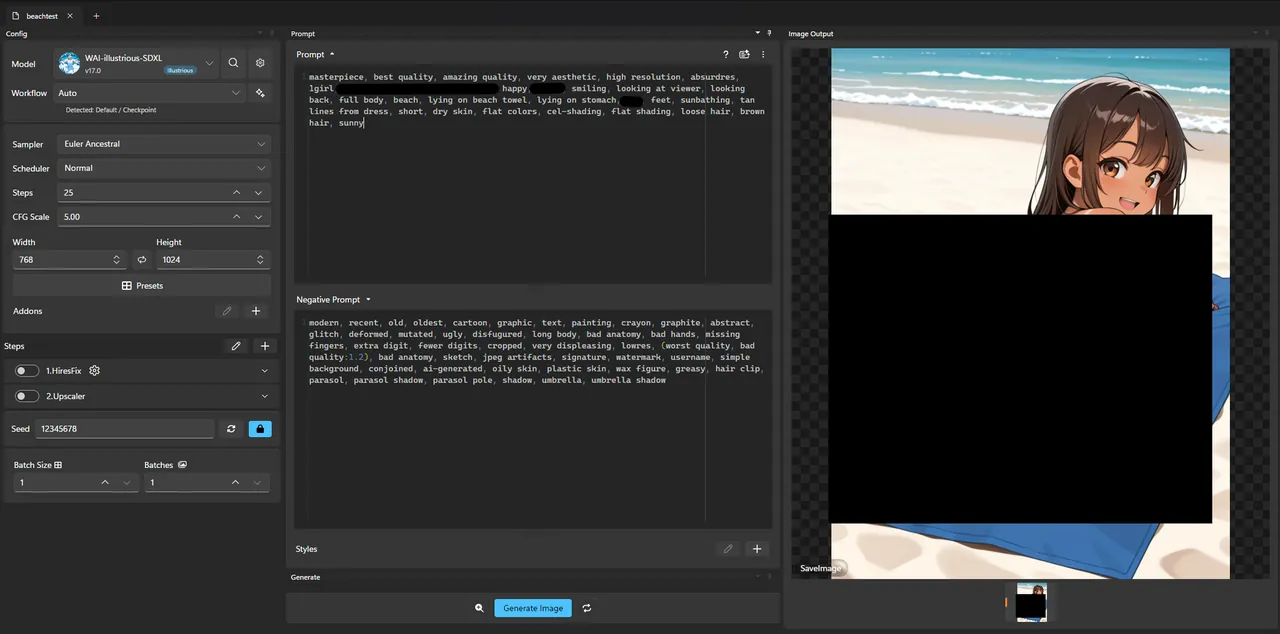

Stability Matrix is a package manager rather than a generator: it installs and updates ComfyUI, Forge, Automatic1111, SD.Next, Fooocus, InvokeAI, SwarmUI and training tools such as Kohya's GUI in one click, with Git and Python embedded. All packages share one model folder, which saves a lot of disk space if you use more than one interface, and a built-in browser downloads models from CivitAI and Hugging Face.
It also has its own Inference interface for generating images. It ships as a ZIP without an installer, and the prebuilt app sends anonymized analytics until you switch them off in Settings. Speed and hardware needs depend on the package you run, so the GPU advice for ComfyUI or InvokeAI still applies.
Pros
- Free and open source
- No manual Python or Git setup
- One model folder for all packages
Cons
- Ships as a zip without an installer
- Packages and models take many gigabytes
- Sends anonymized analytics until you turn them off
4. Fooocus — Local AI Image Generator
Best for: A Midjourney-style prompt box for beginners
- Open source
- Free
- AI tools
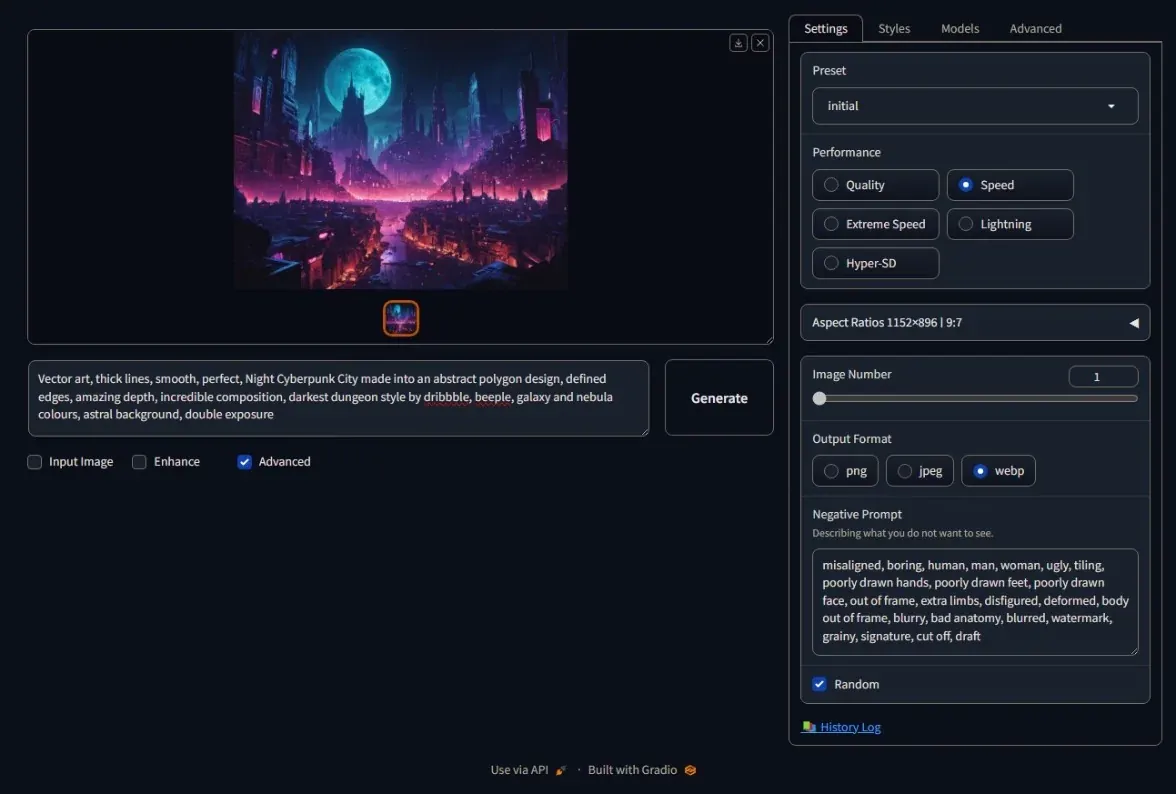

Fooocus hides almost every setting. A built-in prompt engine expands short prompts, so good SDXL images come out without tweaking samplers or steps, and advanced tabs add inpainting, outpainting, image prompts, upscaling and Anime or Realistic presets. It works offline once the first start has downloaded the default models.
The project is in limited long-term support: only bugs are fixed and no new features are planned, and it supports SDXL models only, so Flux is not available. The developer lists 4 GB of Nvidia VRAM and 8 GB of RAM as the minimum, and AMD support on Windows is a beta. For newer models with similar simplicity, try Easy Diffusion.
Pros
- Free and open source
- Very simple prompt-first interface
- Strong inpainting and outpainting
Cons
- SDXL models only, no FLUX support
- Bug fixes only, no new features
- Archive must be extracted with 7-Zip
5. Easy Diffusion — Local AI Image Generator
Best for: Older or modest PCs, including CPU-only
- Freeware
- Free
- AI tools
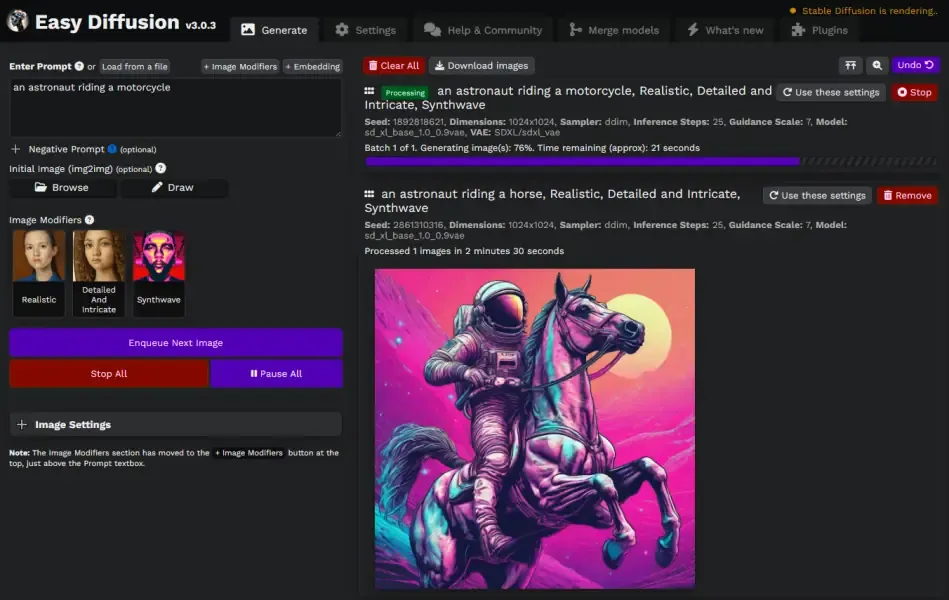
Easy Diffusion installs everything with one Windows installer and runs a beginner-friendly interface in your browser, with a task queue and live preview. It still offers ControlNet, custom models, RealESRGAN upscaling and GFPGAN face correction, and its newer v4 engine adds Flux 1 and 2, Z-Image and quantized models.
Its main advantage over Fooocus is hardware tolerance: the developers list an NVIDIA or AMD GPU with 2 GB of memory, or the CPU, plus 8 GB of RAM. CPU mode is very slow, it needs at least 25 GB of disk, and the unsigned installer triggers a SmartScreen warning. Its license is MIT-based but adds use restrictions, so it is source-available rather than open source.
Pros
- Free, no technical setup
- Runs on NVIDIA, AMD or CPU
- Task queue and live preview
Cons
- Needs at least 25 GB of disk space
- CPU mode is very slow
- Unsigned installer triggers a SmartScreen warning
6. Amuse — Local AI Image Generator
Best for: A native Windows app for images, video and audio
- Open source
- Free
- AI tools
Amuse is a .NET Windows app, not a browser UI, with image pipelines such as FLUX.1, FLUX.2, SDXL, SD 3, Qwen Image and Z-Image, plus Wan 2.2 video, music and speech models, a gallery and a video editor. Its StableDiffusion.cpp backend runs many models without a Python environment, and it supports CUDA on NVIDIA and Vulkan on AMD, Intel and NVIDIA cards.
Amuse was long promoted by AMD, but the developer now warns that recent builds may not work reliably on AMD hardware and suggests ComfyUI as an alternative. It is Windows-only, the installer and model downloads are large, and the app is now published only on GitHub releases. NVIDIA owners who prefer a native app over ComfyUI nodes are its best fit.
Pros
- Free and open source
- Images, video, audio and text in one app
- No Python needed for the StableDiffusion.cpp backend
Cons
- Developer warns of problems on AMD hardware in recent builds
- Windows only
- Large installer and very large model downloads
7. Pinokio — AI App Launcher
Best for: Experimenting with many open-source AI tools
- Open source
- Free
- AI tools
Pinokio is a one-click launcher for open-source AI apps in general, not only image generators. Each app is a script that downloads code, installs dependencies and starts a local web UI, all inside the Pinokio folder so your system Python stays clean. The Discover page lists launchers with GPU compatibility tags, and Disk Saver shares identical files between apps.
The risk is the scripts themselves: unverified ones can run any command on your PC, so stick to featured launchers that the Pinokio admin has reviewed. Many launchers support only NVIDIA GPUs, and each app can download many gigabytes. For image generation alone, Stability Matrix is more focused.
Pros
- Free and open source (MIT)
- One-click install for many AI apps
- Keeps dependencies out of your system
Cons
- Unverified scripts can run any command on your PC
- Each AI app can download many gigabytes
- Many launchers support only NVIDIA GPUs
What hardware do you need?
A dedicated graphics card matters more than anything else. As a guide, Invoke lists 4 GB of VRAM for SD 1.5, 8 GB for SDXL and 10 GB for FLUX.1, and newer models want 12 to 24 GB. Fooocus needs at least 4 GB of Nvidia VRAM and 8 GB of RAM. Only Easy Diffusion officially supports GPUs with 2 GB or the CPU, and both are slow.
Plan for disk space too: Easy Diffusion alone asks for 25 GB, and model collections in ComfyUI or InvokeAI quickly reach tens of gigabytes. A shared model folder in Stability Matrix avoids keeping duplicate copies for each interface.
AMD and Intel graphics on Windows
NVIDIA cards work with every generator in this guide. For AMD on Windows, Comfy Desktop and Easy Diffusion list AMD GPUs as supported, Fooocus has beta DirectML instructions, InvokeAI supports AMD on Linux only, and Amuse has Vulkan support but warns about recent AMD problems. Intel Arc owners can use InvokeAI, and Amuse runs on Intel through Vulkan.
Simple prompt box or full control?
Beginners get good results fastest with Fooocus for SDXL or Easy Diffusion for newer models. Artists who edit images should choose InvokeAI for its canvas. If you want new models and techniques as soon as they appear, learn ComfyUI. Local video generation, for example with Wan models, is available in ComfyUI and Amuse.
Frequently asked questions
What is the best free local AI image generator for Windows?
Comfy Desktop is the most capable and supports the newest models, but it is complex. For beginners, Fooocus or Easy Diffusion is easier, and InvokeAI is best for editing on a canvas. All of them are free.
Is ComfyUI better than InvokeAI?
ComfyUI gives more control through node workflows and works with NVIDIA and AMD cards on Windows. InvokeAI is friendlier for artists thanks to its layered canvas with inpainting and outpainting, but on Windows it needs an Nvidia or Intel Arc GPU.
Can I run Stable Diffusion without a graphics card?
Yes, but slowly. Easy Diffusion has a CPU mode for PCs without a compatible GPU. Comfy Desktop can also run models on the CPU, but generation takes far longer than on a graphics card.
Can I run Flux locally on Windows?
Yes. Comfy Desktop, InvokeAI, Amuse and the v4 engine of Easy Diffusion support Flux models. Fooocus supports SDXL only.
Do I need an account or internet connection?
No account is needed for local generation in these apps. You need internet to download the apps and models; after that, generation runs offline on your PC.
ExeDepot does not host installers. Every download button opens the developer's own server or official download page. Prices and licenses come from each developer's site and were checked on .