
Utilities · Published
How to fix Windows Update error 0x80070005 (access denied)
Error 0x80070005 is E_ACCESSDENIED, a general access denied error. Microsoft explains that the update process could not reach a file, folder or registry entry it needs, usually because permissions on the Windows component store (the WinSxS folder) or the SoftwareDistribution folder were changed, or because a third-party antivirus or security tool locked update files. A Group Policy setting or a management agent that restricts writing to system folders causes it too.
Work through the methods in order: the first two need no command line and fix the common home cases. Methods 3 to 6 follow Microsoft's own procedure for this error and need an administrator Command Prompt. Microsoft advises backing up the system drive before you change permissions or reset update components.
Method 1: Use an administrator account and run the troubleshooter
Microsoft's support page lists 0x80070005 as an access denied error or insufficient permissions to install updates. Some updates need administrator access, so check that first:
- Sign in with an account that has administrator rights. If yours does not, ask the person who has an administrator account on the PC to install the updates, or have them create one for you.
- On Windows 11, open the Get Help app and run the Windows Update troubleshooter. Microsoft says it runs diagnostics and tries to fix most problems automatically.
- You can also start it from Start, Settings, System, Troubleshoot, Other troubleshooters, then Run next to Windows Update.
- On Windows 10, the path is Start, Settings, Update & Security, Troubleshoot, Additional troubleshooters, Windows Update, Run the troubleshooter.
- Restart when the troubleshooter finishes, then open Start, Settings, Windows Update and select Check for updates.
Method 2: Rule out antivirus and other background software
Microsoft names third-party antivirus and security tools that lock update files as one cause of 0x80070005. Test without them:
- Open your antivirus from the Start menu and pause its protection for a short time, for example 10 minutes or 1 hour. The option is usually under Settings, Tools or Protection.
- Update the antivirus program itself, then try Windows Update again while protection is paused. Turn protection back on right after.
- If the error stays, temporarily uninstall the third-party security software, install the updates and reinstall it. Microsoft suggests this for update errors and recommends security software that is compatible with your Windows version. Have the installer and product key ready first.
- To rule out other programs, do a clean boot: type msconfig in Search and open System Configuration. On the Services tab, select Hide all Microsoft services, then Disable all and Apply.
- On the Startup tab, select Open Task Manager, disable every enabled startup app and note which ones you disabled. Close Task Manager, select OK and restart, then run Windows Update again.
- To return to normal, open System Configuration again, choose Normal startup on the General tab, select Enable all on the Services tab and re-enable your startup apps in Task Manager.
Microsoft warns that changing advanced boot options in System Configuration can make the computer unusable; the clean boot above only disables services and startup apps. If you use ConfigureDefender at a strict level, return it to DEFAULT while you test, since strict presets can block trusted programs.
Method 3: Find what was denied in CBS.log
The error code does not say which file or registry key was blocked. Windows writes that to the servicing log:
- Open File Explorer and go to C:\Windows\Logs\CBS.
- Open the newest CBS.log in Notepad.
- Search for , error (comma, space, error) and find the entry whose time matches the failed update. Microsoft's example lines look like Failed to create file. [HRESULT = 0x80070005 - E_ACCESSDENIED].
- Scroll up from that line to see which file, folder or registry key the update could not access.
- For the Windows Update side, open PowerShell and run Get-WindowsUpdateLog. It creates a readable WindowsUpdate.log; search it for 0x80070005.
If the path points to a folder that belongs to your antivirus or another program, go back to Method 2. Process Monitor records every file and registry access with its result; Microsoft uses it for a related update error by filtering on the path taken from CBS.log while the update installs.
Method 4: Reset permissions on WinSxS and SoftwareDistribution
This is Microsoft's first fix for 0x80070005. With /reset, icacls replaces the access lists of the folder and, with /t, of everything inside it with the default inherited ones, which undoes changed permissions. Back up the system drive before you start:
- Type cmd in Search, right-click Command Prompt and choose Run as administrator.
- Run icacls "%windir%\WinSxS" /reset /t /c /q and wait for the prompt to return.
- Run icacls "%windir%\SoftwareDistribution" /reset /t /c /q.
- Restart the PC and try the update again.
- If it still fails, make TrustedInstaller the owner of WinSxS again: run icacls "%windir%\WinSxS" /setowner "NT SERVICE\TrustedInstaller" /t /c /q, then restart and retry.
Type the commands exactly as Microsoft gives them. Do not grant yourself Full control of WinSxS or take ownership of it instead: Microsoft's fix makes TrustedInstaller, not your account, the owner.
Method 5: Reset Windows Update components
If the error persists, Microsoft's next step is to stop the Windows Update, BITS and Cryptographic services and rename the SoftwareDistribution and catroot2 folders, which hold Windows Update's working files. Updates that were downloaded but not yet installed are lost and are downloaded again. In an administrator Command Prompt, run these commands one at a time:
- net stop wuauserv
- net stop bits
- net stop cryptSvc
- ren %windir%\SoftwareDistribution SoftwareDistribution.old
- ren %windir%\System32\catroot2 catroot2.old
- net start cryptSvc
- net start bits
- net start wuauserv
Restart the PC and check for updates again. Renaming keeps the old folders as SoftwareDistribution.old and catroot2.old instead of deleting them. Microsoft's general update guide offers a simpler variant for the same problem: stop the Windows Update service in services.msc, delete the contents of C:\Windows\SoftwareDistribution and start the service again.
Method 6: Repair the component store with DISM and SFC
Damaged files in the component store can also stop an update. Both tools are built into Windows:
- In an administrator Command Prompt, run DISM /Online /Cleanup-Image /RestoreHealth. By default DISM downloads replacement files through Windows Update, so stay online.
- Wait for The restore operation completed successfully or The operation completed successfully. If no confirmation appears, run the command again.
- Run sfc /scannow and wait until verification reaches 100%.
- Restart and run Windows Update again.
Microsoft's update troubleshooting page also suggests running chkdsk /f C: in an administrator Command Prompt to repair hard drive errors; it asks you to restart the PC to finish.
If the update still fails
Check free space: Microsoft says upgrading 64-bit Windows needs at least 20 GB free. WizTree shows what fills the drive, and our 100% disk usage guide covers Storage Sense and temporary files.
Microsoft's troubleshooting checklist also suggests searching the Microsoft Update Catalog for the failing update's KB number and installing the package manually. If nothing works, Microsoft's last-resort step is a clean installation of Windows with the tool from its software download page; back up your files first.
On Windows 10, keep in mind that support ended on October 14, 2025. Microsoft no longer provides free software updates or security fixes for it through Windows Update and recommends moving to Windows 11.
Free tools for this job
| App | Best for | License | Price | Download |
|---|---|---|---|---|
 Process Monitor |
Seeing which file or registry key returns access denied | Freeware | Free | Review |
 WizTree |
Freeing the space an update needs | Freeware | Free | Review |
1. Process Monitor — System Monitor
Best for: Seeing which file or registry key returns access denied
- Freeware
- Free
- Utilities

Process Monitor from Microsoft Sysinternals logs every file and registry operation with the process behind it and the result, so you can watch the update fail and read the exact path that was denied. It captures millions of events, so set a filter before you start and stop capture with Ctrl+E when done. Microsoft lists only Windows 11 as a supported client for the current version.
Pros
- Shows exactly which files and registry keys an app uses
- Powerful non-destructive filtering
- Official Microsoft tool, no ads
Cons
- Current version lists only Windows 11 as supported client
- Captures millions of events and uses a lot of memory if left running
- Closed source
2. WizTree — Disk Space Analyzer
Best for: Freeing the space an update needs
- Freeware
- Free
- Utilities
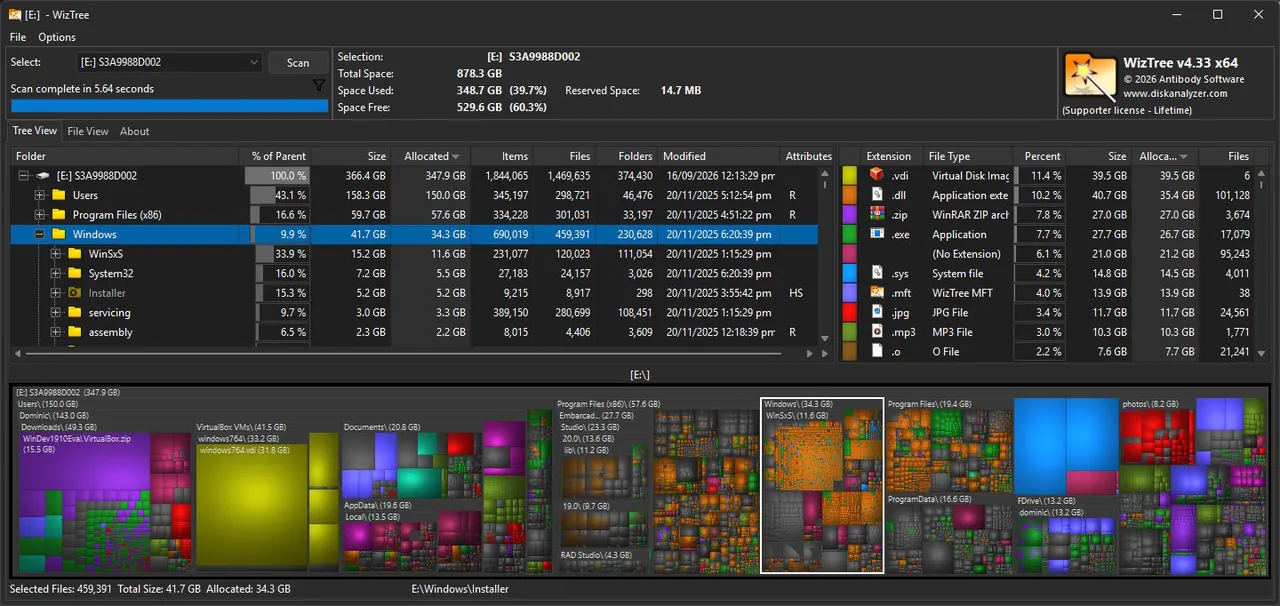
WizTree reads the NTFS file table directly, so a scan of the system drive usually takes seconds and the treemap shows what takes the space. It is free for personal use only, and you should not delete anything inside the Windows or Program Files folders based on its results.
Pros
- Extremely fast scans on NTFS drives
- Accurate totals with hard links
- Duplicate finder and CSV export
Cons
- Commercial use requires a paid supporter code
- Duplicate finder compares names and sizes, not file contents
- Shows a Donate button unless you enter a supporter code
Frequently asked questions
What does error 0x80070005 mean in Windows Update?
It is E_ACCESSDENIED, a general access denied error. The update process could not access a file, folder or registry entry it needs, usually because permissions changed or security software locked update files.
Is 0x80070005 caused by a virus?
Not usually. Microsoft lists changed permissions, third-party antivirus or security tools, Group Policy restrictions and missing SYSTEM permissions as causes. A malware scan is still worth running if you did not change permissions yourself.
Is it safe to rename the SoftwareDistribution folder?
It is one of Microsoft's own steps, as long as you stop the update services first. Renaming keeps the old folder as a backup, and updates that were downloaded but not installed are downloaded again.
Where is the Windows Update troubleshooter in Windows 11?
Open the Get Help app and run the Windows Update troubleshooter, or go to Start, Settings, System, Troubleshoot, Other troubleshooters and select Run next to Windows Update.
Do I need to be an administrator to install updates?
Some updates require administrator access. If your account is a standard user, ask someone with an administrator account on the PC to install them.
What if DISM fails too?
DISM uses Windows Update as its repair source by default, so it can fail for the same reason. Try the icacls and reset steps first, then run DISM again, or install the update manually from the Microsoft Update Catalog.
ExeDepot does not host installers. Every download button opens the developer's own server or official download page. Prices and licenses come from each developer's site and were checked on .