
Utilities · Updated
The best file archivers for Windows
An archiver does two jobs: it unpacks the ZIP, RAR, 7z and ISO files you download, and it packs folders into smaller archives, often with a password. Windows itself can open ZIP files, but a dedicated archiver handles many more formats, compresses better and adds encryption, split archives and self-extracting files.
Most people only extract archives, and for that every free tool below is enough. The choice matters when you create archives: whether you need the RAR format, which only WinRAR can create, how well the app fits the Windows 11 right-click menu, and whether you are fine with ads, trial reminders or a subscription.
Our picks at a glance
| App | Best for | License | Price | Download |
|---|---|---|---|---|
 7-Zip 7-Zip |
The default free archiver for everyone | Open source | Free | Review |
 NanaZip NanaZip |
7-Zip with a Windows 11 look | Open source | Free | Review |
 PeaZip PeaZip |
Power users who want extra file tools | Open source | Free | Review |
 WinRAR WinRAR |
Creating RAR archives with recovery records | Shareware | $29, one-time license | Review |
 Bandizip Bandizip |
A tidy interface and fast multi-core compression | Freeware | Free | Review |
 WinZip WinZip |
Offices that zip files from cloud storage | Free trial | €43.08, per year incl. VAT (Standard, EUR 3.59 a month billed annually) | Review |
1. 7-Zip — File Archiver
Best for: The default free archiver for everyone
- Open source
- Free
- Utilities
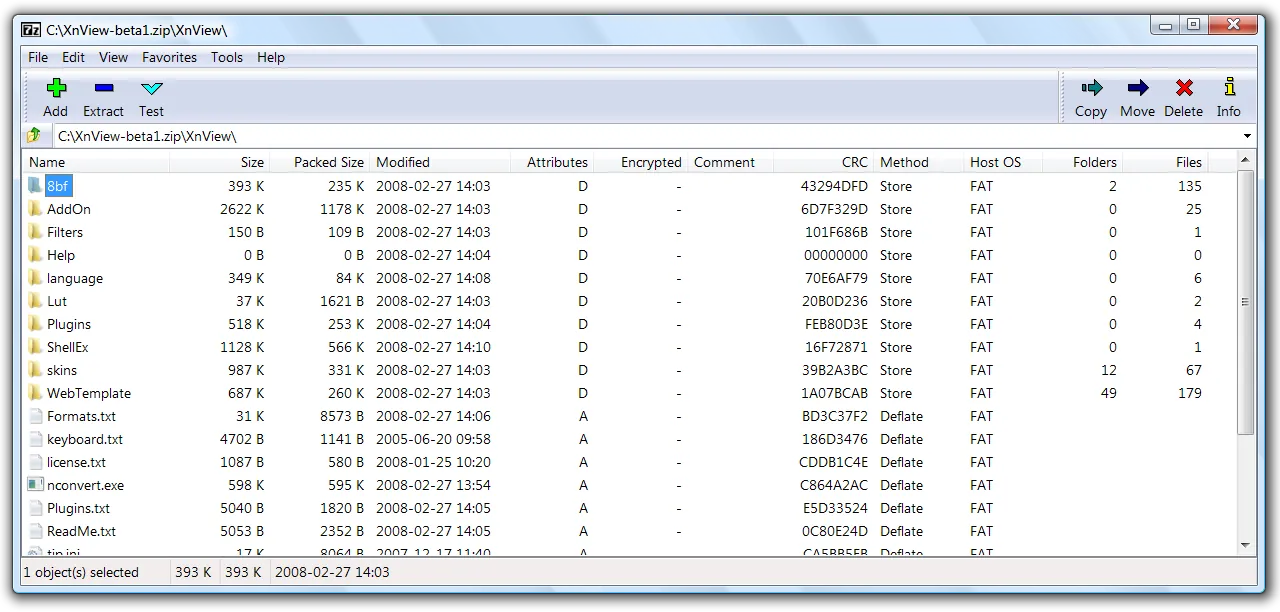

7-Zip opens nearly every archive format, including RAR5, ISO, CAB and WIM, and its own 7z format with LZMA2 usually produces noticeably smaller files than ZIP. It encrypts 7z and ZIP archives with AES-256, builds self-extracting EXE files and has a command line for scripts. It is free for home and business use, with no ads.
The interface looks old and settings are spread across several dialogs, but most people only use the right-click menu. It cannot create RAR archives. If you want the same engine with a modern look, choose NanaZip; if you need RAR creation, only WinRAR does that.
Pros
- Opens nearly every archive format
- 7z archives are small
- Free for commercial use
Cons
- Dated, plain interface
- Cannot create RAR archives
- Settings are spread across several dialogs
2. NanaZip — File Archiver
Best for: 7-Zip with a Windows 11 look
- Open source
- Free
- Utilities
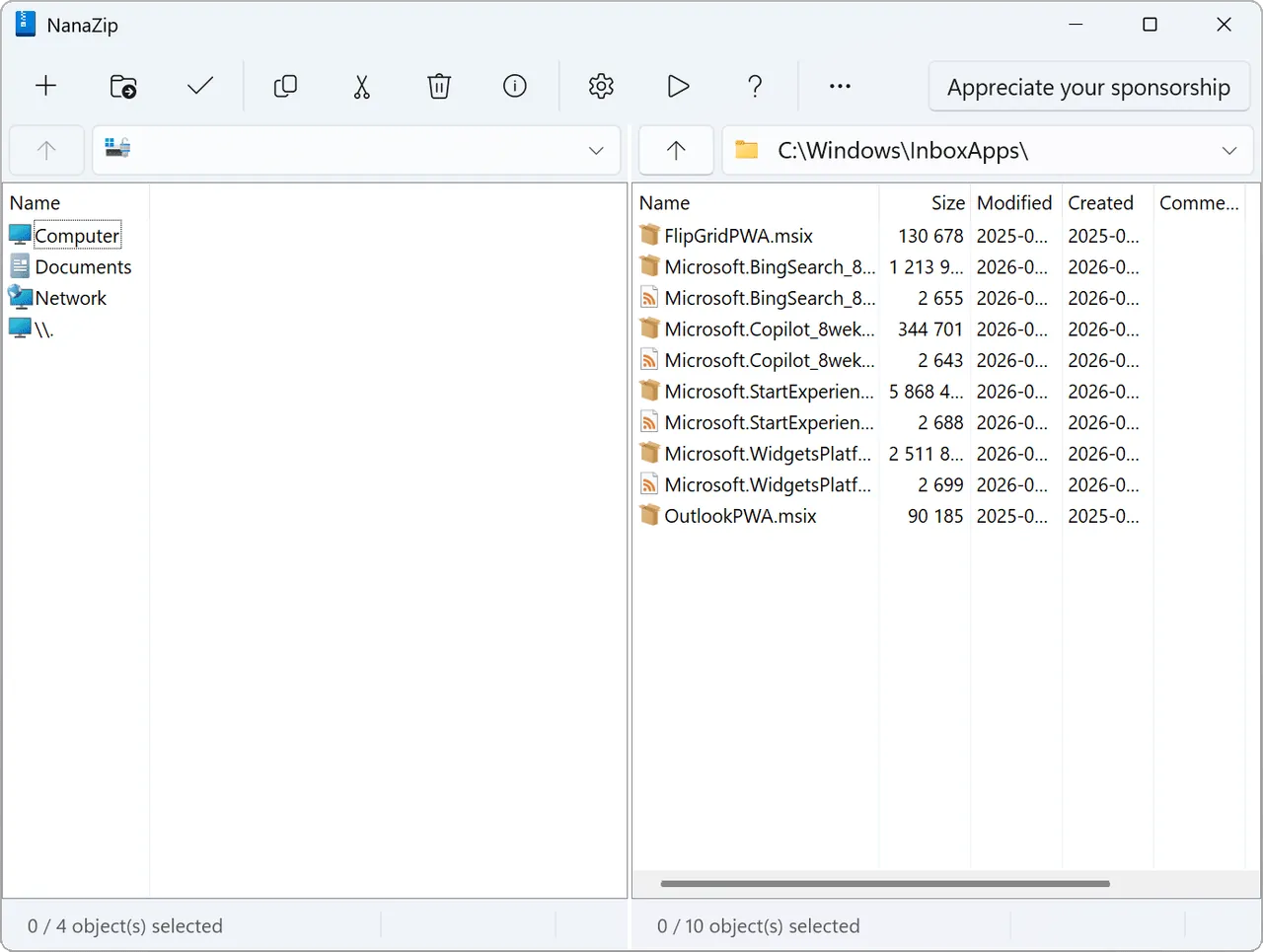

NanaZip is a fork of 7-Zip that appears directly in the Windows 11 right-click menu, without going through Show more options, and follows dark mode in every window. It adds Zstandard, Brotli and LZ4 codecs, more hash algorithms and Smart Extraction, and it keeps the Mark-of-the-Web on files extracted from downloaded archives.
It ships only as an MSIX package and needs Windows 10 version 2004 or later, so it is not an option for older systems or for people who want a classic installer. Releases change faster than 7-Zip, which some users see as a downside.
Pros
- Native Windows 11 context menu entry
- Dark mode for all windows
- More codecs and hashes than 7-Zip
Cons
- Only an MSIX package, no classic installer
- Requires Windows 10 version 2004 or later
- Rolling releases change faster than 7-Zip
3. PeaZip — File Archiver
Best for: Power users who want extra file tools
- Open source
- Free
- Utilities
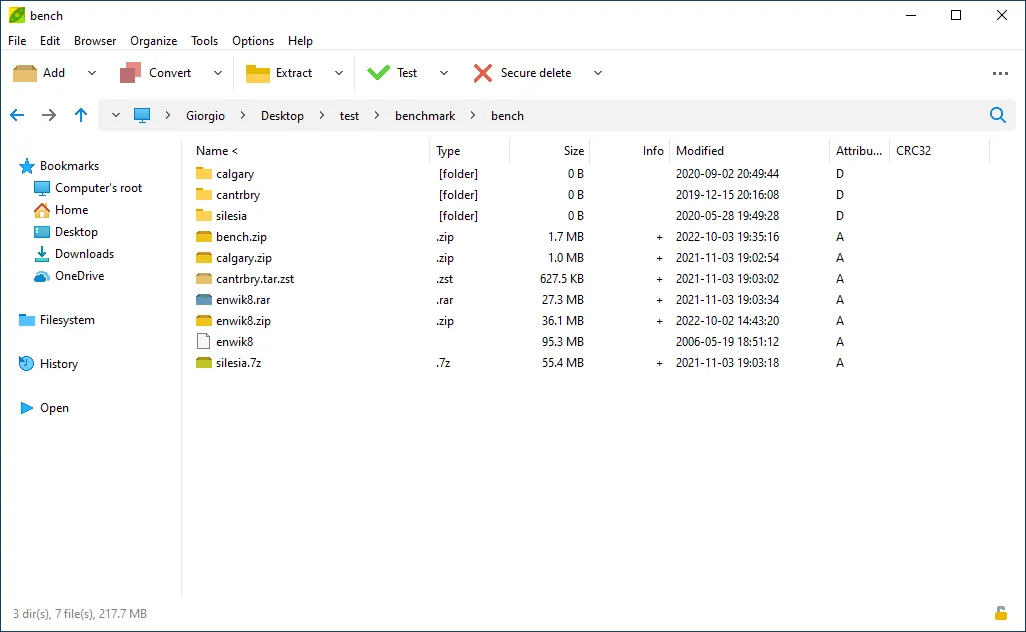

PeaZip opens more than 200 file types and creates 7Z, ZIP, TAR, ZST, WIM and its own encrypted PEA archives. On top of archiving it has an encrypted password manager for archive keys, secure deletion, checksum tools and a duplicate finder, and it can export any job as a command line for automated backups. It is open source with no paid edition.
The interface is busier than 7-Zip or NanaZip, and new releases often trigger SmartScreen warnings at first. Like other free tools, it can only create RAR files if WinRAR is installed. Download it from peazip.github.io: the developer says PeaZip-named apps in the Microsoft Store are not official.
Pros
- Opens 200+ formats
- Encryption, secure delete and hashing built in
- No ads, no paid edition
Cons
- Interface is crowded compared with 7-Zip
- Cannot create RAR archives without WinRAR installed
- New releases often trigger SmartScreen warnings at first
4. WinRAR — File Archiver
Best for: Creating RAR archives with recovery records
- Shareware
- $29, one-time license
- Utilities
WinRAR is the only Windows app here that creates RAR and RAR5 archives. Its recovery records let you repair damaged archives, which matters for large multi-volume sets and long-term storage. It also creates ZIP, encrypts file names and extracts 7z, ISO, CAB, TAR and other formats.
WinRAR is shareware: the trial needs no account and keeps running after 40 days with a reminder window, but the license terms require buying a $29 single-user license, which a home user may install on all of their own computers. If you only extract archives, 7-Zip opens RAR files for free.
Pros
- Only tool that creates RAR archives
- Recovery records repair damaged archives
- One license covers all your home PCs
Cons
- Paid after the 40-day trial ($29 license)
- Reminder window keeps appearing in the unlicensed trial
- Free archivers handle extraction just as well
5. Bandizip — File Archiver
Best for: A tidy interface and fast multi-core compression
- Freeware
- Free
- Utilities
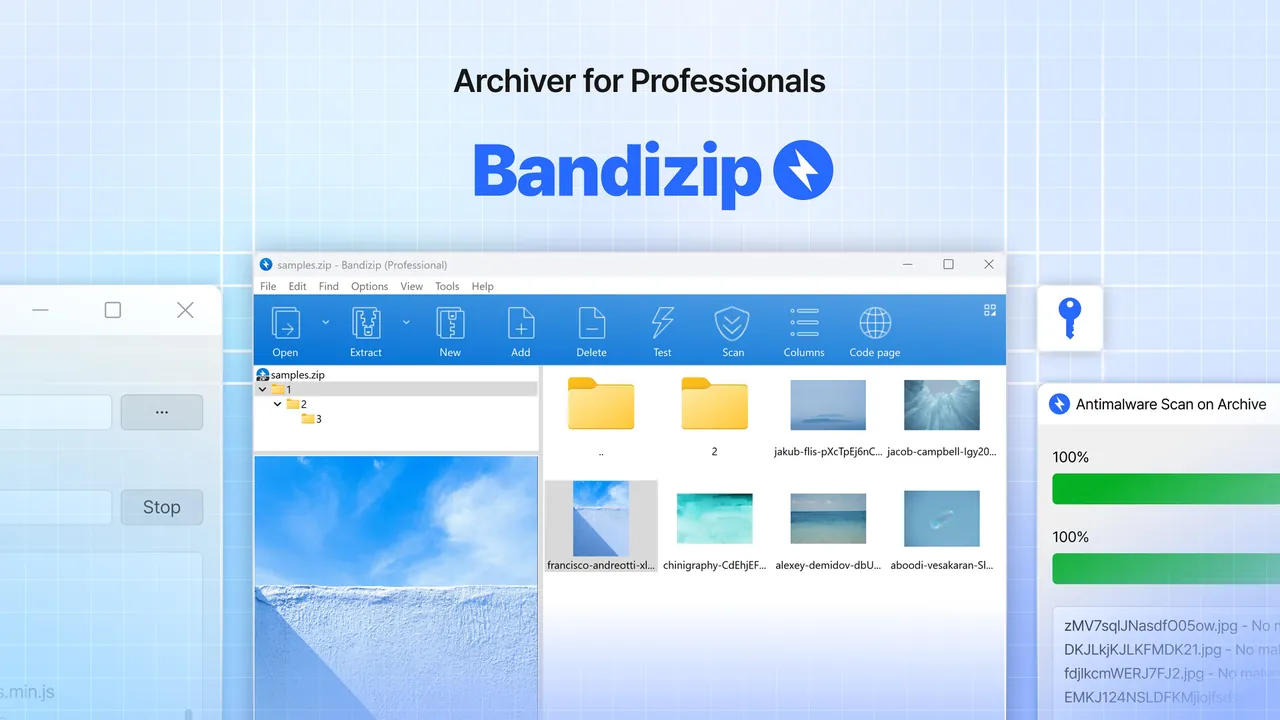
Bandizip has a cleaner interface than 7-Zip, uses several processor cores to compress faster, edits files inside archives without extracting them and chooses extraction folders automatically. The free Standard edition is allowed at home and at work and extracts more than 40 formats, including RAR5, ZSTD and LZ4.
The free edition shows ads, and archive repair, password recovery and malware scans of archives are reserved for the paid Professional edition. It is closed source and cannot create RAR files. PeaZip and 7-Zip offer similar features without ads.
Pros
- Fast multi-core compression
- Clean, modern interface
- Edits files inside archives
Cons
- Free edition shows ads
- Archive repair, password recovery and malware scan need the paid edition
- Closed source
6. WinZip — File Archiver
Best for: Offices that zip files from cloud storage
- Free trial
- €43.08, per year incl. VAT (Standard, EUR 3.59 a month billed annually)
- Utilities
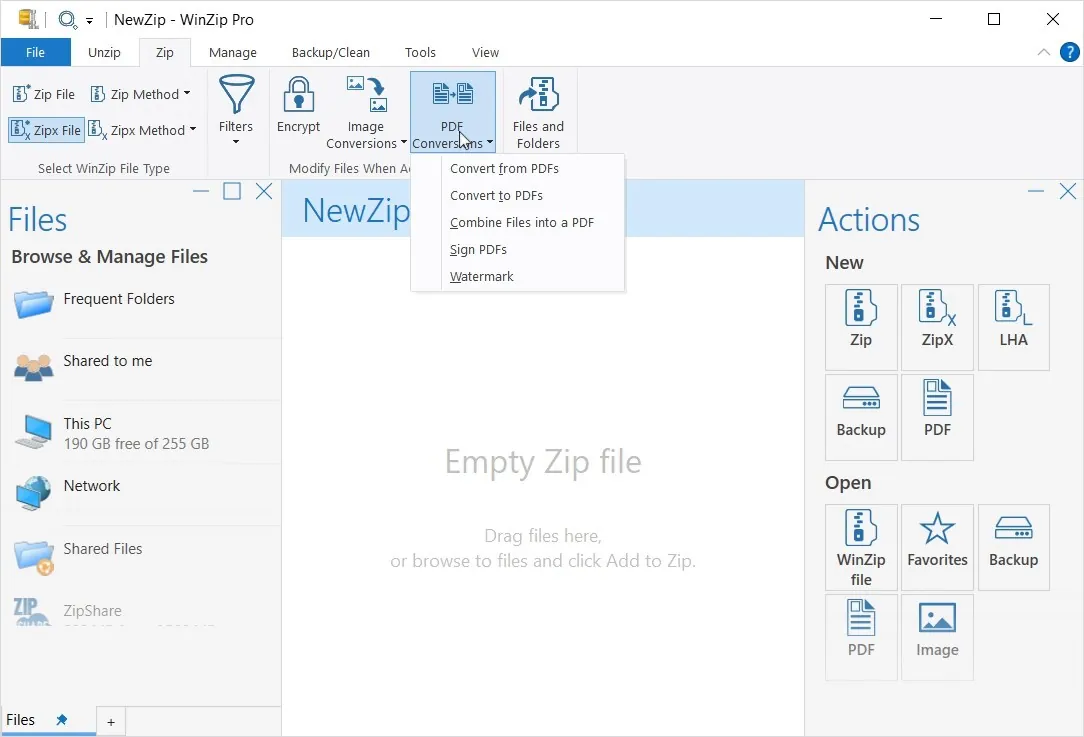
WinZip, now owned by Corel, focuses on ZIP: it creates ZIP and ZIPX files with 128- or 256-bit AES encryption, zips files directly from Dropbox, Google Drive and OneDrive, and compresses and encrypts email attachments with WinZip Courier.
The 21-day trial needs no card, but when it ends the app is locked until you buy. The cheapest plan, Standard, costs EUR 3.59 a month billed annually, and the trial shows purchase pop-ups. For plain zipping and unzipping, 7-Zip or NanaZip do the same job for free.
Pros
- Strong AES encryption
- Built-in cloud storage support
- Trial needs no credit card
Cons
- Stops working after the 21-day trial
- Annual subscription from EUR 3.59 a month, billed yearly
- Frequent purchase pop-ups during the trial
7-Zip vs WinRAR vs PeaZip
All three open RAR, 7z, ZIP and ISO files. 7-Zip is the simplest and lightest, and its 7z format compresses well. PeaZip uses the same 7-Zip engine among others and adds secure deletion, hashing and a password manager in a busier window. WinRAR is the only one that creates RAR archives with recovery records, and the only one you are required to pay for after the trial.
If you receive RAR files but never send them, you do not need WinRAR. If you share archives with people who may not have an archiver installed, use ZIP or a self-extracting EXE, which 7-Zip, WinRAR and Bandizip can create.
Free, ads or paid
7-Zip, NanaZip and PeaZip are open source and have no ads or paid upgrades. Bandizip is free but ad-supported, with a paid Professional edition. WinRAR keeps working after its 40-day trial but asks you to buy a $29 license. WinZip locks completely after 21 days and is sold as an annual subscription.
Passwords and safe downloads
If you protect an archive with a password, use AES-256 in the 7z format, which 7-Zip can combine with encrypted file names so nobody can see what is inside without the password. Download archivers only from their official sites: third-party download sites have bundled other software with 7-Zip in the past.
Frequently asked questions
What is the best free file archiver for Windows?
7-Zip for most people: it is free for any use, opens almost every format and compresses well. Choose NanaZip if you want it in the Windows 11 context menu with dark mode, or PeaZip for extra tools.
Is 7-Zip better than WinRAR?
For extracting and creating 7z or ZIP archives, 7-Zip does the same job for free. WinRAR is better only if you need to create RAR archives, recovery records for repairing damaged archives, or its multi-volume handling.
Is WinRAR free?
No. It has a 40-day free trial without an account; after that the license terms require a $29 license, although the unlicensed copy keeps running with a purchase reminder.
Can 7-Zip open RAR files?
Yes, including RAR5. It cannot create RAR archives, because the RAR compression format is proprietary. The same applies to PeaZip, NanaZip and Bandizip.
Is PeaZip better than 7-Zip?
PeaZip has more features, such as secure deletion, hashing, duplicate search and a password manager, and opens over 200 formats. 7-Zip is lighter and simpler. Both are open source and free.
Do I need an archiver on Windows 11?
Windows can open ZIP files itself. An archiver adds support for many more formats, stronger compression, AES encryption, split archives and self-extracting files.
ExeDepot does not host installers. Every download button opens the developer's own server or official download page. Prices and licenses come from each developer's site and were checked on .