
Utilities · Published
The best free WinRAR alternatives for Windows
WinRAR does four jobs for most people: it opens the RAR files they download, packs folders into RAR or ZIP archives, protects archives with a password and, less often, repairs damaged archives with recovery records. It is also shareware. Its license allows a 40-day trial, after which you are required to buy a $29 license, and an unlicensed copy keeps showing a purchase reminder. That reminder and the license fee are the usual reasons to look for something else.
Extracting is the easy part to replace: every free archiver below opens RAR and RAR5 archives. The differences show up when you create archives, because no free tool can write RAR files, and in how each app handles passwords, damaged archives and the Windows right-click menu. For a general ranking of archivers, see our file archiver comparison.
Our picks at a glance
| App | Best for | License | Price | Download |
|---|---|---|---|---|
 7-Zip |
The direct free replacement for everyday WinRAR use | Open source | Free | Review |
 NanaZip |
7-Zip in the Windows 11 right-click menu | Open source | Free | Review |
 PeaZip |
Converting RAR collections and extra security tools | Open source | Free | Review |
 Bandizip |
A polished WinRAR-style window, if you accept ads | Freeware | Free | Review |
1. 7-Zip — File Archiver
Best for: The direct free replacement for everyday WinRAR use
- Open source
- Free
- Utilities
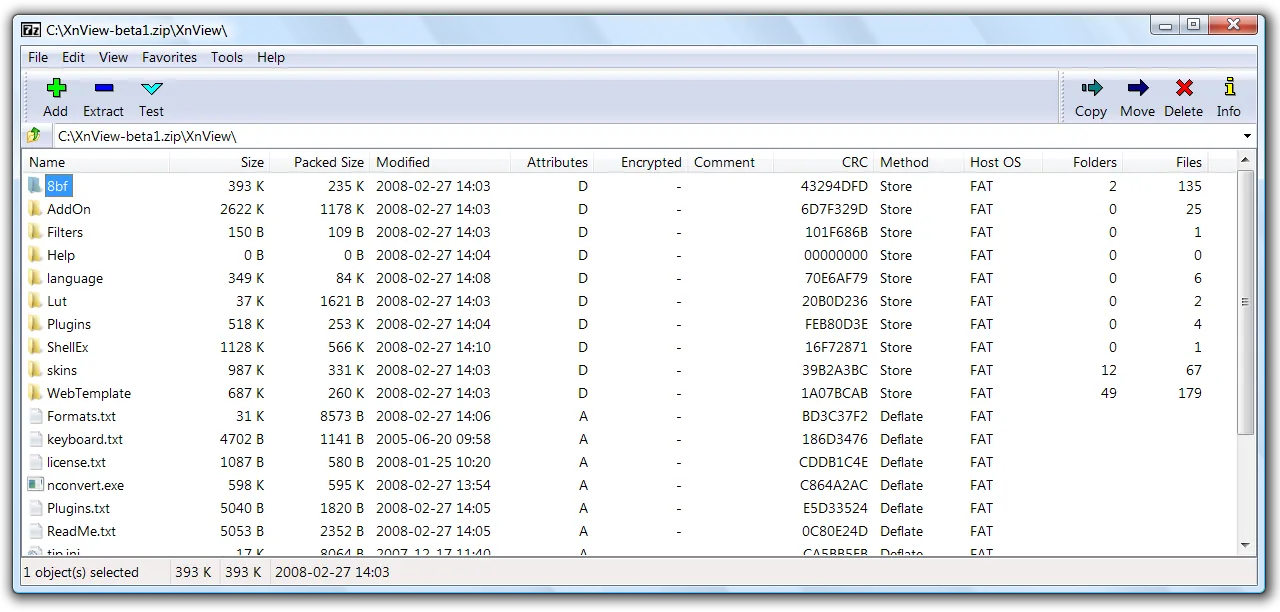

7-Zip covers what most people actually use WinRAR for. It extracts RAR and RAR5 along with ZIP, ISO, CAB, WIM, DMG, MSI and many disk image formats, and it packs files into 7z, ZIP, TAR, GZIP, BZIP2, XZ and WIM. Its own 7z format with LZMA2 is the natural replacement for RAR when you create archives, and AES-256 passwords work in both 7z and ZIP, with the option to hide the file names inside a 7z archive. It is free on any computer, including in a company, with no reminder window.
What it does not replace: it cannot create RAR archives, it has no recovery records, and its self-extracting archives are 7z only. The interface looks dated, and settings such as file associations are spread across several dialogs.
Pros
- Opens nearly every archive format
- 7z archives are small
- Free for commercial use
Cons
- Dated, plain interface
- Cannot create RAR archives
- Settings are spread across several dialogs
2. NanaZip — File Archiver
Best for: 7-Zip in the Windows 11 right-click menu
- Open source
- Free
- Utilities
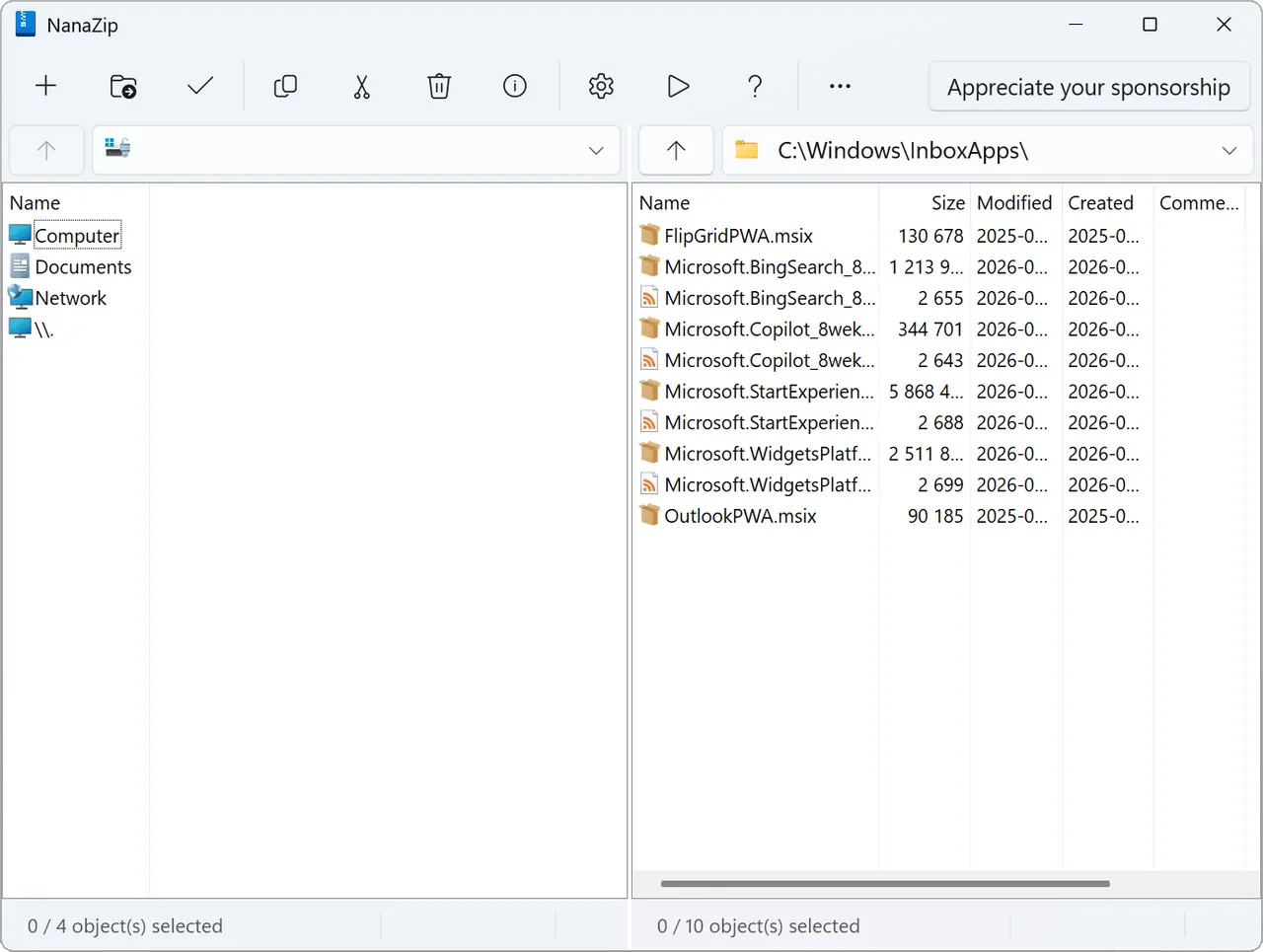

NanaZip is built from 7-Zip's code, so it opens and creates the same formats, and it adds what WinRAR users often miss in 7-Zip: entries in the new Windows 11 context menu, dark mode, and Smart Extraction, which unpacks a single top-level item directly and puts several items into their own folder. It also handles Zstandard, Brotli and LZ4, opens CBR and CBZ comic archives, and keeps the Mark of the Web on files extracted from downloaded archives.
It ships only as an MSIX package from the Microsoft Store or GitHub and needs Windows 10 version 2004 or later, so there is no classic installer. Like 7-Zip, it cannot create RAR files or add recovery records.
Pros
- Native Windows 11 context menu entry
- Dark mode for all windows
- More codecs and hashes than 7-Zip
Cons
- Only an MSIX package, no classic installer
- Requires Windows 10 version 2004 or later
- Rolling releases change faster than 7-Zip
3. PeaZip — File Archiver
Best for: Converting RAR collections and extra security tools
- Open source
- Free
- Utilities
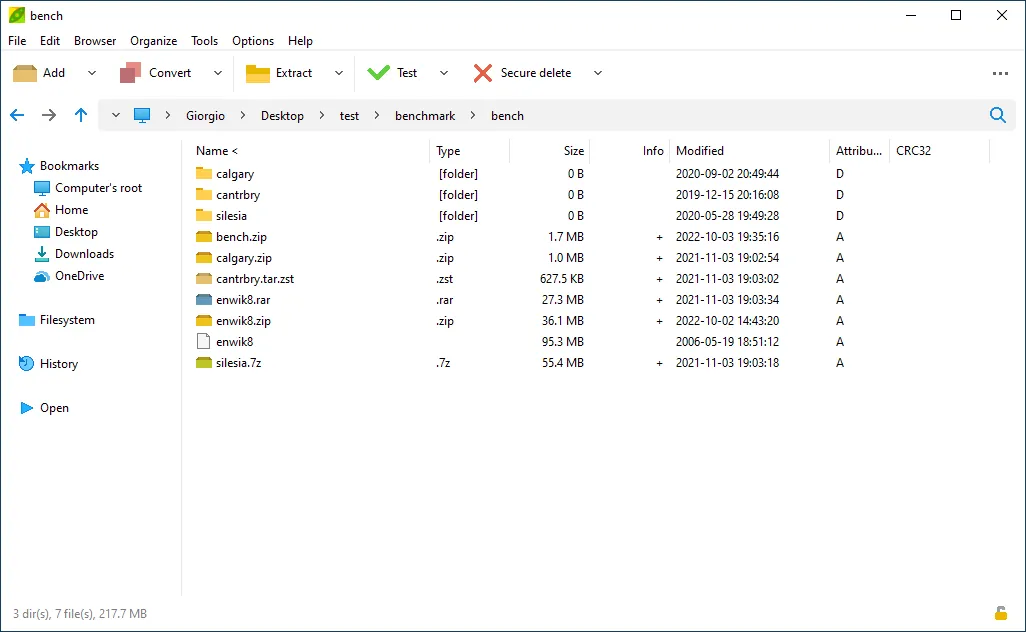

PeaZip opens more than 200 archive types, including RAR and RAR5, and creates 7Z, ZIP, TAR, WIM, Zstandard, Brotli and its own PEA format. Two features matter when you leave WinRAR behind: it can convert existing archives to another format, for example a RAR file to 7Z or ZIP, and it supports two-factor encryption with a password plus a keyfile, an encrypted password manager for archive passwords, and secure deletion.
It can create RAR files only if WinRAR is installed, because the RAR format is licensed. The interface is busier than 7-Zip's. Download it from peazip.github.io: the developer warns that peazip.com and some Microsoft Store listings have nothing to do with the project.
Pros
- Opens 200+ formats
- Encryption, secure delete and hashing built in
- No ads, no paid edition
Cons
- Interface is crowded compared with 7-Zip
- Cannot create RAR archives without WinRAR installed
- New releases often trigger SmartScreen warnings at first
4. Bandizip — File Archiver
Best for: A polished WinRAR-style window, if you accept ads
- Freeware
- Free
- Utilities
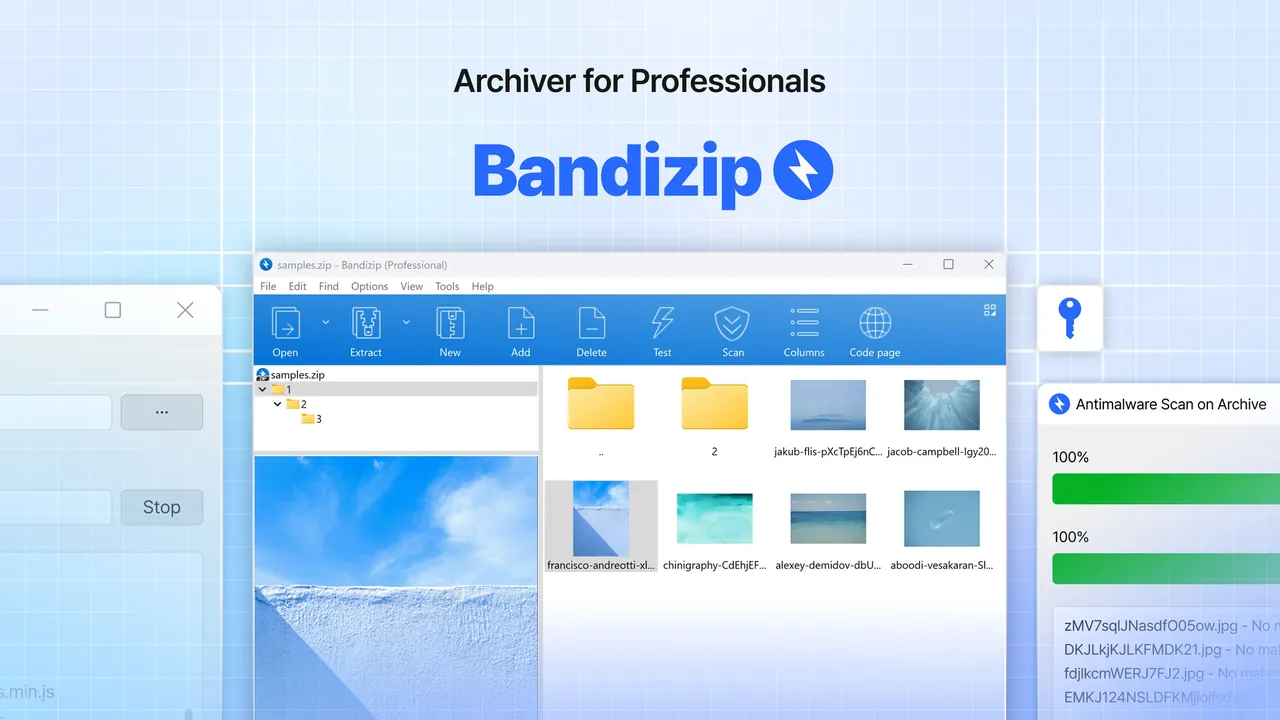
Bandizip feels closest to WinRAR in daily use: a tidy archive window, files you can edit inside an archive without extracting them, and automatic choice of the extraction folder. The free Standard edition may be used at home and at work, extracts more than 40 formats including RAR5, and creates ZIP, 7Z, ZIPX, TAR, ISO and self-extracting EXE archives, with multi-volume splitting and AES-256 passwords.
The free edition shows ads and cannot create RAR files. Archive repair, the password manager and the malware scan of archives belong to the paid Professional edition, and Bandisoft describes its repair feature as working on corrupted ZIP archives. Bandizip is also closed source, unlike the other three picks.
Pros
- Fast multi-core compression
- Clean, modern interface
- Edits files inside archives
Cons
- Free edition shows ads
- Archive repair, password recovery and malware scan need the paid edition
- Closed source
Opening RAR files without WinRAR
All four picks extract RAR and RAR5 archives, including archives split into parts: keep every part in one folder and open the first one, such as name.part1.rar. For password-protected RAR files you type the password when you extract, just as in WinRAR. On an up-to-date Windows 11 PC, File Explorer can also extract unencrypted RAR files without extra software; see how to open RAR and 7Z files on Windows 11.
No free tool can create RAR archives
The RAR compression algorithm is proprietary, and the WinRAR license forbids using RAR or UnRAR code to re-create it without written permission. That is why 7-Zip, NanaZip and Bandizip can only extract RAR, and why PeaZip creates RAR files only by calling an installed copy of WinRAR.
In practice you rarely need RAR. Use 7z when the recipient has a modern archiver and you want small files, and ZIP when they might only have Windows, which opens ZIP files on its own. If a client or a forum insists on RAR, WinRAR is the only option, and after the trial that means buying the $29 license.
Recovery records and damaged archives
Recovery records are WinRAR's strongest feature. They add redundant data to a RAR archive, 3% of its size by default, so the Repair command can rebuild the archive after disk errors as long as the damage is not too severe. RAR5 recovery records use Reed-Solomon error correction. The ZIP format does not support recovery records at all, and none of the free picks can add them to the archives they create.
The free tools can test an archive for errors, but repair options are thin. The 7-Zip FAQ only describes a manual procedure for recovering part of the data from a corrupted 7z archive, and Bandizip's repair, which is paid, works on ZIP files. If you store important data in archives, keep a second copy on another drive instead of relying on recovery data. If you already have a damaged RAR file with a recovery record, WinRAR's Repair command is the tool that can use it.
Password-protected archives
For new archives, 7z with AES-256 is the closest match to an encrypted RAR: 7-Zip and NanaZip can also encrypt the file names, so nobody can see what is inside without the password, as WinRAR does with RAR. PeaZip goes further with an optional keyfile, so a stolen or guessed password alone is not enough, and it keeps your archive passwords in an encrypted password manager.
File Explorer in Windows 11 cannot open encrypted archives, so anyone receiving a password-protected 7z or ZIP needs an archiver. Send the password through a different channel than the archive itself.
Replacing the right-click menu
Most WinRAR users work from the Explorer context menu rather than the main window. While WinRAR is installed it keeps the file types and menu entries you gave it during setup, so uninstall it once the new archiver works for you. In 7-Zip, file associations are set by running 7-Zip File Manager as administrator and opening Tools, then Options.
If you want archive commands in the new Windows 11 menu rather than under Show more options, choose NanaZip. PeaZip adds Extract here and Extract here (to new folder) entries, and Bandizip lets you turn off the menu items you do not need in its settings.
Paid options besides WinRAR
WinZip is the other well-known paid archiver. Its 21-day trial needs no card, but the app is locked when it ends, and the cheapest plan is an annual subscription at EUR 3.59 a month. It creates ZIP and ZIPX, not RAR. Bandizip Professional is a one-time purchase that removes ads and adds repair and password recovery. For most people, the free picks above make both unnecessary.
Frequently asked questions
What is the best free alternative to WinRAR?
7-Zip for most people: it opens RAR and RAR5, creates 7z and ZIP with AES-256 passwords and is free for home and business use. Choose NanaZip for the Windows 11 context menu and PeaZip for format conversion and extra security tools.
Can 7-Zip create RAR files?
No. 7-Zip can open RAR and RAR5 archives but cannot create them, because the RAR compression format is proprietary. The same applies to NanaZip and Bandizip; PeaZip can create RAR only when WinRAR is installed.
Can I open RAR files without WinRAR?
Yes. 7-Zip, NanaZip, PeaZip and Bandizip all extract RAR and RAR5 files for free, including split and password-protected archives if you have the password.
Is WinRAR free after 40 days?
No. The license allows a 40-day trial, after which you are required to buy a $29 single-user license. The unlicensed copy keeps running, but it shows a purchase reminder.
Which free archiver can repair damaged archives?
None matches WinRAR. Recovery records are a feature of the RAR format, and of the apps here only WinRAR can add and use them. The 7-Zip FAQ describes a manual way to save part of a corrupted 7z archive, and archive repair in Bandizip is part of the paid edition.
How do I convert RAR files to 7z or ZIP?
Open the archive in PeaZip and use its convert function, which repacks an existing archive into another format such as 7Z or ZIP. With other archivers, extract the RAR file and pack the folder again.
ExeDepot does not host installers. Every download button opens the developer's own server or official download page. Prices and licenses come from each developer's site and were checked on .