
Utilities · Published
How to fix 100% disk usage in Windows 11
100% disk usage means the drive is busy all the time and every app waits for it. Open Task Manager, sort the Processes tab by the Disk column and look at what is on top: most often it is Windows Update, a Microsoft Defender scan or search indexing, and those calm down once they finish. If the load never drops, the usual causes are too many startup apps, a nearly full drive or a failing hard disk.
Mechanical hard drives hit 100% far more easily than SSDs, so on an older PC with an HDD the real fix may be an SSD. Start with Method 1 to find the culprit, then use the matching fix below. Do not disable Windows Update or Defender permanently to make the number go down: it trades a slow PC for an unprotected one.
Method 1: Find the process that uses the disk
Do not guess. Two built-in tools show exactly which process and which files keep the drive busy:
- Press Ctrl+Shift+Esc to open Task Manager.
- On the Processes tab, click the Disk column header to sort by disk use. Watch the top entries for a minute, because short spikes are normal.
- Open the Performance tab and select the disk. Active time close to 100% for minutes, not seconds, confirms the problem.
- Type resmon in the Start menu and open Resource Monitor. On the Disk tab, Processes with Disk Activity lists each process with its read and write speed.
- Tick the checkbox next to the busiest process. The Disk Activity pane below then shows the exact files it is reading or writing.
Many Windows services run inside svchost.exe, so the process name alone may not tell you much. The file paths in Resource Monitor usually do: a Windows\SoftwareDistribution path means Windows Update, and a ProgramData\Microsoft\Search path means the search indexer. Process Explorer shows every file and handle a process has open if you need more detail.
Method 2: Let Windows Update and Defender finish
Downloading and installing updates and scanning for malware are disk-heavy by design. If Task Manager shows Windows Update activity or Antimalware Service Executable, the Microsoft Defender engine, near the top:
- Open Start, Settings, Windows Update. Install what is waiting and restart when asked; pending updates keep working in the background until they are done.
- Open Start, Settings, Privacy & security, Windows Security, Virus & threat protection to see whether a scan is running, and let it complete.
- If you need the PC right now, use Pause updates on the Windows Update page for a short time, then resume.
On a hard drive a full scan or a large update can keep the disk busy for a long time. That is temporary. Turning off real-time protection or blocking updates for good is not a fix.
Method 3: Tame search indexing and SysMain
The search indexer catalogs your files so searches return results fast. Microsoft says the first indexing run can take a couple of hours and that more than about 400,000 indexed items can cause performance problems:
- Open Start, Settings, Privacy & security, Search (Searching Windows on some versions) and check the Indexed count.
- Under Find my files, choose Classic instead of Enhanced. Classic indexes Documents, Pictures, Music and the desktop; Enhanced indexes the whole PC.
- Select Customize search locations or Advanced indexing options, then Modify, and remove large folders you never search, such as game libraries or code repositories.
SysMain, once called Superfetch, preloads apps you use often into memory. Microsoft recommends leaving it enabled. If you suspect it, stop it once in services.msc as a test; if disk use does not change, start it again.
Method 4: Cut startup apps and free up space
Every app that starts with Windows reads from the disk at the same moment, and a drive that is almost full slows everything down:
- In Task Manager, open Startup apps. Sort by Startup impact and disable programs you do not need at sign-in, such as game launchers, updaters and chat apps.
- Open Start, Settings, System, Storage and check free space on the system drive.
- Select Temporary files, tick what you do not need and select Remove files. Turn on Storage Sense so Windows clears temporary files automatically.
- Open Start, Settings, Apps, Installed apps and uninstall programs you no longer use.
Startup entries that Task Manager does not list are covered in our guide to removing startup programs, and programs that refuse to go in how to uninstall programs that won't uninstall.
WizTree scans an NTFS drive in seconds and shows the largest folders and files, which is faster than clicking through folders. Autoruns lists scheduled tasks and services that Task Manager does not show. For one-click junk cleanup, see our PC cleaner comparison, but skip their registry cleaners.
Method 5: Check the drive's health and scan for malware
If the disk is at 100% while doing very little, with low read and write speeds, the drive itself may be failing, because a drive with damaged sectors can spend its time retrying reads:
- Install CrystalDiskInfo and look at the health label. Caution on a hard drive means reallocated, pending or uncorrectable sectors were found.
- For an NVMe SSD, Windows also shows Drive health in Start, Settings, System, Storage, Advanced storage settings, Disks & volumes, Properties. Windows does not monitor SATA SSDs or hard drives this way.
- If any tool reports Caution or Bad, back up your files first and replace the drive.
- Run a malware check: Start, Settings, Privacy & security, Windows Security, Virus & threat protection, Quick scan.
Hard Disk Sentinel adds a health percentage with plain-language explanations and also reads many USB drives, but it is shareware and the unregistered version limits alerts and tests.
What not to do
Common advice online includes disabling Windows Update, Defender or the paging file, or editing the registry. Each one hides a symptom by removing protection or stability. Fix the cause you found in Method 1, and if Windows still runs from a mechanical hard drive, moving it to an SSD helps most.
Free tools for this job
| App | Best for | License | Price | Download |
|---|---|---|---|---|
 Process Explorer |
Seeing which files a busy process has open | Freeware | Free | Review |
 CrystalDiskInfo |
A free health check of HDDs and SSDs | Open source | Free | Review |
 Hard Disk Sentinel |
Ongoing drive monitoring with clear explanations | Shareware | $22, one-time license, 1 PC (Standard) | Review |
 WizTree |
Finding what fills a nearly full drive | Freeware | Free | Review |
 Autoruns |
Finding hidden startup tasks and services | Freeware | Free | Review |
1. Process Explorer — Task Manager
Best for: Seeing which files a busy process has open
- Freeware
- Free
- Utilities
Process Explorer from Microsoft Sysinternals shows the owner and the open file handles of every process, so you can tell what a busy svchost.exe or an unknown program is working on. It is a dense tool for technical users, and the current version is listed for Windows 11 only.
Pros
- Finds which process locks a file
- Detailed handle and DLL views
- Official Microsoft tool, no ads
Cons
- Current version requires Windows 11; Windows 10 is not listed as supported
- Dense interface made for technical users
- Closed source
2. CrystalDiskInfo — Disk Health Monitor
Best for: A free health check of HDDs and SSDs
- Open source
- Free
- Utilities
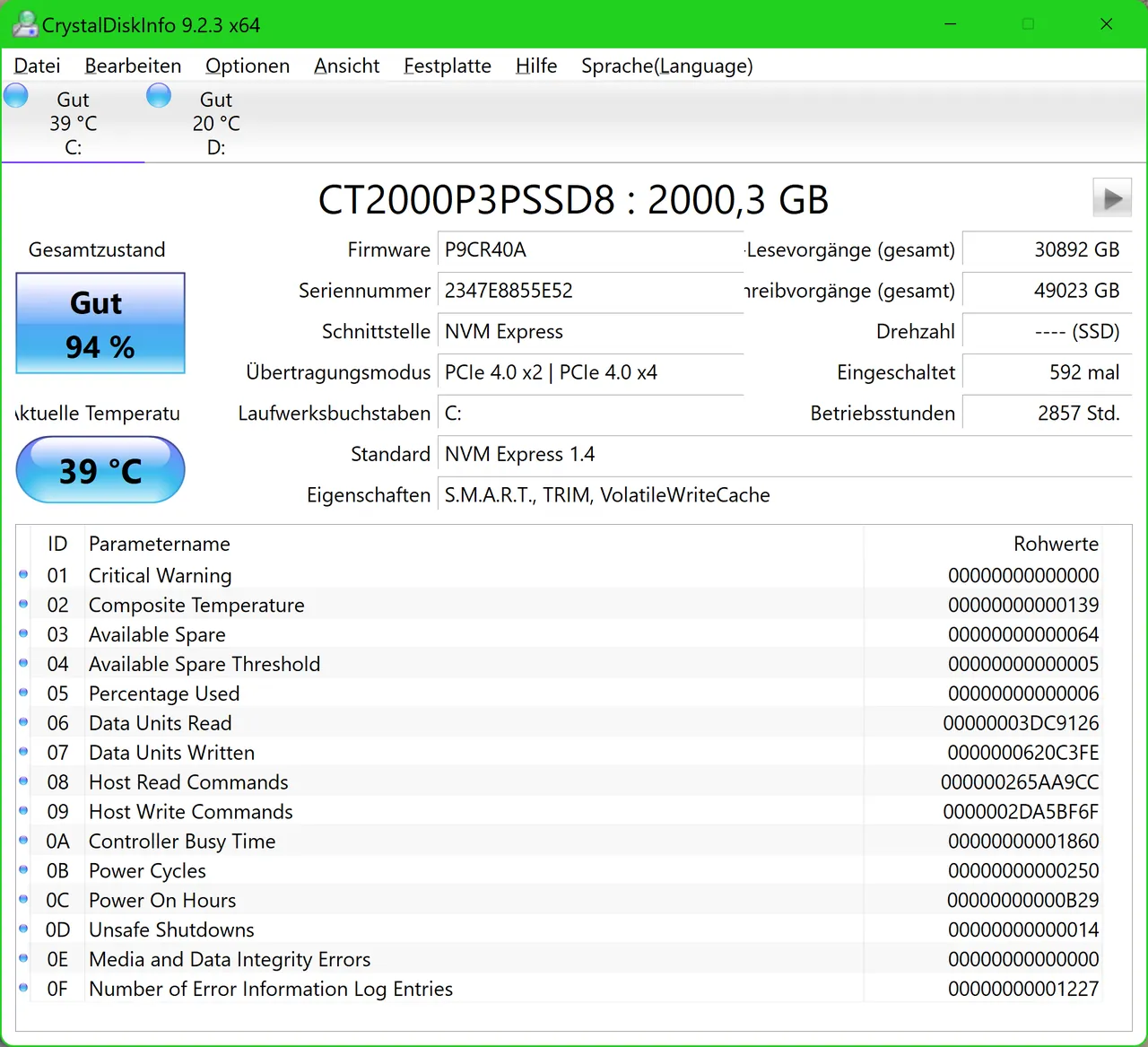

CrystalDiskInfo reads each drive's S.M.A.R.T. data and labels it Good, Caution or Bad, with temperature and tray alerts. It cannot see disks behind most RAID controllers or some USB enclosures, and no S.M.A.R.T. tool predicts every sudden failure.
Pros
- Clear health label for every drive
- Supports NVMe SSDs on Windows 10 and 11
- Background alerts by tray icon and email
Cons
- Does not see disks behind most RAID controllers and some USB enclosures
- S.M.A.R.T. data cannot warn about every sudden failure
- Several editions and download buttons can confuse first-time users
3. Hard Disk Sentinel — Disk Health Monitor
Best for: Ongoing drive monitoring with clear explanations
- Shareware
- $22, one-time license, 1 PC (Standard)
- Utilities
Hard Disk Sentinel turns S.M.A.R.T. values into a health percentage and explains problems in plain text, including NVMe and USB drives. It is shareware: the unregistered version keeps showing health but limits alerts and tests.
Pros
- Clear health percentage with explanations
- Supports NVMe and external USB drives
- One-time license with lifetime updates
Cons
- Unregistered version limits alerts and tests
- Interface is dense and dated
- Business use requires a license after 30 days
4. WizTree — Disk Space Analyzer
Best for: Finding what fills a nearly full drive
- Freeware
- Free
- Utilities
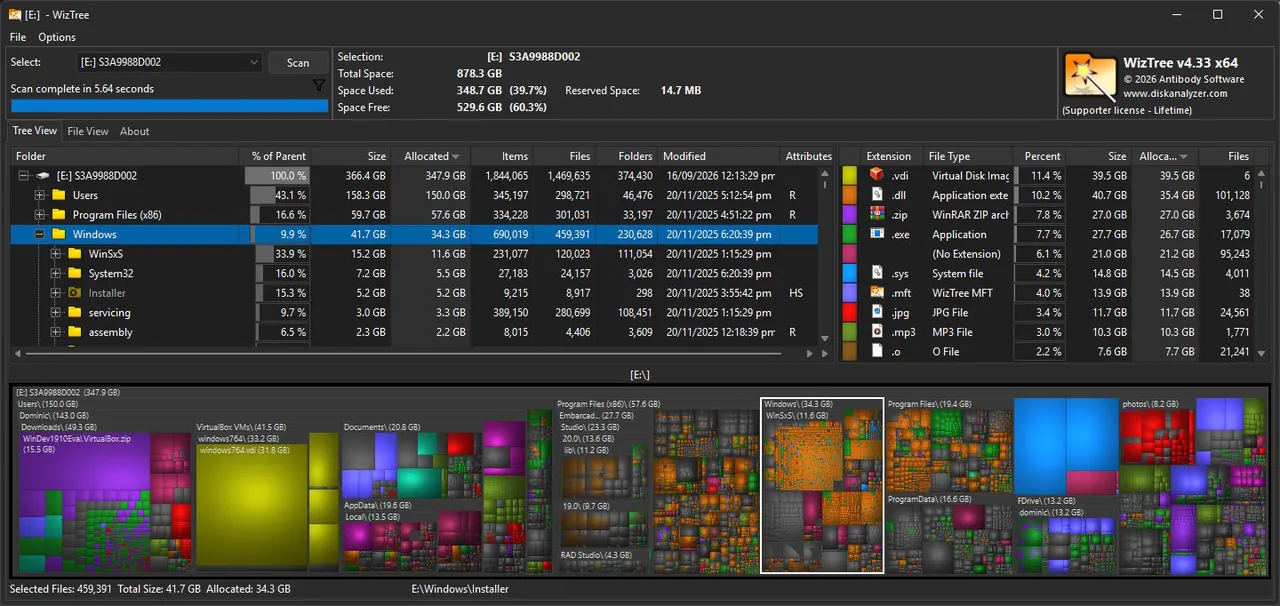
WizTree reads the NTFS file table directly, so a full scan usually takes seconds, and the treemap makes large folders stand out. It is free for personal use only.
Pros
- Extremely fast scans on NTFS drives
- Accurate totals with hard links
- Duplicate finder and CSV export
Cons
- Commercial use requires a paid supporter code
- Duplicate finder compares names and sizes, not file contents
- Shows a Donate button unless you enter a supporter code
5. Autoruns — Startup Manager
Best for: Finding hidden startup tasks and services
- Freeware
- Free
- Utilities
Autoruns lists every autostart location, including scheduled tasks and services, and the Hide Signed Microsoft Entries option leaves only third-party items. Unchecking an entry disables it and can be undone; disabling the wrong driver or service can break Windows features.
Pros
- Most complete list of autostart locations
- Official Microsoft tool, no ads
- Portable, nothing to install
Cons
- Overwhelming for beginners
- Disabling the wrong entry can break drivers or Windows features
- Closed source
Frequently asked questions
Is 100% disk usage bad?
Short spikes are normal while apps start or updates install. If the disk stays at 100% for many minutes and the PC feels frozen, something is wrong and worth tracking down in Task Manager.
Why is my disk at 100% right after startup?
Windows, startup apps, updates and Defender all read from the disk at sign-in. Disable unneeded apps on Task Manager's Startup apps tab and give a hard drive a few minutes to settle.
Should I disable Windows Search to fix 100% disk usage?
Usually not. Switch Searching Windows to Classic and remove large folders from the index instead; Microsoft notes performance problems mainly above about 400,000 indexed items.
Should I disable SysMain?
Microsoft recommends leaving SysMain enabled because it speeds up app launches. Stopping it briefly is a fair test, but if disk use stays the same, it was not the cause.
Can a failing hard drive cause 100% disk usage?
Yes. A drive with damaged sectors can stay busy while transferring very little data. Check it with CrystalDiskInfo and back up your data if it reports Caution.
ExeDepot does not host installers. Every download button opens the developer's own server or official download page. Prices and licenses come from each developer's site and were checked on .