
Utilities · Published
How to uninstall programs that won't uninstall
Start with Settings, then Apps, then Installed apps, and choose Uninstall from the app's menu. If that fails, try Programs and Features in Control Panel, then the uninstaller in the program's own folder. If the program still will not go, restart in Safe Mode or use a third-party uninstaller with a forced-removal mode, which deletes the program's files and registry entries even when its own uninstaller is broken.
Most programs leave with the first or second method. Microsoft's Program Install and Uninstall troubleshooter helps when Windows Installer data is corrupted. Forced removal is the last step for half-removed programs, and it is where free tools differ the most: Bulk Crap Uninstaller and Geek Uninstaller include it for free, while Revo and IObit keep it in their paid editions.
Method 1: Settings, Control Panel and the program's own uninstaller
Close the program first, including its icon in the notification area, and restart the PC if it was running. Then work through the three places Windows offers:
- Open Start, then Settings, then Apps, then Installed apps. Find the program, select the three-dot More button next to it and choose Uninstall.
- If the program is not listed or the button does nothing, type Control Panel in the taskbar search and open it. Select Programs, then Programs and Features, right-click the program and choose Uninstall or Uninstall/Change.
- If both fail, open File Explorer and go to the program's folder, usually in C:\Program Files or C:\Program Files (x86). Look for a file such as uninstall.exe or unins000.exe and double-click it.
If the uninstaller itself is damaged, installing the same version again over the broken copy often repairs it, after which a normal uninstall works.
Method 2: Microsoft's Program Install and Uninstall troubleshooter
Microsoft's troubleshooter repairs corrupted registry keys and incomplete uninstall data that stop a program from being removed through Programs and Features. It works best for programs installed from an MSI package.
- Download it from Microsoft's support page Fix problems that block programs from being installed or removed, or go straight to aka.ms/Program_Install_and_Uninstall. The file is MicrosoftProgram_Install_and_Uninstall.meta.diagcab, served from download.microsoft.com.
- Open the file and select Next. When asked, choose Uninstalling.
- Pick the program from the list and let the troubleshooter try to remove it. If the program is not listed, it asks for the MSI product code, which most home users will not have.
Microsoft now lists this download only under the Windows 10 tab of that page. The Windows 11 tab recommends restarting, repairing or resetting the app and uninstalling from Settings instead. The troubleshooter still runs on Windows 11, but treat it as a legacy tool.
Method 3: Uninstall in Safe Mode
Safe Mode starts Windows with a limited set of files and drivers, so a program's background services and drivers do not load and cannot block their own removal. This helps with antivirus software, VPN clients and adware.
- Open Settings, then System, then Recovery. Next to Advanced startup, select Restart now. You can also hold Shift while you select Power, then Restart.
- In the blue recovery screen, choose Troubleshoot, then Advanced options, then Startup Settings, then Restart.
- After the restart, press 4 or F4 for Safe Mode.
- Uninstall the program from Settings or Control Panel as in Method 1, then restart normally.
If the device is encrypted with BitLocker, have the recovery key ready before you start. Some installers need services that do not run in Safe Mode; if the uninstaller refuses to start there, go back to normal mode and use a forced removal instead.
Method 4: Force removal with a third-party uninstaller
Dedicated uninstallers first run the program's own uninstaller and then search for leftover files, folders and registry entries. Their forced mode skips the broken uninstaller and deletes what belongs to the program directly.
- In Bulk Crap Uninstaller, find the program in the list, right-click it and choose Force uninstall. BCU also shows orphaned entries that no longer have files behind them, so you can clear a program that is already half-gone.
- In Geek Uninstaller, right-click the program and choose Force Removal. It is a single portable EXE, so it works even on a PC where installing more software is a bad idea.
- In Revo Uninstaller Free, choose Uninstall, let the program's own uninstaller run, then select a scan mode and review the leftovers before deleting them. Forced Uninstall for programs that are no longer listed needs Revo Uninstaller Pro.
- In IObit Uninstaller Free, select the program, tick the option to create a restore point and uninstall it. Removal of stubborn programs and deep leftover scans need the PRO subscription.
Read every item in the leftover list before you confirm. Shared runtimes, drivers and folders used by several programs from the same vendor can appear there. If you want a broader cleanup tool afterwards, see our PC cleaner comparison.
Why not delete registry keys by hand?
Advice to open regedit and delete keys under Uninstall or Installer is risky. A wrong key can break another program, Windows Installer or Windows Update, and regedit has no undo. A forced-removal tool shows what it will delete and only touches entries that belong to the program you selected.
Before any forced removal, make sure a recent restore point exists. System Restore reverts system files, registry settings and installed programs without touching personal files; open it from Control Panel, then Recovery, then Open System Restore. If the program may be malware, scan with Windows Security first.
Free tools for this job
| App | Best for | License | Price | Download |
|---|---|---|---|---|
 Bulk Crap Uninstaller |
Free forced removal and orphaned entries | Open source | Free | Review |
 Geek Uninstaller |
A portable force-remover on a USB stick | Freeware | Free | Review |
 Revo Uninstaller Free |
Thorough leftover scans after a normal uninstall | Freeware | Free | Review |
 IObit Uninstaller Free |
Removing several programs in one batch | Freeware | Free | Review |
1. Bulk Crap Uninstaller — Program Uninstaller
Best for: Free forced removal and orphaned entries
- Open source
- Free
- Utilities
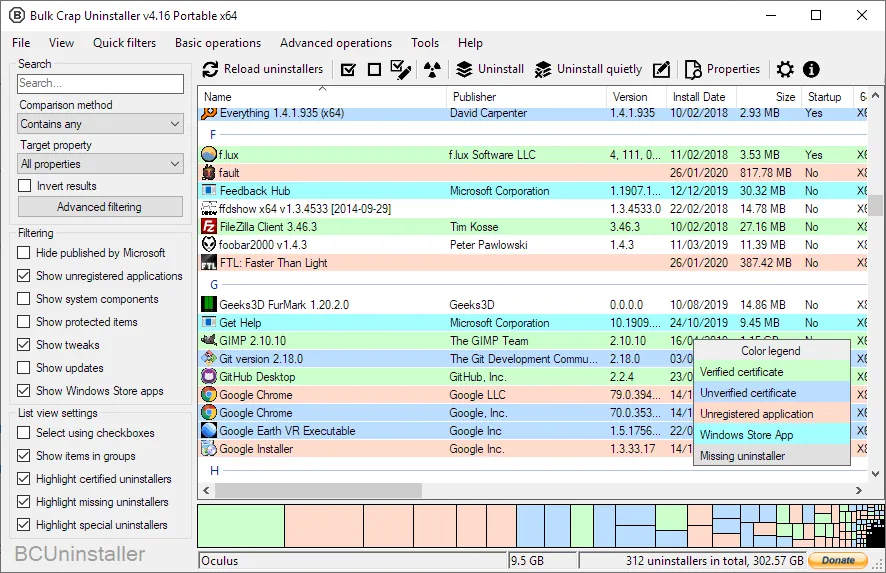

Bulk Crap Uninstaller detects programs that Programs and Features misses, including entries with broken uninstallers, and can force-remove them at no cost, also at work. Its dense table of columns takes some getting used to, and its leftover list needs a careful read.
Pros
- Uninstalls many programs in one batch
- Detects apps other uninstallers miss
- Free for personal and commercial use
Cons
- Busy interface with many columns and options
- Leftover cleanup can flag items you still need, so review the list
- The project has publicly asked for new maintainers
2. Geek Uninstaller — Uninstaller
Best for: A portable force-remover on a USB stick
- Freeware
- Free
- Utilities
Geek Uninstaller runs from one small EXE without installation, and its Force Removal works on programs whose uninstaller fails. The free version is licensed for personal use only and has no install monitoring.
Pros
- Single portable EXE, about 5 MB
- Force Removal for broken programs
- Removes Store apps
Cons
- Personal use only and no support in the free version
- No install monitoring; the site upsells the paid Uninstall Tool
- Closed source
3. Revo Uninstaller Free — Uninstaller
Best for: Thorough leftover scans after a normal uninstall
- Freeware
- Free
- Utilities
Revo Uninstaller Free runs the program's own uninstaller and then searches for leftover files and registry keys, which you review before deleting. For programs that will not uninstall at all it falls short, because Forced Uninstall is reserved for the paid Pro version.
Pros
- Thorough leftover scan after uninstall
- Removes Windows apps
- Hunter Mode for unknown programs
Cons
- Forced Uninstall, batch uninstall and install monitoring require Pro
- Download page pushes the paid Pro version
- Closed source
4. IObit Uninstaller Free — Uninstaller
Best for: Removing several programs in one batch
- Freeware
- Free
- Utilities
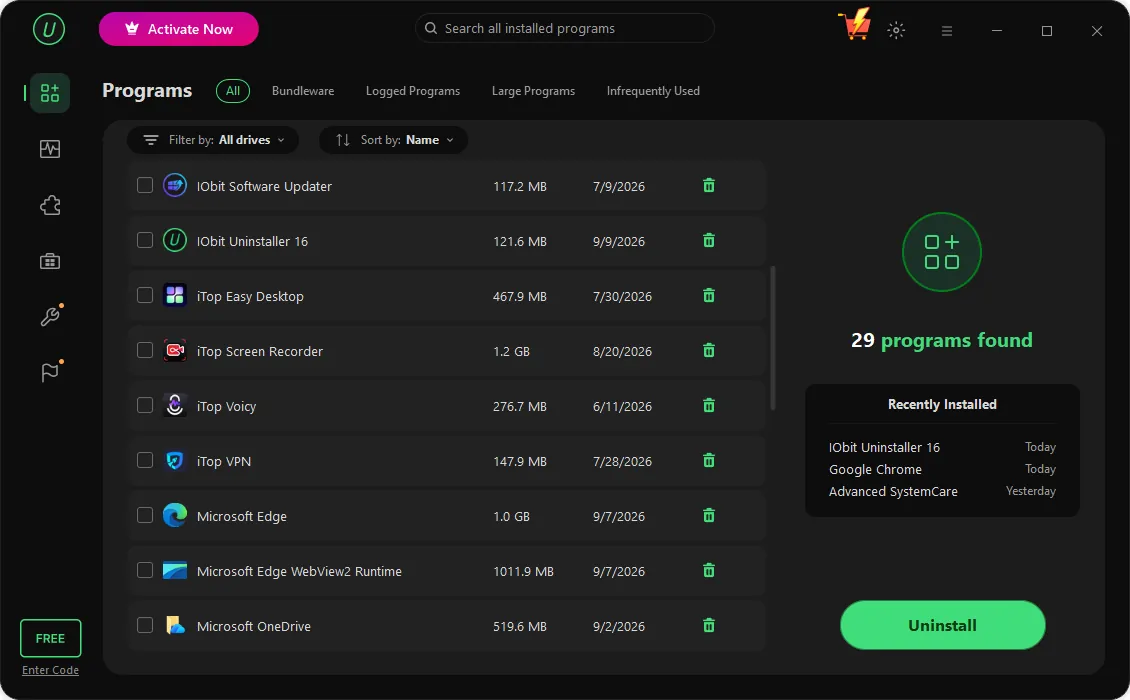
IObit Uninstaller Free removes programs, Store apps and browser extensions in batches and can create a restore point first. Its stubborn-program removal is a PRO feature, and the app promotes other IObit products.
Pros
- Batch uninstall with restore point
- Removes Store apps and browser extensions
- Useful filters for large and rarely used programs
Cons
- Promotes the PRO subscription and other IObit products inside the app
- Stubborn program removal and deep leftover scans are PRO-only
- Installer may offer additional software
Frequently asked questions
Why can't I uninstall a program on Windows 11?
Usually the program is still running, its uninstaller is damaged or missing, or its Windows Installer data is corrupted. Close it, restart the PC and try Settings, then Control Panel, then the uninstaller in its folder.
How do I force uninstall a program?
Use an uninstaller with a forced mode. Bulk Crap Uninstaller and Geek Uninstaller offer it for free; in Revo Uninstaller it requires the Pro version.
Does Microsoft's Program Install and Uninstall troubleshooter still work?
The download is still on Microsoft's servers at aka.ms/Program_Install_and_Uninstall, but Microsoft now lists it only for Windows 10. On Windows 11 it still runs and helps most with programs installed from MSI packages.
How do I uninstall a program in Safe Mode?
Open Settings, System, Recovery and select Restart now next to Advanced startup. Choose Troubleshoot, Advanced options, Startup Settings, Restart, press 4, then uninstall the program from Settings or Control Panel.
Is it safe to delete leftover files after uninstalling?
Usually, if they clearly belong to the program you removed. Review the list first, because shared components can appear in it, and keep a restore point in case something else stops working.
Can I just delete the program's folder?
That removes the files but leaves its entry in Installed apps, its services and its registry keys. Use a forced-removal tool instead, which cleans the entry and leftovers together.
ExeDepot does not host installers. Every download button opens the developer's own server or official download page. Prices and licenses come from each developer's site and were checked on .