
Gaming · Published
How to fix the Steam disk write error on Windows
Steam shows "An error occurred while installing" or "An error occurred while updating" followed by the game's name and the reason in parentheses, here disk write error. It means Steam could not write the game's files to the library folder, so the install or update stopped. Valve's troubleshooting points to a few usual causes: files still locked by another program, library folder permissions that broke, antivirus software that interferes with disk operations, and a drive or RAM that corrupts data.
Start with the fixes inside Steam, which Steam Support says resolve most install and update errors: restart, clear the download cache, repair the library folder and verify the game's files. If the error continues, check your security software, Windows' write protection and the health of the drive, and test the game on another drive.
Method 1: Restart Steam and the PC
Steam Support recommends this first. Restarting releases locks on files, which matters when the game, a mod tool or an antivirus scan still has a game file open:
- Close the game if it is running.
- Exit Steam.
- Restart Windows, start Steam and try the install or update again.
Method 2: Clear the download cache
Clearing the cache makes Steam flush locally cached configuration data and get it from the Steam servers again. Steam Support says it does not affect installed games:
- In Steam, open Steam, Settings in the top-left menu.
- Select Downloads and find Clear Download Cache at the bottom.
- Select Clear Cache, then Confirm.
- Sign in to Steam again and restart the install or update.
Method 3: Repair the Steam library folder
Steam Support explains that library folders need to be writable by all users for games to update, and that these permissions sometimes break and need to be refreshed. Repair Folder does exactly that:
- Open Steam, Settings and select Storage.
- Select the drive that holds the game.
- Select the three-dot (...) menu and choose Repair Folder.
- When it finishes, try the download again.
Do this before changing folder permissions by hand. Microsoft notes that Windows usually ignores the Read-only attribute on folders: the Read-only box in a folder's Properties applies to the files inside, so ticking it off rarely fixes a write error.
Method 4: Verify the game's files
Files can be corrupted by bad hardware, software crashes or power surges. Steam can check an installed game and replace damaged files:
- Restart the PC and start Steam.
- In the Library, right-click the game, or select the gear icon on its page, and choose Properties.
- Open Installed Files and select Verify integrity of game files.
- Wait until it finishes, which may take several minutes.
Steam Support says one or more files failing to verify is normal for most games: these are local configuration files that are not meant to be replaced, and you can ignore the message. Do not verify while you defragment the drive or run a virus scan, and do not verify several games at once.
Method 5: Check antivirus and Controlled folder access
Valve says antivirus software hooks deep into Windows and can affect disk operations, and that copy protection in some games can trigger false positives. If the error started after installing or reconfiguring security software:
- Pause your antivirus for a test download, then turn it back on. If the download works, add an exception for your Steam library folder instead of leaving protection off. Steam Support gives excluding Steam library folders from live monitoring as an example.
- With Microsoft Defender, open Windows Security, Virus & threat protection, Manage settings, then Add or remove exclusions under Exclusions, and add the library folder as a Folder exclusion. Microsoft warns that excluded files are no longer scanned in real time.
- Check Controlled folder access: open Windows Security, Virus & threat protection, Manage ransomware protection. If it is on and you saw an App is blocked notification, select Allow an app through Controlled folder access and add the blocked Steam program.
- Open Windows Security, Protection history to see recent blocks and which program they were for.
Controlled folder access is off by default and protects folders such as Documents, Pictures, Videos and Music, plus any folders you add. It matters if your Steam library sits inside one of those folders or you added the library to the protected list. If you hardened Defender with ConfigureDefender, note that its MAX level switches on Controlled folder access among other blocks, and its developer warns that MAX causes many false positives; go back to DEFAULT while you test.
Steam's list of programs that can interfere also includes anti-spyware tools, download accelerators and other software that monitors disk or network activity. If you are choosing a different antivirus, see our free antivirus comparison.
Method 6: Remove write protection from the drive
If Windows itself says the disk is write-protected, nothing can write to it, including Steam. Windows' DiskPart tool can show and clear the read-only attribute of a disk:
- Type cmd in Search, right-click Command Prompt and choose Run as administrator.
- Type diskpart and press Enter, then type list disk.
- Find the drive with your Steam library by its size and type select disk followed by its number, for example select disk 1.
- Type attributes disk. If Read-only says Yes, type attributes disk clear readonly.
- Type exit and try the download again.
Check the disk number twice: DiskPart applies attributes to whichever disk is selected. If the attribute cannot be cleared or keeps coming back, check the drive's health with Method 7 before trusting it with data.
Method 7: Check the drive for errors and failing health
Storage drives can corrupt files, especially old ones or drives under heavy load. Steam Support lists these checks:
- Open This PC, right-click the drive with the library, select Properties, open the Tools tab and run Error checking.
- Check the drive's S.M.A.R.T. health with CrystalDiskInfo. Caution on a hard drive means reallocated, pending or uncorrectable sectors were found; back up your files and plan to replace it.
- Test RAM too: type mdsched in Search and run Windows Memory Diagnostic. Valve notes that memory errors can break installs as well.
- If you overclock the CPU or RAM, return to default settings while testing. Valve says overclocking can cause memory and file corruption.
For NVMe drives Windows also shows drive health in Settings; our 100% disk usage guide shows where to find it.
Method 8: Move the game to another drive
Installing on a different drive tells you whether the problem is tied to one disk. Steam Support suggests it as a test:
- Open Steam, Settings, Storage and select the + button at the top to add a library folder on another drive.
- Select the drive the game is on now, select the game and choose Move.
- Choose the new library and let Steam finish.
- For a game that is not installed yet, choose the new library when you install it.
If the game installs fine elsewhere, the first drive or its folder permissions are the problem. Do not uninstall Steam to fix the error: Valve warns that uninstalling Steam deletes all game content. Reinstalling Steam into the same folder, from the official installer, keeps installed games and can fix broken client files.
Free tools for this job
| App | Best for | License | Price | Download |
|---|---|---|---|---|
 CrystalDiskInfo |
A free S.M.A.R.T. health check of the game drive | Open source | Free | Review |
 Hard Disk Sentinel |
Checking external and NVMe game drives in detail | Shareware | $22, one-time license, 1 PC (Standard) | Review |
 Process Monitor |
Finding the program that blocks Steam's writes | Freeware | Free | Review |
1. CrystalDiskInfo — Disk Health Monitor
Best for: A free S.M.A.R.T. health check of the game drive
- Open source
- Free
- Utilities
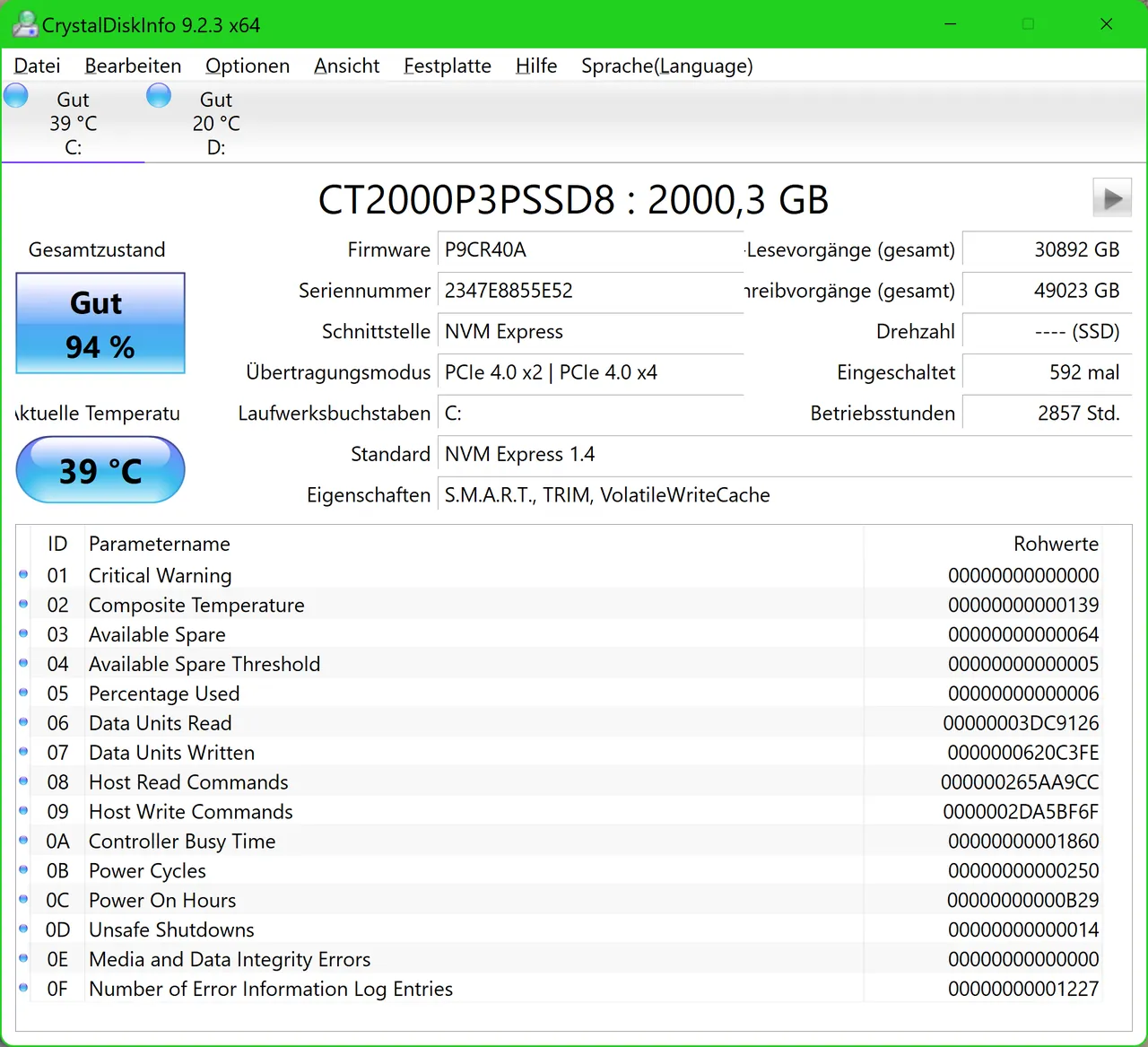

CrystalDiskInfo labels each drive Good, Caution or Bad from its S.M.A.R.T. data and shows temperature, so you can tell quickly whether a write error points to a worn drive. It cannot see disks behind most RAID controllers or some USB enclosures, and no S.M.A.R.T. tool predicts every sudden failure.
Pros
- Clear health label for every drive
- Supports NVMe SSDs on Windows 10 and 11
- Background alerts by tray icon and email
Cons
- Does not see disks behind most RAID controllers and some USB enclosures
- S.M.A.R.T. data cannot warn about every sudden failure
- Several editions and download buttons can confuse first-time users
2. Hard Disk Sentinel — Disk Health Monitor
Best for: Checking external and NVMe game drives in detail
- Shareware
- $22, one-time license, 1 PC (Standard)
- Utilities
Hard Disk Sentinel turns S.M.A.R.T. data into a health percentage with plain-language explanations and supports drives in USB enclosures, which helps when the library is on an external disk. It is shareware: the unregistered version still shows health but limits alerts and tests, and a Standard license costs $22 per PC.
Pros
- Clear health percentage with explanations
- Supports NVMe and external USB drives
- One-time license with lifetime updates
Cons
- Unregistered version limits alerts and tests
- Interface is dense and dated
- Business use requires a license after 30 days
3. Process Monitor — System Monitor
Best for: Finding the program that blocks Steam's writes
- Freeware
- Free
- Utilities

Process Monitor from Microsoft Sysinternals logs every file operation with the process behind it and its result, so a capture during a failed update shows which file Steam could not write and whether another program had it open. The event stream is overwhelming without a filter, and the current version lists only Windows 11 as a supported client.
Pros
- Shows exactly which files and registry keys an app uses
- Powerful non-destructive filtering
- Official Microsoft tool, no ads
Cons
- Current version lists only Windows 11 as supported client
- Captures millions of events and uses a lot of memory if left running
- Closed source
Frequently asked questions
What causes the Steam disk write error?
Steam could not write game files to the library folder. Common causes are broken library folder permissions, a file locked by another program or antivirus, a write-protected drive, and a failing drive or RAM.
Does clearing the Steam download cache delete my games?
No. Steam Support says clearing the download cache does not affect installed games, but you have to sign in to Steam again afterwards.
What does Repair Folder do in Steam?
It refreshes the permissions of a Steam library folder. Library folders must be writable by all users for games to update, and those permissions sometimes break.
Why do some files fail to verify in Steam?
Steam Support says this is normal for most games. The files are local configuration files that should not be replaced, so you can ignore the message.
Should I run Steam as administrator to fix it?
Valve's troubleshooting steps do not include it. Repair Folder in Settings, Storage is Steam's own fix for library permissions, so try that first.
Is the disk write error a sign my drive is dying?
Not always, but it can be. If it happens on several games or after verifying files, check the drive with Error checking and CrystalDiskInfo, and try installing to another drive.
Will reinstalling Steam delete my games?
Uninstalling Steam deletes all game content, Valve warns. Reinstalling Steam into the same folder over the existing installation keeps installed games.
ExeDepot does not host installers. Every download button opens the developer's own server or official download page. Prices and licenses come from each developer's site and were checked on .