
Gaming · Updated
The best emulators for Windows PC, by console
For most consoles there is one emulator that the community treats as the standard, and that is usually the right choice. This guide lists the best Windows emulator for each major system, from PlayStation 1 to PlayStation 3 and from GameCube to 3DS, plus RetroArch for people who want many older systems in one app. All of them are free.
What separates them is setup and hardware. Some need a BIOS or firmware file before a game will start, some ship as a zip archive instead of an installer, and the newer the console, the stronger the PC has to be: a PS3 or Wii U emulator needs a fast modern CPU, while a Game Boy Advance emulator runs on almost anything. None of these emulators include games.
Our picks at a glance
| App | Best for | License | Price | Download |
|---|---|---|---|---|
 RetroArch RetroArch |
Many classic consoles in one app | Open source | Free | Review |
 DuckStation DuckStation |
PlayStation 1 | Freeware | Free | Review |
 PCSX2 PCSX2 |
PlayStation 2 | Open source | Free | Review |
 RPCS3 RPCS3 |
PlayStation 3, on a powerful PC | Open source | Free | Review |
 Dolphin Dolphin |
GameCube and Wii | Open source | Free | Review |
 Cemu Cemu |
Wii U | Open source | Free | Review |
 PPSSPP PPSSPP |
PSP, even on modest PCs | Open source | Free | Review |
 Azahar Azahar |
Nintendo 3DS | Open source | Free | Review |
 melonDS melonDS |
Nintendo DS | Open source | Free | Review |
1. RetroArch — Emulator Frontend
Best for: Many classic consoles in one app
- Open source
- Free
- Gaming
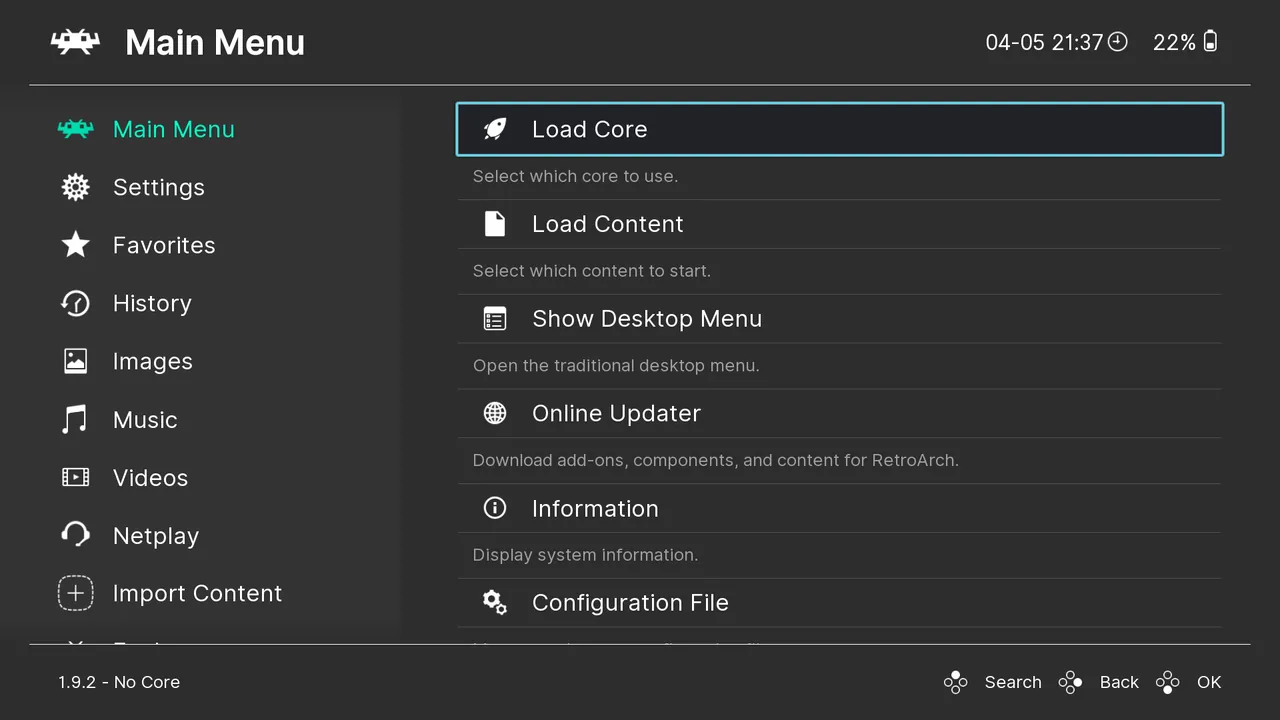

RetroArch is a frontend that runs emulators as downloadable cores: NES, SNES, Genesis, Game Boy, PlayStation and many more. Shaders, rewind, run-ahead, netplay and RetroAchievements then work the same way across every system, and you set up your controller only once.
The menus are hard to learn, some cores need BIOS files you dump yourself, and core quality and licenses vary. For demanding systems such as PS2, PS3 or Wii U, the standalone emulators below such as PCSX2 or Cemu are the better choice. If you want a couch-friendly menu over several emulators, add ES-DE.
Pros
- Dozens of systems in one app
- Shaders, rewind and run-ahead
- Netplay and achievements
Cons
- Menus and settings are hard to learn
- Some cores need BIOS files you must dump yourself
- Core quality and licenses vary
2. DuckStation — PlayStation 1 Emulator
Best for: PlayStation 1
- Freeware
- Free
- Gaming
.png)
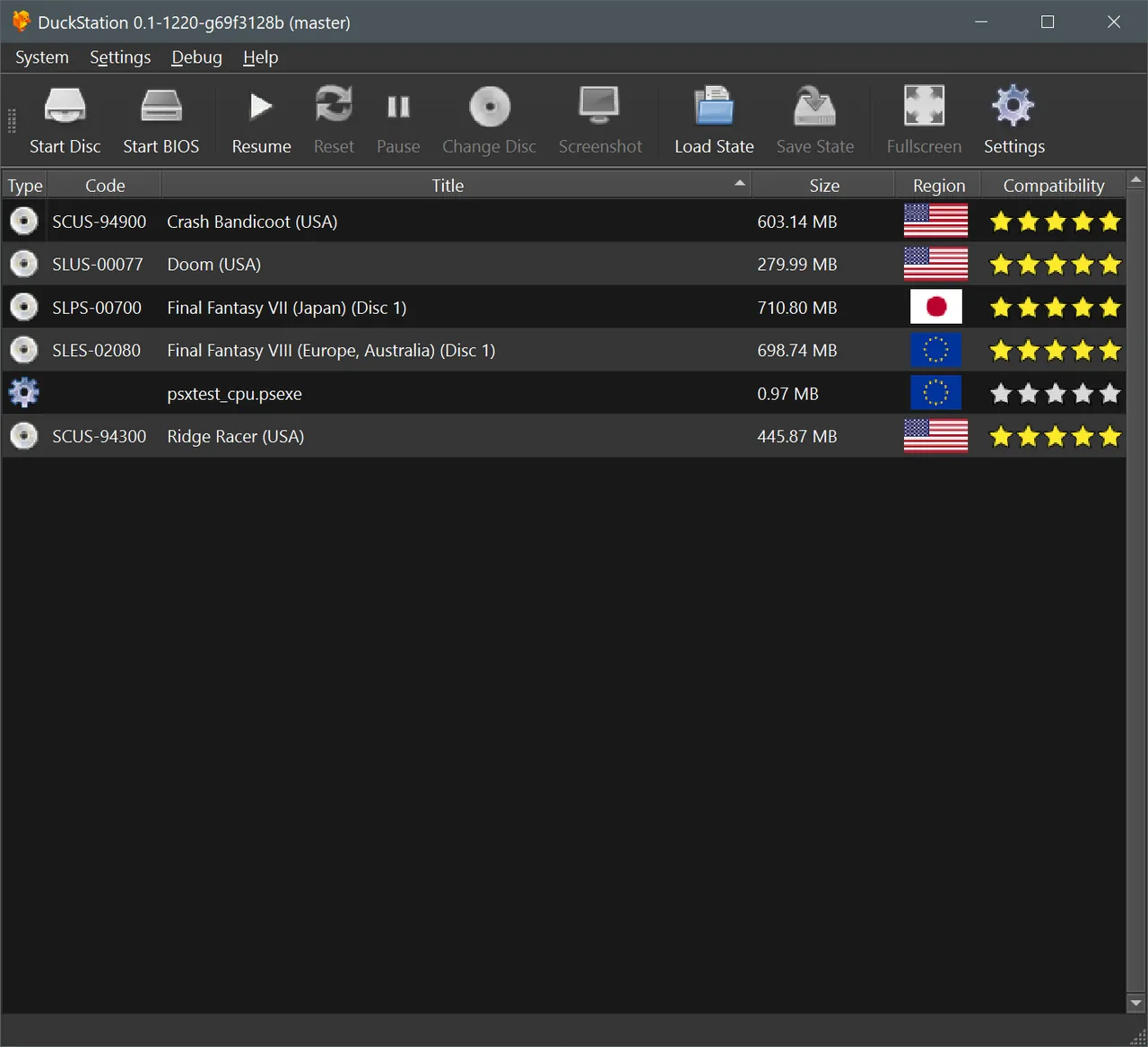
DuckStation is one of the most accurate and convenient PS1 emulators, with a clean game list, upscaling and true colour on Direct3D, Vulkan or OpenGL, and PGXP to fix the typical PS1 polygon wobble. Save states, rewind, runahead and a Big Picture mode for TVs are built in.
It needs a PS1 or PS2 BIOS dumped from your own console. It is free but no longer open source: the code is now under CC BY-NC-ND 4.0, which forbids commercial use and modified redistribution. If you prefer open source, RetroArch has PS1 cores.
Pros
- Very accurate PS1 emulation
- Upscaling and PGXP for sharper 3D
- Fast and polished interface
Cons
- Not open source anymore (CC BY-NC-ND 4.0)
- Requires a BIOS dumped from your own console
- No games included
3. PCSX2 — PlayStation 2 Emulator
Best for: PlayStation 2
- Open source
- Free
- Gaming
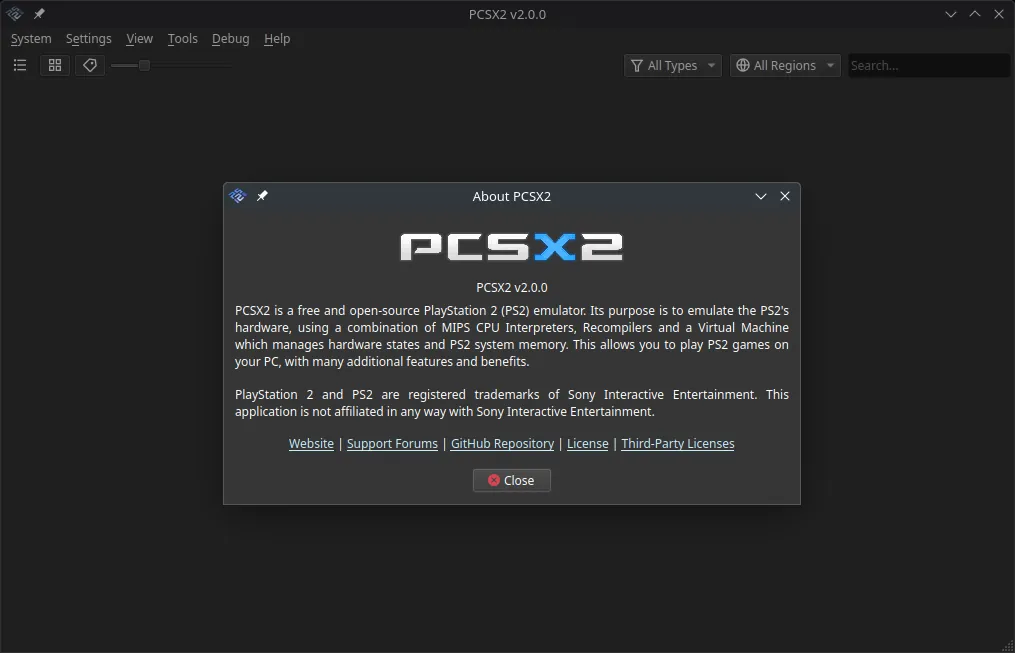

PCSX2 is the standard PS2 emulator and runs the large majority of the library well, often at much higher resolution. It has built-in widescreen and no-interlacing patches, virtual memory cards, save states, RetroAchievements and a Big Picture mode, all in a modern Qt interface.
You must dump the BIOS from your own PS2. The minimum is a 64-bit CPU with SSE4.1 and 8 GB of RAM, and demanding games need a CPU with AVX2. Some games still have graphics or timing glitches.
Pros
- Runs most of the PS2 library
- HD upscaling and widescreen patches
- Modern interface with game list
Cons
- Requires a BIOS dumped from your own PS2
- Demanding games need a fast CPU with AVX2
- Some games still have graphics or timing glitches
4. RPCS3 — PlayStation 3 Emulator
Best for: PlayStation 3, on a powerful PC
- Open source
- Free
- Gaming
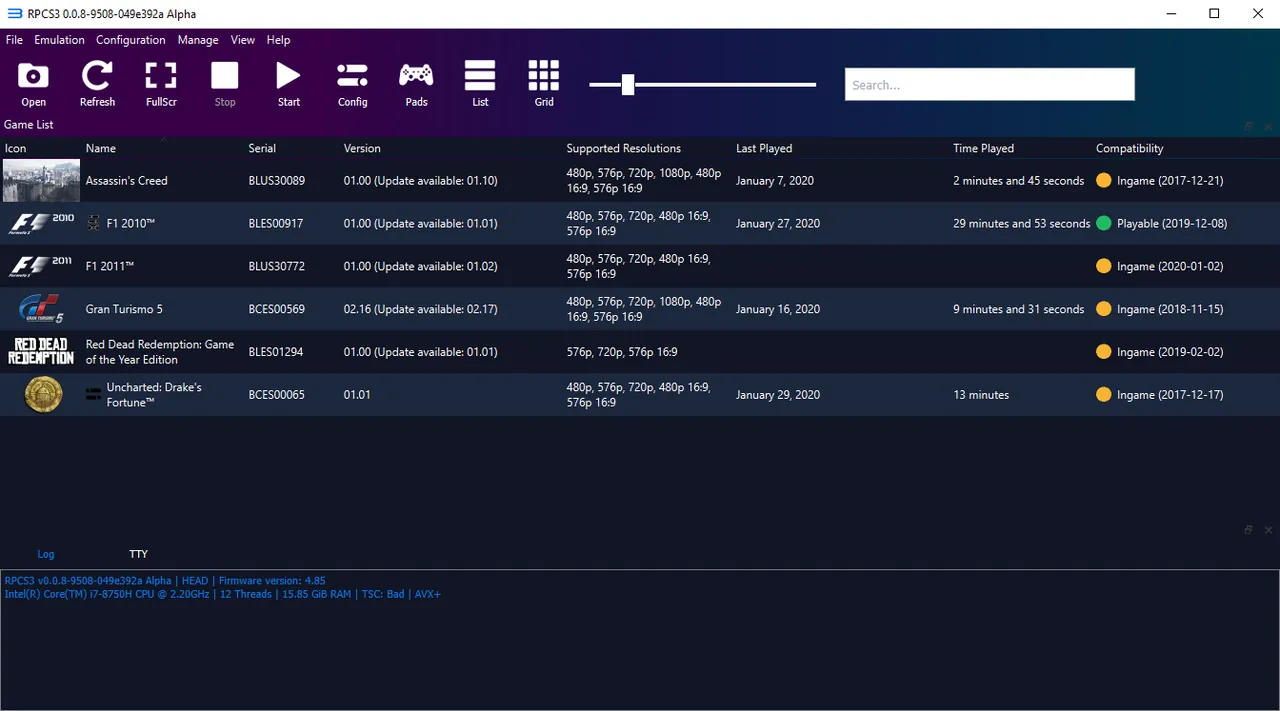

RPCS3 is the only mature PS3 emulator and runs a large part of the library on a strong PC, at resolutions beyond the original 720p. A built-in patch manager adds fixes and frame rate unlocks, and the public compatibility list on rpcs3.net shows how well each game runs.
It needs a fast modern CPU and GPU, ships as a .7z archive without an installer, and dumping PS3 games requires your own console or a compatible Blu-ray drive. The PS3 firmware is a free download from Sony's website. Check the compatibility list before you start.
Pros
- Runs many PS3 games at higher resolution
- Open source with frequent builds
- Detailed public compatibility list
Cons
- Needs a fast modern CPU and GPU
- Shipped as a .7z archive without an installer
- Dumping PS3 games requires your own console or a compatible Blu-ray drive
5. Dolphin — GameCube and Wii Emulator
Best for: GameCube and Wii
- Open source
- Free
- Gaming
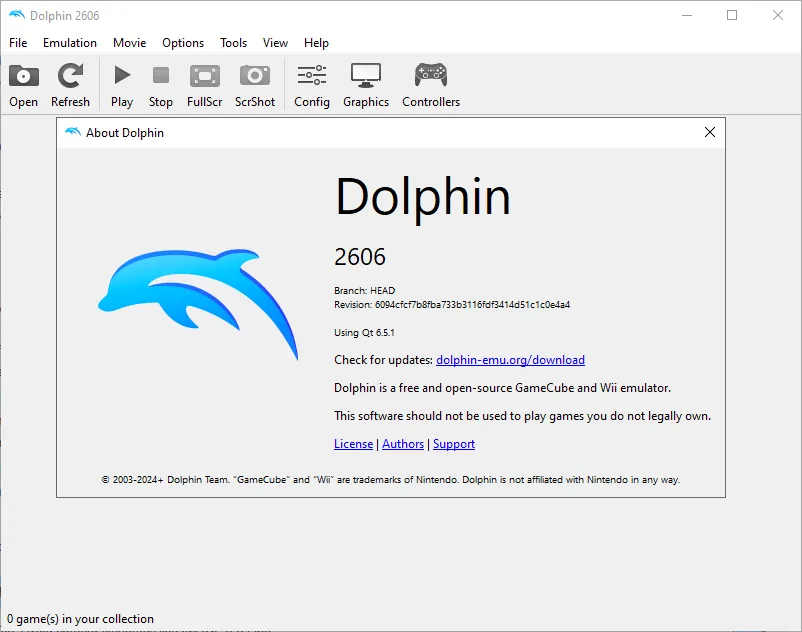

Dolphin emulates both the GameCube and the Wii and runs most games very well at resolutions far above the originals. It needs no BIOS, supports real Wii Remotes over Bluetooth, and has netplay for local multiplayer games. Setup is simple compared with most emulators.
The Windows release is a portable 7z archive and needs the 64-bit Visual C++ redistributable. Shader compilation can cause stutter the first time you play. For Wii U games, use Cemu instead.
Pros
- Runs most GameCube and Wii games well
- HD resolutions and widescreen hacks
- Real Wii Remote support
Cons
- Windows release is a 7z archive, not an installer
- Needs your own game dumps; no games included
- Shader compilation can cause stutter on first play
6. Cemu — Wii U Emulator
Best for: Wii U
- Open source
- Free
- Gaming

Cemu is the leading Wii U emulator and runs many games well, often better than the original console. Community graphic packs raise resolution, unlock frame rates and fix issues per game, and it emulates the GamePad with mouse input for the touch screen plus gyro controls. It has been open source under the MPL 2.0 since 2022.
You dump games and the required data from your own Wii U. It needs a GPU with OpenGL 4.5 or Vulkan 1.2 and has limited support for Intel graphics. The Windows release is a portable zip.
Pros
- Runs many Wii U games well
- Higher resolutions and frame rates via graphic packs
- Open source under MPL 2.0
Cons
- Windows release is a portable zip that you extract yourself
- Limited support for Intel GPUs
- No games included; dumping needs your own Wii U
7. PPSSPP — PSP Emulator
Best for: PSP, even on modest PCs
- Open source
- Free
- Gaming
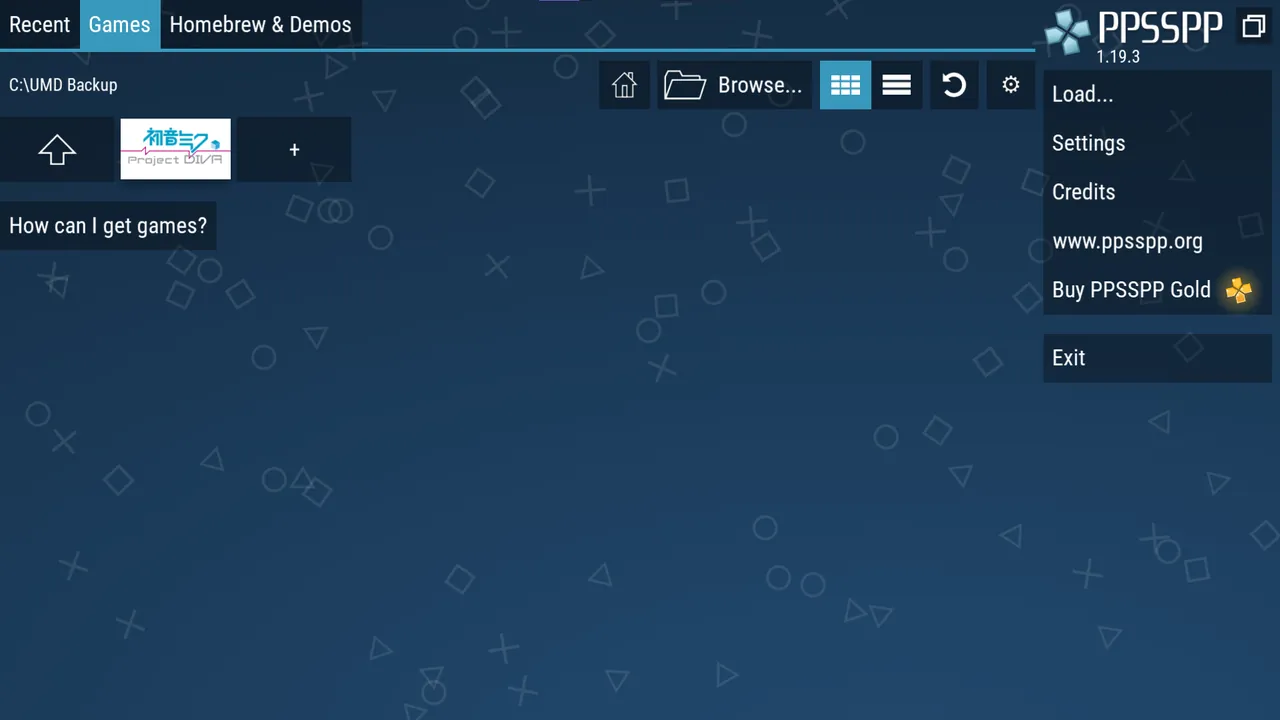

PPSSPP runs most of the PSP library well on almost any PC and needs no BIOS or firmware file, so it works with default settings. It renders games at several times the PSP resolution, supports gamepads and remapping, and offers ad hoc multiplayer through relay servers.
You need ISO or CSO images dumped from UMD discs you own, or free homebrew. Some games still have graphics or timing issues, and online multiplayer takes extra network setup. PPSSPP Gold is an optional paid edition that only supports the developers. For the PS Vita, Vita3K exists but is still experimental.
Pros
- Runs most PSP games well
- No BIOS or firmware file required
- Very low system requirements
Cons
- No games included; you need dumps of your own UMDs
- Some games still have graphics or timing issues
- Online multiplayer needs extra network setup
8. Azahar — Nintendo 3DS Emulator
Best for: Nintendo 3DS
- Open source
- Free
- Gaming
Azahar is the actively developed continuation of Citra and the obvious choice for 3DS games on a PC. Most games look much sharper than on the console, and you can map buttons, circle pad and motion to a modern gamepad. It is also available as a core for RetroArch.
You must dump games from your own 3DS. Touch-screen games are awkward with a mouse, and arranging two screens of different sizes on one monitor takes some layout tweaking.
Pros
- Actively developed successor to Citra
- Sharper graphics than the original console
- Save states and gamepad support
Cons
- Needs your own game dumps from a 3DS
- Touch-screen games are awkward with a mouse
- Two windows of different sizes need layout tweaking
9. melonDS — Nintendo DS Emulator
Best for: Nintendo DS
- Open source
- Free
- Gaming
melonDS is the most accurate actively developed DS emulator. A JIT recompiler keeps it fast on modest hardware, the OpenGL renderer makes 3D games much sharper, and flexible screen layouts let you place the two screens side by side. It also supports local wireless multiplayer between instances.
The official guide asks for BIOS and firmware dumped from your own DS, and DSi mode also needs a NAND image. Wi-Fi and DSi emulation are still work in progress, and the Windows release is a ZIP. For the 3DS, use Azahar instead.
Pros
- Accurate Nintendo DS emulation
- 3D upscaling with the OpenGL renderer
- Local multiplayer between instances
Cons
- Official guide asks for BIOS and firmware dumps
- Wi-Fi and DSi emulation are still work in progress
- Windows release is a ZIP, not an installer
Other systems at a glance
For Game Boy, Game Boy Color and Game Boy Advance, mGBA is accurate, light on hardware and needs no BIOS file. For the original Xbox, xemu is the leading emulator, but it needs a boot ROM, a BIOS and a hard disk image from a real Xbox, and the retail BIOS cannot boot games. For the Nintendo 64, Project64 runs most popular games without configuration, though its last public release is from 2021 and it shows a support window until you pay.
Arcade fans should look at MAME, the reference emulator for thousands of arcade machines; its ROM sets must match the MAME version. For DOS games, DOSBox Staging has sensible defaults and CRT shaders, and classic point-and-click adventures run best in ScummVM, which reimplements the game engines instead of emulating hardware.
Is emulation legal?
Emulators themselves are generally legal software, and every emulator in this guide is free. Games, BIOS files and console firmware are copyrighted, though, so use only dumps of games and system files from consoles and discs you own. Downloading games you do not own is piracy. None of these projects include commercial games or BIOS files.
What PC do you need?
Handheld systems are the easiest: mGBA is light on hardware, PPSSPP runs on almost any PC, and melonDS uses a JIT recompiler for modest machines. For the PS2, PCSX2 needs a 64-bit CPU with SSE4.1 and recommends one with AVX2 for demanding games. PS3 and Wii U are the most demanding: RPCS3 needs a fast multi-core CPU, and Cemu needs a GPU with OpenGL 4.5 or Vulkan 1.2.
A gamepad makes a big difference. The emulators in the main list support modern controllers, and Big Picture or TV modes in PCSX2, DuckStation and frontends such as ES-DE let you play from the couch.
Frequently asked questions
What is the best emulator for PC?
It depends on the console. RetroArch covers many classic systems in one app, while the standalone emulators are best for newer consoles: DuckStation for PS1, PCSX2 for PS2, RPCS3 for PS3, Dolphin for GameCube and Wii, and Cemu for Wii U.
Are emulators legal?
Emulators are generally legal, and all emulators in this guide are free. Games and BIOS files are copyrighted, so you should only use dumps of games and BIOS files from hardware you own.
Do emulators need a BIOS?
Some do. PCSX2 and DuckStation need a BIOS from your own console, and RPCS3 needs the free PS3 firmware from Sony. Dolphin, PPSSPP and mGBA run without one.
Is RetroArch better than standalone emulators?
RetroArch is better if you play many older systems and want shaders, rewind and netplay set up once. Standalone emulators are usually easier to configure and better for demanding consoles such as the PS2, PS3 and Wii U.
Can my PC run a PS3 emulator?
Only if it is powerful. RPCS3 needs a fast modern CPU and GPU. Check the compatibility list on rpcs3.net for the games you want to play.
Do emulators come with games?
No. None of the emulators in this guide include commercial games. You need dumps of discs or cartridges you own, or free homebrew.
ExeDepot does not host installers. Every download button opens the developer's own server or official download page. Prices and licenses come from each developer's site and were checked on .