
Utilities · Published · Updated
How to open RAR and 7Z files on Windows 11
On an up-to-date Windows 11 PC you do not need extra software: right-click the RAR or 7Z file, choose Extract All and pick a folder. Microsoft lists ZIP, RAR, 7z and TAR support in File Explorer for Windows 11 version 24H2, and it can create 7z and TAR archives as well as ZIP. What it cannot do is open or create encrypted, password-protected archives; for those you need an archiver such as 7-Zip.
File Explorer is enough for the occasional download. If you get password-protected archives, split archives or many archives a week, install a free archiver: 7-Zip is the standard choice, NanaZip fits the Windows 11 right-click menu better, and WinRAR is only worth paying for if you need to create RAR files.
Method 1: Extract RAR and 7Z in File Explorer
Microsoft added reading of RAR, 7z, TAR and related formats to File Explorer through the open-source libarchive project in an October 2023 update for Windows 11 versions 22H2 and 23H2. To check your version, open Settings, then System, then About and look under Windows specifications.
- Find the archive in File Explorer.
- To extract everything, right-click the file and choose Extract All, choose a destination folder and select Extract.
- To take out a single file, double-click the archive to open it like a folder and drag the file you need to another folder.
If Extract All is missing for a RAR file, the PC is probably on an older build. Open Settings, then Windows Update, and install the pending updates, or use an archiver from Method 3.
Method 2: Create 7Z and TAR archives without extra software
Windows 11 version 24H2 can also pack files into 7z and TAR, not only ZIP:
- Select the files or folder in File Explorer and right-click the selection.
- Choose Compress to and pick ZIP File, 7z File or TAR File for default settings.
- For more control, choose Compress to, then Additional options. The wizard lets you set the archive format, compression method and level, and the destination.
There is no RAR option, and none of the built-in formats can be protected with a password. Microsoft's own advice for encrypted archives is to use an app such as 7-Zip or WinRAR.
Method 3: Use a free archiver for passwords and split archives
A dedicated archiver handles everything File Explorer does not, including encrypted archives and archives split into several parts. With 7-Zip:
- Download 7-Zip from 7-zip.org and install the 64-bit version.
- Right-click the RAR or 7Z file, choose Show more options, then 7-Zip, then Extract to followed by the archive's folder name.
- If the archive is encrypted, 7-Zip asks for the password. Without the correct password the files cannot be extracted.
- For a split archive, keep all parts in the same folder and extract the first one, for example name.part1.rar or name.7z.001. The archiver reads the other parts automatically.
NanaZip uses the same engine but appears directly in the Windows 11 right-click menu, without Show more options. PeaZip opens more than 200 formats, and Bandizip has the tidiest interface but shows ads in its free edition. Compare them in our file archiver comparison.
When WinRAR is worth it
Every tool on this page extracts RAR, including RAR5, but none of the free ones can create RAR archives, because the format is proprietary. WinRAR is the only program that makes them, with recovery records that let you repair a damaged archive and multi-volume splitting.
WinRAR is shareware. Its license allows a 40-day free trial without an account or card, after which you must buy a $29 single-user license; the unlicensed copy keeps running but shows a purchase reminder. If you only unpack files other people send you, a free archiver does that just as well.
Is it safe to open RAR and 7Z files?
An archive is only a container: the risk is in the files inside it. Be careful with archives that hold EXE, SCR, JS or Office files with macros, especially from email attachments, and with password-protected archives from strangers, because antivirus software cannot look inside an encrypted archive until you enter the password.
Right-click the extracted files, choose Show more options and then Scan with Microsoft Defender before you open anything you are not sure about. NanaZip passes the Mark of the Web from a downloaded archive to the extracted files, so Windows keeps showing its security warnings for them.
Free tools for this job
| App | Best for | License | Price | Download |
|---|---|---|---|---|
 7-Zip |
Opening any archive for free, including encrypted ones | Open source | Free | Review |
 NanaZip |
7-Zip in the Windows 11 right-click menu | Open source | Free | Review |
 PeaZip |
Rare formats and archive encryption tools | Open source | Free | Review |
 Bandizip |
A cleaner interface for everyday extraction | Freeware | Free | Review |
 WinRAR |
Creating RAR archives with recovery records | Shareware | $29, one-time license | Review |
1. 7-Zip — File Archiver
Best for: Opening any archive for free, including encrypted ones
- Open source
- Free
- Utilities
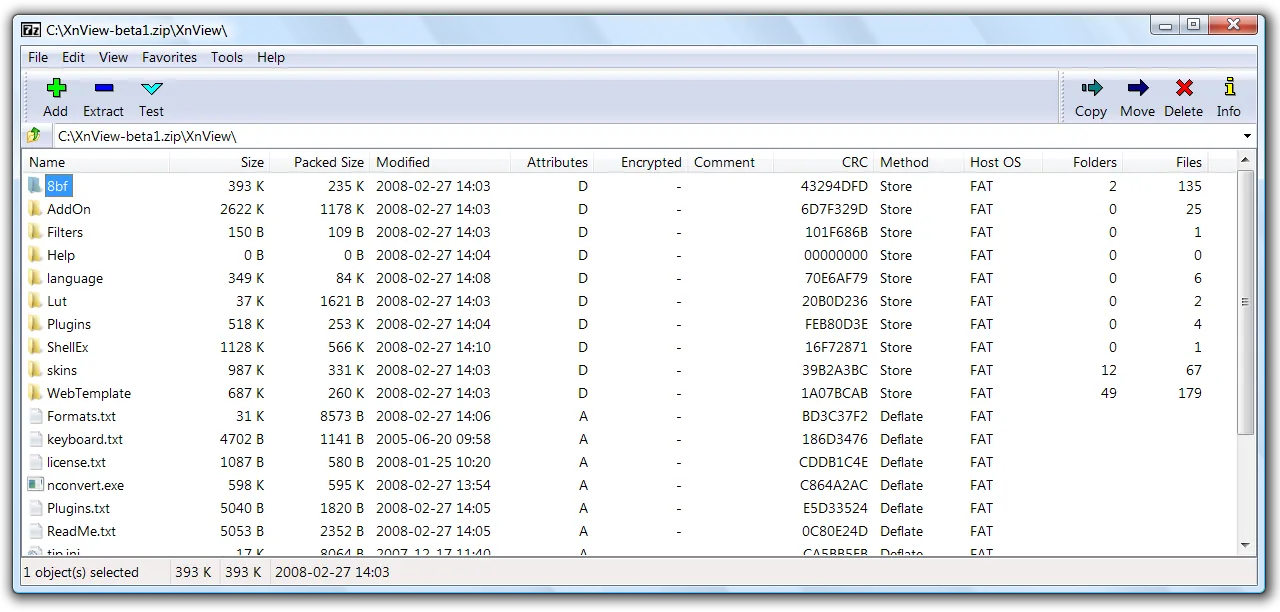

7-Zip extracts RAR, RAR5, 7z, TAR, ISO and many other formats and creates 7z and ZIP archives with AES-256 passwords; for disk images that Windows can mount instead, see how to open and mount ISO files. It is free at work too. Its interface is plain, and it lives in the classic right-click menu behind Show more options.
Pros
- Opens nearly every archive format
- 7z archives are small
- Free for commercial use
Cons
- Dated, plain interface
- Cannot create RAR archives
- Settings are spread across several dialogs
2. NanaZip — File Archiver
Best for: 7-Zip in the Windows 11 right-click menu
- Open source
- Free
- Utilities
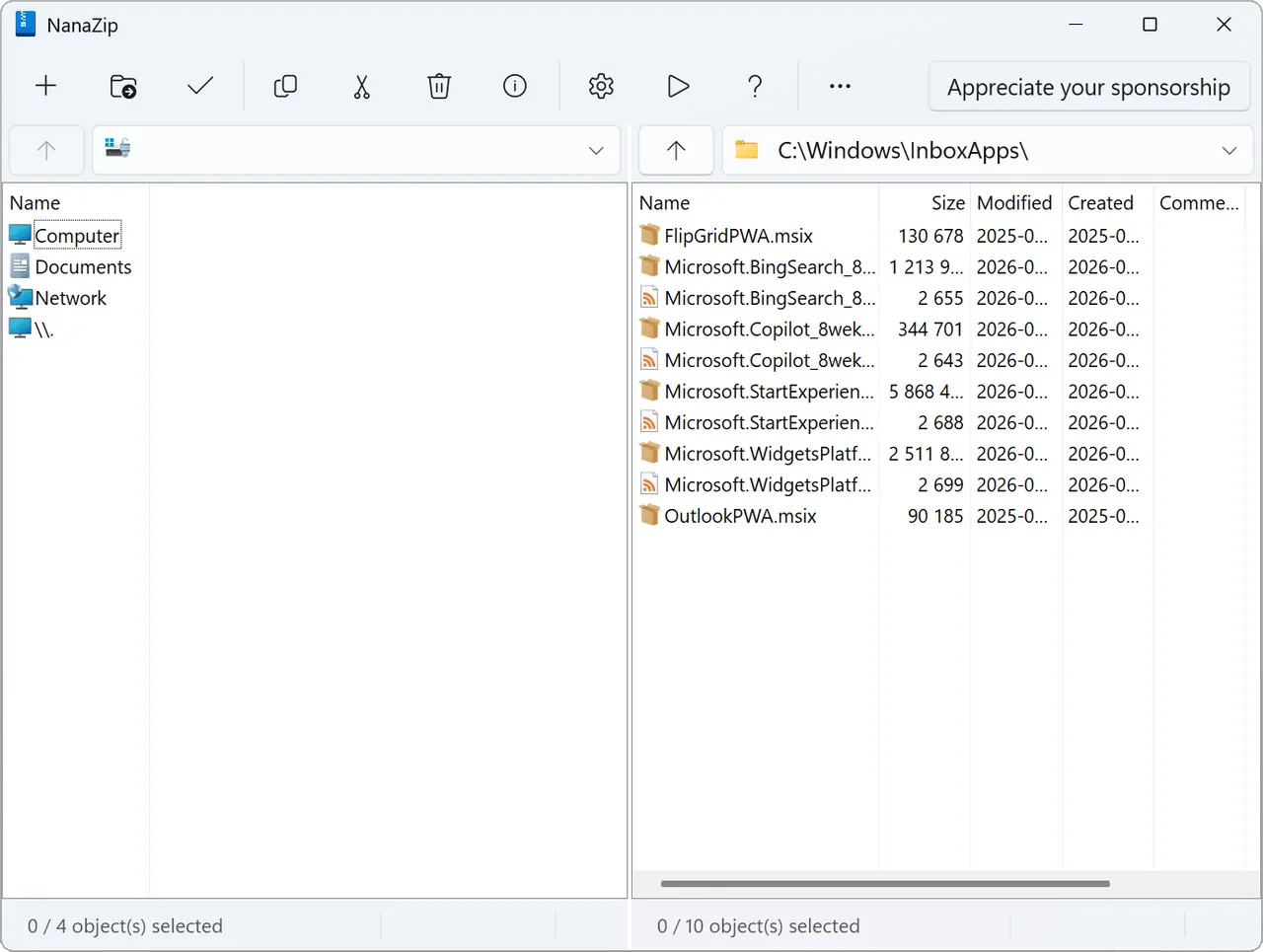

NanaZip is built on 7-Zip's code, adds dark mode and extra codecs such as Zstandard, and shows up in the modern Windows 11 context menu. It is only available as an MSIX package and needs Windows 10 version 2004 or later.
Pros
- Native Windows 11 context menu entry
- Dark mode for all windows
- More codecs and hashes than 7-Zip
Cons
- Only an MSIX package, no classic installer
- Requires Windows 10 version 2004 or later
- Rolling releases change faster than 7-Zip
3. PeaZip — File Archiver
Best for: Rare formats and archive encryption tools
- Open source
- Free
- Utilities
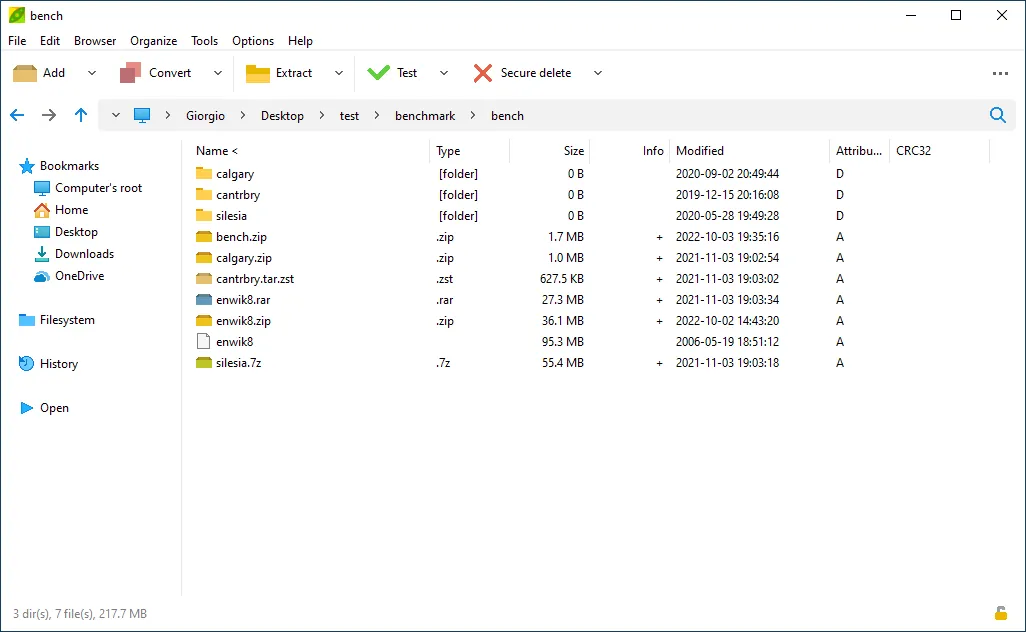

PeaZip extracts more than 200 file types and creates 7Z, ZIP, TAR, ZST and its own encrypted PEA format, with secure delete and hashing built in. The interface is busier than 7-Zip's, and creating RAR requires WinRAR to be installed.
Pros
- Opens 200+ formats
- Encryption, secure delete and hashing built in
- No ads, no paid edition
Cons
- Interface is crowded compared with 7-Zip
- Cannot create RAR archives without WinRAR installed
- New releases often trigger SmartScreen warnings at first
4. Bandizip — File Archiver
Best for: A cleaner interface for everyday extraction
- Freeware
- Free
- Utilities
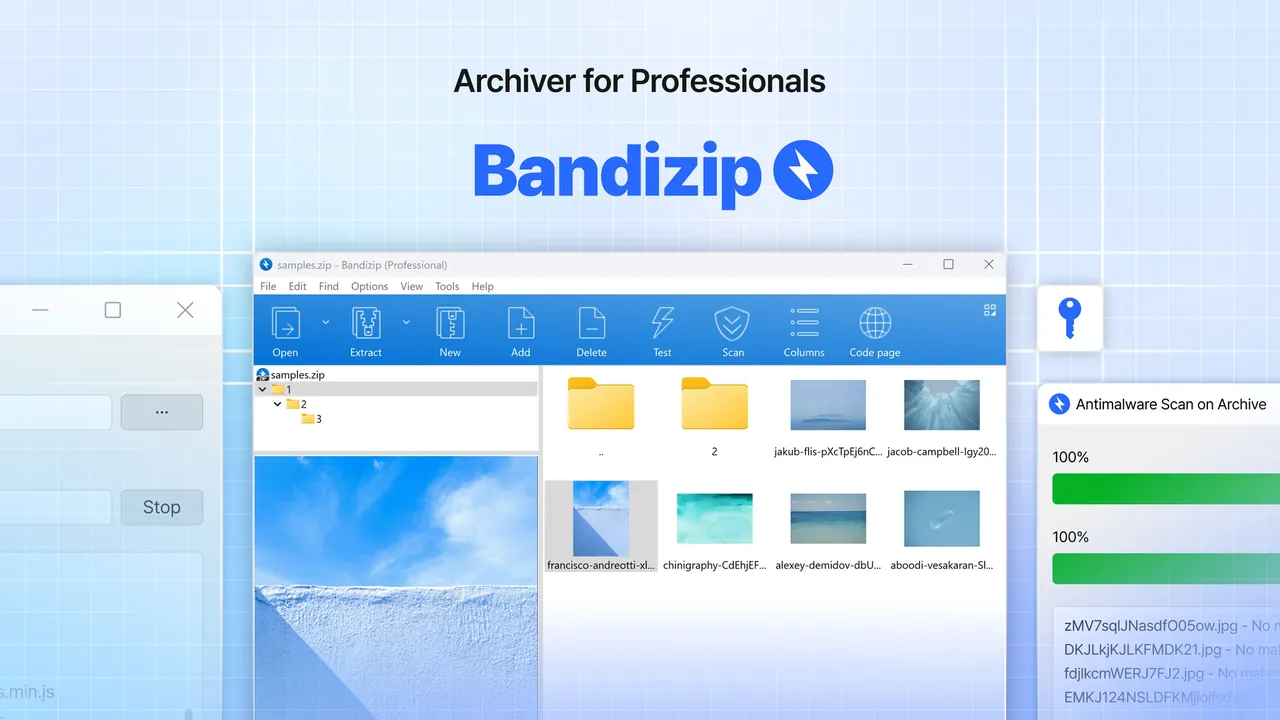
Bandizip opens RAR, RAR5, 7Z and more than 40 other formats and compresses with several CPU cores. The free Standard edition shows ads, and archive repair and password recovery need the paid Professional edition.
Pros
- Fast multi-core compression
- Clean, modern interface
- Edits files inside archives
Cons
- Free edition shows ads
- Archive repair, password recovery and malware scan need the paid edition
- Closed source
5. WinRAR — File Archiver
Best for: Creating RAR archives with recovery records
- Shareware
- $29, one-time license
- Utilities
WinRAR is the only tool that creates RAR and RAR5 archives, adds recovery records and splits archives into volumes. It extracts 7z, ISO and other formats too, but after the 40-day trial the license terms require a $29 purchase.
Pros
- Only tool that creates RAR archives
- Recovery records repair damaged archives
- One license covers all your home PCs
Cons
- Paid after the 40-day trial ($29 license)
- Reminder window keeps appearing in the unlicensed trial
- Free archivers handle extraction just as well
Frequently asked questions
Can Windows 11 open RAR files without WinRAR?
Yes. Since an October 2023 update File Explorer extracts RAR files, and Microsoft lists RAR support for Windows 11 version 24H2. Right-click the file and choose Extract All.
Can Windows 11 open password-protected RAR or 7Z files?
No. Microsoft says the built-in archive support does not work with encrypted archives. Use a free archiver such as 7-Zip, which asks for the password when you extract.
Can Windows 11 create RAR files?
No. File Explorer creates ZIP, 7z and TAR archives. Only WinRAR creates RAR files, and it costs $29 after the 40-day trial.
How do I open a 7Z file on Windows 11?
On version 24H2, double-click it in File Explorer or right-click it and choose Extract All. On older versions or for encrypted 7Z files, install 7-Zip or NanaZip.
How do I extract a RAR file split into parts?
Put all parts in one folder and extract the first part, such as name.part1.rar, with an archiver like 7-Zip or WinRAR. It joins the other parts automatically; if one part is missing, extraction fails.
Is 7-Zip better than WinRAR for opening archives?
For extraction they are equally capable, and 7-Zip is free for home and business use. WinRAR is only necessary if you need to create RAR archives or use its recovery records.
ExeDepot does not host installers. Every download button opens the developer's own server or official download page. Prices and licenses come from each developer's site and were checked on .