
Utilities · Published
How to remove startup programs in Windows 11
To remove a startup program in Windows 11, open Settings, then Apps, then Startup, and switch the app's toggle to Off. The app stays installed but no longer launches when you sign in. Task Manager's Startup apps tab shows the same list with a Startup impact rating for each app, which tells you which ones slow sign-in the most.
Settings and Task Manager are enough for most people. Apps that do not appear there are usually started from the Startup folder, from their own settings, or from a scheduled task or service; Autoruns finds those, but it needs more care. If you never use a program at all, uninstall it instead of only disabling it.
Method 1: Turn startup apps off in Settings
This is the simplest method and covers every app registered with a Windows startup task:
- Select Start, then Settings, then Apps, then Startup.
- Find the app in the list and set its toggle to Off.
- To change other options for an app, select the chevron next to it, if there is one.
- Restart the PC to check that the app no longer starts.
If an entry is called We couldn't find this app, the program was uninstalled or lives on a drive that is not connected. Select the icon next to its toggle to see where the broken entry is stored.
Method 2: Use Task Manager and its Startup impact
Task Manager shows the same apps as Settings but adds how much each one costs at sign-in:
- Right-click Start and select Task Manager, or press Ctrl+Shift+Esc.
- Select Startup apps in the left menu.
- Click the Startup impact column header to sort the list.
- Select an app and select Disable at the top. Select Enable to undo it.
Microsoft defines High impact as more than 1 second of CPU time or more than 3 MB of disk reads at startup, and Low impact as under 300 ms of CPU and under 292 KB of disk. Not measured means Windows has no data yet. Start with the High impact apps you do not need right after signing in.
Method 3: The app's own settings and the Startup folder
Many programs re-enable their autostart after an update unless you turn it off inside the app. Look in the app's Settings or Preferences for an option such as Start with Windows, Launch at login or Open on startup and clear it. Chat apps, game launchers and cloud storage clients usually have one.
Older programs and shortcuts you added yourself live in the Startup folder instead:
- Right-click Start and select Run.
- Type shell:startup and press Enter to open your own Startup folder.
- Delete the shortcut of the program you want to stop. This removes only the shortcut, not the program.
- Repeat with shell:common startup for programs that start for every user on the PC. Changing that folder needs administrator rights.
Method 4: Scheduled tasks and services with Autoruns
Updaters, helpers and background services often start from places that Settings and Task Manager do not show. Autoruns from Microsoft Sysinternals lists all of them:
- Download Autoruns from Microsoft's Sysinternals page, extract the ZIP, right-click Autoruns and select Run as administrator.
- Open the Options menu and select Hide Signed Microsoft Entries so only third-party items remain.
- Check the Logon, Scheduled Tasks and Services tabs for programs you recognize and do not need.
- Uncheck an entry to disable it. Check it again to restore it.
- Restart and confirm that Windows and your devices still work before you disable more.
Do not delete entries and do not touch signed Microsoft entries, drivers or anything from your antivirus unless you know exactly what it does. A disabled entry can be undone; a deleted one cannot. If you do not recognize a running program, open it in Process Explorer first to see which account runs it and which files it uses.
Disable or uninstall, and what is safe to turn off
Disabling only stops a program from starting by itself; you can still open it from the Start menu. Uninstalling removes it and frees disk space. If you have not used a program for months, uninstall it in Start, Settings, Apps, Installed apps, or with Revo Uninstaller or Bulk Crap Uninstaller, which also look for leftovers. If the uninstaller fails, follow our guide to programs that won't uninstall; if the PC is still slow after cleaning up startup, see how to fix 100% disk usage.
Usually safe to disable: game launchers, chat and meeting apps, music players, updaters for single programs and vendor promotion apps. The program still works when you open it, but you will not get notifications until you do.
Better left on: your antivirus, drivers' control panels for audio, touchpad, graphics or Bluetooth, and cloud sync clients such as OneDrive if you rely on files syncing in the background. Disabling them can break hotkeys, device features or backups. When in doubt, disable one app at a time and restart.
Some cleaners, such as CCleaner, add a startup manager to their junk cleanup; our PC cleaner comparison covers which ones are worth installing. For startup alone, Task Manager is enough.
Free tools for this job
| App | Best for | License | Price | Download |
|---|---|---|---|---|
 Autoruns |
Seeing every program, task and service that starts with Windows | Freeware | Free | Review |
 Process Explorer |
Identifying an unknown background process | Freeware | Free | Review |
 Revo Uninstaller Free |
Removing a startup program completely | Freeware | Free | Review |
 Bulk Crap Uninstaller |
Clearing a new PC of preinstalled software in one batch | Open source | Free | Review |
 CCleaner |
Managing startup apps alongside junk cleanup | Freeware | Free | Review |
1. Autoruns — Startup Manager
Best for: Seeing every program, task and service that starts with Windows
- Freeware
- Free
- Utilities
Autoruns shows logon entries, scheduled tasks, services, drivers and Explorer add-ons in one window, can verify signatures and check files on VirusTotal, and lets you disable any entry with a checkbox. Its depth is also the risk: disabling the wrong driver or service can break Windows features.
Pros
- Most complete list of autostart locations
- Official Microsoft tool, no ads
- Portable, nothing to install
Cons
- Overwhelming for beginners
- Disabling the wrong entry can break drivers or Windows features
- Closed source
2. Process Explorer — Task Manager
Best for: Identifying an unknown background process
- Freeware
- Free
- Utilities
Process Explorer shows which account runs each process and which files and DLLs it has open, which helps you decide whether a startup entry belongs to a program you need. It does not manage startup itself, and the current version is listed for Windows 11 only.
Pros
- Finds which process locks a file
- Detailed handle and DLL views
- Official Microsoft tool, no ads
Cons
- Current version requires Windows 11; Windows 10 is not listed as supported
- Dense interface made for technical users
- Closed source
3. Revo Uninstaller Free — Uninstaller
Best for: Removing a startup program completely
- Freeware
- Free
- Utilities
Revo Uninstaller Free runs a program's own uninstaller and then scans for leftover files and registry entries. Its Autorun Manager and Hunter Mode can also stop a program from starting with Windows. Forced removal of broken programs and batch uninstall are in the paid Pro version.
Pros
- Thorough leftover scan after uninstall
- Removes Windows apps
- Hunter Mode for unknown programs
Cons
- Forced Uninstall, batch uninstall and install monitoring require Pro
- Download page pushes the paid Pro version
- Closed source
4. Bulk Crap Uninstaller — Program Uninstaller
Best for: Clearing a new PC of preinstalled software in one batch
- Open source
- Free
- Utilities
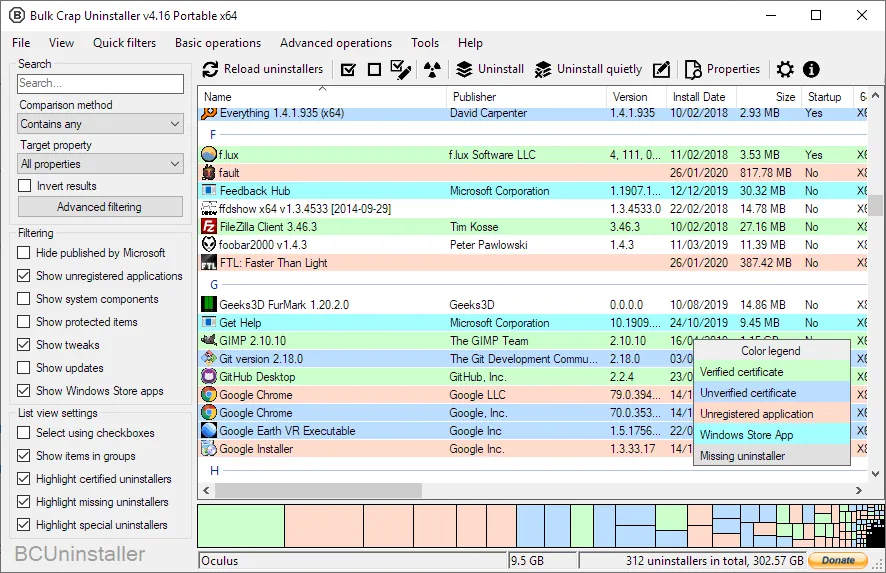

Bulk Crap Uninstaller removes many programs in one run and finds Store apps and orphaned entries other uninstallers miss. It is free for home and work use, but the dense interface and leftover list need a careful review before you confirm.
Pros
- Uninstalls many programs in one batch
- Detects apps other uninstallers miss
- Free for personal and commercial use
Cons
- Busy interface with many columns and options
- Leftover cleanup can flag items you still need, so review the list
- The project has publicly asked for new maintainers
5. CCleaner — PC Cleaner
Best for: Managing startup apps alongside junk cleanup
- Freeware
- Free
- Utilities
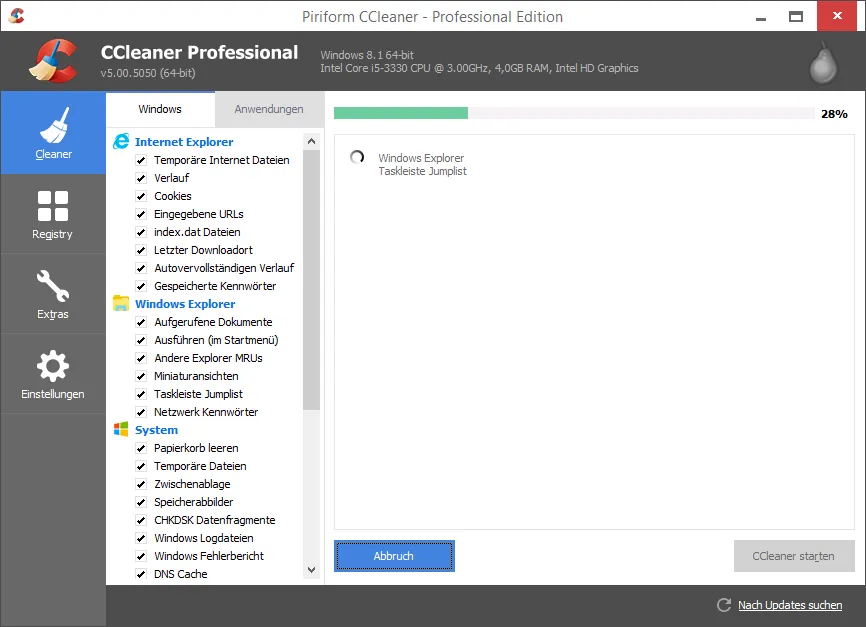

CCleaner Free includes a startup manager next to its junk and browser cleaners, which is handy if you already use it. It shows frequent prompts to upgrade to Pro and is licensed for home use only; for startup alone, Task Manager does the same job.
Pros
- Fast cleanup of junk and browser data
- Cleans many third-party apps, not only browsers
- Fine control over what gets deleted
Cons
- Frequent prompts to upgrade to Pro; updaters and automation are paid
- Setup may include offers for other software
- Home use only; a 2017 official release was compromised by attackers
Frequently asked questions
How do I stop apps from opening on startup in Windows 11?
Open Settings, Apps, Startup and switch the app's toggle to Off, or disable it on the Startup apps tab in Task Manager. The app stays installed.
Is it safe to disable all startup programs?
No. Antivirus software, audio and touchpad control panels and cloud sync clients may need to run at sign-in. Disable apps you recognize and do not need, one at a time.
Where is the Startup folder in Windows 11?
Press Windows+R, type shell:startup and press Enter for your own folder, or shell:common startup for all users. Deleting a shortcut there stops that program from starting.
What does Startup impact mean in Task Manager?
It rates how much CPU time and disk reading an app uses at sign-in. Microsoft rates more than 1 second of CPU or more than 3 MB of disk as High impact.
Why does an app keep coming back to startup?
Many apps turn their autostart back on after an update. Clear the start-with-Windows option in the app's own settings, and check Autoruns for a scheduled task that restarts it.
Does disabling startup programs make Windows faster?
It shortens the time until the PC is usable after signing in and reduces background activity. The biggest gains come from disabling High impact apps you do not use every day.
ExeDepot does not host installers. Every download button opens the developer's own server or official download page. Prices and licenses come from each developer's site and were checked on .