
Audio · Published
How to fix no sound after a Windows 11 update
When sound disappears right after a Windows 11 update, the cause is usually one of three things: Windows switched the default output to another device, the audio services did not start properly, or the update installed an audio driver that does not work with your hardware. Check the output device first, then restart the Windows Audio service, then roll back the audio driver in Device Manager. Uninstalling the update itself is the last resort.
The first three methods take minutes and need no extra software; the driver methods suit PCs whose speakers are no longer listed at all. If you use an equalizer such as Equalizer APO, read the section on audio enhancements and APOs, because updates often break it separately from the rest of the sound system.
Method 1: Check the output device and the volume mixer
Updates and new drivers can change the default playback device, for example to a monitor without speakers connected over HDMI. Microsoft lists this check first:
- Select the Speakers icon on the taskbar, then the arrow to the right of the volume slider (Select a sound output). Pick the speakers or headphones you actually use.
- Open Start, Settings, System, Sound. In the Output section, select your device; selecting it also makes it the default.
- On the same page, open Volume mixer and make sure neither the device nor the app you are testing is muted or set to zero.
- Under Advanced, select More sound settings. On the Playback tab, open your device's Properties and check that Device usage is set to Use this device (enable).
- Unplug and reconnect USB and 3.5 mm cables, and unplug headphones if you are testing the built-in speakers.
If you have Voicemeeter or another virtual audio device installed, check that the default output is your real hardware, or that the virtual mixer is running and routed to it. A per-app mixer such as EarTrumpet shows every device and app volume in one tray flyout, which makes a muted app or a wrong device easy to spot. If Windows keeps picking the wrong device, SoundSwitch switches back with a hotkey.
Method 2: Run the audio troubleshooter
Microsoft now runs Windows 11 troubleshooters through the Get Help app:
- Open the Get Help app from the Start menu.
- Type audio troubleshooter in the search bar.
- Select Yes if it asks for consent to run diagnostics, wait for the scan and follow its suggestions.
You can also start it from Start, Settings, System, Troubleshoot, Other troubleshooters, then Run next to Audio. If the troubleshooter finds nothing, continue with the manual steps below.
Method 3: Restart the Windows Audio services
If audio services failed to start after the update's restart, restarting them often brings sound back without a reboot:
- Select Start, type services.msc and press Enter.
- Right-click Windows Audio and select Restart.
- Right-click Windows Audio Endpoint Builder and select Restart.
- Play a sound to test.
Method 4: Roll back or reinstall the audio driver
An update that delivered a new audio driver is the most common reason sound stops working. Device Manager can undo it:
- Select Start, type Device Manager and open it.
- Expand Sound, video and game controllers.
- Right-click your sound card, select Properties, open the Driver tab and select Roll Back Driver. The button is greyed out if no previous driver is stored.
- If rollback is not available, right-click the device, select Uninstall device, tick Attempt to remove the driver for this device and select Uninstall. Restart the PC and Windows reinstalls a driver.
- If sound is still missing, right-click the device, select Update driver, then Browse my computer for drivers, then Let me pick from a list of available drivers on my computer, and choose High Definition Audio Device, the generic Windows driver.
- For the best long-term fix, download the audio driver for your exact model from the PC or motherboard maker's support page and install it.
Driver tools such as Snappy Driver Installer Origin and Driver Booster Free are a fallback when the maker's page has nothing for your Windows version. Both can install a driver that is newer but wrong for your hardware, so install only the audio driver.
Method 5: Turn off audio enhancements or uninstall the update
Enhancements from the sound card driver can fail after an update. Open Start, Settings, System, Sound, select your output device, and under Advanced settings set Audio enhancements to Off. Test again.
If nothing else helped and sound broke right after a specific update, remove it:
- Open Start, Settings, Windows Update, Update history.
- Under Related settings, select Uninstall updates.
- Select the most recent update and select Uninstall, then restart.
Some updates cannot be uninstalled, and Microsoft warns that removing a security update leaves the PC exposed to the flaws it fixed. Reinstall it once a fixed audio driver is available.
Equalizers, APOs and enhancements
Equalizer APO and its interface Peace plug into the Windows audio engine as an Audio Processing Object (APO). The Peace developer notes that a Windows update can break Equalizer APO, usually because a new audio driver was installed; opening Equalizer APO's Device Selector and ticking the device again, or reinstalling it, usually repairs it.
Equalizer APO's documentation adds that keeping the driver's original APOs can cause instabilities, and that it needs audio enhancements enabled, so turning enhancements off in Method 5 also switches your EQ off. If you are not sure whether the equalizer is involved, uninstall it, restart and test plain Windows sound first.
Free tools for this job
| App | Best for | License | Price | Download |
|---|---|---|---|---|
 EarTrumpet |
Seeing every output device and app volume at a glance | Open source | Free | Review |
 SoundSwitch |
Switching back to the right device with one key | Open source | Free | Review |
 Snappy Driver Installer Origin |
Finding an older or alternative audio driver | Open source | Free | Review |
 IObit Driver Booster Free |
A quick look at available audio driver versions | Freeware | Free | Review |
 Equalizer APO |
Getting your system-wide EQ back after an update | Open source | Free | Review |
1. EarTrumpet — Volume Control
Best for: Seeing every output device and app volume at a glance
- Open source
- Free
- Audio
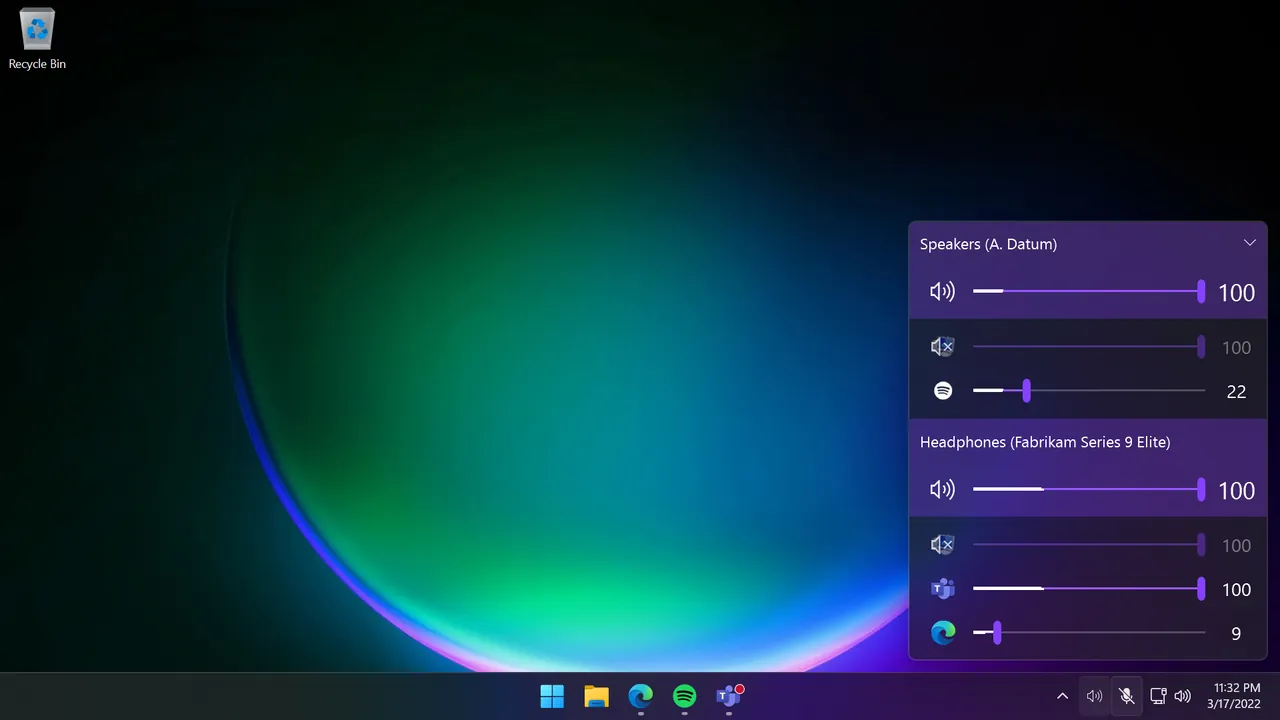

EarTrumpet replaces the tray volume flyout with a slider for every app and every playback device, so a muted browser or a game sent to the wrong output shows up immediately. It controls volume and routing only; it cannot repair a driver or a stopped service.
Pros
- Per-app volume in one click
- Easy output switching per app
- Free and open source
Cons
- Main download is through the Microsoft Store
- No equalizer or audio effects
2. SoundSwitch — Audio Device Switcher
Best for: Switching back to the right device with one key
- Open source
- Free
- Audio
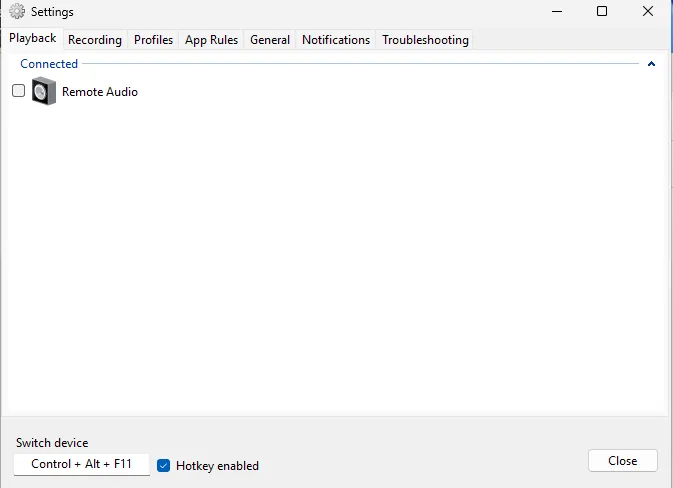

If updates keep changing your default device, SoundSwitch cycles playback devices with Ctrl+Alt+F11 and recording devices with Ctrl+Alt+F7, and shows a notification for the active one. It does not fix missing devices; Windows still has to see the hardware.
Pros
- Switches devices with one key
- Profiles and per-app rules
- Microphone mute hotkey
Cons
- Windows only
- Does not mix or route audio
3. Snappy Driver Installer Origin — Driver Installer
Best for: Finding an older or alternative audio driver
- Open source
- Free
- Utilities
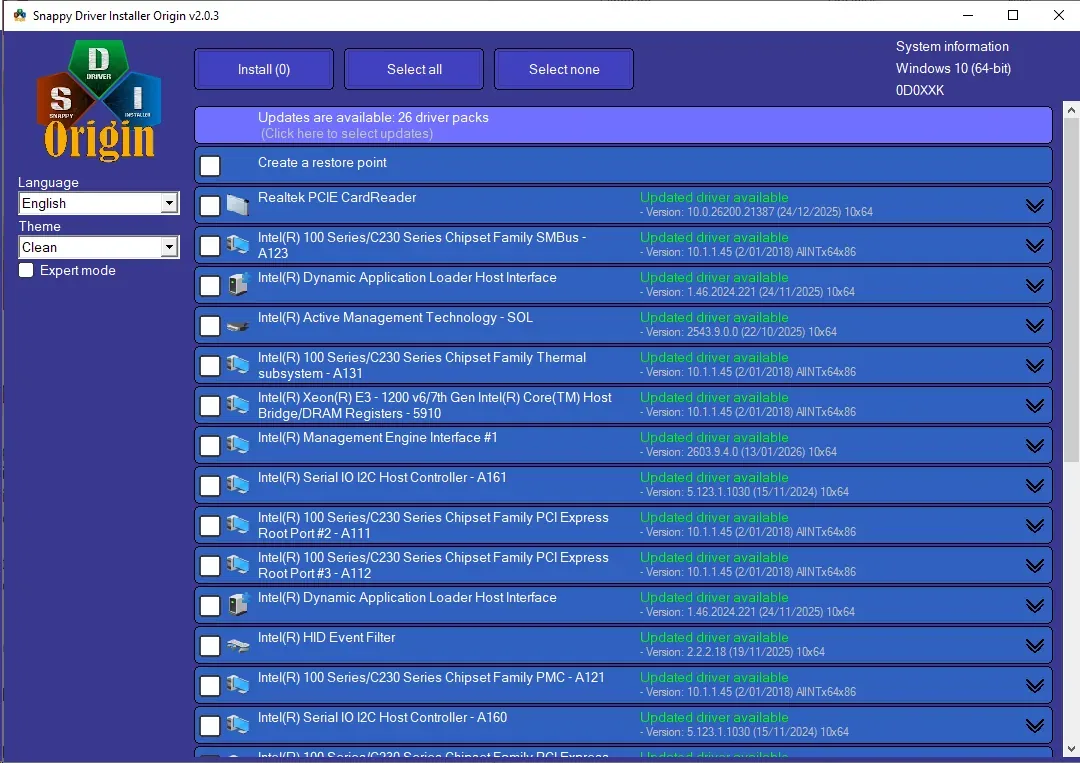
Snappy Driver Installer Origin matches each device against its driver packs and offers alternatives, which helps when the maker's page has no driver for Windows 11. The developer advises against updating drivers blindly; install only the audio entry and keep a restore point. Download it only from Glenn Delahoy's site.
Pros
- Free and open source, no adware
- Works fully offline with driver packs
- Portable, runs from USB
Cons
- Full driver packs need over 70 GB of space
- Easy to install an unsuitable driver if you update blindly
- Name is easily confused with adware copycats
4. IObit Driver Booster Free — Driver Updater
Best for: A quick look at available audio driver versions
- Freeware
- Free
- Utilities
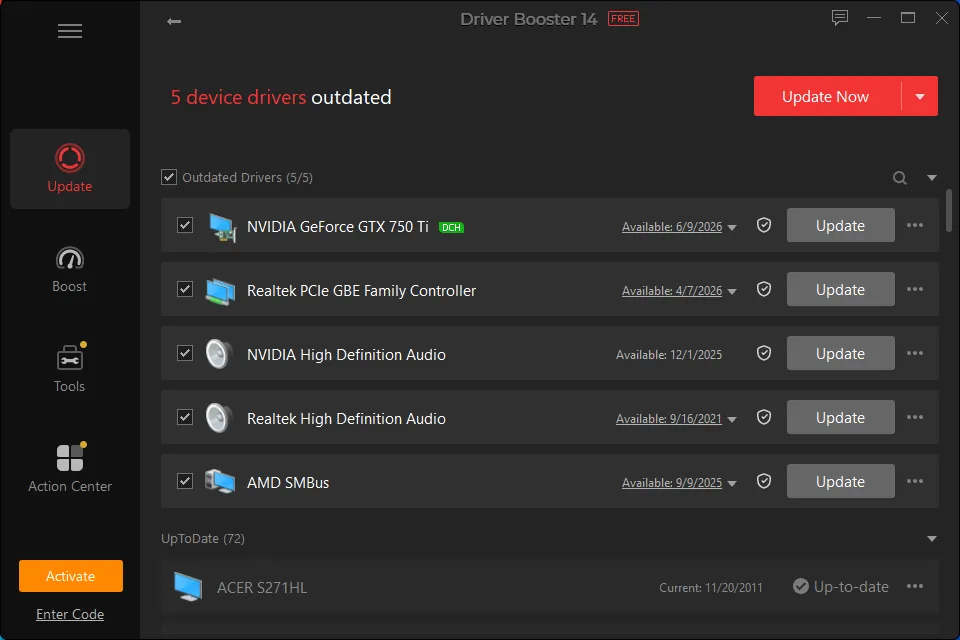
Driver Booster Free shows several versions of a driver, creates a restore point before updating and includes a small no-sound fix tool. Updates are manual in the free edition, the app pushes the paid PRO subscription and other IObit products, and a third-party driver can break a device that worked. Try Device Manager and your PC maker's driver first.
Pros
- Quick overview of driver versions
- Restore point and driver backup before updates
- Lets you choose among several driver versions
Cons
- Constant upsell to the PRO subscription and other IObit products
- Third-party driver updates can break devices that worked fine
- Automatic updates and the larger database are PRO-only
5. Equalizer APO — System-Wide Equalizer
Best for: Getting your system-wide EQ back after an update
- Open source
- Free
- Audio
Equalizer APO applies one equalizer to every app that uses the normal Windows audio path. After an update, run its Device Selector, tick your current output device and confirm. It has no effect on ASIO or exclusive-mode audio, and a misconfigured install is worth ruling out when sound fails.
Pros
- Applies to every app at once
- Very low latency and CPU use
- Unlimited filters per device
Cons
- Device selection at install can be confusing
- Configuration Editor is technical rather than friendly
- No effect on ASIO or exclusive-mode audio
Frequently asked questions
Why did my sound stop working after a Windows 11 update?
Usually the update installed a new audio driver, changed the default output device, or the audio services did not start correctly. Rolling back the driver in Device Manager fixes the driver case.
How do I roll back an audio driver in Windows 11?
Open Device Manager, expand Sound, video and game controllers, right-click your sound card, choose Properties, open the Driver tab and select Roll Back Driver. If the button is greyed out, no previous driver is stored.
Is it safe to uninstall a Windows update to fix sound?
It works, but Microsoft warns that removing a security update exposes the PC to the flaws it fixed. Use it as a temporary step and reinstall the update once a working driver is available.
Where is the audio troubleshooter in Windows 11?
Open the Get Help app and search for audio troubleshooter, or go to Settings, System, Troubleshoot, Other troubleshooters and select Run next to Audio.
My equalizer stopped working after an update. What do I do?
Open Equalizer APO's Device Selector, tick your output device again and confirm, or reinstall Equalizer APO. Check that audio enhancements are still enabled for that device, because Equalizer APO needs them.
ExeDepot does not host installers. Every download button opens the developer's own server or official download page. Prices and licenses come from each developer's site and were checked on .