
Utilities · Published · Updated
How to open and mount ISO files on Windows 11
Windows 11 opens ISO files without extra software: double-click the ISO in File Explorer, or right-click it and choose Mount. Windows creates a virtual DVD drive with its own drive letter, and the files inside appear like a disc. When you are done, right-click that drive in This PC and choose Eject.
Mounting is the quickest way to run a setup program or copy a few files. To keep the files permanently, extract the ISO with an archiver such as 7-Zip. To install Windows or Linux from the image, write it to a USB stick with Rufus or Ventoy. Older formats like BIN/CUE, MDF and NRG need a third-party tool, covered at the end.
Method 1: Mount the ISO in File Explorer
- Open File Explorer and go to the folder with the ISO file.
- Double-click the ISO, or right-click it and choose Mount. A new drive, for example DVD Drive (E:), appears under This PC and opens in a new window.
- Open files or run setup.exe from that drive as you would from a disc.
- To unmount, open This PC, right-click the virtual drive and choose Eject, or select the drive and choose Eject in the toolbar.
ISO files are always mounted read-only, so you cannot add or change files inside them this way. If double-clicking opens another program instead, an archiver or disc tool has taken over the ISO file type. Microsoft's fix: right-click the ISO, choose Properties, select Change next to Opens with on the General tab, pick Windows Explorer and select Apply. Mount then appears in the right-click menu again.
Method 2: Mount and unmount with PowerShell
The Mount-DiskImage and Dismount-DiskImage cmdlets do the same from the command line, which helps in scripts. Mounting an ISO does not need administrator rights; mounting a VHD or VHDX does.
- Open Start, type PowerShell and open it.
- Run Mount-DiskImage -ImagePath "C:\Users\You\Downloads\image.iso" with the full path to your file. A relative path does not work.
- The image appears as a new drive in This PC.
- When you are done, run Dismount-DiskImage -ImagePath with the same full path.
If the image is already mounted, Mount-DiskImage reports that the file is being used by another process. Add -NoDriveLetter if you want to mount the image without assigning a drive letter.
Method 3: Extract the ISO with an archiver
If you want the contents as normal files, for example to edit them or to copy them to another PC, extract the image instead of mounting it.
- Install 7-Zip from 7-zip.org.
- Right-click the ISO, choose Show more options, then 7-Zip, then Extract to followed by the image's folder name.
- Wait for the copy to finish and open the new folder. The ISO itself stays unchanged.
Extracting needs as much free space as the image's contents. NanaZip, PeaZip and Bandizip also extract ISO files; see our file archiver comparison for the differences, and how to open RAR and 7Z files for the archive side.
Method 4: Write the ISO to a USB stick
A mounted ISO is not bootable. To install Windows or Linux on a PC, write the image to a USB drive. Both tools below erase the USB stick, so copy your files off it first.
- With Rufus: plug in the USB stick, start Rufus, choose the stick under Device, click Select and pick the ISO, then click Start.
- With Ventoy: run Ventoy2Disk.exe once, choose the USB stick and click Install. After that, copy any number of ISO files onto the stick like normal files and pick one from Ventoy's boot menu at startup.
Rufus holds one image at a time and offers Windows 11 setup options, such as skipping the online Microsoft account. Ventoy keeps many images and normal files on one stick, but on PCs with Secure Boot you must enroll its key once per computer. To burn an ISO to a DVD instead, make Windows Explorer the default app for ISO files as in Method 1, then right-click the ISO and choose Burn disc image.
How to open BIN/CUE, IMG and MDF files
Microsoft documents built-in mounting for ISO and VHD files only. Images from old disc-copying programs need a third-party tool:
- To mount MDF/MDS, NRG or BIN images as a virtual drive, use DAEMON Tools Lite. It is free for non-commercial use, allows up to four virtual drives and includes ads and third-party offers in the installer, so decline them on every screen.
- To mount IMG files or create a RAM disk, use ImDisk Virtual Disk Driver: right-click the image file and choose the ImDisk mount entry. It is free and open source, but its drives do not appear in Disk Management.
- To burn BIN/CUE, IMG, MDS or NRG images to a CD or DVD, use ImgBurn in its Write mode. It is free but has not been updated since 2013; download it from Mirror 7 on the official site, which ImgBurn hosts itself.
- To convert BIN, NRG or DAA images to ISO, PowerISO can do it, but its free version cannot create images larger than 300 MB. The license costs $39.95.
Free tools for this job
| App | Best for | License | Price | Download |
|---|---|---|---|---|
 7-Zip |
Extracting files from ISO images | Open source | Free | Review |
 Rufus |
Making one bootable USB stick from an ISO | Open source | Free | Review |
 Ventoy |
Carrying many ISOs on one USB stick | Open source | Free | Review |
 DAEMON Tools Lite |
Mounting MDF, MDS, NRG and BIN images | Freeware | Free | Review |
 ImDisk Virtual Disk Driver |
Mounting IMG files and scripting from the command line | Open source | Free | Review |
 ImgBurn |
Burning disc images to CD, DVD or Blu-ray | Freeware | Free | Review |
1. 7-Zip — File Archiver
Best for: Extracting files from ISO images
- Open source
- Free
- Utilities
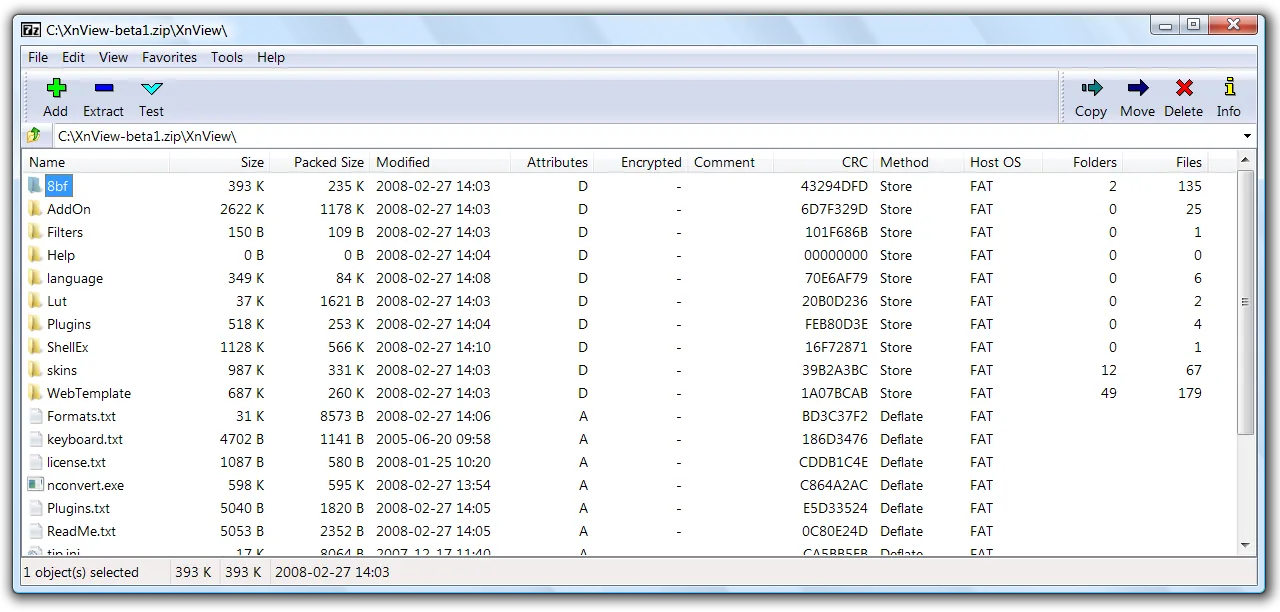

7-Zip opens ISO and other disk images alongside archives and copies their contents to a normal folder. It cannot mount an image as a drive or make it bootable.
Pros
- Opens nearly every archive format
- 7z archives are small
- Free for commercial use
Cons
- Dated, plain interface
- Cannot create RAR archives
- Settings are spread across several dialogs
2. Rufus — Bootable USB Creator
Best for: Making one bootable USB stick from an ISO
- Open source
- Free
- Utilities
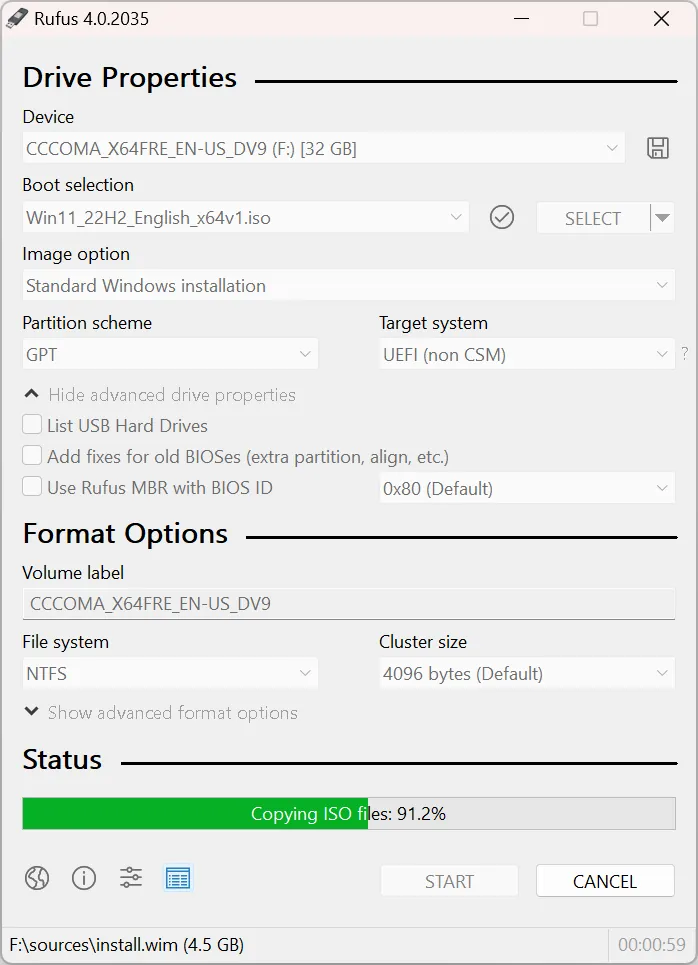

Rufus is a 2 MB program without installation that writes Windows, Linux and other bootable ISOs to a USB drive and can download Windows ISOs itself. It erases the stick and holds one image at a time.
Pros
- Single small executable, no installation
- Downloads Windows ISOs itself
- Options to relax Windows 11 setup requirements
Cons
- Erases the USB drive and holds one image at a time
- Runs only on Windows
3. Ventoy — Multiboot USB Tool
Best for: Carrying many ISOs on one USB stick
- Open source
- Free
- Utilities
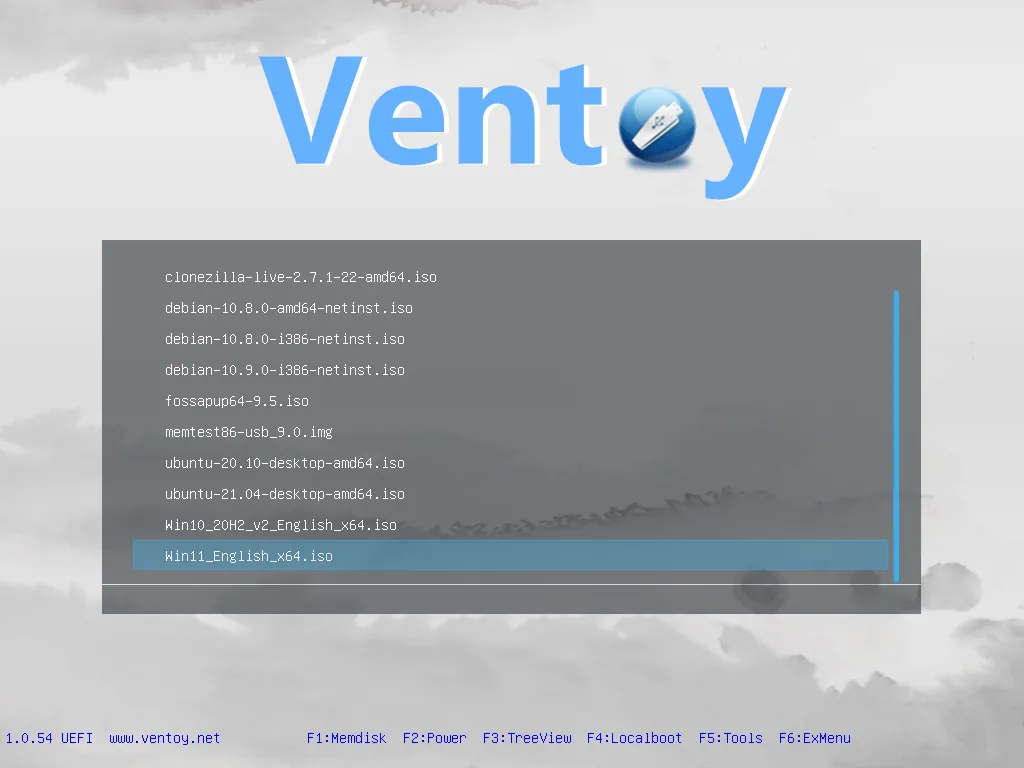

Ventoy installs a boot menu on the USB stick once; afterwards you add ISO, WIM, IMG or VHD files by copying them. Not every image boots, and Secure Boot needs a one-time key enrollment on each PC.
Pros
- Many bootable images on one drive
- Add images by simply copying files
- Drive stays usable for normal storage
Cons
- Secure Boot needs a one-time key enrollment on each PC
- Not every ISO boots; check the tested list for unusual images
- First installation erases the USB drive
4. DAEMON Tools Lite — Virtual Drive App
Best for: Mounting MDF, MDS, NRG and BIN images
- Freeware
- Free
- Utilities
DAEMON Tools Lite mounts image types that Windows cannot open and creates images from physical discs. The free edition is for non-commercial use only, limited to four drives and comes with ads and installer offers.
Pros
- Mounts many image formats
- Creates images from discs
- Free for home use
Cons
- Installer and app include ads and third-party offers
- Free only for non-commercial use
- Many features are paid add-ons
5. ImDisk Virtual Disk Driver — Virtual Disk Driver
Best for: Mounting IMG files and scripting from the command line
- Open source
- Free
- Utilities
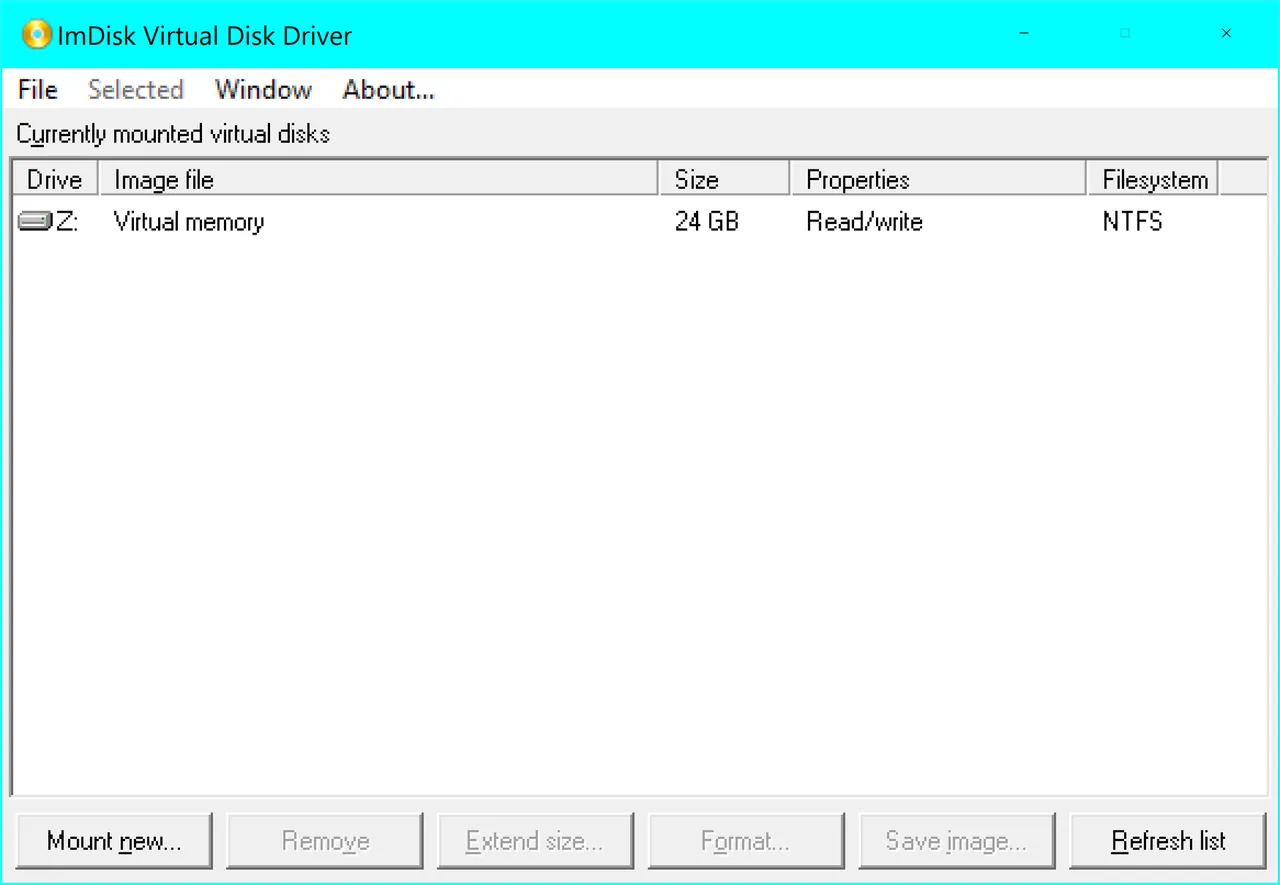

ImDisk mounts disk, floppy and CD/DVD images as drive letters and can be scripted with imdisk.exe. Its legacy design emulates volumes rather than full disks, and no new features are planned.
Pros
- Tiny and free
- Mounts images and creates RAM disks
- Scriptable command-line tool
Cons
- Legacy design: drives are invisible to Disk Management
- Basic interface without ImDisk Toolkit
- No new features planned
6. ImgBurn — Disc Burning App
Best for: Burning disc images to CD, DVD or Blu-ray
- Freeware
- Free
- Utilities
ImgBurn writes and verifies ISO, BIN/CUE, IMG, NRG and MDS images and can copy discs to image files. It is free at home and at work, but the last release dates from 2013 and the official site lists support only up to Windows 10.
Pros
- Free for home and work use
- Burn verification and detailed logs
- Supports many image formats
Cons
- No updates since 2013
- Interface is dated and technical
- Third-party mirrors on the download page may carry extra offers
Frequently asked questions
How do I open an ISO file on Windows 11 without software?
Double-click it in File Explorer or right-click it and choose Mount. Windows shows the contents as a virtual DVD drive under This PC.
Why is there no Mount option when I right-click an ISO?
Another program is set as the default app for ISO files. Open the file's Properties, select Change next to Opens with, choose Windows Explorer and select Apply.
How do I unmount an ISO in Windows 11?
Open This PC, right-click the virtual drive and choose Eject. In PowerShell, run Dismount-DiskImage -ImagePath with the ISO's full path.
Can I edit files inside a mounted ISO?
No. Windows mounts ISO files read-only. Extract the image with 7-Zip to change the files, or use an ISO editor such as PowerISO, whose free version is limited to 300 MB images.
Can I install Windows from a mounted ISO?
You can run setup.exe from a mounted Windows ISO to upgrade the current installation. For a clean install on another PC, write the ISO to a USB stick with Rufus or Microsoft's Media Creation Tool.
How do I open a BIN or MDF file?
Windows cannot mount them. Use DAEMON Tools Lite to mount them as a virtual drive or ImgBurn to burn them to a disc.
ExeDepot does not host installers. Every download button opens the developer's own server or official download page. Prices and licenses come from each developer's site and were checked on .