

Our verdict: Spotify is the most convenient way to stream music on a Windows PC, and the free tier is enough to listen to its whole catalog with ads. Ad-free listening and offline downloads require Premium, and your music lives in a subscription, not in files you own.
About Spotify
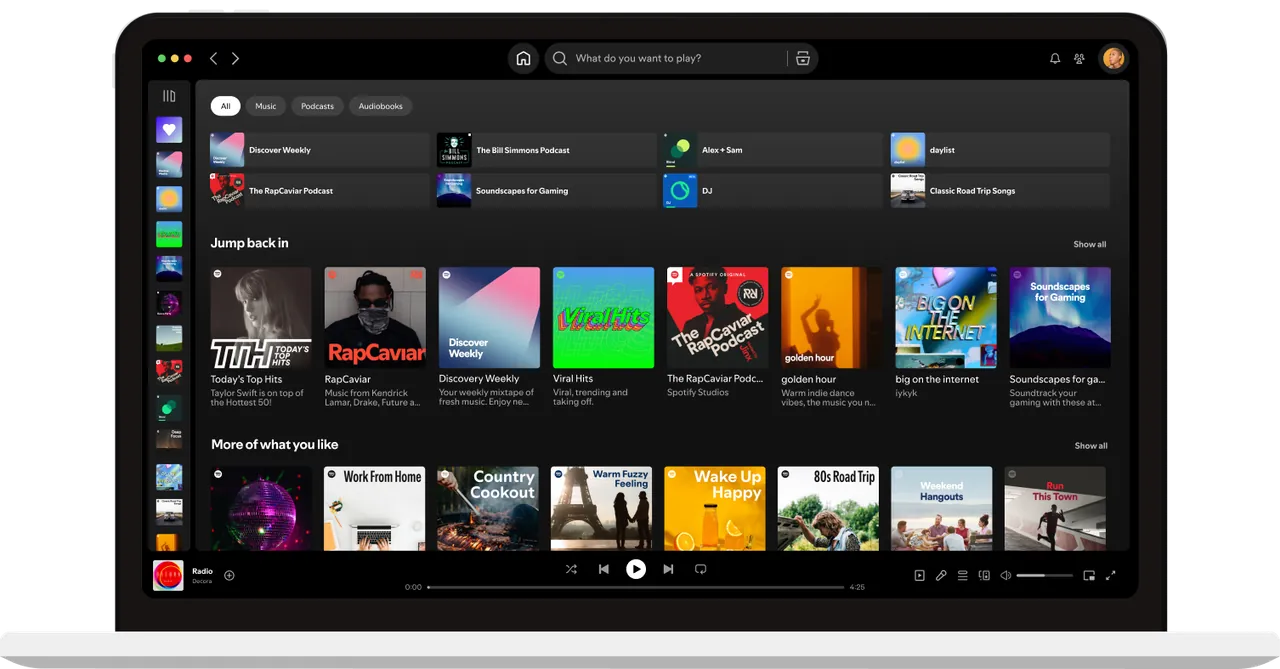
Spotify is a music and podcast streaming service from Sweden. The Windows app gives you search, your library, playlists, personalized mixes and podcasts, and syncs everything with your phone through your Spotify account.
The free tier is supported by ads. Spotify Premium is a monthly subscription that removes ads and adds offline downloads and other extras. With Spotify Connect you can control playback on speakers, TVs or your phone from the PC app.
What it does well
- Large catalog. Music and podcasts searchable from one app.
- Playlists and mixes. Your own playlists plus personalized recommendations.
- Spotify Connect. Control playback on other devices from the PC, or the PC from your phone.
- Cross-device sync. Library and playlists are the same on every device.
- Local files. Play music files from your PC in the same app.
Who it is for
Good fit
People who want to stream music and podcasts and keep the same library on PC and phone.
Look elsewhere
Listeners who want to own their music files or avoid ads and subscriptions.
Pros and cons
Pros
- Huge music and podcast catalog
- Free tier available
- Spotify Connect
- Syncs across devices
Cons
- Ads on the free tier
- Offline downloads require Premium
- Account required
How to install Spotify
Use the installer linked on spotify.com; the page also points to the Microsoft Store version. Sign in or create a free account. Under Settings you can turn off launching Spotify at Windows startup.
Questions about Spotify
Is Spotify free?
Yes. The free tier is supported by ads. Premium is a paid subscription without ads and with offline downloads.
Can I download songs on Spotify Free?
No. Downloading music for offline listening requires Premium.
Can Spotify play my own music files?
Yes. Turn on local files in Settings and add folders from your PC.


