

Our verdict: Monitorian is a small, native-looking way to dim external monitors from the tray without touching their buttons. It handles several displays, can move them in unison and lets you limit the adjustable range. Hotkeys and command-line control are paid add-ons available only in the Microsoft Store version.
About Monitorian
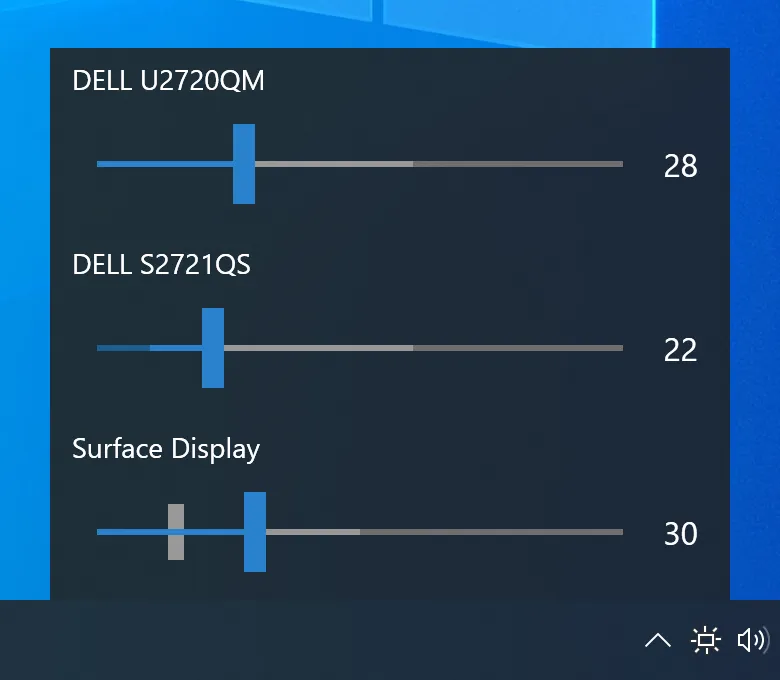
Monitorian is an open-source tool by emoacht under the MIT license. Its tray icon opens a small window with a brightness slider for each monitor, including external displays that support DDC/CI and laptop panels. Sliders can be moved individually or all together, and on systems with an ambient light sensor the adjusted brightness can be shown next to the configured one. Up to four monitors are shown at a time.
You can change the adjustable brightness range and the contrast per monitor, rename monitors, use the mouse wheel or a precision touchpad swipe, and adjust SDR content brightness. Hotkeys, shortcut keys and command-line options for brightness, contrast, color temperature presets and input source are add-on features of the Microsoft Store version, offered on a subscription basis.
What it does well
- Per-monitor sliders. Brightness control for laptop screens and external DDC/CI monitors.
- Change in unison. Moves the brightness of all monitors together.
- Adjustable range. Limits each monitor's brightness range to match different panels.
- Contrast control. Changes monitor contrast from the same window.
- Touchpad and wheel. Adjusts brightness with the mouse wheel or a two-finger swipe.
Who it is for
Good fit
Desktop and docked-laptop users with external monitors who want a lightweight tray slider.
Look elsewhere
Monitors without DDC/CI, and users who need free hotkeys or scripting for brightness.
Pros and cons
Pros
- Free and open source
- Light, native Windows look
- Adjustable range and contrast per monitor
- Many interface languages
Cons
- Hotkeys and command line are paid Store add-ons
- Works only with monitors that support DDC/CI
- Shows at most four monitors at a time
How to install Monitorian
The button downloads the official installer ZIP from GitHub; extract it and run the MSI inside. The Microsoft Store version is the same app with optional paid add-ons. If an external monitor is missing, enable DDC/CI in the monitor's on-screen menu.
Questions about Monitorian
Is Monitorian free?
Yes. Monitorian is open source under the MIT license. Only the add-on features in the Microsoft Store version, such as hotkeys and command-line options, are paid by subscription.
Why is my external monitor not shown?
The monitor must support DDC/CI and have it enabled in its on-screen menu. The project page has a troubleshooting section and a probe log for checking compatibility.


