

Our verdict: Twinkle Tray fills a real gap in Windows: changing the brightness of external monitors without pressing their buttons. It adds a tray flyout with a slider for every display, plus hotkeys and time-based schedules. It only works with monitors that support DDC/CI, and some docks and VGA or DVI connections do not.
About Twinkle Tray
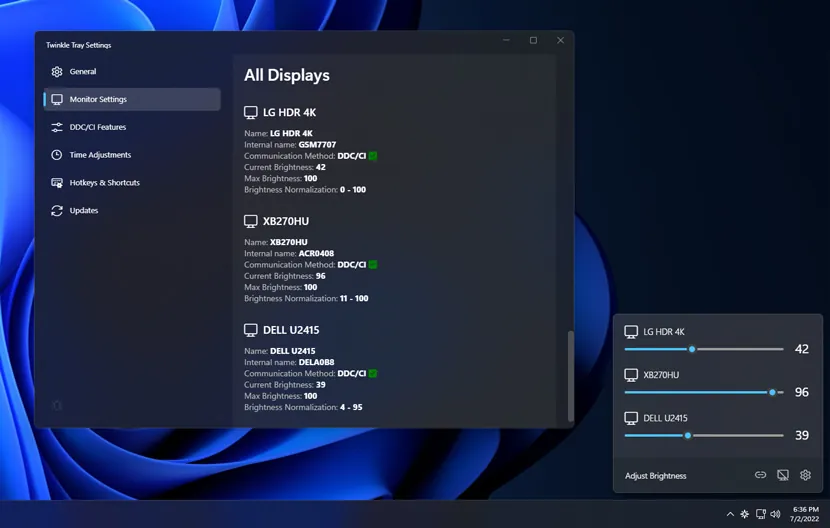
Windows can adjust a laptop screen's brightness, but not external monitors. Twinkle Tray adds a system tray icon that opens a flyout with a brightness slider for each compatible display, styled like the Windows volume flyout. It talks to monitors through DDC/CI and WMI and is open source under the MIT license.
You can bind hotkeys to change the brightness of one or all displays, normalize backlight levels across different monitors and change brightness automatically by time of day or when the PC is idle. It can also control other DDC/CI features such as contrast, and a command-line interface lets scripts set brightness.
What it does well
- Brightness sliders. One slider per monitor in a tray flyout that matches Windows 10 or 11.
- Hotkeys. Change brightness of a specific display or all displays from the keyboard.
- Schedules and idle dimming. Adjust brightness by time of day or when the PC is idle.
- Normalize backlight. Matches brightness levels across different monitor models.
- DDC/CI controls. Adjust contrast and send other DDC/CI commands, also from the command line.
Who it is for
Good fit
Desktop and docked-laptop users with one or more external monitors.
Look elsewhere
Monitors without DDC/CI, VGA or DVI connections, and some USB, Thunderbolt or Surface docks.
Pros and cons
Pros
- Free and open source
- Controls every compatible monitor from the tray
- Hotkeys and time-based schedules
- Command-line control for scripts
Cons
- Works only with monitors that support DDC/CI
- Some docks and VGA or DVI connections are not compatible
- Built on Electron, so it is larger than a typical tray utility
How to install Twinkle Tray
Run the installer from twinkletray.com; the icon appears in the system tray. If a monitor is missing, turn on DDC/CI in the monitor's on-screen menu. With AMD graphics, make sure Custom Colors is disabled in the Radeon control panel, which can interfere.
Questions about Twinkle Tray
Is Twinkle Tray free?
Yes. It is open source under the MIT license and free on its website, GitHub and the Microsoft Store.
Why does Twinkle Tray not detect my monitor?
Make sure DDC/CI is enabled in the monitor's menu. VGA or DVI connections and some USB, Thunderbolt or Surface docks may not pass DDC/CI through.


