

Our verdict: Rescuezilla makes full-disk backups as simple as a few clicks, and it works even when Windows no longer starts. It is not a Windows program: you write its ISO to a USB stick and boot from it. For scheduled backups from inside Windows, a tool like Macrium Reflect or Veeam Agent is more convenient.
About Rescuezilla
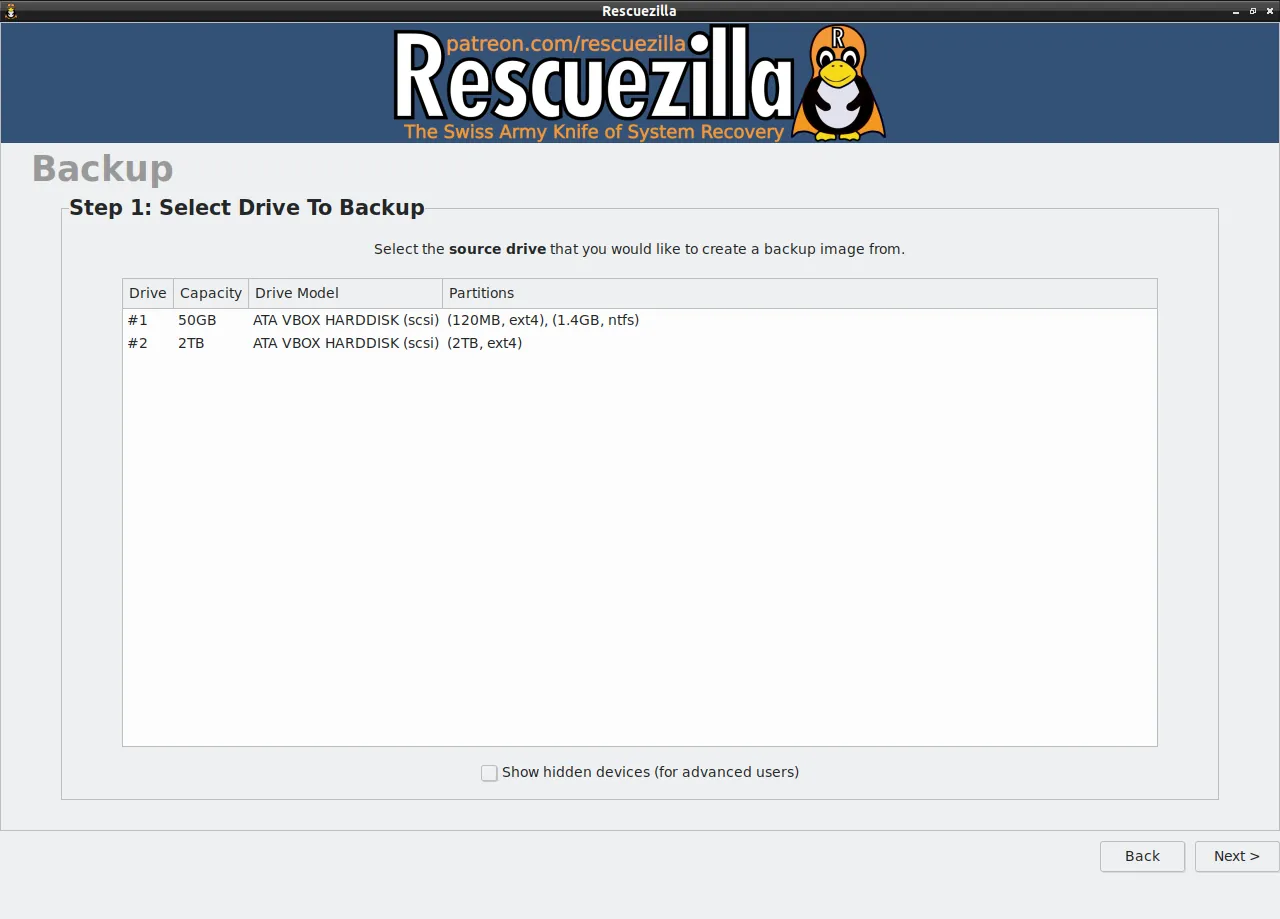
Rescuezilla is an open-source disk imaging app with a point-and-click interface that is fully compatible with Clonezilla. It started as a fork of Redo Backup and Recovery and was rebuilt to read and write Clonezilla images. It runs as a small live operating system from a USB stick or CD and loads into memory without writing to your hard drive, so it can back up and restore Windows, Mac and Linux machines even if you cannot log in.
You download the ISO image on any PC, write it to a USB stick with a tool such as balenaEtcher, and restart the computer from that stick. Rescuezilla can then save a disk image to an external drive, restore it, or clone one disk to another. It also mounts supported images to copy single files out (a beta feature), reads images made by VirtualBox, VMware, QEMU and other open-source imaging tools, and includes a web browser and file recovery tools. It needs 1 GB of RAM, 2 GB recommended.
What it does well
- Backup and restore. Saves a complete disk image to an external drive and restores it.
- Disk cloning. Copies one drive directly to another, for example when moving to an SSD.
- Clonezilla compatible. Reads and writes Clonezilla images and reads VirtualBox, VMware and QEMU images.
- Image browsing. Mounts a backup image to copy out individual files (beta).
- Live rescue system. Boots from USB with a browser and file recovery tools, even if Windows is broken.
Who it is for
Good fit
Home users and technicians who want a free full-disk backup or clone, including PCs that no longer boot.
Look elsewhere
Users who want automatic scheduled backups from inside Windows, or file-level backups only.
Pros and cons
Pros
- Free and open source
- Simple graphical interface for disk imaging
- Works when Windows does not start
- Compatible with Clonezilla images
Cons
- Must be booted from USB; no scheduled backups from Windows
- Backs up whole disks or partitions, not individual folders
- Needs a separate USB stick and external drive
How to install Rescuezilla
The download page offers the recommended 64-bit ISO image; it is not a Windows installer. Write the ISO to a USB stick with balenaEtcher or a similar tool, which erases the stick, then restart the PC and press the boot menu key (often F8, F12 or Esc) to start from USB. Save backup images to a separate external drive.
Questions about Rescuezilla
Is Rescuezilla free?
Yes. Rescuezilla is open source under the GNU GPL v3. The project asks for optional donations on Patreon.
Can I run Rescuezilla inside Windows?
No. Rescuezilla is its own small operating system. You write the ISO to a USB stick from Windows and then restart the computer from that stick.
Can Rescuezilla restore Clonezilla backups?
Yes. It is fully interoperable with Clonezilla, so images made by either tool can be restored by the other.


