
Internet · Updated
The best remote desktop apps for Windows
Remote desktop apps solve three different jobs: helping a friend or relative with their PC, reaching your own computer from somewhere else, and streaming games or fast-moving video from one PC to another. An app that is perfect for one job can be awkward for another, so start with what you need to do.
The second question is the licence. AnyDesk, TeamViewer, Parsec and Splashtop are free only for personal use, and some of them limit sessions that look commercial. Open-source tools such as RustDesk and the VNC family have no such checks, but they ask more of you, from hosting a server to forwarding ports.
Our picks at a glance
| App | Best for | License | Price | Download |
|---|---|---|---|---|
 AnyDesk AnyDesk |
Best overall for helping family and friends | Freeware | Free | Review |
 RustDesk RustDesk |
Open source, with the option to host your own server | Open source | Free | Review |
 Chrome Remote Desktop Chrome Remote Desktop |
The simplest way to reach your own PC | Freeware | Free | Review |
 TeamViewer TeamViewer |
Helping people who already have TeamViewer | Freeware | Free | Review |
 Parsec Parsec |
Low-latency remote gaming and online co-op | Freeware | Free | Review |
 Moonlight Moonlight |
Streaming games from your own gaming PC | Open source | Free | Review |
 Splashtop Personal Splashtop Personal |
Using a home PC from the couch | Freeware | Free | Review |
 UltraVNC UltraVNC |
Self-hosted control of Windows PCs on your network | Open source | Free | Review |
 RealVNC Viewer RealVNC Viewer |
Controlling a few personal devices and Raspberry Pi boards | Freeware | Free | Review |
1. AnyDesk — Remote Desktop App
Best for: Best overall for helping family and friends
- Freeware
- Free
- Internet
AnyDesk is the quickest way to help someone: the Windows download is a single small file that starts a session without installation, the other person reads you their AnyDesk ID, accepts the request, and you control their screen. Install it on your own PC and set a password for unattended access, and you can reach it from Windows, macOS, Linux, Android or iOS.
It is free only for personal use, sessions that look commercial may be limited, and it is closed source. If you want the same ID-based workflow without those limits, try RustDesk. Never give your ID to someone you do not know: fake support callers often ask for AnyDesk access.
Pros
- Small download that runs without installing
- Cross-platform clients
- Unattended access to your own PC
Cons
- Free only for personal use
- Free sessions may be limited if usage looks commercial
- Closed source
2. RustDesk — Remote Desktop App
Best for: Open source, with the option to host your own server
- Open source
- Free
- Internet
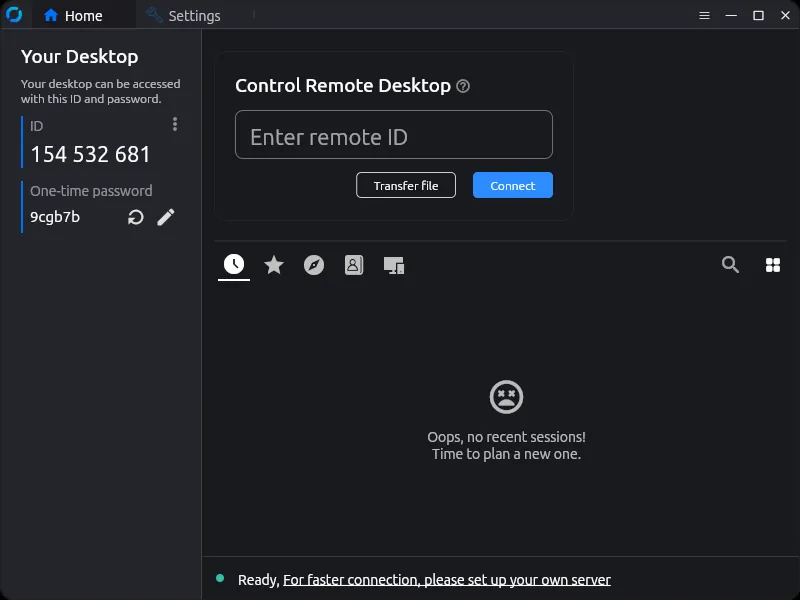

RustDesk works like AnyDesk: each device gets an ID, you enter it and the other side accepts. It is open source under the AGPL v3, runs portable or as an installed service, and has file transfer and unattended access. Because the server software is open source too, you can run your own ID and relay server so connections never touch a vendor.
By default it uses RustDesk's public servers, which can be slow at busy times. Management features for companies need the paid Server Pro edition. For most personal uses it is the best AnyDesk alternative.
Pros
- Open source
- Free for personal and business use
- Optional self-hosted server
Cons
- Public relay servers can be slow at busy times
- Fewer management features than paid tools unless you buy Server Pro
3. Chrome Remote Desktop — Remote Desktop App
Best for: The simplest way to reach your own PC
- Freeware
- Free
- Internet
Chrome Remote Desktop from Google is completely free, with no paid version. Install the host on your PC, link it to your Google account, set a PIN, and connect from remotedesktop.google.com or the Android and iOS apps. For one-off help, the other person generates a one-time code on the Remote Support page.
It needs a Google account and works best from Chrome or another Chromium-based browser. There is no chat, no session recording and no address book beyond your own devices, so for regular support of other people AnyDesk or RustDesk offer more tools.
Pros
- Free, with no paid tier or session limits
- Easy setup with a Google account
- Viewer runs in the browser
Cons
- Requires a Google account
- Few tools beyond screen control: no chat or recording
- Best experience only in Chrome-based browsers
4. TeamViewer — Remote Desktop App
Best for: Helping people who already have TeamViewer
- Freeware
- Free
- Internet
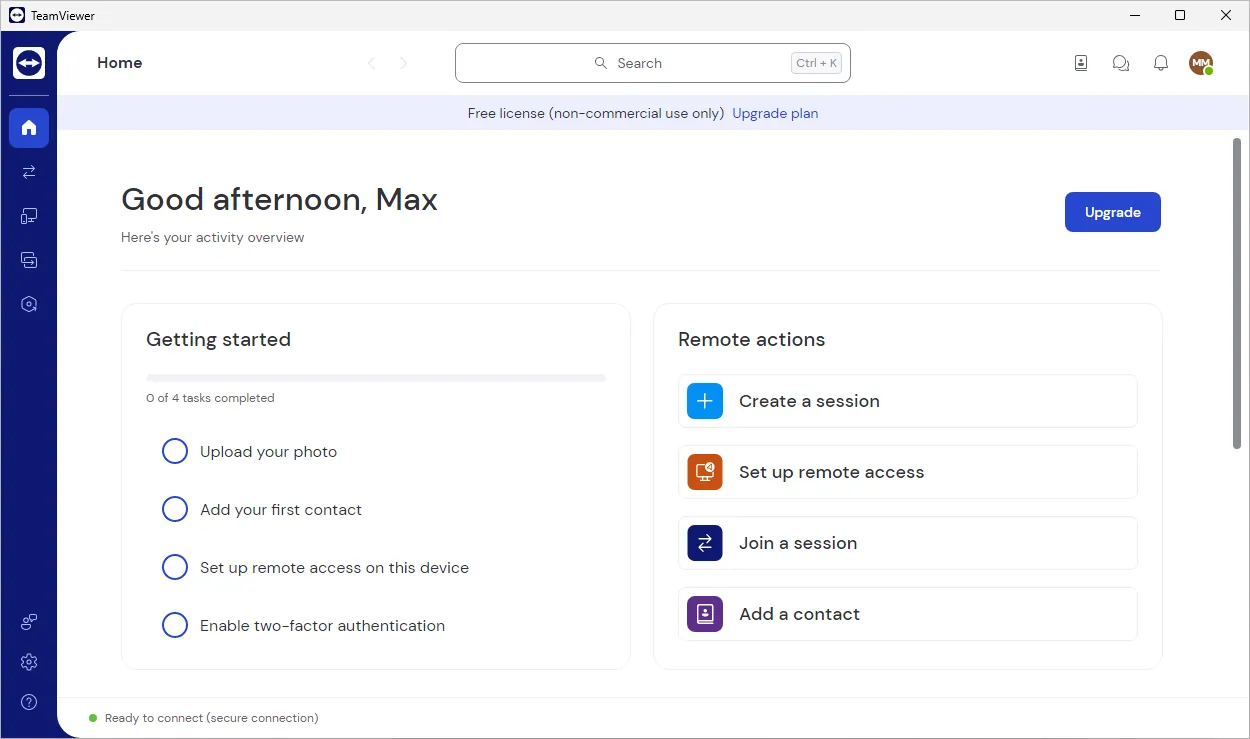

TeamViewer is the app many people already know, which makes it easy to help someone who has it installed. Beyond screen control it transfers files, chats, reboots the remote PC even into safe mode and reconnects. The person who needs help can run the QuickSupport module without installing anything.
It is free only for private, non-commercial use, and accounts whose usage looks like business use can get time-limited sessions. It also installs more background services than lighter tools such as AnyDesk or RustDesk.
Pros
- Very widely used
- Works through most firewalls
- Unattended access with a free account
Cons
- Free only for personal use
- Sessions can be time-limited if use is detected as commercial
- Larger install and more background services than lighter tools
5. Parsec — Remote Desktop App
Best for: Low-latency remote gaming and online co-op
- Freeware
- Free
- Internet
Parsec from Unity streams a PC's screen at up to 60 FPS on the free plan using hardware encoding and peer-to-peer connections, so fast motion stays smooth where support tools like TeamViewer would stutter. Friends can join with a link and play with their own keyboard, mouse or gamepad, which turns local co-op games into online ones.
You need a Parsec account, hosting works only on Windows 10 or later and macOS 10.15 or later, and the free plan is for personal use with one monitor. Multi-monitor streaming, 4:4:4 color and privacy mode need a paid plan.
Pros
- Very low latency
- Gamepad and keyboard sharing
- Free for personal use
Cons
- Account required
- Multi-monitor, 4:4:4 color and privacy mode need a paid plan
- Licensed for personal, non-commercial use only on the free plan
6. Moonlight — Game Streaming Client
Best for: Streaming games from your own gaming PC
- Open source
- Free
- Gaming
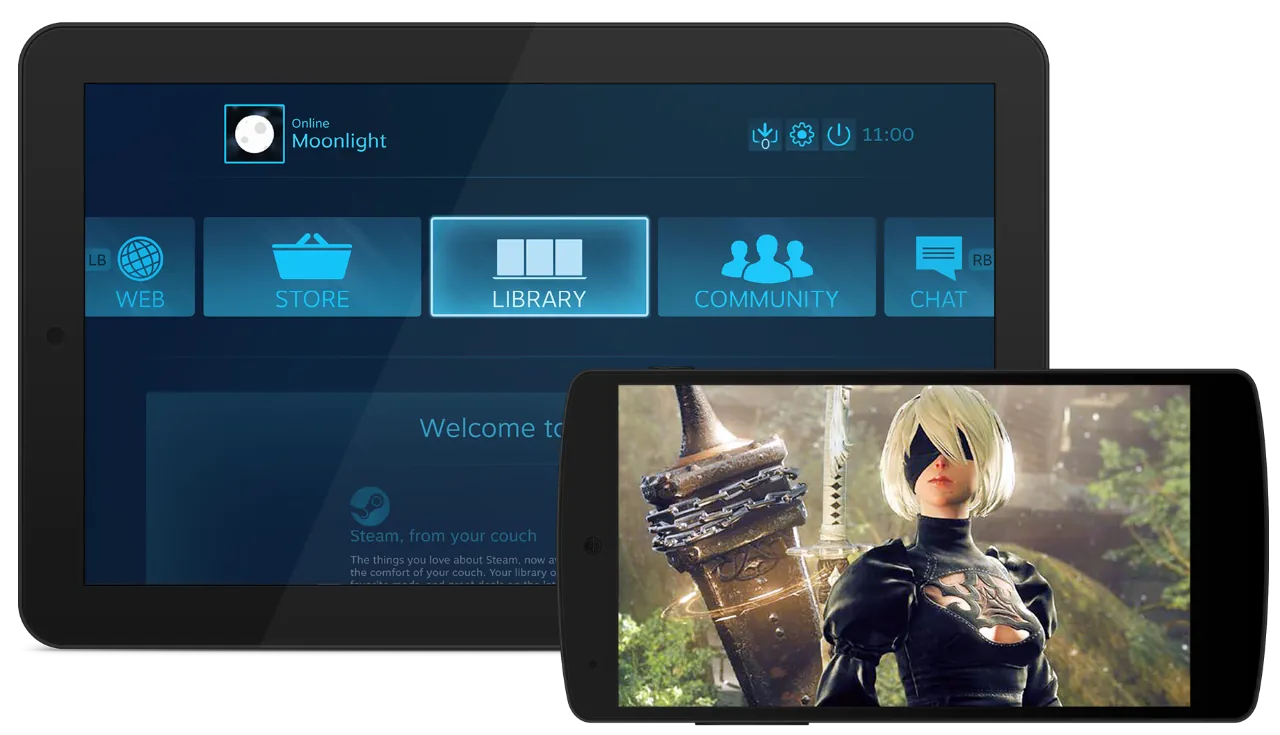
Moonlight is an open-source game streaming client that shows the games or full desktop of your gaming PC on a laptop, TV or phone, at up to 4K with HDR and up to 120 FPS on the PC client. It has no ads, paid versions or subscriptions.
It is only a client: the gaming PC needs a host app, usually Sunshine, whose current Windows build requires Windows 11. Streaming over the internet requires port forwarding or a virtual network such as Tailscale. For playing with friends without that setup, Parsec is easier.
Pros
- Low latency on a good home network
- Up to 4K, HDR and 120 FPS
- Clients for almost every device
Cons
- Needs a separate host app such as Sunshine
- Streaming over the internet requires network setup
- Quality depends heavily on Wi-Fi conditions
7. Splashtop Personal — Remote Desktop App
Best for: Using a home PC from the couch
- Freeware
- Free
- Internet
Splashtop Personal lets you use a Windows or Mac computer from a laptop, tablet or phone in another room, including video and games. You install the Streamer on the computer you want to control and the Personal app on the device you connect from, then sign in with the same account.
The free version works only on your local home network and for up to two non-business computers. Access over the internet needs the paid Anywhere Access Pack, and Splashtop counts working from home as commercial use. For free access from anywhere, Chrome Remote Desktop is the simpler choice.
Pros
- Free on the home network
- Smooth video and game streaming
- Mobile and desktop clients
Cons
- Free use limited to the local network and two computers
- Internet access needs a paid add-on
- Requires a Splashtop account and two separate installers
8. UltraVNC — VNC Remote Desktop
Best for: Self-hosted control of Windows PCs on your network
- Open source
- Free
- Internet
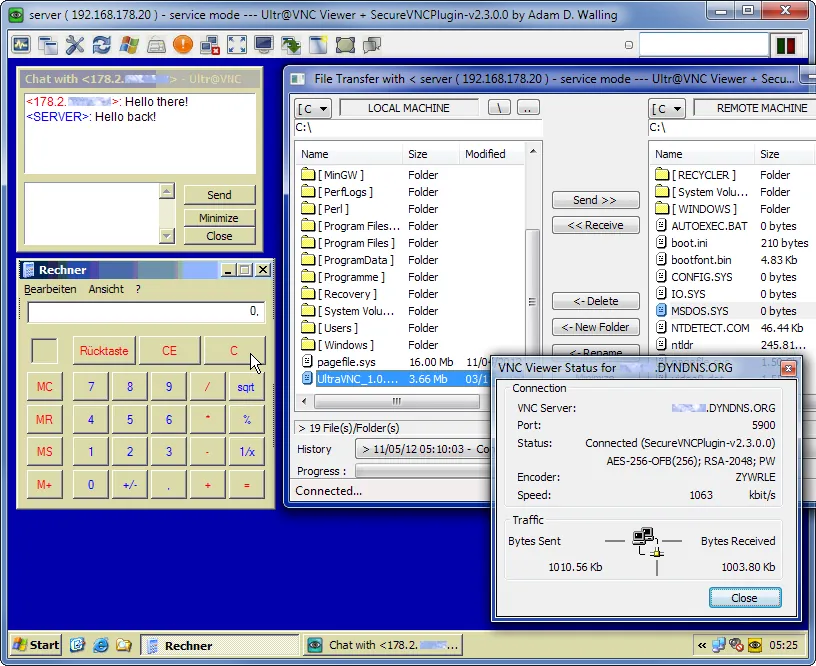

UltraVNC contains a VNC server and viewer for Windows, with folder transfers, text chat and optional DSM encryption plugins. It is open source under the GPL v3, free for any use, and its viewer works with most other VNC servers, including TightVNC and RealVNC.
You handle ports, passwords and encryption yourself: the connection is encrypted only if you enable a DSM plugin on both sides, and reaching a PC over the internet needs port forwarding, a repeater or a VPN. The interface is dated, and it runs only on Windows.
Pros
- Open source with no paid edition
- Folder transfer and chat built in
- Optional encryption plugins
Cons
- Windows only
- Reaching PCs over the internet needs port forwarding, a repeater or a VPN
- Dated interface with many technical settings
9. RealVNC Viewer — VNC Remote Desktop
Best for: Controlling a few personal devices and Raspberry Pi boards
- Freeware
- Free
- Internet
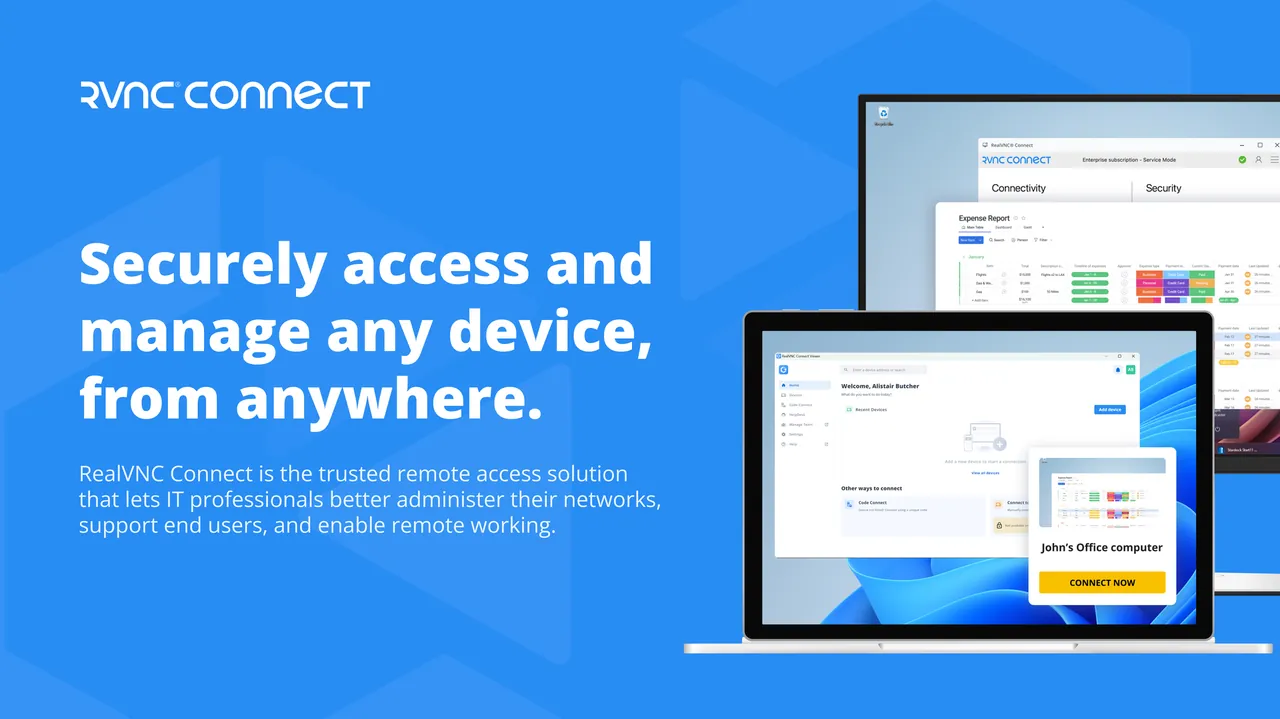
RealVNC Viewer comes from the company founded by the original developers of VNC. Paired with RealVNC Server, sessions are encrypted end to end, and you can reach devices through your RealVNC account without port forwarding, including headless Raspberry Pi boards.
The free Lite plan is for non-commercial use with up to three devices and one connection at a time, and it needs an account. Connecting to third-party VNC servers such as UltraVNC or TightVNC requires a paid plan, so use TigerVNC as a free viewer for those.
Pros
- Free for three personal devices
- Encrypted sessions with RealVNC Server
- Good Raspberry Pi support
Cons
- Third-party VNC servers need a paid plan
- Lite plan: one connection at a time, no support
- Account sign-in required
Personal use vs work
AnyDesk, TeamViewer, Parsec, Splashtop Personal and the RealVNC Lite plan are free only for personal, non-commercial use. AnyDesk and TeamViewer may limit sessions they detect as commercial, and Splashtop treats working from home as commercial use. For work, either buy a licence or use open-source tools such as RustDesk, UltraVNC or TightVNC.
Cloud relay or direct connection?
ID-based apps such as AnyDesk, RustDesk and TeamViewer connect by ID, so you can reach a PC behind a home router without changing router settings. UltraVNC and TightVNC connect directly, so they work best inside one network; over the internet you need port forwarding or a VPN. TightVNC encrypts only the password and sends the rest of the session unencrypted, so its developers recommend an SSH tunnel on untrusted networks. A mesh VPN such as Tailscale or ZeroTier is an easy way to reach VNC or game streaming hosts from outside.
Stay safe with remote access
Anyone you let into a session can see and control your computer. Only accept connections from people you know, never give an ID or code to someone who called you unexpectedly, and set a strong password for unattended access. If you manage many servers over RDP, SSH and VNC, Remote Desktop Manager Free keeps connections and credentials in one place.
Frequently asked questions
What is the best free remote desktop software for Windows?
For helping friends and family, AnyDesk. For an open-source option with no commercial-use checks and optional self-hosting, RustDesk. To reach your own PC with the least setup, Chrome Remote Desktop.
Is AnyDesk better than TeamViewer?
Both are free for personal use and closed source. AnyDesk is a single small file that runs without installation, while TeamViewer is larger but has extras such as remote reboot into safe mode and a no-install QuickSupport module. Both may limit sessions that look commercial.
Is RustDesk a good AnyDesk alternative?
Yes, for most personal uses. It connects by ID in the same way, is open source, and lets you host your own server. Its public servers can be slower at busy times.
Is Chrome Remote Desktop free?
Yes. There is no paid version; you only need a Google account.
Which remote desktop app is best for gaming?
Parsec for playing with friends over a link, and Moonlight with the Sunshine host for streaming your own gaming PC to other devices at high frame rates.
Is TeamViewer free?
Yes, for private, non-commercial use. Companies need a paid licence, and accounts flagged for commercial use can get time-limited sessions.
ExeDepot does not host installers. Every download button opens the developer's own server or official download page. Prices and licenses come from each developer's site and were checked on .