
Video · Published
How to compress video without losing too much quality
To compress a video with little visible loss, re-encode it in HandBrake with a Constant Quality setting instead of a fixed bitrate: pick a preset, set RF around 20 to 24 for 1080p with H.264, or switch to H.265 or AV1 for a smaller file at similar quality. Lowering the resolution saves even more. Every re-encode loses some detail, so keep the original until you have checked the result.
HandBrake suits most people, FFmpeg suits those who prefer one command they can repeat, and VidCoder helps with large batches. If the file is only big because it is long, cutting it with LosslessCut shrinks it with no quality loss at all.
Bitrate, quality and why re-encoding always costs something
File size is bitrate multiplied by duration: a 10-minute video at 10 Mbit/s takes roughly 750 MB, and halving the bitrate halves the size.
Encoders such as x264, x265 and SVT-AV1 are lossy: they throw away detail the eye is least likely to miss. Your source is already compressed this way, so a new encode removes detail on top of what is already gone. You get a file where the loss is hard to see, never an identical picture, and repeated re-encodes add the losses up. Always start from the best copy you have.
HandBrake recommends Constant Quality over Average Bitrate: you set the quality, and the encoder spends more bits on complex scenes and fewer on simple ones, so the size varies from video to video.
Method 1: Compress a video with HandBrake
- Download HandBrake from handbrake.fr and install it. On Windows it needs the Microsoft .NET Desktop Runtime, linked from the official installation guide.
- Click Open Source on the toolbar and select your video.
- Choose a preset. Fast 1080p30 under General is the default and plays almost anywhere. Fast 2160p60 4K HEVC keeps 4K footage at 4K. The Social 25 MB presets under Web aim for a file under 25 MB for apps such as Discord.
- On the Dimensions tab (Picture in older versions), set Resolution Limit if you want a smaller frame, for example 720p for phone viewing.
- On the Video tab, choose the Video Encoder: H.264 (x264) for compatibility, H.265 (x265) or AV1 for smaller files.
- Keep Constant Quality selected and set the RF value. HandBrake recommends RF 20 to 24 for 1080p and 22 to 28 for 4K with x264 and x265, and 25 to 35 for 1080p with SVT-AV1. Lower means higher quality and a bigger file.
- Leave the Encoder Preset at its default, or move it toward slower if you can wait for a slightly smaller file.
- On the Audio tab, keep the AAC track the preset sets up. HandBrake notes that audio quality settings change file size far less than video ones.
- Click Preview to encode a short clip and check it full screen. Then set the name in Save As, pick a folder with Browse, and click Start Encode.
RF values do not compare across encoders: HandBrake warns that x264 at RF 25 is not the same quality as x265 or SVT-AV1 at RF 25. Change RF in steps of one or two.
VidCoder has the same encoder, presets and RF control, and can run several encodes at once or watch a folder. Shutter Encoder offers H.264, H.265 and AV1 as named functions and can compare the result with the original using VMAF, a quality score.
H.264, H.265 or AV1?
HandBrake's codec notes describe H.264 as widely supported, and H.265 as its successor with smaller files at the same quality but much slower software encoding and narrower device support. AV1 is a free, open codec that HandBrake encodes with SVT-AV1 or recent Intel, NVIDIA and AMD hardware.
Choose H.264 when the video must play everywhere, and H.265 or AV1 for your own archive or devices you know can play them. On Windows, H.265 in the built-in apps can require Microsoft's HEVC Video Extensions. Hardware presets such as H.265 NVENC 1080p60 are much faster.
Method 2: Compress with an FFmpeg CRF command
FFmpeg does the same job in one command. The FFmpeg wiki gives libx264 a CRF scale from 0 to 51 with 23 as the default, a sane range of about 17 to 28, and 17 or 18 as visually lossless or nearly so. For libx265 the default is 28, which should look like x264 at CRF 23 in about half the size.
- Download the Windows build linked from ffmpeg.org, unzip it and open a terminal in the folder with your video.
- For H.264, run: ffmpeg -i input.mp4 -c:v libx264 -crf 23 -preset medium -c:a aac -b:a 160k output.mp4
- For H.265, run: ffmpeg -i input.mp4 -c:v libx265 -crf 28 -preset medium -c:a aac -b:a 160k output.mp4
- For a smaller file, raise -crf; the wiki notes that +6 roughly halves the bitrate.
- To also reduce the resolution to 720p, add -vf scale=-2:720 before the output file name.
-preset trades speed for efficiency, from ultrafast to veryslow; use the slowest one you have patience for.
When to trim or remux instead of re-encoding
If a file is large because of a long intro, dead time or extra takes, cut it first. LosslessCut removes segments without re-encoding, so even a multi-gigabyte recording exports in seconds with no quality loss. Cuts snap to keyframes, so they are not frame-accurate.
If a file will not play or upload only because of its container, for example MKV instead of MP4, remux it: the video and audio are copied into a new container untouched. LosslessCut does this, and so does FFmpeg with ffmpeg -i input.mkv -c copy output.mp4. The file does not get smaller, but you avoid a needless quality loss.
Dropping tracks you never use, such as extra audio languages, also saves space; MKVToolNix does it for MKV files. To add titles or join clips with transitions, use an editor from our free video editor comparison.
Free tools for this job
| App | Best for | License | Price | Download |
|---|---|---|---|---|
 HandBrake |
Shrinking phone and screen recordings with ready presets | Open source | Free | Review |
 VidCoder |
Compressing many videos at once on Windows | Open source | Free | Review |
 Shutter Encoder |
Editors who need delivery files and quality checks | Open source | Free | Review |
 FFmpeg |
Scripted or repeatable compression with exact settings | Open source | Free | Review |
 LosslessCut |
Making a file smaller by cutting, with no quality loss | Open source | Free | Review |
1. HandBrake — Video Converter
Best for: Shrinking phone and screen recordings with ready presets
- Open source
- Free
- Video
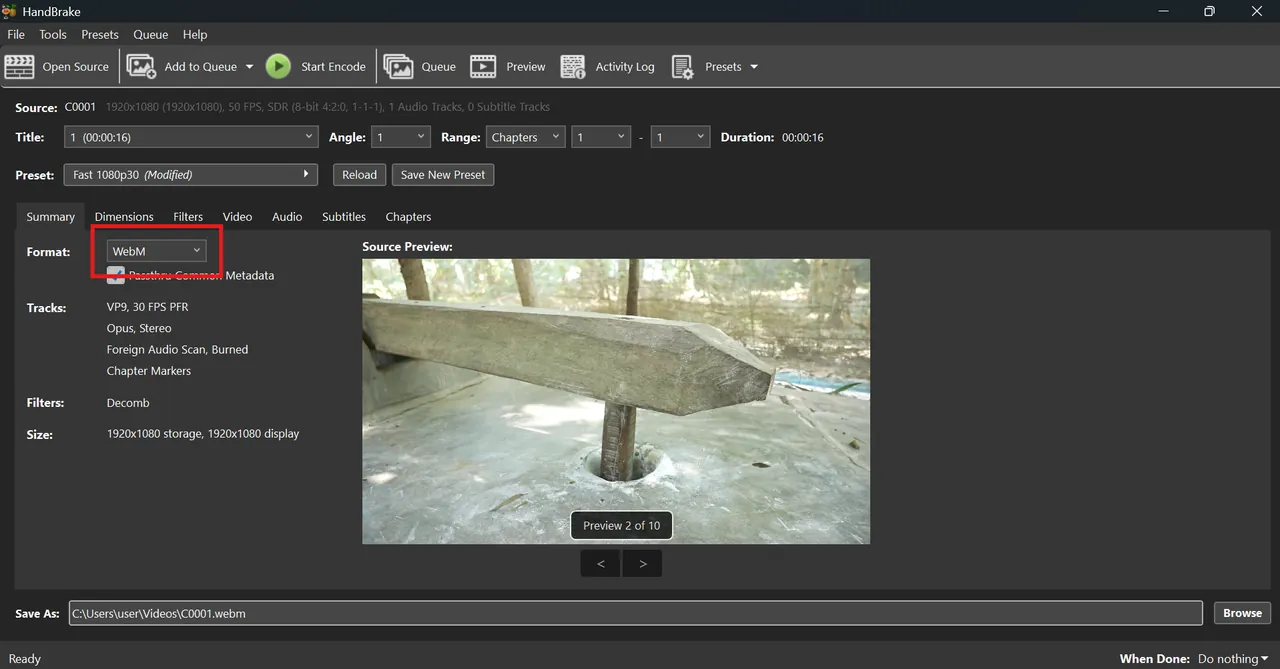

HandBrake encodes H.264, H.265 and AV1 with Constant Quality presets, hardware encoders and a batch queue. It is a converter only, and the many advanced tabs can confuse first-time users.
Pros
- Excellent presets
- Modern codecs including AV1
- Batch queue
Cons
- Needs .NET Desktop Runtime on Windows
- Not an editor
- Many advanced options
2. VidCoder — Video Converter
Best for: Compressing many videos at once on Windows
- Open source
- Free
- Video
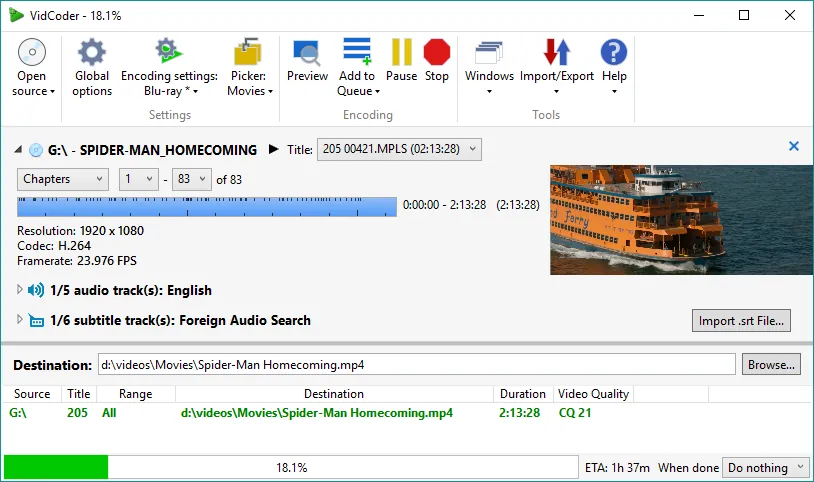
VidCoder has HandBrake's encoder built in and adds simultaneous encodes, a folder watcher and automatic track pickers. It runs only on Windows.
Pros
- HandBrake quality in a Windows-native interface
- Simultaneous encodes and folder watching
- Hardware encoding support
Cons
- Cannot read encrypted commercial discs
- Windows only
- Many encoder options can overwhelm beginners
3. Shutter Encoder — Video Converter
Best for: Editors who need delivery files and quality checks
- Open source
- Free
- Video
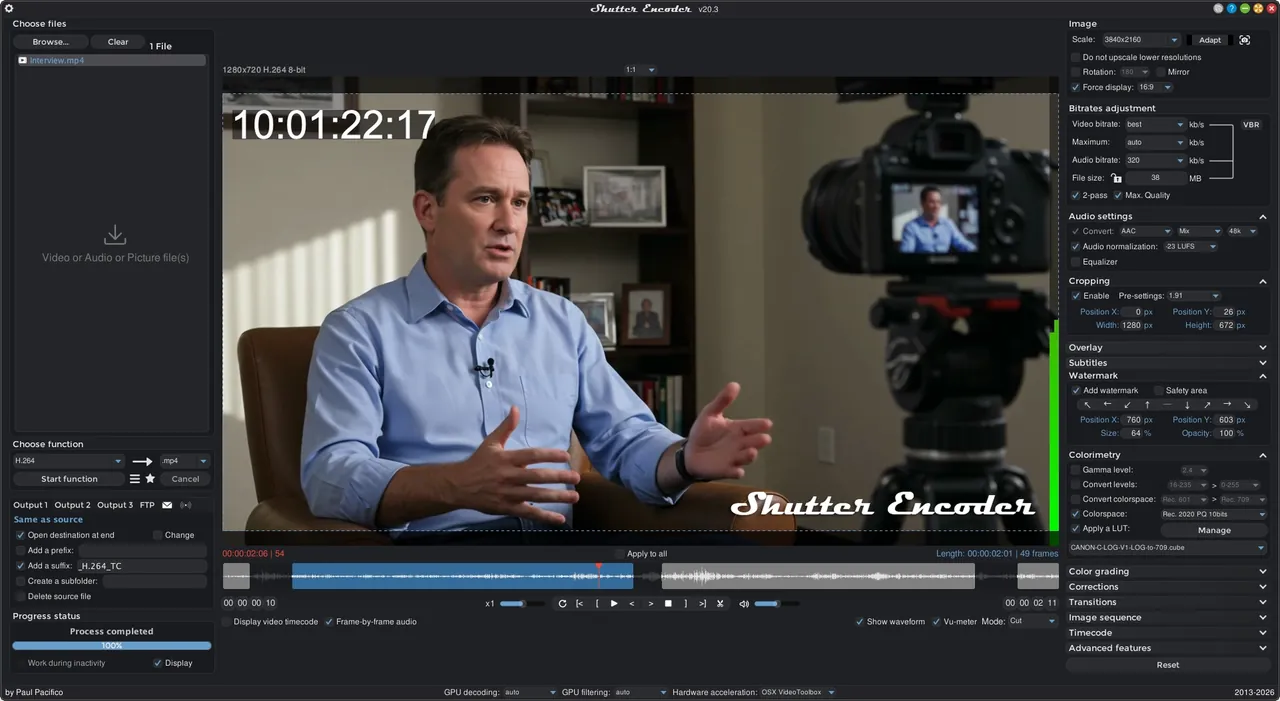
Shutter Encoder wraps FFmpeg in named functions, adds lossless cutting and measures quality loss with VMAF. The interface is crowded and the download is large.
Pros
- Huge choice of professional codecs
- Lossless cutting and remuxing
- Loudness and quality analysis
Cons
- Crowded interface with many options
- Large download because FFmpeg and AI tools are bundled
- Donation prompt before every download from the website
4. FFmpeg — Command-Line Media Toolkit
Best for: Scripted or repeatable compression with exact settings
- Open source
- Free
- Video
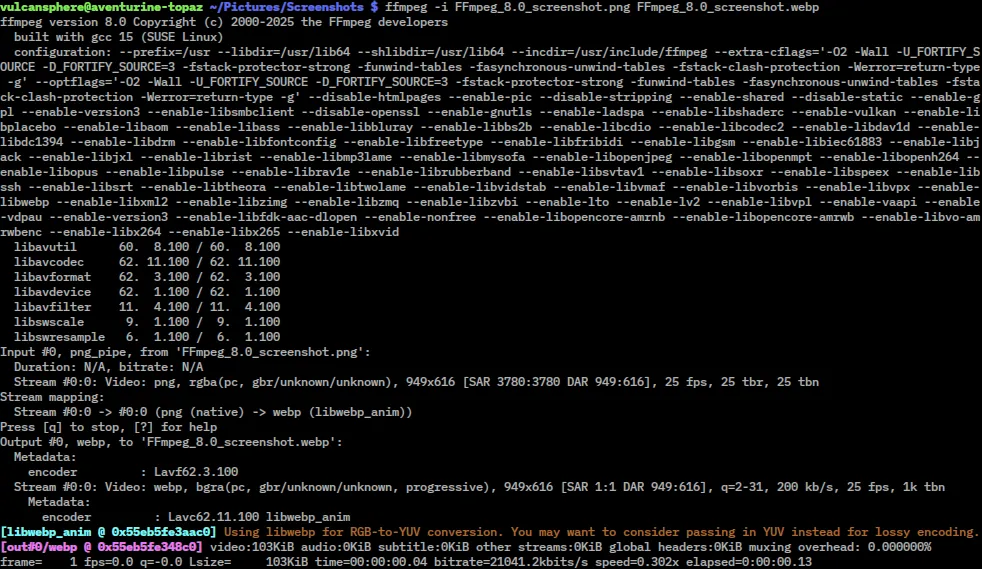

FFmpeg gives full control over CRF, presets, scaling and audio and can process a whole folder with a short script. It is command-line only, and Windows builds come from third-party builders linked on ffmpeg.org.
Pros
- Supports nearly every format and codec
- Fast, lossless cutting and remuxing
- Scriptable for batch jobs
Cons
- Command line only, with a steep learning curve
- No official Windows installer; builds come from third-party builders linked by ffmpeg.org
- Manual PATH setup and manual updates
5. LosslessCut — Lossless Video Cutter
Best for: Making a file smaller by cutting, with no quality loss
- Open source
- Free
- Video
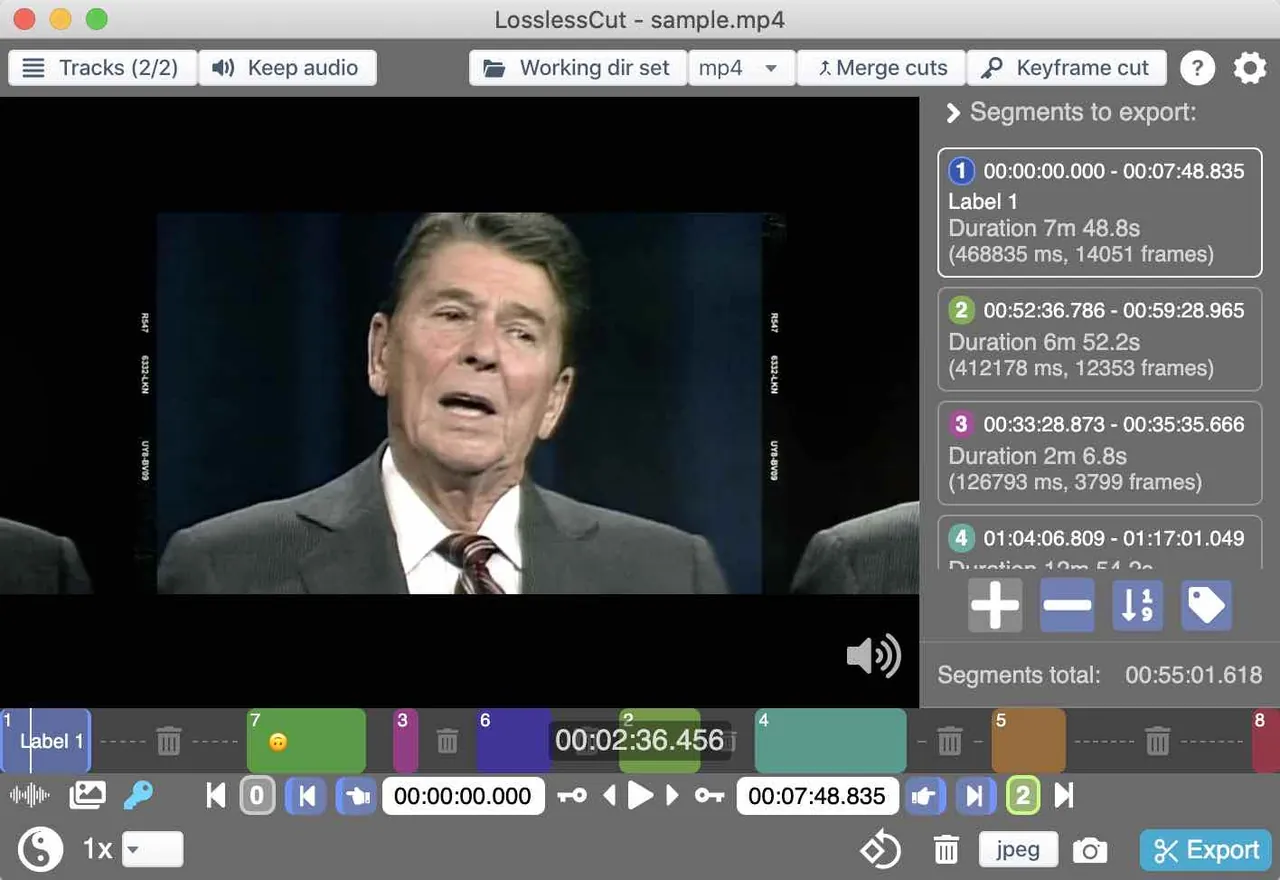

LosslessCut trims, splits and remuxes video by copying the original data, so it is fast and lossless. It does not compress the picture itself, and cuts are only as precise as the keyframes allow.
Pros
- Exports in seconds
- No quality loss
- Handles very large files
Cons
- Cuts snap to keyframes, so they are not frame-accurate
- No installer on Windows, only a 7z archive
- Some codecs cannot be previewed directly
Frequently asked questions
Can you compress a video without losing any quality?
Not by re-encoding, which always discards some detail. Only cutting out parts or removing tracks, as in LosslessCut, makes a file smaller with no loss at all.
What RF should I use in HandBrake?
HandBrake recommends RF 20 to 24 for 1080p and 22 to 28 for 4K with the x264 and x265 encoders, and 25 to 35 for 1080p with SVT-AV1. Lower numbers mean better quality and larger files.
Is H.265 better than H.264 for compression?
It makes smaller files at the same quality but encodes more slowly and plays on fewer devices.
Why is my compressed video bigger than the original?
The quality setting was higher than the source needed, often because the original was already heavily compressed. Raise the RF or CRF value a few points.
How do I get a video under 25 MB for Discord?
In HandBrake, use a Social 25 MB preset under Web; each one names the maximum duration it fits under 25 MB.
ExeDepot does not host installers. Every download button opens the developer's own server or official download page. Prices and licenses come from each developer's site and were checked on .