
Video · Published
The best free OBS Studio alternatives for Windows
OBS Studio is free, open source and adds no watermark or time limit, so people rarely leave it because of the price. They leave because it starts as an empty studio: before the first recording you add sources, choose an encoder and an output format, and stream alerts or chat overlays need browser sources or plugins. If all you want is a gameplay clip, a ten-second bug report or a narrated walkthrough, that setup is more than the job needs.
The right alternative depends on which OBS job you are replacing: live streaming with scenes, recording whole game sessions, quick captures of part of the screen, or a recording you want to edit straight away. Every pick below can be used for free; paid upgrades and hard limits are named in each entry. For a wider ranking of recorders, including paid ones, see our screen recorder comparison.
Our picks at a glance
| App | Best for | License | Price | Download |
|---|---|---|---|---|
 Streamlabs Desktop |
OBS-style streaming with alerts and overlays built in | Open source | Free | Review |
 NVIDIA App |
Gameplay recording on a GeForce card | Freeware | Free | Review |
 AMD Software: Adrenalin Edition |
Gameplay recording and simple streams on a Radeon card | Freeware | Free | Review |
 ShareX |
Quick clips and GIFs of part of the screen | Open source | Free | Review |
 Microsoft Clipchamp |
Recording and editing a short tutorial in one app | Freeware | Free | Review |
 ScreenToGif |
Short silent GIFs for documentation and bug reports | Open source | Free | Review |
 XSplit Broadcaster |
Paid: a polished studio with a free 720p tier | Shareware | $59.99, per year (Premium) | Review |
1. Streamlabs Desktop — Live Streaming App
Best for: OBS-style streaming with alerts and overlays built in
- Open source
- Free
- Video
Streamlabs Desktop is built on the OBS engine and is open source under the GNU GPL v3, so it replaces the whole streaming side of OBS: scenes, game, window and webcam capture, and local recording without a watermark or time limit. It adds what OBS leaves to plugins: alerts for follows and tips, widgets, free overlay themes, the Cloudbot chatbot and Dual Output, which sends one horizontal and one vertical stream at the same time on the free plan. The setup wizard can import your existing OBS Studio scenes.
It does not replace OBS as a lean tool without upsells. Multistreaming to more destinations, the full overlay library and most apps in its App Store need the paid Ultra plan, which the app promotes in several places, and alerts and widgets need a Streamlabs account. It is heavier on system resources than OBS, and Streamlabs lists 8 GB of RAM as the minimum.
Pros
- Fast setup with themes and alerts
- Free dual horizontal and vertical output
- No watermark on recordings
Cons
- Frequent prompts to upgrade to the paid Ultra plan
- Heavier on system resources than OBS Studio
- Alerts, widgets and cloud features need a Streamlabs account
2. NVIDIA App — GPU Driver and Settings App
Best for: Gameplay recording on a GeForce card
- Freeware
- Free
- Utilities
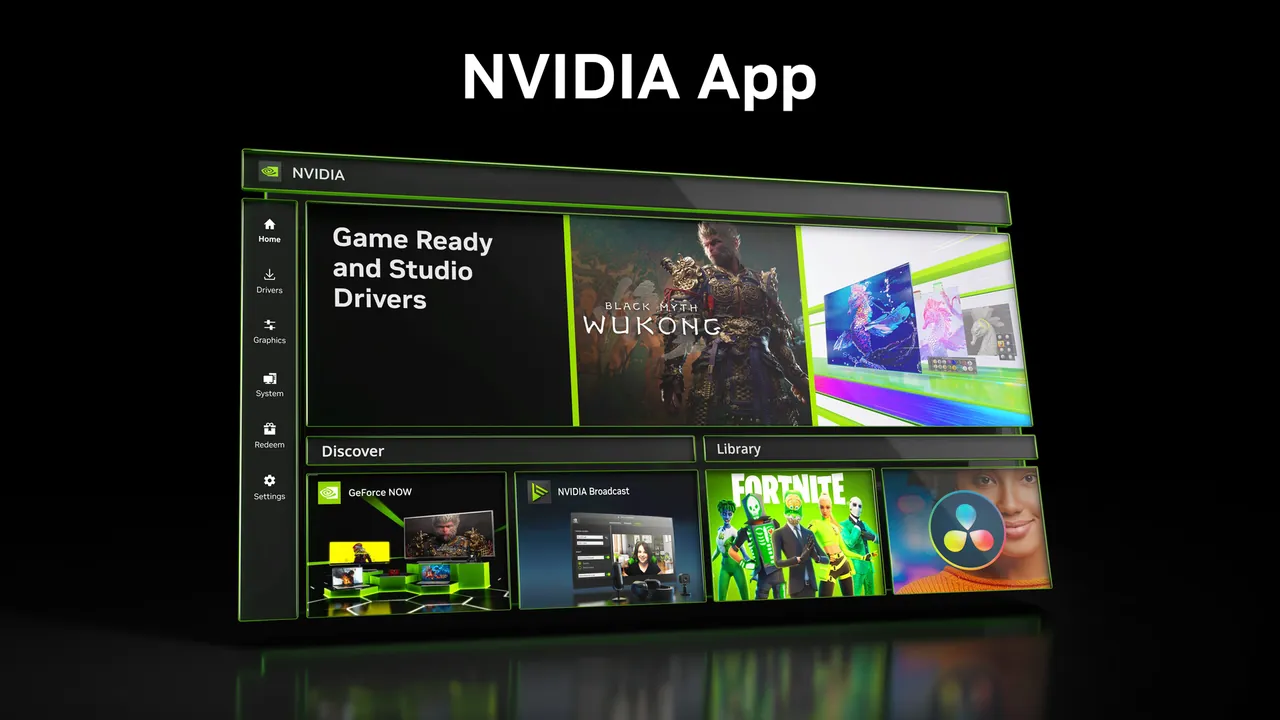
If you used OBS only to record games and your PC has an NVIDIA graphics card, NVIDIA App can take over that job with nothing else to configure. Its ShadowPlay overlay records on a hotkey, and Instant Replay saves the last 30 seconds of gameplay after something good happens. NVIDIA lists manual recording at up to 8K HDR at 30 fps or 4K HDR at 120 fps, AV1 recording on RTX 40-series cards, and NVIDIA Highlights, which saves key moments automatically in supported games.
It replaces game capture, not the studio. NVIDIA describes it as a tool for videos and screenshots, so there are no scenes, overlays or webcam layouts to build, and for live streams you still need OBS or Streamlabs Desktop. It works only with NVIDIA GPUs and runs background services and an in-game overlay unless you turn them off.
Pros
- Driver updates with release notes and rollback
- Gameplay recording with Instant Replay
- Game and GPU settings in one place
Cons
- Works only on PCs with an NVIDIA GPU
- Runs background services and an overlay unless you disable them
- Bundles and rewards require an NVIDIA account
3. AMD Software: Adrenalin Edition — GPU Driver and Control App
Best for: Gameplay recording and simple streams on a Radeon card
- Freeware
- Free
- Gaming

Radeon owners get similar tools in AMD Software: Adrenalin Edition. Its Record & Stream feature records games or the desktop with AV1, HEVC or AVC encoding, keeps an Instant Replay buffer of up to 20 minutes, saves short Instant GIFs, and can stream to Twitch, YouTube, Facebook or a custom server with simple scenes, your microphone and a camera. It is the only GPU vendor tool here that streams.
AMD documents clear limits: Record & Stream captures a single display, records OpenGL apps only through desktop recording in windowed mode, needs the full installation of AMD Software, and cannot run at the same time as Microsoft's Game DVR. It works only with AMD Radeon graphics, and its scene tools are far simpler than OBS's.
Pros
- Free and official
- Driver updates and game settings in one app
- Built-in recording and GPU tuning
Cons
- Only works with AMD Radeon graphics
- Full install is large and adds background services
- Download must be started from AMD's own site
4. ShareX — Screenshot and Screen Recording Tool
Best for: Quick clips and GIFs of part of the screen
- Open source
- Free
- Utilities
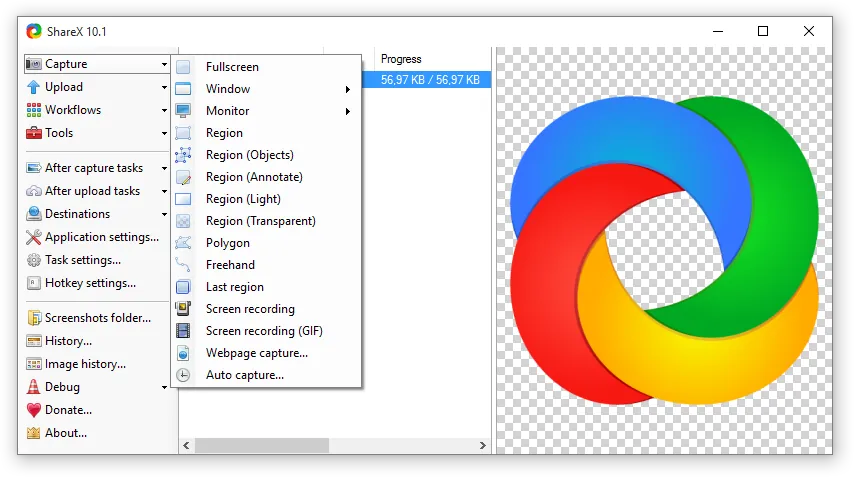

Many people open OBS just to record a few seconds of a bug or a menu. ShareX does that from a hotkey: select a region, record it as MP4 or GIF, and its after-capture tasks can save, copy or annotate the result automatically. It is open source with no ads and also takes screenshots, scrolling captures and OCR text grabs, which OBS does not do at all.
It does not replace scenes, webcam layouts or streaming, and it runs only on Windows. The settings are extensive, so check After capture tasks on first launch to make sure captures are uploaded only when you choose.
Pros
- Huge range of capture modes
- Scrolling capture and OCR
- Fast annotation
Cons
- Settings can be overwhelming
- Windows only
- Upload options need review
5. Microsoft Clipchamp — Video Editor
Best for: Recording and editing a short tutorial in one app
- Freeware
- Free
- Video
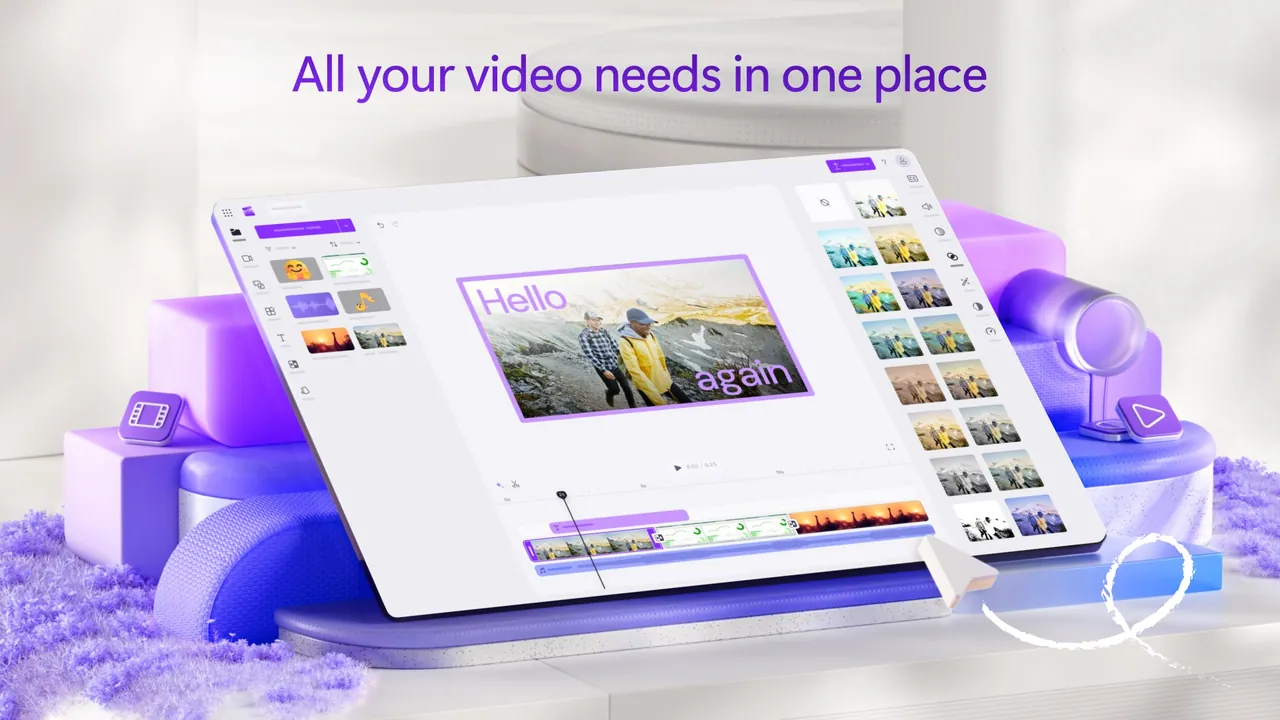
OBS has no editor, so a tutorial recorded in it still has to be cut somewhere else. Microsoft Clipchamp, which comes with Windows 11, records the screen, a window or a browser tab together with your webcam, puts the recording straight on its timeline, and exports up to 1080p without a watermark on the free plan, with AI captions and voiceovers included.
Each screen and webcam recording is limited to 30 minutes, although you can make as many as you like and join them on the timeline. You need a personal Microsoft account, and 4K exports and premium stock media need Microsoft 365 Personal or Family. It is not a game recorder or a streaming app.
Pros
- Very easy to learn
- Free 1080p exports without a watermark
- Built-in screen and webcam recorder
Cons
- Requires a Microsoft account
- Screen and webcam recordings stop at 30 minutes
- 4K export and premium stock need Microsoft 365
6. ScreenToGif — GIF Screen Recorder
Best for: Short silent GIFs for documentation and bug reports
- Open source
- Free
- Video
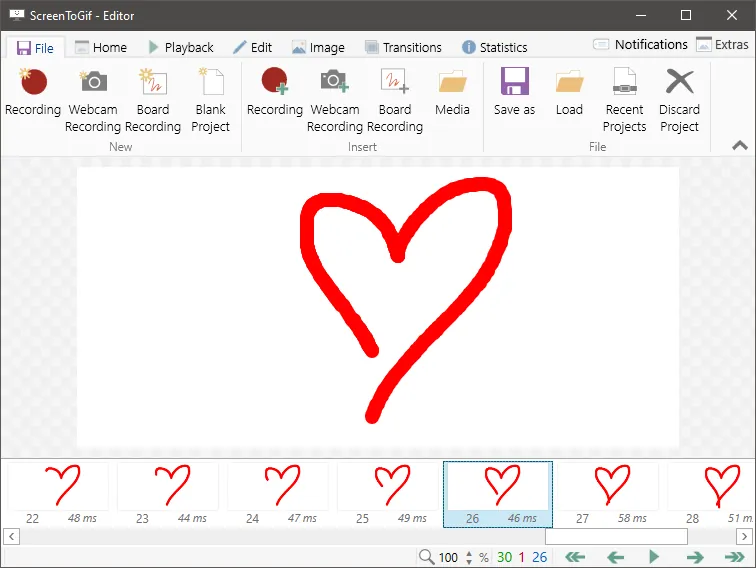
ScreenToGif replaces OBS for one narrow job: a short animation of something on screen. You place a frame over a region, record, then edit the clip frame by frame, deleting mistakes, cropping, changing delays and adding captions or arrows before saving as GIF, APNG or video. It is open source with no paid version or watermark.
It is meant for short clips without sound, not for long tutorials or games. Exporting MP4 and other video formats needs FFmpeg, which the app offers to download for you.
Pros
- Very simple recording
- Powerful frame editor
- Many export formats
Cons
- Windows only
- Not suited to long recordings or audio
- Video export needs FFmpeg as an extra download
7. XSplit Broadcaster — Streaming App
Best for: Paid: a polished studio with a free 720p tier
- Shareware
- $59.99, per year (Premium)
- Video
XSplit Broadcaster is the closest app here to OBS's scene-based studio, with chroma key, transitions, plugins, a virtual camera, AI live captions and background removal without a green screen, and it can import OBS scenes to get started. The free version has no time limit and streams and records up to 720p at 30 fps without a watermark.
Treat it as a paid app. The free version is for personal use only and allows four scenes; anything above 720p or 30 fps, AI background removal and the virtual camera add a watermark. Premium costs $14.99 a month, $59.99 a year or $119.99 once and is required for multistreaming and commercial use. OBS Studio has none of these limits for free.
Pros
- Friendly scene-based interface
- AI captions and voice clarity in the free version
- Lifetime license option
Cons
- Watermark above 720p or 30 fps in the free version
- Free version limited to four scenes and personal use
- Large installer, Windows only
Which OBS job are you replacing?
Live streaming with scenes and overlays: Streamlabs Desktop is the free choice, and XSplit Broadcaster if you are willing to pay for HD. Recording whole game sessions or saving highlights: the tool from your graphics card maker, NVIDIA App or AMD Software. Quick clips of part of the screen: ShareX for MP4 or GIF and ScreenToGif when you want to edit frames. A tutorial you will cut and caption right away: Clipchamp.
If you need several of these, OBS may still be the simplest single tool. Its replay buffer, virtual camera and hardware encoders cover gameplay, meetings and tutorials in one app, and once the scenes are set up, recording is one click.
Recording or streaming?
Only three apps on this list go live: Streamlabs Desktop, XSplit Broadcaster and AMD's Record & Stream. NVIDIA App, ShareX, ScreenToGif and Clipchamp only record. Streamlabs is the only free option with full OBS-style scenes plus alerts, widgets and tipping without plugins; AMD's streaming is basic, and XSplit's free tier watermarks anything above 720p at 30 fps.
For recording only, Streamlabs Desktop works without signing in, and none of the free picks except Clipchamp needs an account.
Game capture and GPU vendor tools
NVIDIA and AMD build recording into the apps that already update your graphics driver, and both encode on the graphics card, so you get Instant Replay without setting up an encoder or a replay buffer as in OBS. The trade-off is less control: no scenes you design yourself, fixed layouts and features tied to one brand of GPU. NVIDIA App saves the last 30 seconds with Instant Replay; AMD lets you keep up to 20 minutes.
Run only one game recorder at a time. AMD states that recording with its software and Microsoft's Game DVR at the same time is not supported.
Simpler one-click recorders and their limits
Several popular one-click recorders are not really free. Bandicam and Icecream Screen Recorder stop each free recording at 5 minutes, and Icecream also adds a watermark. Screenpresso is free at home and at work, but free video recordings carry its branding, and FastStone Capture needs a license after a 30-day trial.
If you want a simple recorder with a webcam overlay and no time limit or watermark, FlashBack Express is a free option; its multi-track editing and effects are paid.
Moving your OBS setup
Both studio apps can bring your existing work over: the Streamlabs Desktop setup wizard imports OBS Studio scenes, and XSplit Broadcaster can import OBS scenes as a starting point. Check browser sources and third-party plugins afterwards, because OBS plugins do not run in other apps.
If you only wanted Streamlabs alerts and widgets, you do not have to switch at all: Streamlabs offers a plugin for OBS that adds alerts, widgets and overlays to an existing OBS setup.
Frequently asked questions
What is the best free alternative to OBS Studio?
For streaming, Streamlabs Desktop, which runs on the OBS engine and adds alerts and overlays. For game clips, NVIDIA App or AMD Software, depending on your graphics card. For quick screen clips, ShareX.
Is Streamlabs better than OBS?
It is easier for new streamers, because alerts, widgets, themes and a chatbot are built in. OBS Studio is lighter, has no paid plan and no upgrade prompts, and gets the same features through plugins and browser sources.
Is Streamlabs Desktop free?
Yes. Streaming, local recording without a watermark, alerts, widgets, some overlays and Dual Output to one horizontal and one vertical platform are free. Multistreaming to more platforms, premium themes and most App Store apps need the paid Ultra plan.
What is the easiest way to record games without OBS?
Use the app from your graphics card maker. NVIDIA App records GeForce gameplay and saves the last 30 seconds with Instant Replay, and AMD Software: Adrenalin Edition does the same on Radeon cards with a replay buffer of up to 20 minutes.
Can I record my screen without installing OBS?
Yes. Clipchamp comes with Windows 11 and records the screen and webcam in sessions of up to 30 minutes. For short clips and GIFs, ShareX and ScreenToGif are small free downloads.
Is XSplit Broadcaster free?
Only partly. The free version is for personal use, allows four scenes and watermarks anything above 720p or 30 fps. Premium costs $14.99 a month, $59.99 a year or $119.99 once.
ExeDepot does not host installers. Every download button opens the developer's own server or official download page. Prices and licenses come from each developer's site and were checked on .