
Video · Updated
The best screen recorders for Windows
Screen recorders look alike until you hit a limit. Some free versions stop every recording at 5 minutes, some add a watermark, and some upload everything to the cloud. The free tools at the top of this list have none of those limits, so for most people the question is which workflow fits: a full studio with scenes, a hotkey tool for quick clips, or a recorder that also edits.
Think about what you record. Gameplay needs hardware encoding and a game capture mode, tutorials benefit from cursor highlights and a webcam overlay, and bug reports are often best as a short GIF. If you want to stream live, only some of these apps can do it.
Our picks at a glance
| App | Best for | License | Price | Download |
|---|---|---|---|---|
 OBS Studio OBS Studio |
Best overall: unlimited recording and live streaming | Open source | Free | Review |
 ShareX ShareX |
Quick captures, GIFs and screenshots on hotkeys | Open source | Free | Review |
 FlashBack Express FlashBack Express |
A simple recorder with no time limit or watermark | Freeware | Free | Review |
 NVIDIA App NVIDIA App |
Gameplay clips on a GeForce PC | Freeware | Free | Review |
 ScreenToGif ScreenToGif |
Short animated GIFs for docs and bug reports | Open source | Free | Review |
 oCam oCam |
One-click recording at home | Freeware | Free | Review |
 Loom Loom |
Video messages for remote teams | Freeware | Free | Review |
 Bandicam Bandicam |
A light game recorder, if you buy a license | Shareware | $33.26, per year (Personal license, 1 PC) | Review |
 Camtasia Camtasia |
If you want to pay: polished tutorials and training videos | Shareware | $179.88, per year (Essentials plan, removes the watermark) | Review |
1. OBS Studio — Screen Recorder and Streaming App
Best for: Best overall: unlimited recording and live streaming
- Open source
- Free
- Video
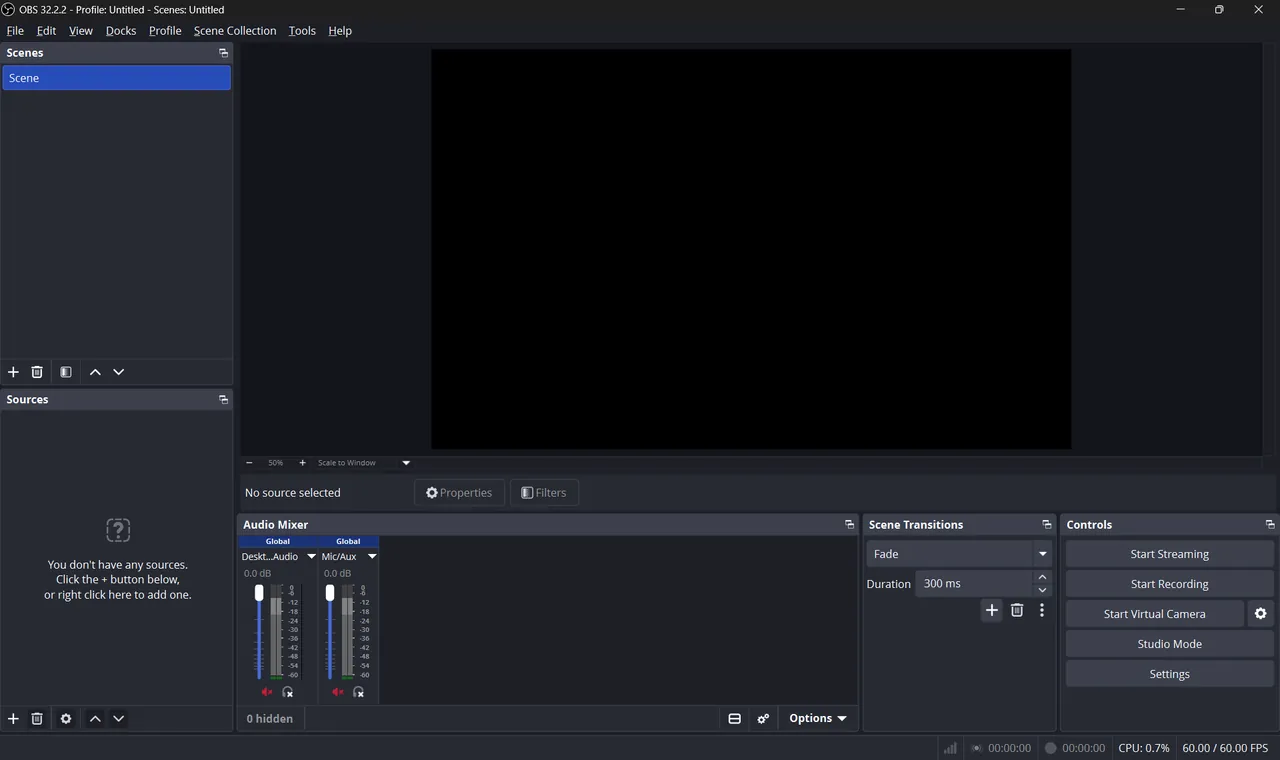

OBS Studio is open source with no paid version, no watermark and no time limit. You build scenes from a display, a window, a game, a webcam and images, record with NVIDIA, AMD or Intel hardware encoders, and stream to Twitch or YouTube from the same window. The virtual camera sends your scene into Zoom, Teams or Meet.
Setup takes a few minutes, and OBS has no editing tools, so you trim recordings in a separate editor such as Shotcut. If you only need a quick capture of part of the screen, ShareX is faster to use.
Pros
- No watermark or time limit
- Professional scene system
- Hardware encoders
Cons
- Initial setup takes time
- No editing tools
2. ShareX — Screenshot and Screen Recording Tool
Best for: Quick captures, GIFs and screenshots on hotkeys
- Open source
- Free
- Utilities
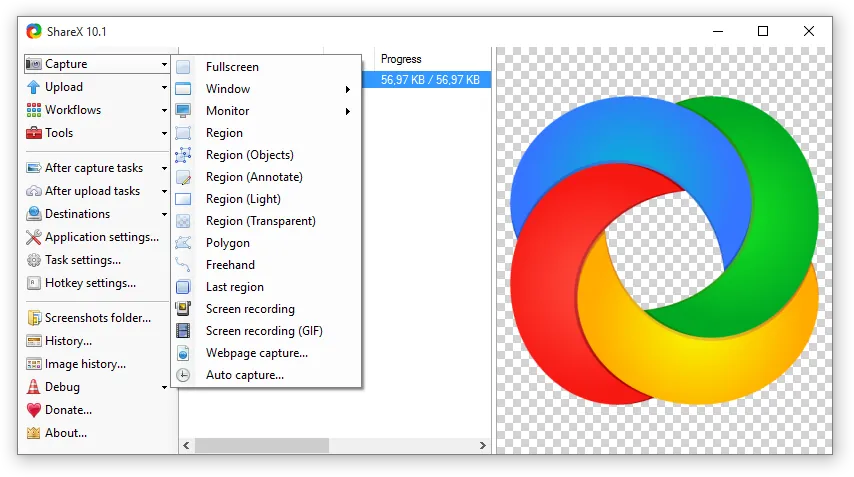

ShareX combines screenshots, scrolling captures, OCR and screen recording to MP4 or GIF in one open-source tool. Press a hotkey, select an area, and it can annotate, save and copy the result automatically, which makes it ideal for support replies and documentation.
It is not a studio: there are no scenes or streaming as in OBS Studio. The settings can be overwhelming, it is Windows only, and you should review the After capture tasks on first launch so captures are uploaded only when you choose.
Pros
- Huge range of capture modes
- Scrolling capture and OCR
- Fast annotation
Cons
- Settings can be overwhelming
- Windows only
- Upload options need review
3. FlashBack Express — Screen Recorder
Best for: A simple recorder with no time limit or watermark
- Freeware
- Free
- Video
FlashBack Express is the easiest free recorder here that has no watermark and no time limit. It records the screen, a window or a region across several monitors together with webcam, microphone and PC sound, and lets you draw on screen, highlight the cursor, schedule recordings and blur the webcam background.
Multi-track editing, effects and smart zoom need a paid licence, and AI subtitles are capped at a few minutes on the free plan. It is Windows only. Compared with OBS Studio it has no scenes, but it is simpler to set up.
Pros
- No watermark or time limit on the free plan
- Records screen, webcam and system audio
- Live drawing and cursor highlighting
Cons
- Multi-track editing, effects and smart zoom require a paid licence
- AI subtitles and voice changer are capped at a few minutes on the free plan
- Windows only
4. NVIDIA App — GPU Driver and Settings App
Best for: Gameplay clips on a GeForce PC
- Freeware
- Free
- Utilities
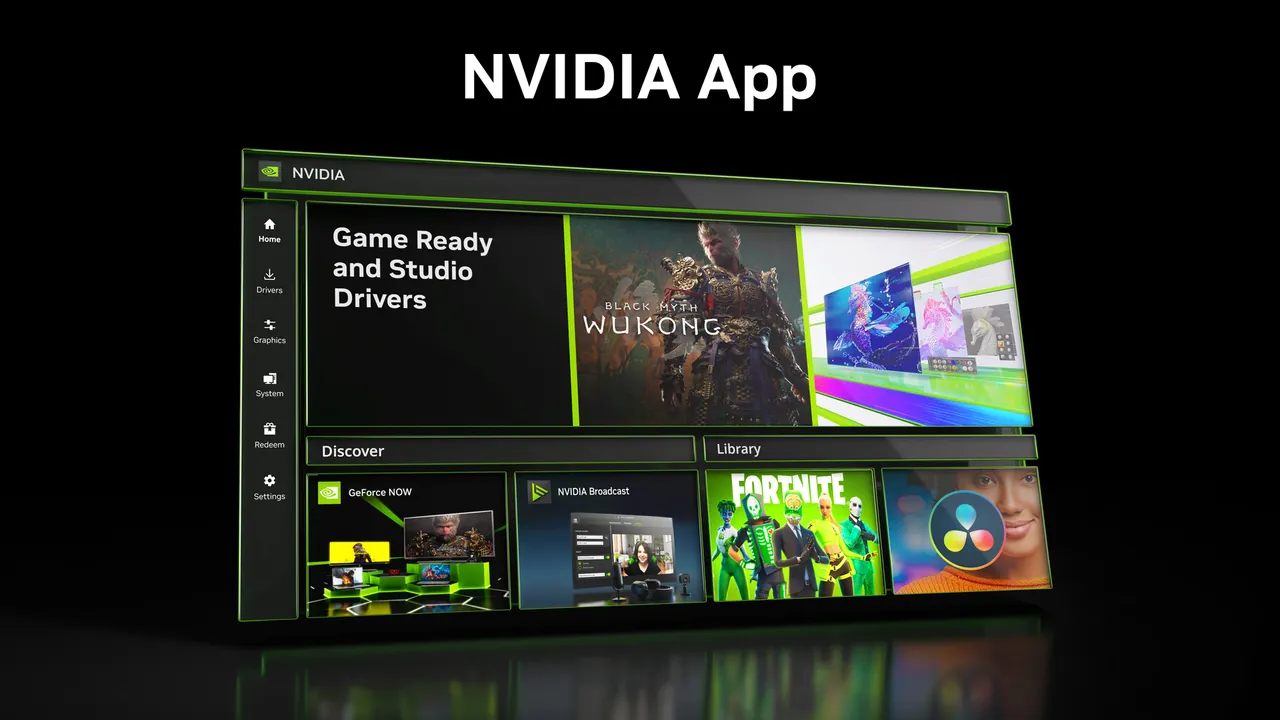
If your PC has an NVIDIA graphics card, NVIDIA App already includes ShadowPlay recording with Instant Replay, which saves the last moments of a game when something good happens. It also handles driver updates and game settings, so there is nothing extra to install.
It only works with NVIDIA GPUs and runs background services and an overlay unless you disable them. On AMD or Intel graphics, use the replay buffer in OBS Studio or a clip app like Medal, whose free downloads carry a watermark.
Pros
- Driver updates with release notes and rollback
- Gameplay recording with Instant Replay
- Game and GPU settings in one place
Cons
- Works only on PCs with an NVIDIA GPU
- Runs background services and an overlay unless you disable them
- Bundles and rewards require an NVIDIA account
5. ScreenToGif — GIF Screen Recorder
Best for: Short animated GIFs for docs and bug reports
- Open source
- Free
- Video
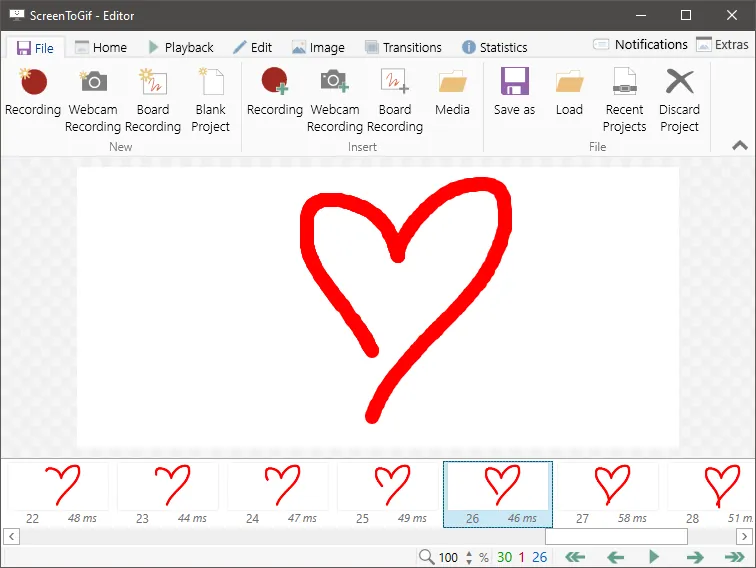
ScreenToGif records a screen region, webcam or sketchboard and then opens every frame in an editor, so you can delete mistakes, crop, change delays and add captions or arrows before saving as GIF, APNG or video. It is open source with no paid version or watermark.
It records no sound and is meant for short clips, not long tutorials. Video export needs FFmpeg as an extra download. For GIFs with less editing, ShareX is quicker.
Pros
- Very simple recording
- Powerful frame editor
- Many export formats
Cons
- Windows only
- Not suited to long recordings or audio
- Video export needs FFmpeg as an extra download
6. oCam — Screen Recorder
Best for: One-click recording at home
- Freeware
- Free
- Video
oCam is a small recorder with almost no learning curve: pick a region, press record, and the file is saved when you stop. It has a game mode, saves to MP4, MKV, GIF and other formats, and can record system sound alone as MP3. It adds no watermark of its own.
The free version shows ads and is only for non-commercial personal use; companies, schools and PC cafes must buy a license. The current installer dates from 2023. For a free recorder you can also use at work, OBS Studio or FlashBack Express are better.
Pros
- Very easy to use
- Records games, GIFs and audio-only
- Many output formats
Cons
- Ads in the free version
- Free only for non-commercial personal use
- Current installer dates from 2023
7. Loom — Screen Recorder for Video Messages
Best for: Video messages for remote teams
- Freeware
- Free
- Video
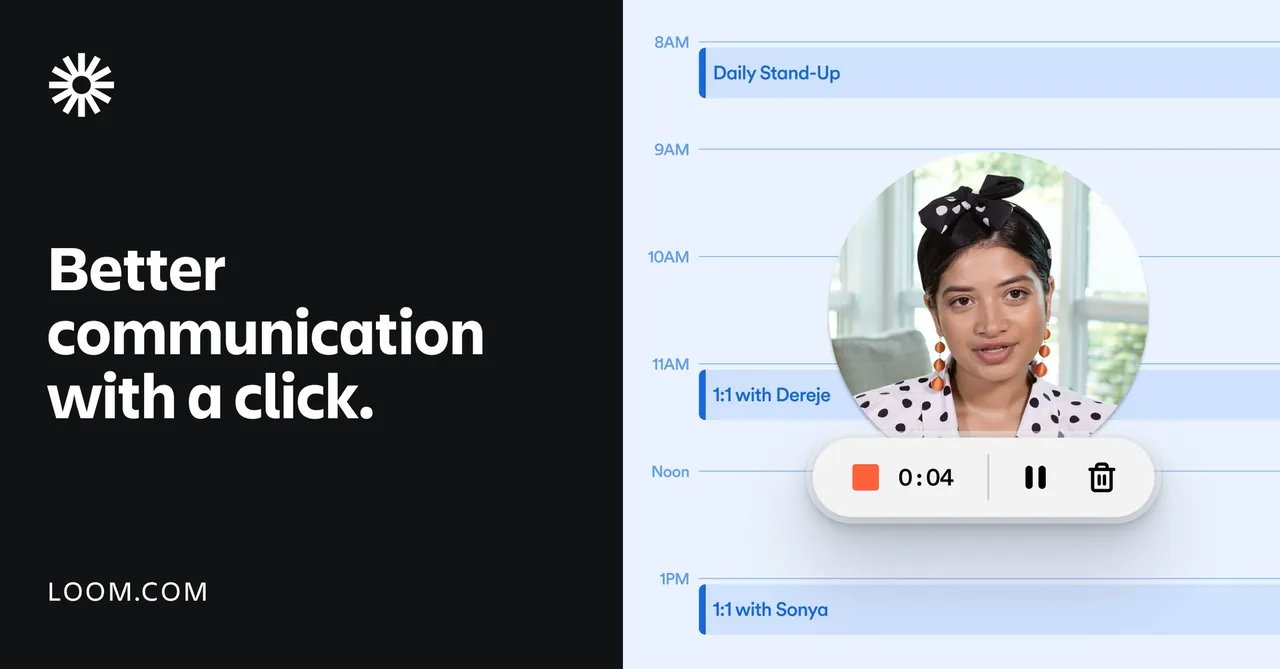
Loom records your screen with your webcam in a bubble, and a share link is ready as soon as you stop. Viewers watch in the browser, leave time-stamped comments and read an automatic transcript, and it connects with Slack, Jira and Confluence on the free plan.
Every video goes to Loom's cloud, and you need an account. The free Starter plan allows 25 videos per person, 5 minutes each, at up to 720p, and downloads and trimming are paid. For local recordings, use OBS Studio or ShareX.
Pros
- Share link ready immediately
- Transcripts and comments on the free plan
- Strong Atlassian and Slack integration
Cons
- Free plan limited to 25 videos, 5 minutes each and 720p
- Requires an account and stores all videos in Loom's cloud
- Downloads, trimming and branding removal are paid
8. Bandicam — Screen Recorder
Best for: A light game recorder, if you buy a license
- Shareware
- $33.26, per year (Personal license, 1 PC)
- Video
Bandicam is a small recorder with separate modes for a screen area, a game, a webcam or a capture device, and the free version adds no watermark to recordings. It is quick to start and easy on the system.
Every free recording stops at 5 minutes, videos exported from its editor are watermarked, and the Personal license at $33.26 per year is for non-commercial use only. Icecream Screen Recorder has the same 5-minute cap and also adds a watermark. If you record often and do not want to pay, OBS Studio has no limits at all.
Pros
- Dedicated game recording mode
- No watermark on free recordings
- Simple mode-based interface
Cons
- Free recordings stop at 5 minutes
- Personal license is for non-commercial use only
- Scheduled recording, webcam background removal and transcripts need a license
9. Camtasia — Screen Recorder and Video Editor
Best for: If you want to pay: polished tutorials and training videos
- Shareware
- $179.88, per year (Essentials plan, removes the watermark)
- Video
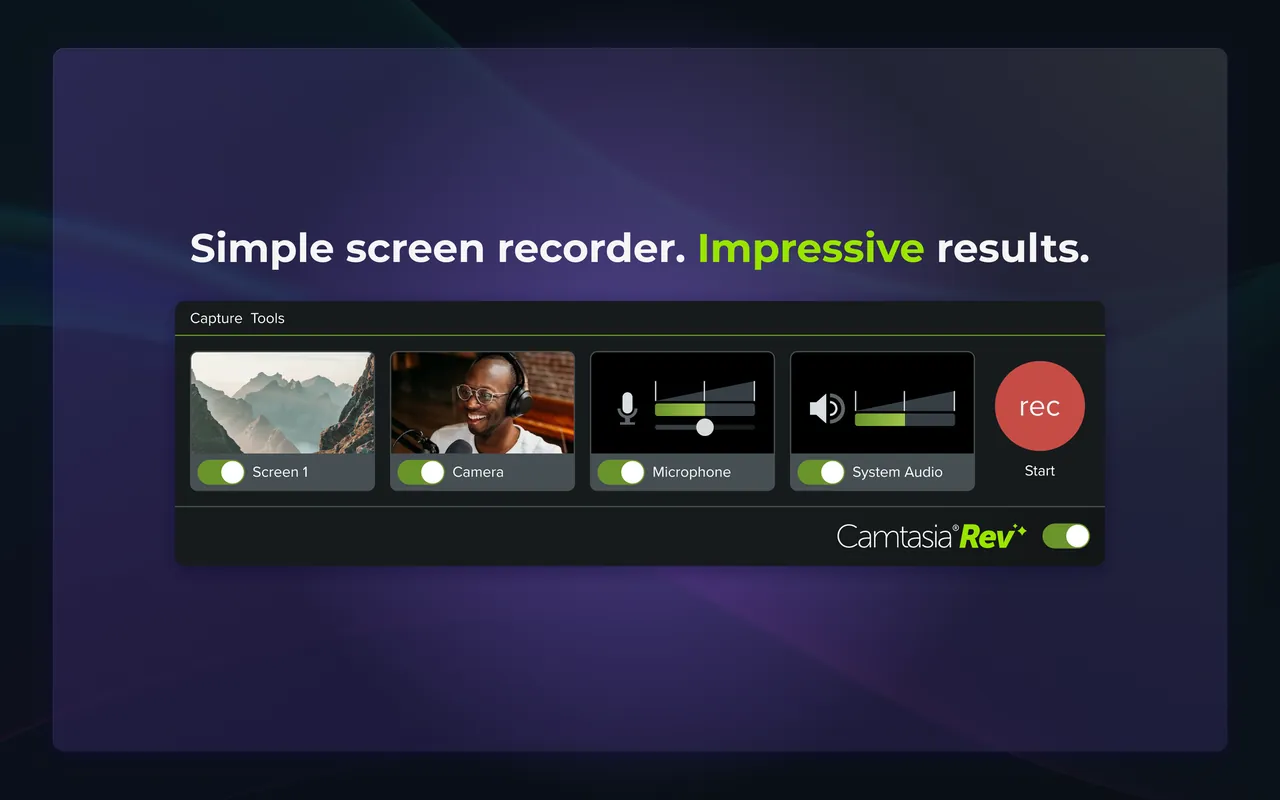
Camtasia from TechSmith records the screen, webcam and audio and opens the result on a multitrack timeline built for tutorials: cursor smoothing and highlights, zooms, callouts, captions and transcript-based editing, plus quizzes and SCORM export for courses. It saves a lot of time compared with recording in one app and editing in another.
The free Camtasia Editor has no time limit, but every export has a watermark that is baked into the file. The cheapest plan that removes it is Essentials at $179.88 per year, and the download needs a TechSmith account. On a budget, OBS Studio plus a free editor does the same job with more work.
Pros
- Recording and editing in one app
- Excellent cursor and zoom effects for tutorials
- Quizzes and SCORM export
Cons
- Watermark on every export until you pay
- Expensive yearly subscription
- Download requires a TechSmith account
Free limits to check before you record
The truly unlimited free options are OBS Studio, ShareX, FlashBack Express and ScreenToGif: no watermark, no time cap, no account. Bandicam and Icecream Screen Recorder stop each free recording at 5 minutes, and Icecream also adds a watermark. Loom caps free videos at 5 minutes and 720p, and Camtasia watermarks every free export.
Licences matter too. oCam is free only for personal non-commercial use, and the Bandicam Personal license does not cover work use. If you record for a company, check the terms first.
Gameplay, tutorials or quick clips?
For games, OBS Studio records with NVIDIA, AMD or Intel hardware encoders with little performance loss, and NVIDIA App Instant Replay or the OBS replay buffer save highlights without recording whole sessions. For tutorials, a webcam overlay and cursor highlights help, which FlashBack Express and Camtasia provide. For a quick bug report or a step in documentation, ShareX or ScreenToGif are faster than any full recorder.
Do you need editing?
Most free recorders do not edit beyond basic trimming. Record with OBS Studio or FlashBack Express and cut the result in a free editor such as Shotcut or Microsoft Clipchamp. Clipchamp also has its own screen and webcam recorder, which is enough for short work videos on Windows 11.
Frequently asked questions
What is the best free screen recorder for Windows?
OBS Studio for unlimited recording and streaming, with no watermark or time limit. If you want something simpler, FlashBack Express has no watermark or time limit either, and ShareX is best for quick clips and GIFs.
Does OBS Studio add a watermark?
No. OBS Studio is open source with no paid version, and recordings are clean. Recording to MKV is safer, because an unfinished MP4 can be lost if the PC crashes; OBS can remux MKV to MP4 afterwards.
Is Bandicam free?
Partly. The free version adds no watermark to recordings, but each recording stops after 5 minutes and edited exports are watermarked. A Personal license costs $33.26 per year and is for non-commercial use.
Is Camtasia free?
No. Camtasia Editor can be used for free without a time limit, but every export carries a watermark. The cheapest plan that removes it is Essentials at $179.88 per year.
Which screen recorder is best for gaming?
OBS Studio for full recordings and streaming, and NVIDIA App for Instant Replay clips on GeForce cards.
Can I record my screen as a GIF?
Yes. ScreenToGif records GIFs and lets you edit each frame, and ShareX can record a screen area straight to GIF from a hotkey.
ExeDepot does not host installers. Every download button opens the developer's own server or official download page. Prices and licenses come from each developer's site and were checked on .