
Video · Updated
The best free video editors for Windows
A free video editor is only useful if the export is usable. Many editors that call themselves free put a watermark on the video, cap the resolution or lock the effects you have already placed on the timeline. Most free editors below export without a watermark, but they still differ in resolution limits, Pro-only effects and whether you need an account.
The other big question is your PC and your project. A professional editor such as DaVinci Resolve needs a strong graphics card, while Microsoft Clipchamp also runs in a browser and Shotcut offers proxy editing for older computers. Short social clips, family videos, YouTube tutorials and film-style color grading each have a different best tool.
Our picks at a glance
| App | Best for | License | Price | Download |
|---|---|---|---|---|
 DaVinci Resolve DaVinci Resolve |
The most capable free editor, for a strong PC | Freeware | Free | Review |
 Shotcut Shotcut |
A no-strings open-source timeline editor | Open source | Free | Review |
 CapCut CapCut |
Short videos for TikTok, Reels and Shorts | Freeware | Free | Review |
 Kdenlive Kdenlive |
A classic editing layout without paying | Open source | Free | Review |
 Microsoft Clipchamp Microsoft Clipchamp |
Quick videos and slideshows on Windows 11 | Freeware | Free | Review |
 OpenShot OpenShot |
Beginners and family videos | Open source | Free | Review |
 VSDC Free Video Editor VSDC Free Video Editor |
Free 4K export with effects on Windows | Freeware | Free | Review |
 Lightworks Lightworks |
Learning a professional editing timeline | Freeware | Free | Review |
 Adobe Premiere Pro Adobe Premiere Pro |
If you want to pay: the industry-standard editor | Free trial | $22.99, per month, annual plan billed monthly | Review |
1. DaVinci Resolve — Video Editor
Best for: The most capable free editor, for a strong PC
- Freeware
- Free
- Video
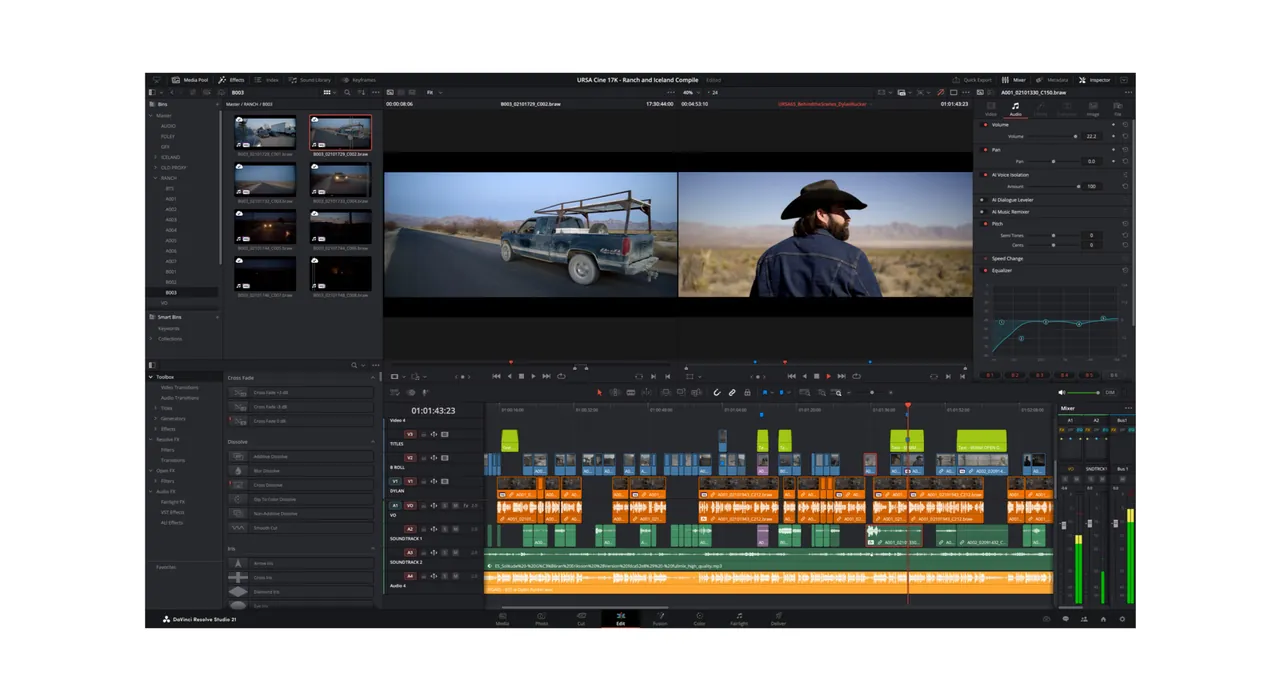
DaVinci Resolve from Blackmagic Design puts editing, color grading, Fusion visual effects and Fairlight audio post into one program. The free version has no watermark or time limit, works with timelines up to Ultra HD at 60 fps and includes HDR grading. No other free editor here comes close to its color tools.
The price is hardware and learning time. On Windows, Blackmagic's minimum is 16 GB of RAM and a GPU with at least 4 GB of video memory, and the page-based workflow takes a while to learn. Noise reduction, Magic Mask, AI transcription and anything above Ultra HD or 60 fps need the paid Studio version. On a weaker PC, Shotcut or Kdenlive are the better choice.
Pros
- No watermark or time limit
- Industry-standard color grading
- Editing, effects and audio in one app
Cons
- Demanding on RAM and graphics card
- Many AI tools and noise reduction need the paid Studio version
- Registration form before download
2. Shotcut — Video Editor
Best for: A no-strings open-source timeline editor
- Open source
- Free
- Video
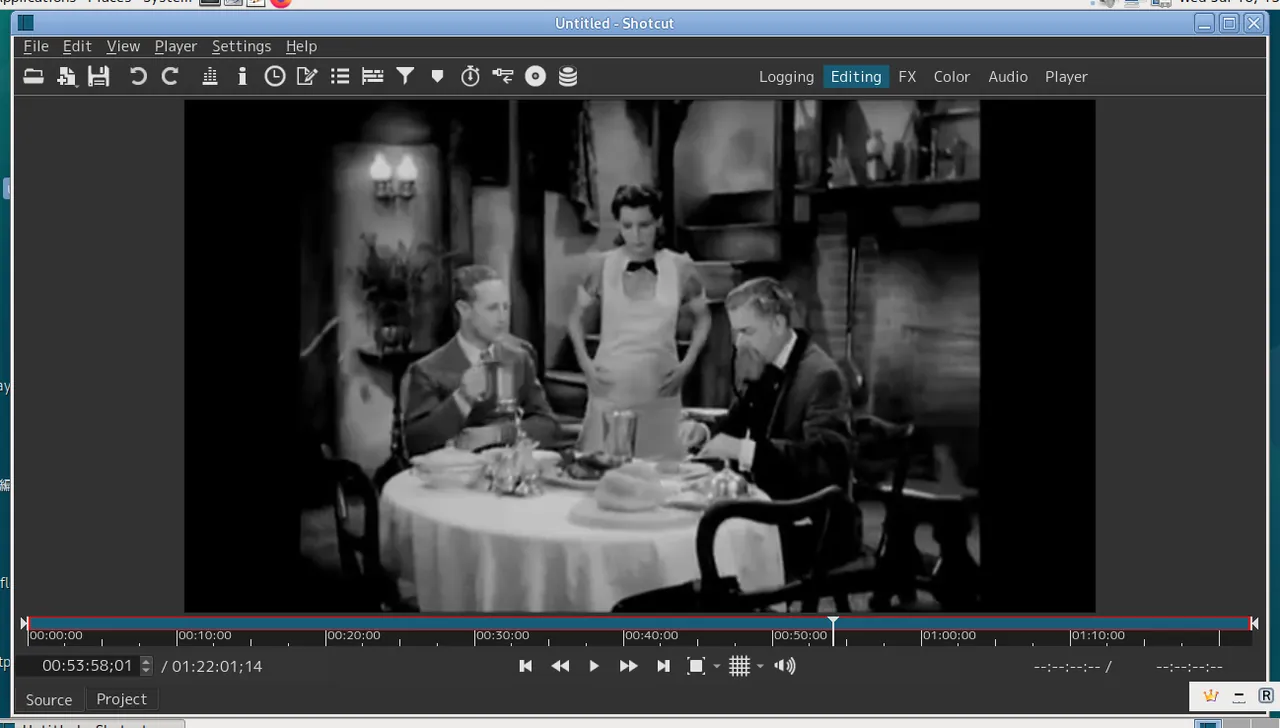

Shotcut is open source under the GPL v3, has no paid edition and exports without a watermark, so nothing is ever locked. It edits most common formats directly, including 4K footage from phones and cameras, and offers a multitrack timeline, keyframed filters and export presets for YouTube.
Its panel-based interface feels technical at first, and it has fewer built-in effects and transitions than paid editors. If you prefer a classic editing layout with a project bin and monitors, Kdenlive may feel more familiar; if you want something simpler, try OpenShot.
Pros
- No watermark or time limits
- Handles most formats directly
- Proxy editing for slower PCs
Cons
- Interface feels technical at first
- Fewer built-in effects than paid editors
3. CapCut — Video Editor
Best for: Short videos for TikTok, Reels and Shorts
- Freeware
- Free
- Video
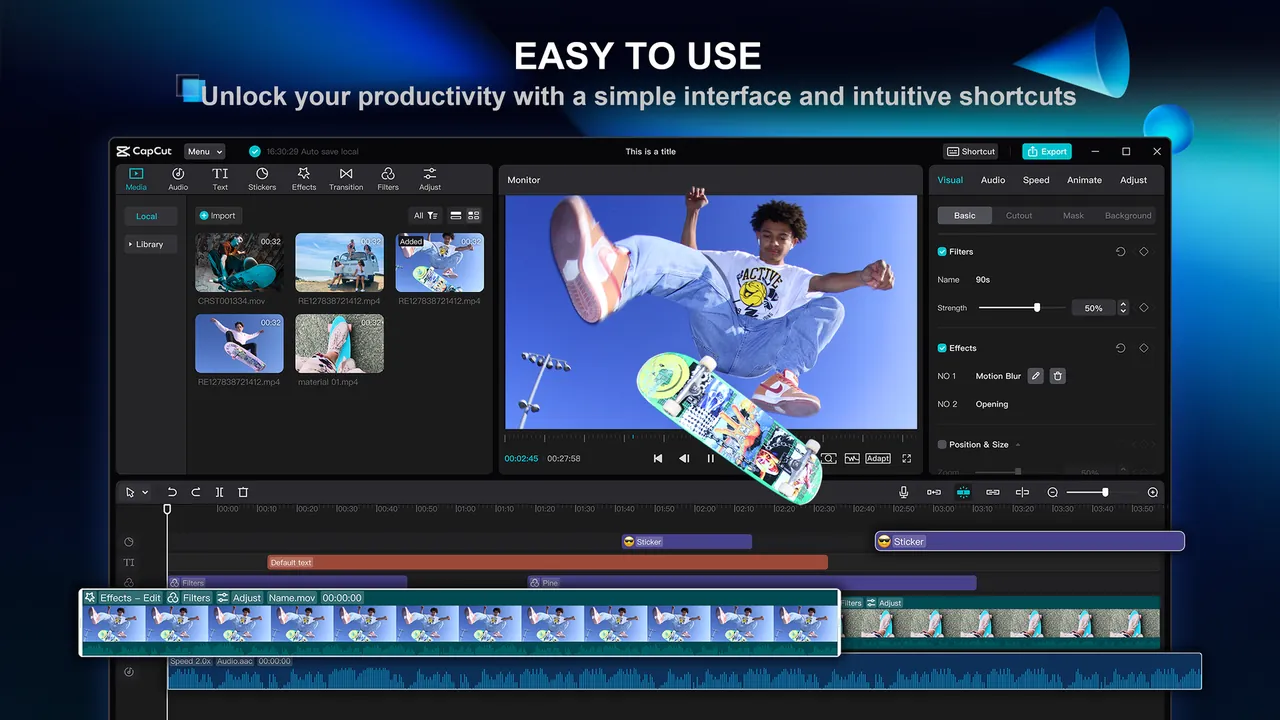
CapCut from ByteDance is built for social media: trending effects, templates, keyframes and automatic captions from speech, all in an interface that is quick to learn. Projects can sync through CapCut's cloud Space, so you can continue an edit on your phone.
Many effects, templates and AI tools are marked Pro, and a project that uses even one of them cannot be exported until you subscribe or remove it. It is closed source, and cloud features need an account. If you want everything free and unlocked, Shotcut or DaVinci Resolve are safer choices.
Pros
- Very easy to learn
- Strong auto-caption tool
- Trendy templates for short videos
Cons
- Many effects, templates and AI tools require a paid Pro subscription
- Closed source from ByteDance, with an account needed for cloud features
- Fewer professional tools than full editors
4. Kdenlive — Video Editor
Best for: A classic editing layout without paying
- Open source
- Free
- Video
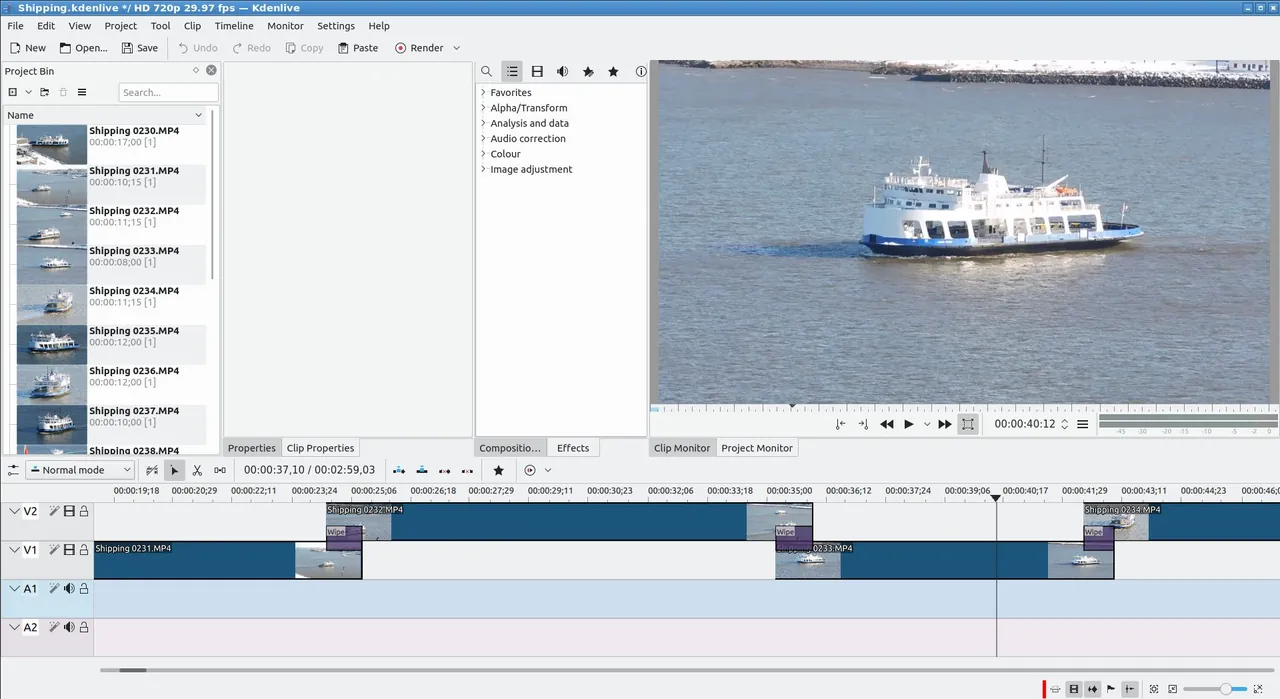

Kdenlive from KDE follows the traditional layout of project bin, monitors, effects and multitrack timeline, so people who know other editors usually find their way around quickly. Proxy clips keep large files smooth, and speech-to-text can generate subtitles automatically.
It shares the MLT engine with Shotcut, but has more panels to learn. Automatic subtitles need a separate speech model download. Like Shotcut, it is open source with no paid version or watermark.
Pros
- Traditional editing layout
- Proxy clips
- Automatic subtitles
Cons
- Many panels to learn
- Speech-to-text needs an extra download
5. Microsoft Clipchamp — Video Editor
Best for: Quick videos and slideshows on Windows 11
- Freeware
- Free
- Video
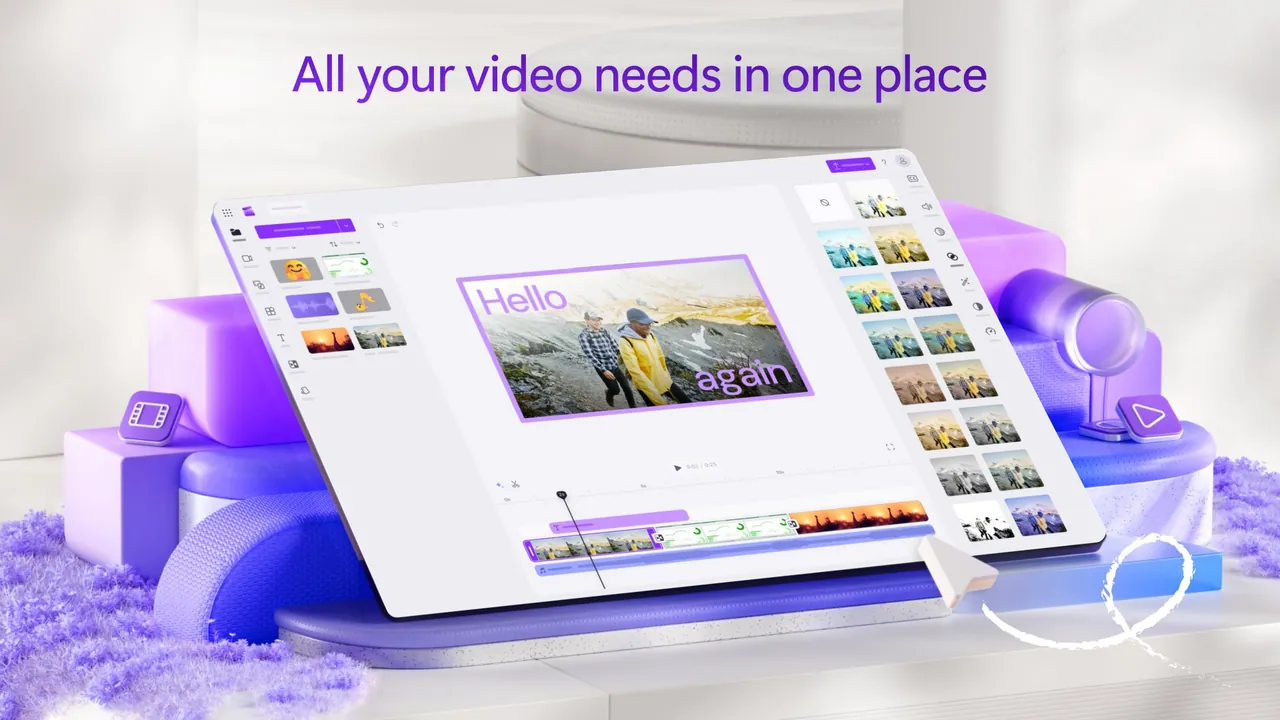
Clipchamp is Microsoft's own editor and comes built into Windows 11. The free plan exports unlimited videos up to 1080p without a watermark and includes templates, a screen and webcam recorder, AI captions and AI voiceovers. For a school project or a short work video, it is the fastest start.
It needs a personal Microsoft account and is only available through the Microsoft Store or a browser. 4K exports and premium stock need Microsoft 365, and a project with a premium item cannot be exported on the free plan. For offline editing without an account, use Shotcut or OpenShot.
Pros
- Very easy to learn
- Free 1080p exports without a watermark
- Built-in screen and webcam recorder
Cons
- Requires a Microsoft account
- 4K export and premium stock need Microsoft 365
- Only available through the Microsoft Store or browser
6. OpenShot — Video Editor
Best for: Beginners and family videos
- Open source
- Free
- Video
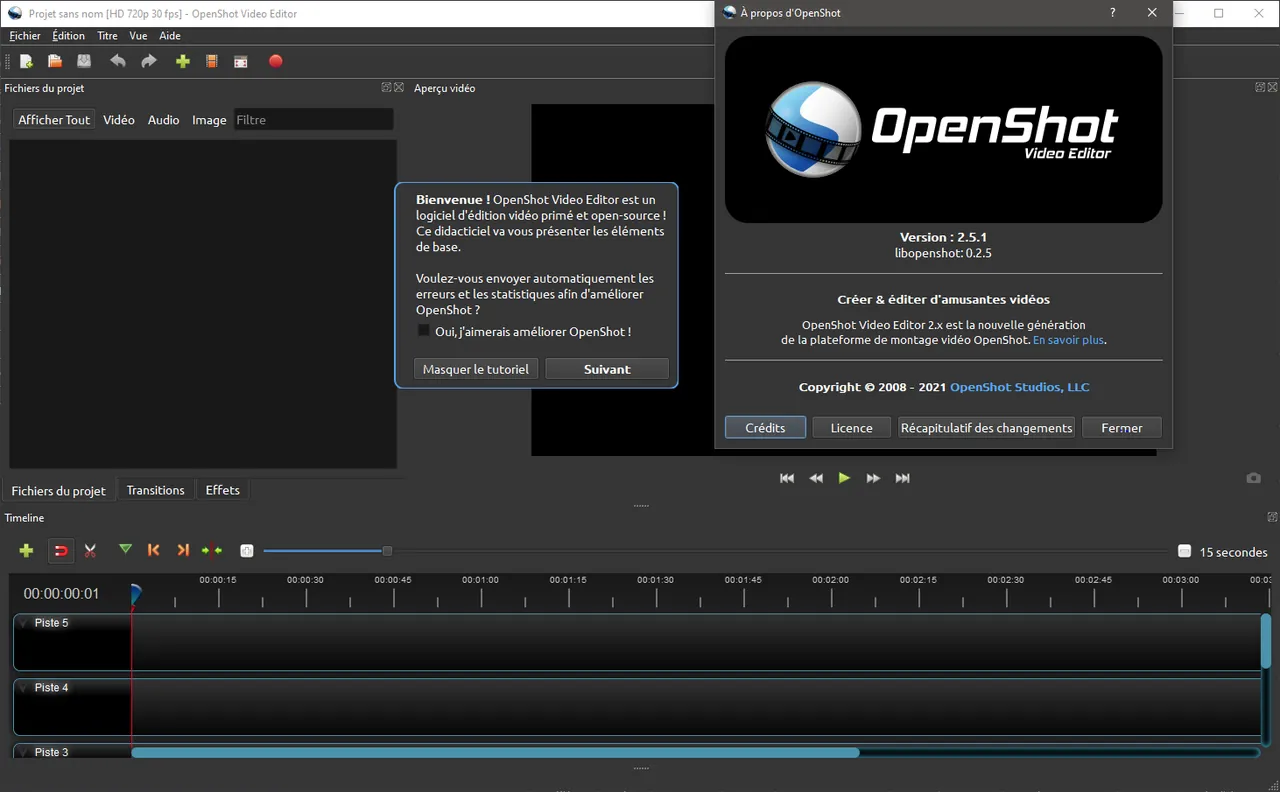

OpenShot is the gentlest first editor in this list: drag clips onto the timeline, overlap them for a transition, pick one of more than 40 title templates and export without a watermark. It also has keyframe animation, color wheels, scopes and a screen recording panel.
It has fewer advanced tools than Kdenlive or DaVinci Resolve, and animated 3D titles need Blender installed separately. Get the free EXE installer from openshot.org; the Microsoft Store edition costs money to support the project but has the same features.
Pros
- Simple to learn
- No watermark or time limit
- Keyframes on almost every property
Cons
- Fewer advanced tools than Kdenlive or DaVinci Resolve
- 3D animated titles need Blender installed separately
7. VSDC Free Video Editor — Video Editor
Best for: Free 4K export with effects on Windows
- Freeware
- Free
- Video
VSDC Free Video Editor exports in 4K and higher without a watermark and has no limits on file size or video length. It includes color wheels, curves, LUTs, over 200 filters, effects and transitions, and voice-over recording, which is more than most free Windows editors offer.
Its object-based timeline works differently from Shotcut or Kdenlive and takes time to learn. Hardware-accelerated export, motion tracking and advanced masks need the paid Pro subscription, and it runs on Windows only.
Pros
- No watermark, 4K export
- Many effects and colour tools
- No limits on length or file size
Cons
- Hardware acceleration, motion tracking and advanced masks require the paid Pro version
- Unusual object-based timeline takes time to learn
- Windows only
8. Lightworks — Video Editor
Best for: Learning a professional editing timeline
- Freeware
- Free
- Video
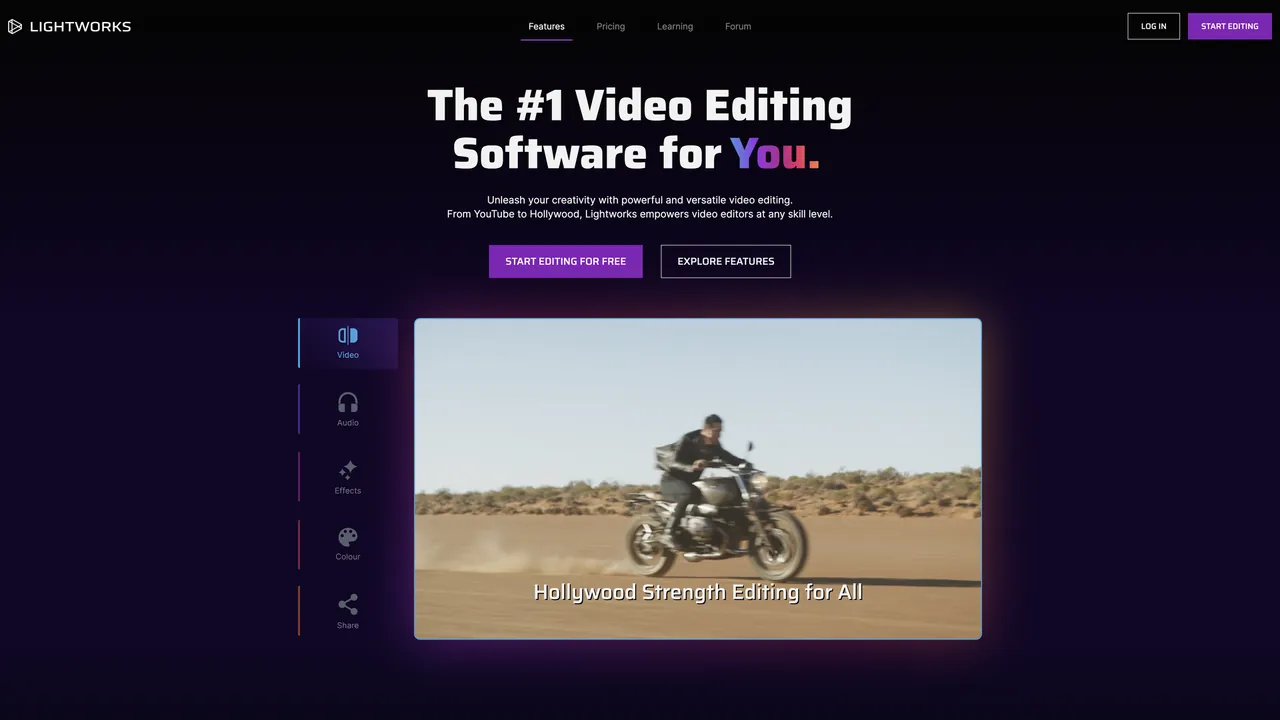
Lightworks has a long history in film and TV editing, and the free plan includes its full timeline with multicam, keyframes, up to 64 video tracks, proxy editing and auto-save, with no watermark.
The free plan only exports H.264 MP4 up to 720p, you must sign in to activate it and renew the licence every 90 days, and commercial use of free exports requires the Lightworks logo in the video. For free 1080p or 4K export, DaVinci Resolve is the stronger professional option.
Pros
- Professional editing tools for free
- No watermark
- Automatic saving
Cons
- Free plan exports only up to 720p MP4
- Account sign-in required, and the free licence must be renewed every 90 days
- Commercial use of free exports requires the Lightworks logo in the video
9. Adobe Premiere Pro — Video Editor
Best for: If you want to pay: the industry-standard editor
- Free trial
- $22.99, per month, annual plan billed monthly
- Video
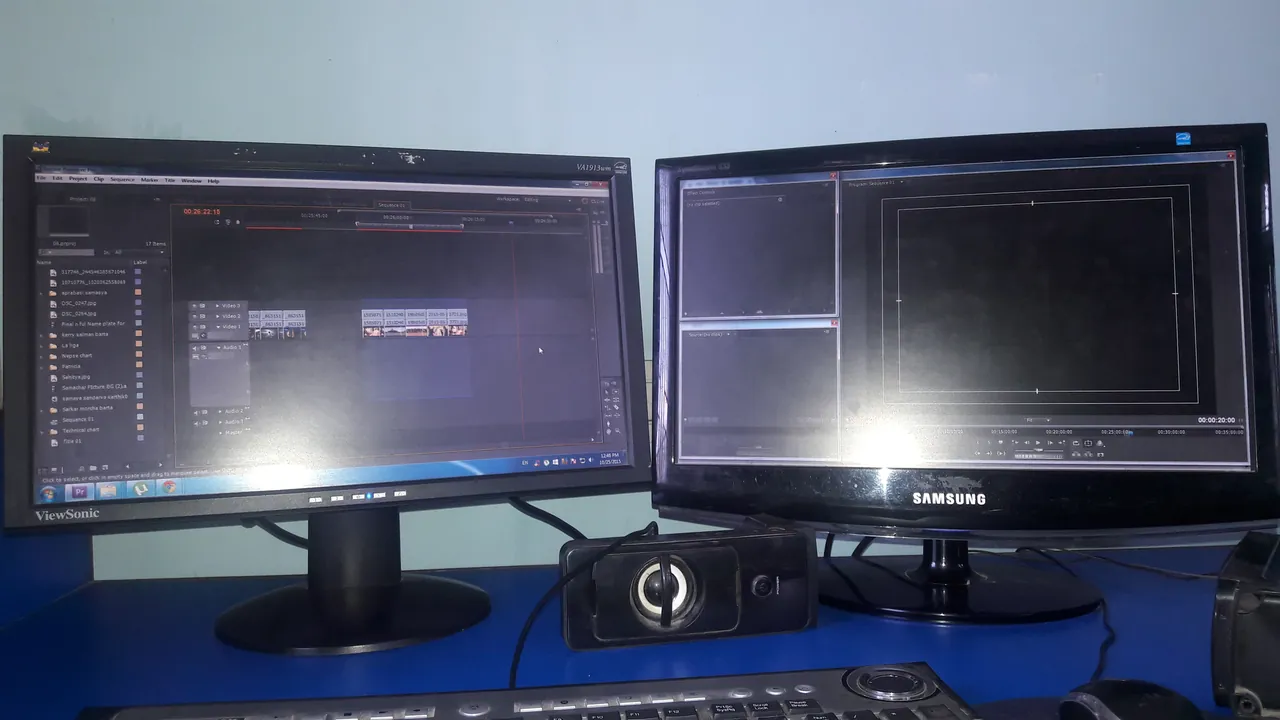

Premiere Pro is the editor many studios, agencies and YouTubers work in, and it works closely with After Effects, Photoshop and Audition. The plan includes Frame.io for review and 100 GB of cloud storage, which matters if you edit with a team or a client.
There is no free version: the 7-day trial needs a payment method and turns into a subscription at $22.99 per month on an annual plan billed monthly. Current versions need Windows 11 version 24H2. Unless you need the Adobe ecosystem, DaVinci Resolve covers most of the same work for free.
Pros
- Industry standard, huge tutorial base
- Tight integration with After Effects and Photoshop
- Frame.io review included
Cons
- Subscription only, no perpetual license
- Trial needs a payment method and auto-renews
- Early cancellation fee on annual plans
Watermarks, export limits and Pro items
Before you start a project, check what the free version actually exports. DaVinci Resolve, Shotcut, Kdenlive, OpenShot and VSDC export clean files without a resolution cap that matters to most people. Microsoft Clipchamp stops at 1080p and Lightworks at 720p on the free plan.
CapCut and Clipchamp mix free and premium items in the same library. If you use a premium effect, template or stock clip, export is blocked until you pay or remove it, so check the labels while you edit, not at the end.
Free or paid?
For most home and YouTube projects, a free editor is enough. Paid editors mostly save time with templates, stock libraries and AI tools. Wondershare Filmora is a beginner-friendly paid option, but every export from its free version carries a watermark; the Basic plan is $49.99 per year. Premiere Pro makes sense if you already work with other Adobe apps or with clients who use it.
Only need to cut a clip?
A full editor is overkill for trimming a long recording or removing ads from a TV capture. LosslessCut and Avidemux cut video without re-encoding, so a large file is saved in seconds with no quality loss. Both cut on keyframes, so the cut point may be slightly off a chosen frame, and neither does titles or transitions.
Frequently asked questions
What is the best free video editor for Windows?
For the most features, DaVinci Resolve, if your PC has a capable graphics card. For a lighter open-source editor with no locked features, Shotcut. For quick social media clips, CapCut, keeping in mind that many effects require Pro.
Which free video editor has no watermark?
DaVinci Resolve, Shotcut, Kdenlive, OpenShot, VSDC Free Video Editor, Clipchamp and Lightworks all export without a watermark. Clipchamp's free plan is limited to 1080p and Lightworks to 720p. The free version of Filmora adds a watermark to every export.
Is DaVinci Resolve really free?
Yes. The free version has no watermark or time limit. DaVinci Resolve Studio is a separate paid version with noise reduction, many AI tools and support for timelines above Ultra HD or 60 fps.
Is CapCut free on PC?
The desktop app is free with basic editing tools, but many effects, templates and AI features are labelled Pro. If a project uses a Pro item, you have to subscribe or remove it before you can export.
Shotcut or Kdenlive: which is better?
Both are free, open source and built on the same MLT framework. Kdenlive has a classic editing layout with more panels, while Shotcut is lighter and simpler to start with.
Can my laptop run DaVinci Resolve?
Check the hardware first. On Windows, Blackmagic's minimum is 16 GB of RAM and a GPU with at least 4 GB of video memory. On older laptops, try Shotcut with proxy editing turned on, or Microsoft Clipchamp for short projects.
ExeDepot does not host installers. Every download button opens the developer's own server or official download page. Prices and licenses come from each developer's site and were checked on .