
Video · Updated
The best video players for Windows
Every player in this guide is free and plays the common formats, MKV, MP4 and AVI among them, with its own built-in codecs, so you do not need a codec pack. The differences are in the details: how much the player shows you, how it handles subtitles and HDR, whether it is open source, and whether it comes with ads.
Decide first what you watch. For random files from anywhere, reliability matters most. For films on a good monitor, picture quality and HDR do. For series, a player that remembers where you stopped saves time, and for a TV in the living room a media center with posters and a remote-friendly interface is a better fit than a desktop player.
Our picks at a glance
| App | Best for | License | Price | Download |
|---|---|---|---|---|
 VLC media player VLC media player |
Best overall: plays almost anything, everywhere | Open source | Free | Review |
 MPC-HC MPC-HC |
A light, classic Windows player with HDR | Open source | Free | Review |
 PotPlayer PotPlayer |
The most playback options in one player | Freeware | Free | Review |
 mpv mpv |
Picture quality enthusiasts | Open source | Free | Review |
 SMPlayer SMPlayer |
Watching series that resume where you stopped | Open source | Free | Review |
 MPC-BE MPC-BE |
MPC fans who want a darker look and seek previews | Open source | Free | Review |
 Kodi Kodi |
A media center for a TV-connected PC | Open source | Free | Review |
 KMPlayer KMPlayer |
Many subtitle and capture options on 64-bit Windows | Freeware | Free | Review |
 GOM Player GOM Player |
Finding subtitles for foreign films | Freeware | Free | Review |
1. VLC media player — Media Player
Best for: Best overall: plays almost anything, everywhere
- Open source
- Free
- Video
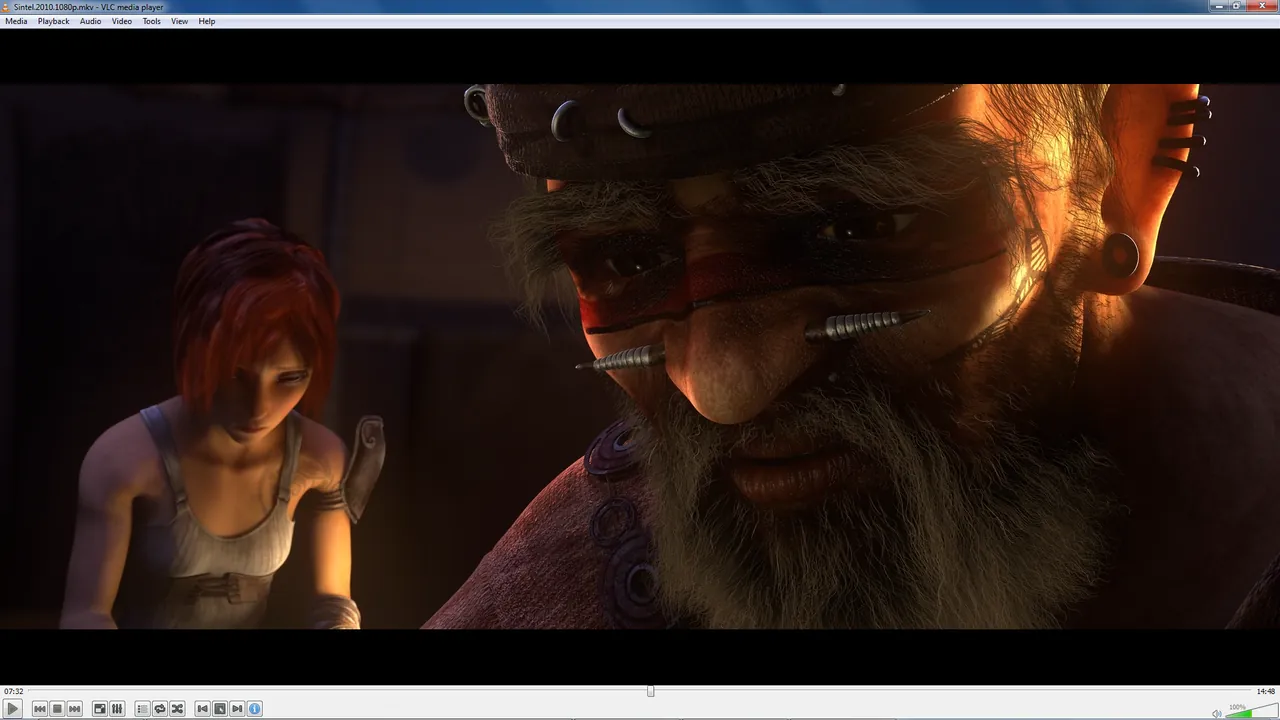

VLC from the non-profit VideoLAN is the player to install when a file will not open anywhere else. It carries its own codecs, opens DVDs, audio CDs, network streams and partially downloaded files, and can convert files and record streams. It has no ads, does not track what you watch, and runs on Windows, macOS, Linux, Android and iOS.
The interface is plain, the media library is basic, and many settings hide in advanced menus. It plays unprotected Blu-ray discs but not most commercial ones. If you want a lighter Windows-only player with more control over rendering, look at MPC-HC or mpv.
Pros
- Plays almost anything
- No codec packs needed
- No ads or tracking
Cons
- Plain interface
- Media library is basic
- Many settings are hidden in advanced menus
2. MPC-HC — Media Player
Best for: A light, classic Windows player with HDR
- Open source
- Free
- Video
_for_Windows_PC.png)
MPC-HC opens instantly and plays almost any local file through the bundled LAV Filters, including HEVC, AV1 and VVC. It ships with MPC Video Renderer for HDR playback and can use madVR, and it can search for subtitles online with the D key. Install the version maintained by clsid2 on GitHub; the original project is no longer updated.
It is Windows only, has no media library, and many useful features are buried in the options. MPC-BE is a fork with a darker look and seek-bar previews, and MPC-QT copies the same layout on top of the mpv engine.
Pros
- Starts and seeks very quickly
- No codec packs needed
- HDR support with the included renderer
Cons
- Windows only
- No media library
- Many useful features are buried in the options
3. PotPlayer — Media Player
Best for: The most playback options in one player
- Freeware
- Free
- Video

PotPlayer from Kakao Corp. packs more options than almost any other Windows player: hardware decoding through DXVA, CUDA or QuickSync, animated ASS subtitles, 3D output for 3D TVs, scene bookmarks and a choice of audio device. It plays common formats out of the box and supports OpenCodec for more.
It is closed source, Windows only, and the settings menu is large and confusing. Download it from potplayer.tv, its current official site. If you prefer open source with similar depth, MPC-HC is the closest alternative.
Pros
- Plays most formats without codec packs
- Strong hardware decoding support
- Very detailed playback and subtitle options
Cons
- Closed source
- Settings menu is large and confusing
- Windows only
4. mpv — Media Player
Best for: Picture quality enthusiasts
- Open source
- Free
- Video
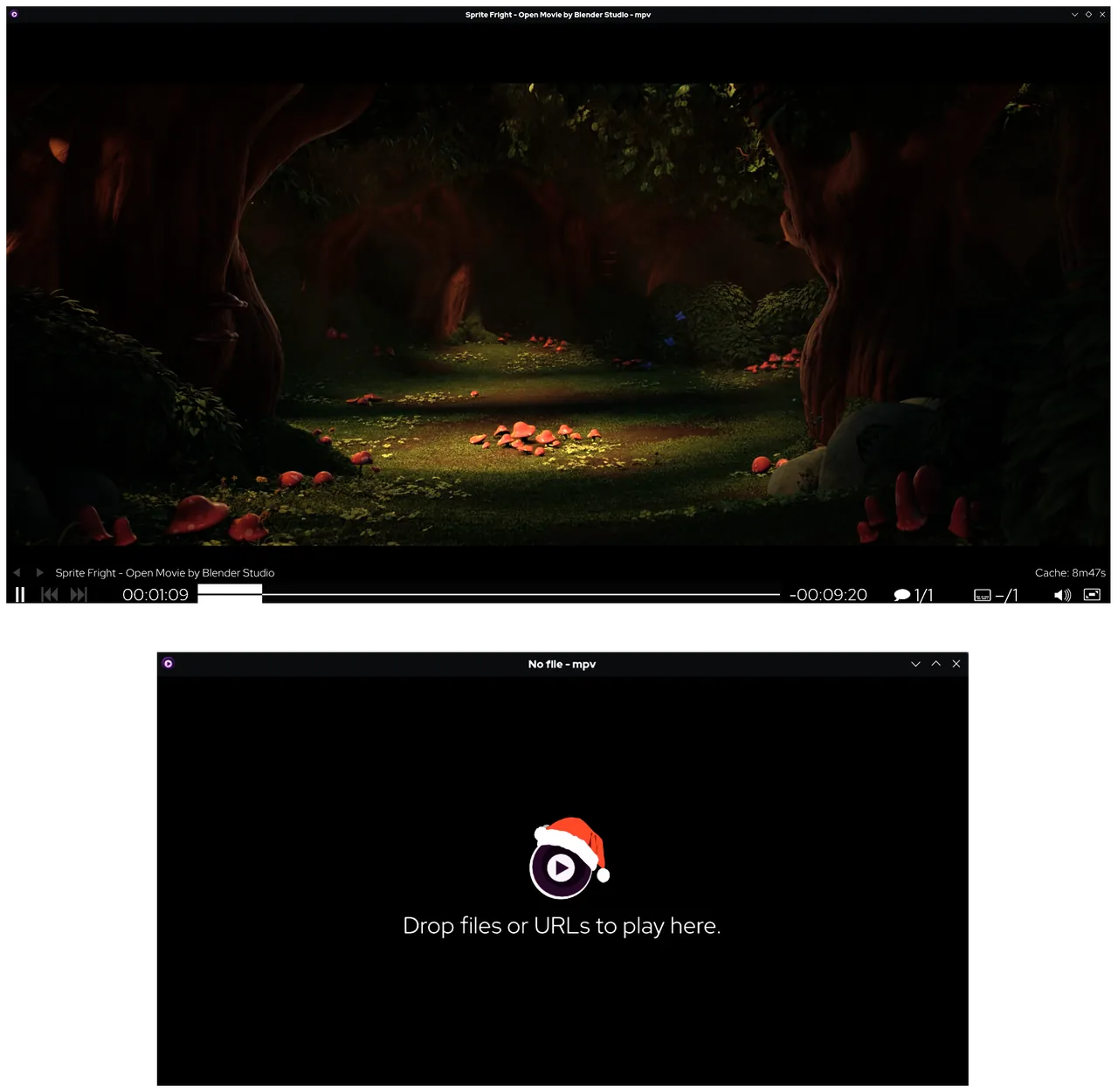

mpv has excellent video output: OpenGL, Vulkan and Direct3D 11 rendering with advanced scaling, color management, interpolation and HDR. It is driven by the keyboard and a small on-screen controller, and user scripts can add playlists, thumbnails or custom controls.
There is no official Windows installer; the project links to third-party builds and package managers, most of them zip archives. Settings live in text files rather than menus. If you want mpv's engine with a normal interface, use SMPlayer or MPC-QT.
Pros
- Excellent video scaling and HDR handling
- Lightweight and fast
- Powerful scripting and config files
Cons
- No official installer for Windows
- Almost no graphical settings
- Learning curve for config files and key bindings
5. SMPlayer — Media Player
Best for: Watching series that resume where you stopped
- Open source
- Free
- Video
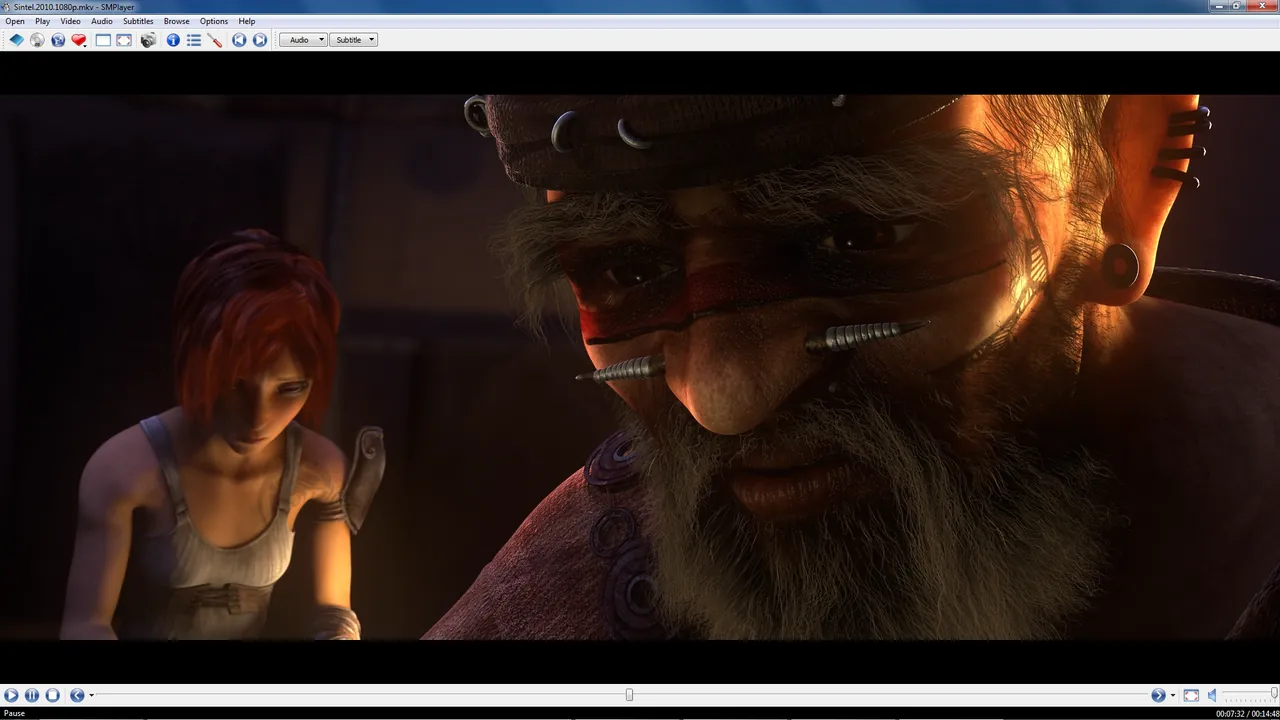

SMPlayer puts menus and settings dialogs on top of the mpv and MPlayer engines, both included in the Windows package. It remembers position, audio track, subtitles and volume for every file, so each episode resumes exactly where you left off. It can also search OpenSubtitles, play YouTube links and send video to a Chromecast.
The official installer is not code-signed, so Windows SmartScreen warns on first run, and the website carries ads and uses a third-party download host on its main button. Compared with VLC, it offers more per-file memory but fewer conversion tools.
Pros
- Resumes every file where you stopped
- Plays nearly any format
- Online subtitle search
Cons
- Unsigned installer triggers a SmartScreen warning
- Website carries ads, and its main button uses a third-party download host
- Many settings can overwhelm new users
6. MPC-BE — Video Player
Best for: MPC fans who want a darker look and seek previews
- Open source
- Free
- Video
_Portable.png)
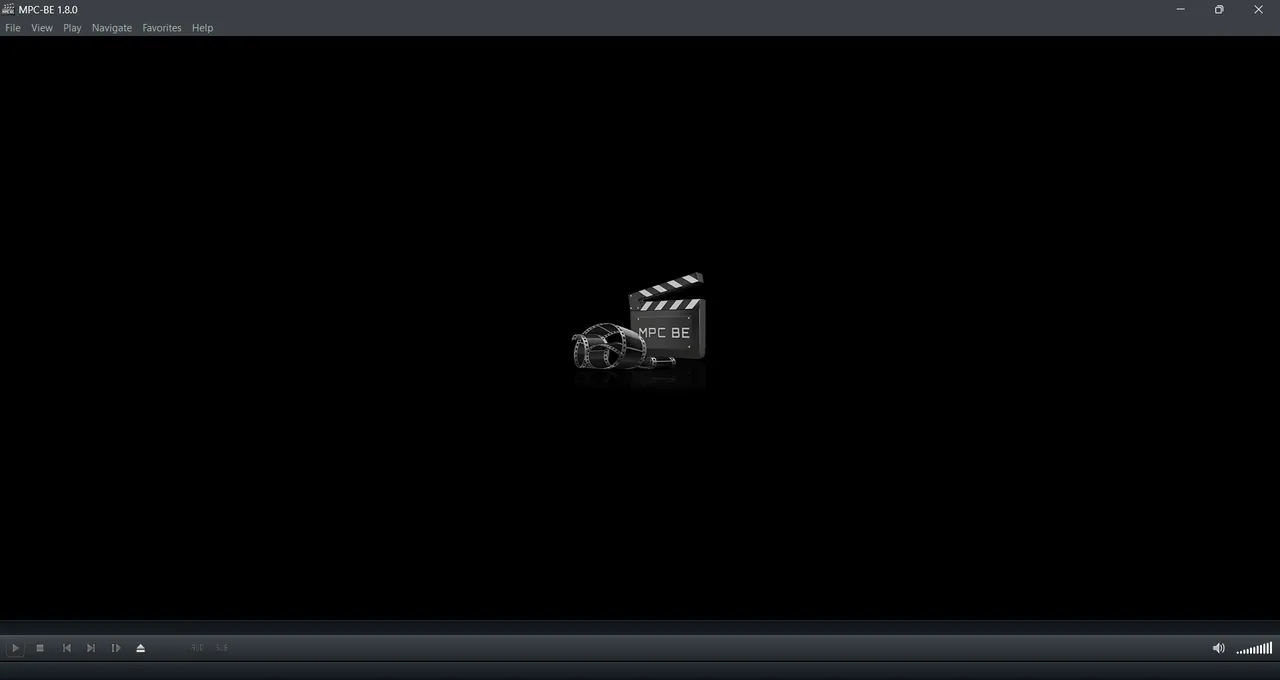
MPC-BE is a fork of Media Player Classic with its own internal decoders and splitters, hardware decoding, a darker default interface and thumbnails when you hover over the seek bar. It also opens YouTube and other stream links from the File menu.
The installer comes inside a ZIP archive, and the settings dialogs are dense and old-style. If you do not need the seek-bar previews, MPC-HC covers the same ground with HDR rendering included.
Pros
- Plays most formats without codec packs
- Light and fast to start
- Seek-bar thumbnail previews
Cons
- Installer is packed inside a ZIP archive
- Dense, old-style settings dialogs
- Windows only
7. Kodi — Media Center
Best for: A media center for a TV-connected PC
- Open source
- Free
- Video
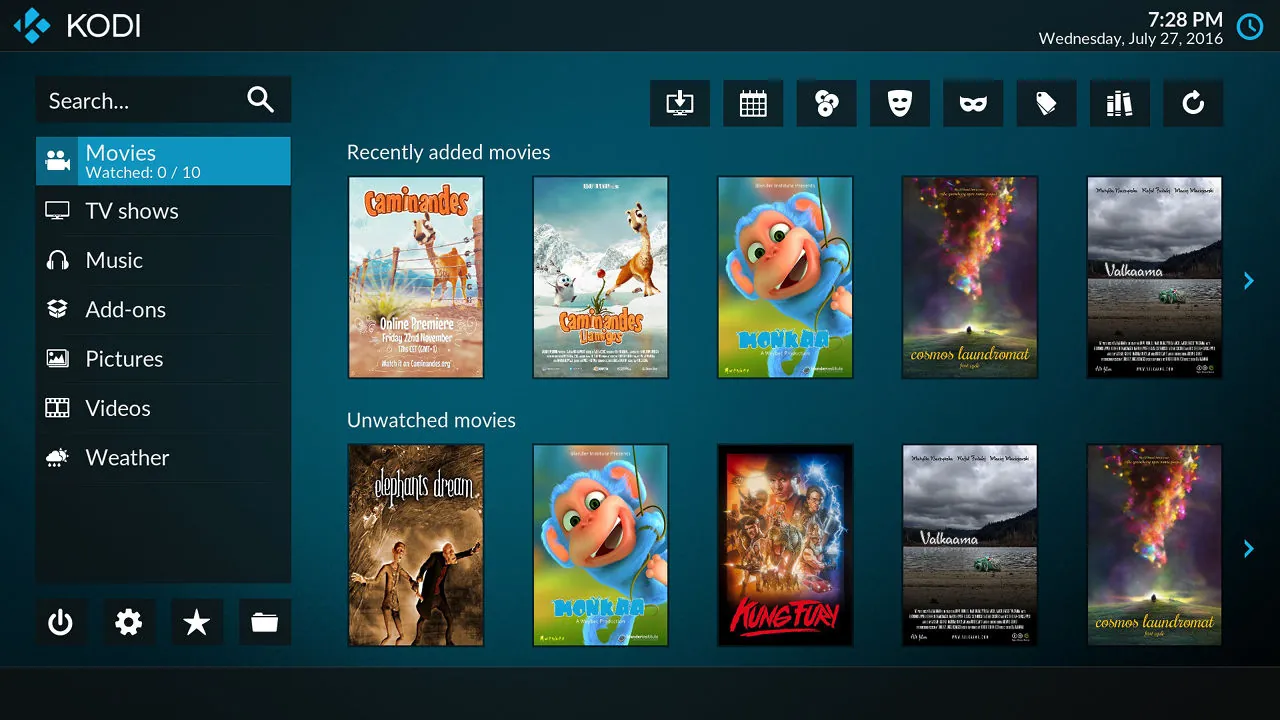

Kodi is not a simple desktop player but a full media center. Point it at your folders or NAS shares and it builds a library of movies, TV shows and music with posters, plots and watched status, which you control with a remote, a game controller or the official phone apps. It also works with TV tuner back ends for live TV and recording.
It ships with no content, and the Kodi team warns that unofficial add-ons often carry pirated streams or malware. The TV-style interface is awkward with a mouse, so for watching one file on a desktop VLC is quicker.
Pros
- Excellent library with artwork
- Plays nearly every format
- Runs on many devices
Cons
- Contains no content; you need your own media
- Unofficial add-ons can carry malware or pirated streams
- TV-style interface is awkward with a mouse
8. KMPlayer — Media Player
Best for: Many subtitle and capture options on 64-bit Windows
- Freeware
- Free
- Video
KMPlayer 64X plays up to 8K video with built-in HEVC, H.264 and VP9 codecs, reads most subtitle formats and can capture a section of a video as an animated GIF. The developer describes the 64X edition as free with no ads.
The classic edition includes advertising, the two Windows editions are easy to confuse, and the website is full of ads. It is closed source. PotPlayer or VLC offer similar features with a cleaner experience.
Pros
- Plays almost any format
- Up to 8K and 60 fps playback
- Many subtitle and audio options
Cons
- The classic edition and the website show ads
- Two Windows editions are easy to confuse
- Closed source
9. GOM Player — Media Player
Best for: Finding subtitles for foreign films
- Freeware
- Free
- Video

GOM Player includes codecs for common formats, can search for an external codec when a file does not play, and is good at finding subtitles online. It also has a 360-degree VR mode and A-B repeat for chosen sections.
The free version is ad-supported, and removing ads needs the paid GOM Player Plus, which also adds 4K playback. The installer is very large for a video player. SMPlayer and MPC-HC also search subtitles online without ads in the player.
Pros
- Plays most common formats out of the box
- Online subtitle search
- 360-degree VR playback
Cons
- Free version shows ads; removing them requires the paid GOM Player Plus
- Very large installer for a video player
- Closed source
Do you need a codec pack?
Usually not. All players in this guide include their own decoders. A codec pack such as K-Lite Codec Pack is useful only if you want Windows Media Player or other DirectShow players to open every format. It installs system-wide codecs that can affect other apps if misconfigured, so skip it if you use VLC or mpv.
Open source, ads and closed-source players
VLC, MPC-HC, MPC-BE, mpv, SMPlayer and Kodi are open source with no paid version. PotPlayer and the KMPlayer 64X edition are free closed-source players, while the classic KMPlayer and the free GOM Player show ads. 5KPlayer is free but promotes its developer's paid products.
Which player for which job?
For files of unknown origin and streams, VLC. For a quick player with HDR on Windows, MPC-HC. For the best scaling and color management, mpv. For series, SMPlayer. For a TV and a large collection, Kodi; if you run a media server, Jellyfin Media Player or Plex are alternatives. To mirror an iPhone or iPad to a PC over AirPlay, 5KPlayer is the only player here with a built-in receiver.
Frequently asked questions
What is the best media player for Windows?
VLC for most people, because it plays almost any file and stream without extra codecs. For a lighter Windows-only player, MPC-HC; for the most options, PotPlayer.
Is PotPlayer better than VLC?
PotPlayer has more playback options, including 3D output, scene bookmarks and detailed hardware decoding settings, but it is closed source and Windows only. VLC is open source, runs on every major platform and handles network streams and conversion.
MPC-HC or MPC-BE: which should I use?
Both come from Media Player Classic. MPC-HC by clsid2 ships with LAV Filters and MPC Video Renderer for HDR. MPC-BE is a separate fork with its own decoders, a darker look and seek-bar previews.
Is VLC free?
Yes. VLC is open source, has no paid version on Windows, no ads and does not track what you watch.
Is Kodi legal?
Yes. Kodi itself is legal and contains no content. Using add-ons that stream pirated content is not, and the Kodi team does not support them.
Which video player has no ads?
VLC, MPC-HC, MPC-BE, mpv, SMPlayer and Kodi are open source without ads. The free GOM Player and the classic KMPlayer edition show ads.
ExeDepot does not host installers. Every download button opens the developer's own server or official download page. Prices and licenses come from each developer's site and were checked on .