

Our verdict: Paint.NET sits between Windows Paint and full editors like GIMP. It has layers, adjustments, effects and plugins, yet stays fast and easy to learn. For quick photo edits and simple graphics, it is often the most pleasant free option.
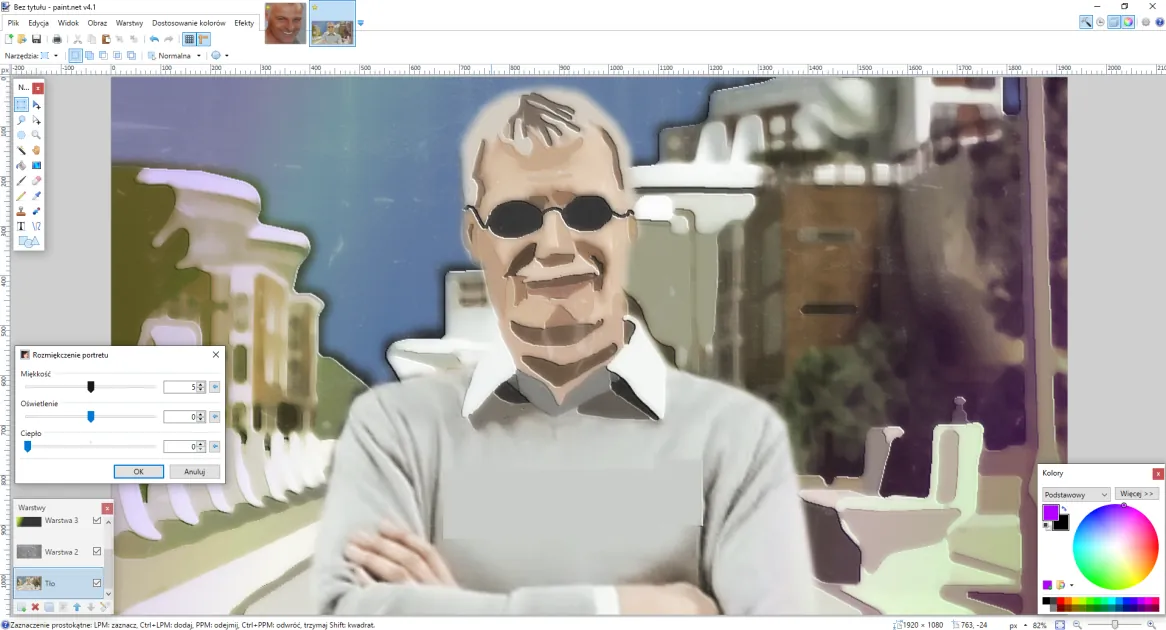
About Paint.NET
Paint.NET is developed by Rick Brewster through dotPDN LLC. The download on paint.net is free. A paid version in the Microsoft Store is the same app and exists to support development.
It uses the graphics card for rendering, so even large images feel responsive. A large community publishes free plugins that add effects and file formats.
What it does well
- Layers and blend modes. Stack edits on separate layers with opacity and blend modes.
- Adjustments and effects. Curves, levels, hue and saturation, blur, sharpen and artistic effects.
- Plugins. Hundreds of community plugins add tools and formats.
- Fast performance. GPU-accelerated rendering stays smooth on large images.
- Unlimited history. Every step is in the history panel and can be undone.
Who it is for
Good fit
Quick photo fixes, screenshots, web graphics and users who find GIMP too complex.
Look elsewhere
Professional retouching, print work or editing on macOS and Linux.
Pros and cons
Pros
- Easy to learn
- Fast
- Layers and plugins
- Free download
Cons
- Windows only
- Closed source
- PSD support requires a plugin
How to install Paint.NET
The download button gets the official 64-bit offline installer as a ZIP; extract it and run the installer inside. The Microsoft Store version is paid and optional. Many third-party sites copy the Paint.NET name, so use the official site to get the right installer.
Questions about Paint.NET
Is Paint.NET free?
Yes, the download on paint.net is free. The Microsoft Store version is the same app sold to support the developer.
Is Paint.NET the same as Microsoft Paint?
No. It started as a replacement for Paint but is a separate, much more capable app.
Can Paint.NET open PSD files?
Not out of the box. A free community plugin adds PSD support.


