

Our verdict: Files is the most Windows 11-like replacement for File Explorer, with tabs, dual pane and tags in a modern interface. It is free through the classic installer; the Microsoft Store version is a paid way to support the project. It needs an unmodified Windows with working App Installer, so it is not for debloated systems.
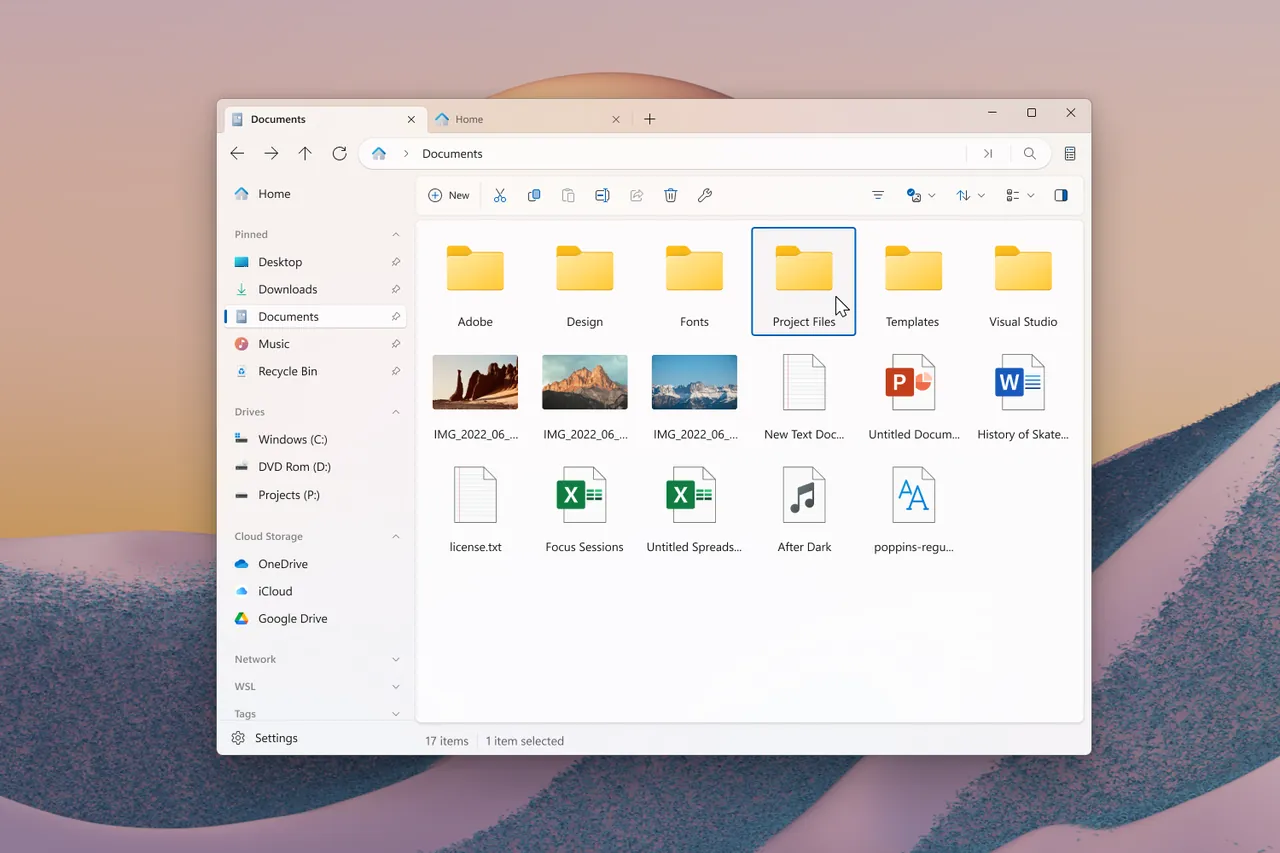
About Files
Files is built by the Files Community and published on GitHub under the MIT license. It follows the Windows 11 design and adds the features power users miss in File Explorer, while keeping the familiar layout of a sidebar, address bar and file list.
You can open folders in tabs, show two folders side by side, switch to a column layout, tag files with colors and preview photos, videos and documents in a side pane. The app also shows file hashes, creates and extracts ZIP, RAR and 7z archives and can create and switch Git branches.
What it does well
- Tabs and dual pane. Open many folders in one window and view two of them side by side.
- Column view. Navigates deep folder trees in columns, similar to Finder on macOS.
- Colored tags. Labels files and folders with tags you can sort and filter by.
- Archives. Creates and extracts ZIP, RAR and 7z archives without another tool.
- Git integration. Shows the current branch and lets you create, switch and sync branches.
Who it is for
Good fit
Windows 10 and 11 users who want tabs, dual pane and tags in a modern-looking file manager.
Look elsewhere
People on debloated or modified Windows builds, and keyboard-driven users who want a classic two-panel commander.
Pros and cons
Pros
- Free and open source
- Tabs, dual pane and column view
- Modern Windows 11 design
- Built-in Git and archive support
Cons
- Not supported on debloated or modified Windows builds
- Installation depends on Windows App Installer and the Windows Update service
- Space-bar previews of Office files need QuickLook or SeerPro installed separately
How to install Files
The classic installer downloads a small .appinstaller file that Windows App Installer opens to install Files. Windows Update and the Delivery Optimization service must be enabled, or installation fails. Files updates itself automatically and restarts when an update is installed, so save your work first.
Questions about Files
Is Files free?
Yes. The classic installer from files.community is free. The Microsoft Store version costs money and is an optional way to support the developers.
Can Files replace File Explorer completely?
Partly. An optional setting in Settings → Advanced reroutes Win+E and folders opened from other apps to Files. It works by changing the registry, so the developers recommend backing up the registry first.


