

Our verdict: JupyterLab Desktop removes the usual friction of Jupyter: no pip install, no terminal, no browser tab. Install it, open a notebook and the bundled Python environment with common data science packages is ready. Power users can switch each project to their own conda or venv environment, but the download is large and it is a notebook tool rather than a full IDE.
About JupyterLab Desktop
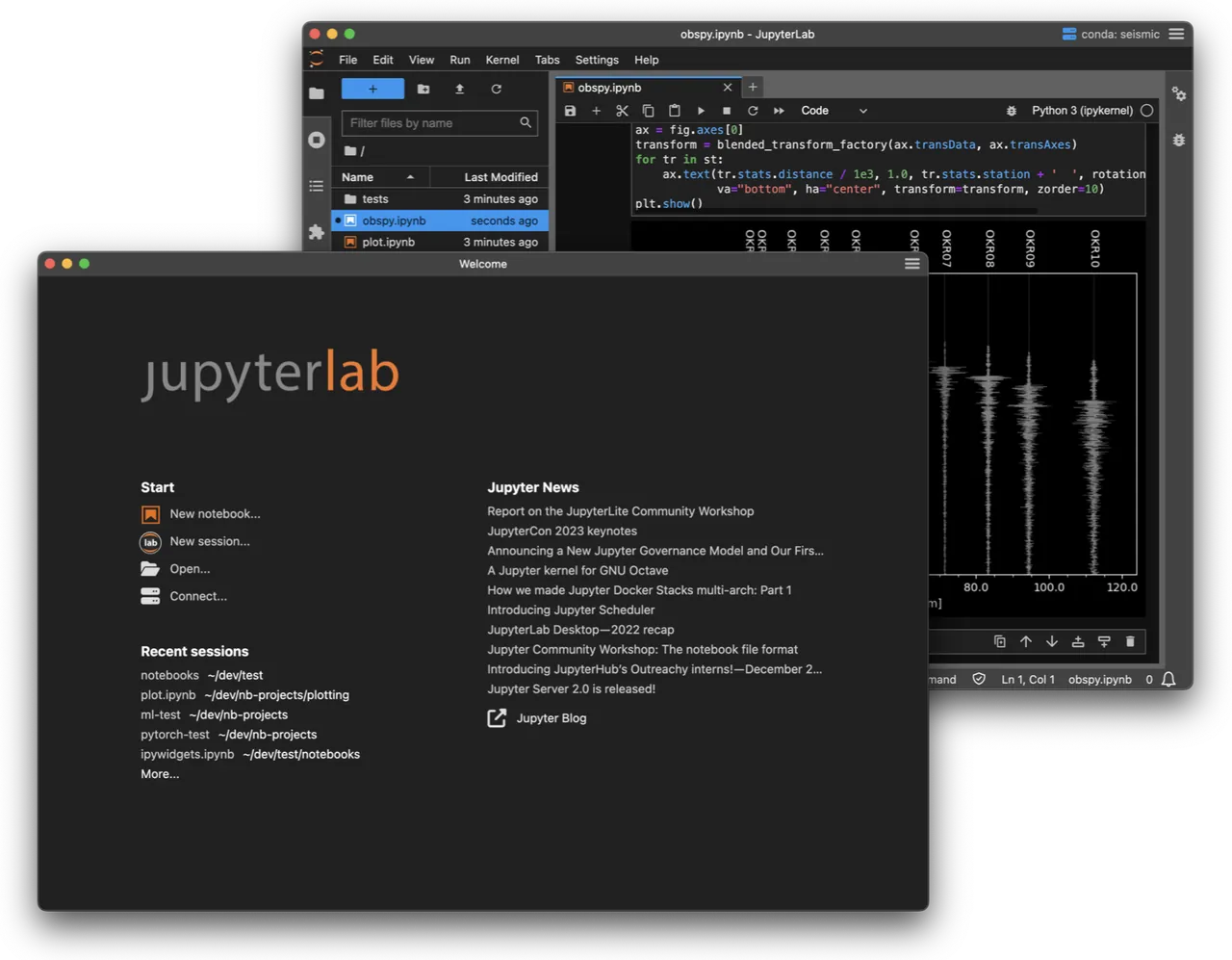
JupyterLab Desktop is the official cross-platform desktop application for JupyterLab, maintained under the JupyterLab organization and released under the BSD 3-Clause license. It still runs the JupyterLab web application behind the scenes but handles installation and launching for you, opens .ipynb files with a double-click and adds a jlab command for the terminal.
It ships with a bundled Python environment containing essential packages for scientific computing and data science. You can change the default environment or set a different conda, venv or pyenv environment per project. Each window is a separate session with its own JupyterLab server, and the Connect option attaches to an existing local or remote JupyterLab server.
What it does well
- Bundled Python environment. Starts with a ready Python setup for scientific computing.
- Sessions and projects. Restores recent sessions with their folder, environment and layout.
- Per-project environments. Uses any conda, venv or pyenv environment for a given folder.
- Remote servers. Connects to JupyterLab servers running locally or on another machine.
- jlab command. Opens folders or notebooks from the terminal in a new session.
Who it is for
Good fit
Students, analysts and researchers who want Jupyter notebooks without setting up Python first.
Look elsewhere
People who already run JupyterLab in the browser from their own environments, or need a full IDE.
Pros and cons
Pros
- Free and open source (BSD 3-Clause)
- Jupyter notebooks without any manual setup
- Per-project Python environments
- Connects to remote JupyterLab servers
Cons
- Large download because of the bundled environment
- Each window starts its own server process, which adds up in memory
- Notebook-focused; not a replacement for a full IDE
How to install JupyterLab Desktop
The link downloads the latest x64 installer from the official GitHub releases. On first launch, let the app install its bundled Python environment, or point it to your own under Manage Python environments. Double-clicking .ipynb files opens them in JupyterLab Desktop after installation.
Questions about JupyterLab Desktop
Is JupyterLab Desktop free?
Yes. It is open source under the BSD 3-Clause license and free for any use.
Do I need to install Python first?
No. JupyterLab Desktop comes with a bundled Python environment. You can switch to your own environment later.
How is it different from JupyterLab in a browser?
It runs the same JupyterLab, but in its own window, with built-in environment management and session history instead of a terminal command.


