

Our verdict: Navidrome turns a Windows PC into a personal Spotify for the music files you already own. It is light, handles very large libraries and works with dozens of Subsonic-compatible apps on phones and desktops. It is a server, not a player, so expect some setup and network configuration if you want to listen away from home.
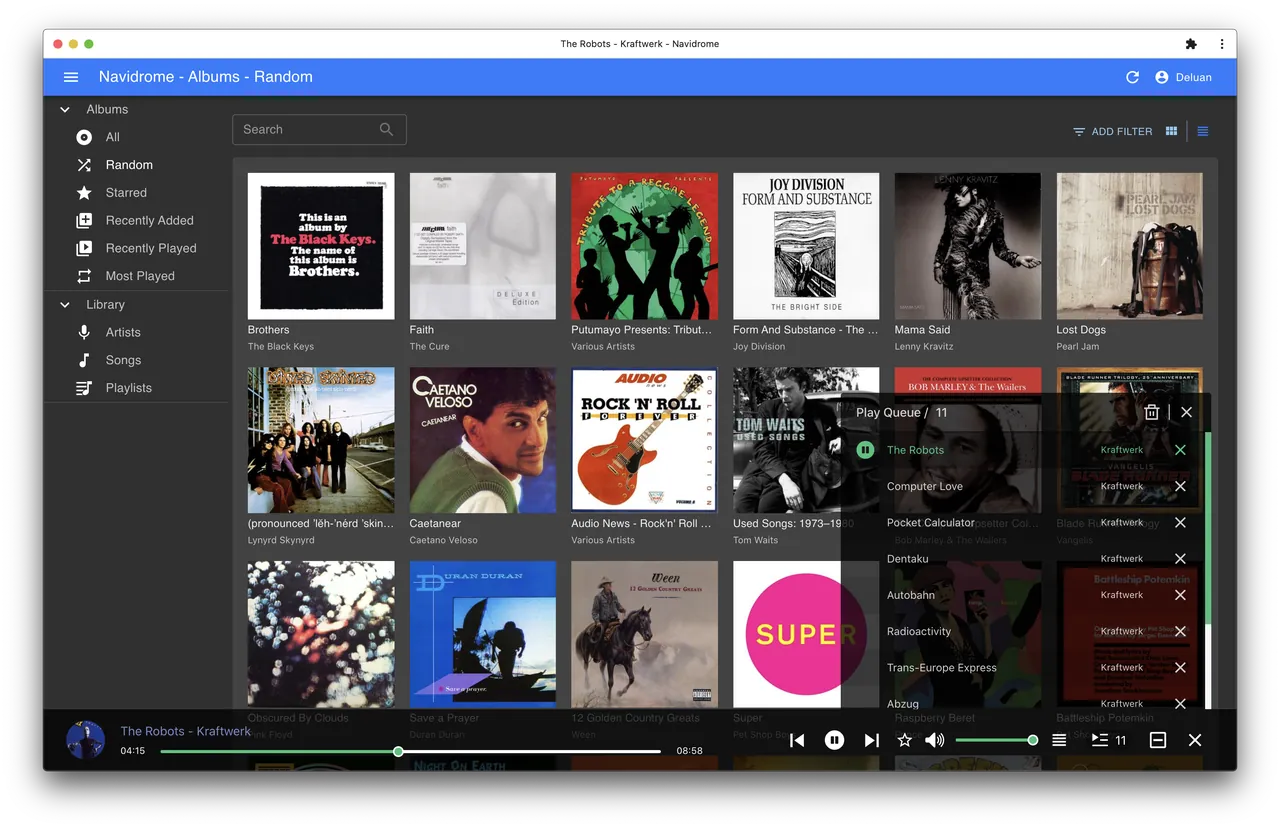
About Navidrome
Navidrome is an open-source project licensed under the GPLv3. It reads the tags in your music files, builds a library and serves it through a responsive web interface and the Subsonic API, so it works with many existing mobile and desktop clients.
On Windows the MSI installer asks for the port and music folders, then installs and starts Navidrome as a Windows service. You open http://127.0.0.1:4533 in a browser and create the first user. Each user gets separate play counts, playlists and favorites, and audio can be transcoded on the fly for slow connections.
What it does well
- Web player. Modern browser interface for browsing, searching and playing your whole library.
- Subsonic API. Works with Subsonic, Airsonic and OpenSubsonic apps on Android, iOS and desktop.
- Multi-user. Separate accounts with their own playlists, favorites and play counts.
- Transcoding. Converts audio on the fly per user or player, including Opus, to save bandwidth.
- Smart playlists. Dynamic playlists based on rules, plus import of .m3u files.
Who it is for
Good fit
People with a large local music collection who want to stream it to their phone and other PCs.
Look elsewhere
Users who just want a music player on one PC, or who don't want to deal with ports and remote access.
Pros and cons
Pros
- Very low resource usage
- Handles huge libraries
- Works with many Subsonic apps
- Free and open source
Cons
- Remote access needs your own network setup
- No folder-based browsing, only tags
- Configuration is done in a text file
How to install Navidrome
The button downloads the official 64-bit MSI installer from GitHub. The installer sets the port and music folder and starts a Windows service; then open http://127.0.0.1:4533 and create the admin account. Settings live in navidrome.ini in the install folder.
Questions about Navidrome
Is Navidrome free?
Yes. Navidrome is open source under the GPLv3, with no paid tier or account.
Which apps work with Navidrome?
Its own web player plus any Subsonic or OpenSubsonic client, such as Feishin on desktop and many apps on Android and iOS.
Does Navidrome run as a Windows service?
Yes. The official MSI installer installs and starts Navidrome as a service automatically.


