

Our verdict: WSL is the easiest way to get a full Linux command line on a Windows PC: one command installs Ubuntu, and Linux tools, compilers and Docker engines run next to Windows apps. It needs hardware virtualization for WSL 2, and file access across the Windows and Linux file systems is noticeably slower than staying on one side.
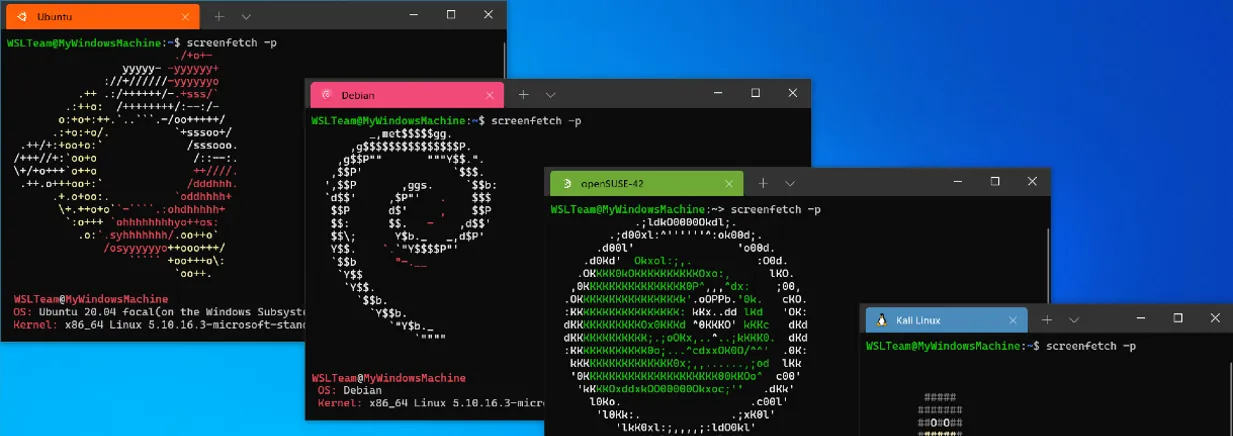
About Windows Subsystem for Linux
Windows Subsystem for Linux lets developers run a GNU/Linux environment, including most command-line tools, utilities and applications, directly on Windows without a virtual machine manager or dual boot. WSL 2, the default, runs a real Linux kernel in a lightweight utility virtual machine. Microsoft open-sourced WSL under the MIT license; a few inbox components that ship with Windows remain closed.
On Windows 10 version 2004 or later and Windows 11, running wsl --install in an administrator terminal enables the required features and installs Ubuntu. wsl --list --online shows other distributions, and wsl --install -d <name> picks one. The MSI from GitHub installs or updates the WSL package itself, which is the same build that wsl --update fetches.
What it does well
- Several distributions. Ubuntu, Debian, openSUSE, Kali, Fedora and more, side by side.
- Real Linux kernel. WSL 2 runs a Microsoft-built Linux kernel in a lightweight VM.
- Linux GUI apps. Graphical Linux apps open in their own windows on the Windows desktop.
- File system access. Windows drives appear under /mnt, and Linux files in File Explorer.
- Editor integration. VS Code and Visual Studio can build and debug inside a distribution.
Who it is for
Good fit
Developers who need Linux tools, shells or servers while staying on Windows.
Look elsewhere
PCs without hardware virtualization, and people who need a full Linux desktop or bare-metal performance.
Pros and cons
Pros
- Free and open source (MIT)
- One command installs a full Linux distribution
- Several distributions can run side by side
- Works with VS Code, Visual Studio and Docker
Cons
- WSL 2 needs hardware virtualization enabled
- Accessing Windows files from Linux is slower
- Mostly command-line; setup needs administrator rights
How to install Windows Subsystem for Linux
Open PowerShell or Windows Terminal as administrator and run wsl --install, then restart when asked and create a Linux user name and password. The MSI installs or updates the WSL package directly. Run wsl --update later to get new versions.
Questions about Windows Subsystem for Linux
Is WSL free?
Yes. WSL is free and open source under the MIT license; the Linux distributions you install are free as well.
Do I need the MSI from GitHub?
No. wsl --install sets everything up. The MSI is useful for installing a specific WSL version or updating offline.
What is the difference between WSL 1 and WSL 2?
WSL 2, the default, runs a real Linux kernel in a lightweight VM for full system-call compatibility. WSL 1 translates Linux calls and does not need virtualization.


