

Our verdict: ShareX is the most powerful free screenshot tool for Windows. It captures regions, windows and scrolling pages, records short videos and GIFs, and lets you annotate in seconds. It has so many options that it pays to spend ten minutes on the settings first.
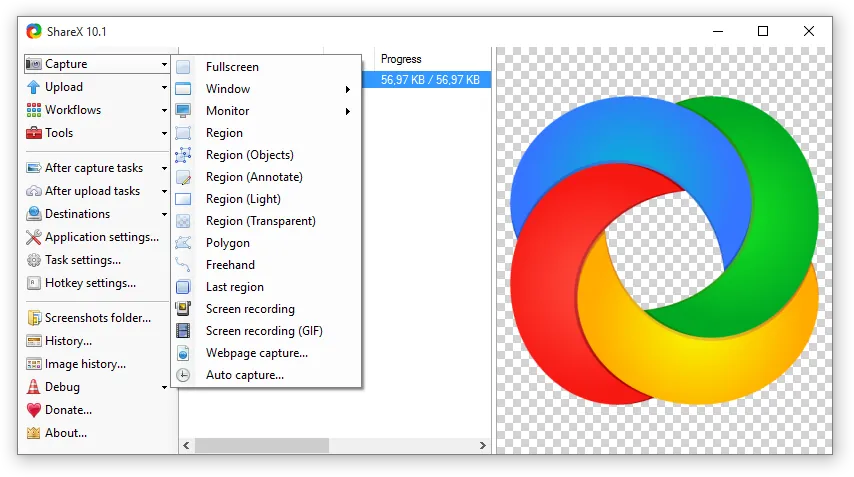
About ShareX
ShareX is an open-source project built for Windows. Everything runs on hotkeys: press a key, select an area, and ShareX can annotate, save, copy and optionally upload the capture automatically.
That automation is configured under After capture tasks. Review these tasks on first launch so captures are saved and copied the way you want, and uploaded only when you choose.
What it does well
- Many capture modes. Region, window, full screen, scrolling capture and capture with a delay.
- Screen recording. Records areas of the screen to MP4 or GIF.
- Image editor. Arrows, text, blur, highlight and step numbers for quick instructions.
- OCR. Copies text from any part of the screen.
- Workflows and uploads. Custom hotkeys that chain actions, with optional upload to many services.
Who it is for
Good fit
Support staff, writers, testers and anyone who documents what is on screen.
Look elsewhere
Users who want a minimal tool with almost no settings.
Pros and cons
Pros
- Huge range of capture modes
- Scrolling capture and OCR
- Fast annotation
- No ads
Cons
- Settings can be overwhelming
- Windows only
- Upload options need review
How to install ShareX
Download the installer from getsharex.com or install it from the Microsoft Store or Steam. After installation, open Hotkey settings to set the shortcuts you want and check After capture tasks.
Questions about ShareX
Is ShareX free?
Yes. It is open source with no paid features.
Can ShareX record GIFs?
Yes. Choose Screen recording (GIF) from the capture menu or assign it a hotkey.
Does ShareX upload my screenshots automatically?
Only if upload is enabled in After capture tasks. Check those settings so captures stay on your PC unless you choose to share them.


