

Our verdict: Cyberduck is a tidy way to browse FTP and SFTP servers and cloud storage buckets from one window. It is free and open source, but it asks for a donation after every install or update until you buy a registration key. Power users who need two-pane transfers may prefer FileZilla or WinSCP.
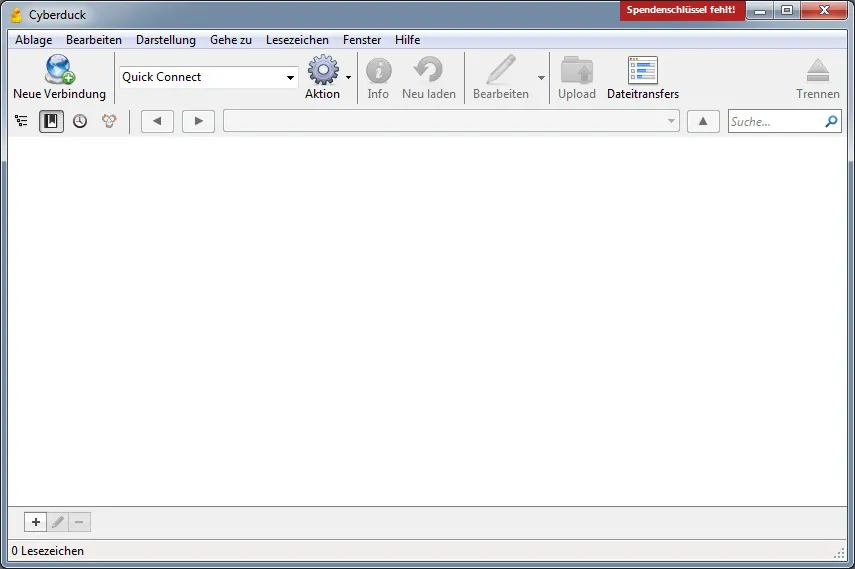
About Cyberduck
Cyberduck is a single-pane file browser for remote servers and cloud storage. It connects over FTP, SFTP and WebDAV, and to storage services such as Amazon S3, Backblaze B2, Microsoft Azure, OneDrive and OpenStack Swift. Connections are saved as bookmarks, and files can be opened in your own editor and uploaded again when you save.
The app is open source under the GPL v3 and free to download. It shows a donation prompt after installing or updating; a registration key, available for contributors who donate at least 10 USD, removes it. A paid version is also sold in the Microsoft Store, and the separate Mountain Duck app, which mounts servers as drives, is a paid product.
What it does well
- Many protocols. FTP, SFTP, WebDAV, Amazon S3, Backblaze B2, Azure, OneDrive, OpenStack Swift and more in one app.
- Bookmarks. Saves connection settings so you can reopen servers and buckets with one click.
- External editor. Opens remote files in your preferred editor and uploads them again on save.
- Cryptomator vaults. Reads and writes Cryptomator-encrypted vaults stored on servers and cloud storage.
- Transfer queue. Shows uploads and downloads in a separate window where they can be paused and resumed.
Who it is for
Good fit
Web developers and admins who move files between their PC, SFTP servers and S3-compatible storage.
Look elsewhere
Users who want a classic two-pane FTP client or need a mapped network drive in File Explorer.
Pros and cons
Pros
- Open source and free to download
- Supports FTP, SFTP and major cloud storage in one window
- Editing remote files in your own editor
- Cryptomator encryption support
Cons
- Donation prompt after every install and update unless you buy a key
- Single-pane browser instead of a local and remote side-by-side view
- Mounting servers as drives needs the paid Mountain Duck
How to install Cyberduck
Run the 64-bit installer from cyberduck.io; it needs Windows 10 or later. A donation window appears after installation and every update; you can close it or remove it with a registration key. Add servers through Open Connection or the Bookmarks list.
Questions about Cyberduck
Is Cyberduck free?
Yes. Cyberduck is open source under the GPL v3. It asks for donations, and a registration key from a donation of at least 10 USD removes the prompt.
Which services can Cyberduck connect to?
FTP, SFTP, WebDAV, Amazon S3, Backblaze B2, Microsoft Azure, OneDrive and OpenStack Swift, among others.
Can Cyberduck show a server as a drive in File Explorer?
No. That is what Mountain Duck, a separate paid app from the same developer, does.


