

Our verdict: QuickLook is one of those small tools you stop noticing because it just works. Select a file, press Space and a preview opens instantly, without launching the full app. Office files and some formats need extra plugins.
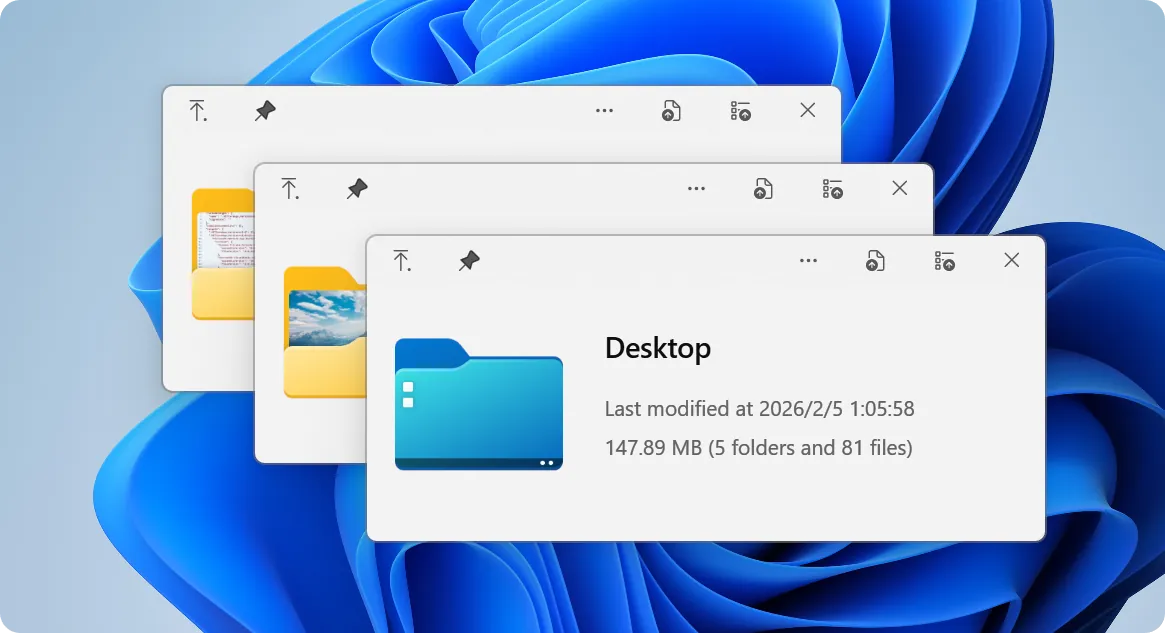
About QuickLook
QuickLook is an open-source project under the GNU GPL v3 that recreates the Quick Look feature of macOS on Windows. It runs in the system tray and watches for the Space key in File Explorer, the desktop and Open/Save dialogs.
Out of the box it previews images, video and audio, PDFs, text and source code with syntax highlighting, Markdown, archives and fonts. Plugins add more formats, such as Word, Excel and PowerPoint files without Microsoft Office, or CAD drawings.
What it does well
- Space to preview. Select a file and press Space; press Space or Esc again to close.
- Many formats. Images, video, audio, PDF, code, Markdown, archives and fonts.
- Arrow-key browsing. Move through a folder with the arrow keys while the preview stays open.
- Plugins. Add Office, CAD, PostScript and other viewers as .qlplugin files.
- Open/Save dialogs. The installer version also previews files inside standard file dialogs.
Who it is for
Good fit
Anyone who opens many files just to check what is inside: photos, PDFs, downloads or code.
Look elsewhere
People who need to edit files; QuickLook only shows previews.
Pros and cons
Pros
- Free and open source
- Instant previews without opening apps
- Works in Explorer and file dialogs
- Extensible with plugins
Cons
- Office documents need a separate plugin
- Microsoft Store version has limited Open/Save dialog support
How to install QuickLook
Download the MSI installer from the latest GitHub release. The developers recommend the installer over the Microsoft Store version if you want previews in Open/Save dialogs. QuickLook starts in the tray; add it to startup in its settings. To install a plugin, select the .qlplugin file, press Space and click Install.
Questions about QuickLook
Is QuickLook free?
Yes. QuickLook is open source under the GNU GPL v3, with no ads or paid tier.
How do I preview a file with QuickLook?
Select the file in File Explorer and press Space. Press Space or Esc to close the preview, or Enter to open the file.
Can QuickLook preview Word and Excel files?
Yes, with the OfficeViewer plugin, which works without Microsoft Office installed.


