

Our verdict: WinDirStat answers the question 'what is filling my drive?' in one scan. Its colored map makes large files and folders obvious, so you can delete what you do not need. It is simple, free and safe to use as long as you think before deleting system files.
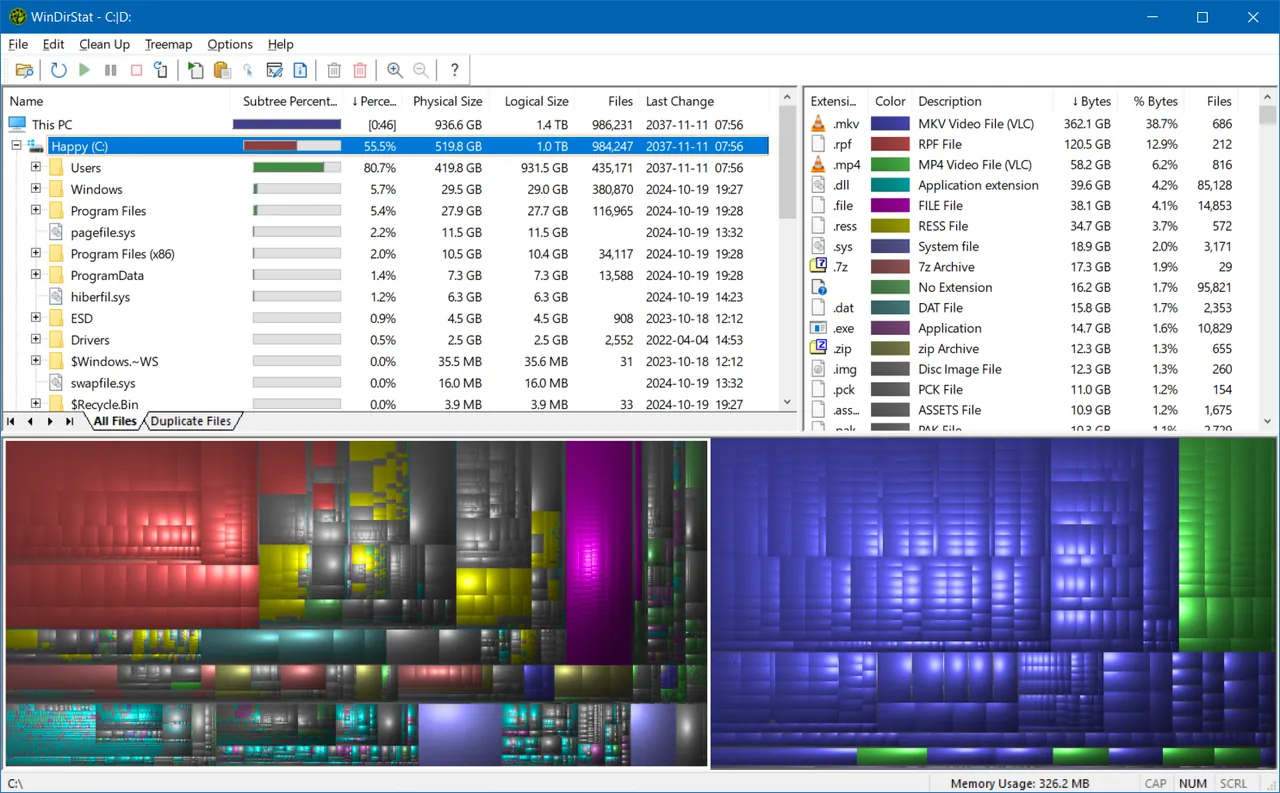
About WinDirStat
WinDirStat scans a drive or folder and shows three views: a folder tree sorted by size, a list of file types, and a treemap where each rectangle is a file sized by how much space it uses.
The project has been revived with new releases that modernize the interface and speed up scanning. It is still open source and free.
What it does well
- Treemap. Every file shown as a colored block, sized by disk usage.
- Folder tree by size. Folders sorted from largest to smallest.
- File type list. See how much space videos, archives or installers take up.
- Cleanups. Open, delete or show files in Explorer straight from the results.
- Duplicate detection. Recent versions can help find duplicate files.
Who it is for
Good fit
Anyone whose drive is suddenly full.
Look elsewhere
Automatic cleaning. It shows you what to remove and you decide.
Pros and cons
Pros
- Very clear visual map
- Free and open source
- Portable version
- Actively maintained again
Cons
- Windows only
- Large drives can take a while to scan
How to install WinDirStat
Download the installer or portable ZIP from windirstat.net. Run it, choose the drive to scan and wait for the treemap. Avoid deleting files inside the Windows folder or Program Files unless you know what they are.
Questions about WinDirStat
Is WinDirStat safe?
Yes. It only shows information and deletes nothing unless you ask it to.
What are the big files called pagefile.sys and hiberfil.sys?
They are Windows system files for memory and hibernation. Do not delete them directly; change them through Windows settings if needed.
Does WinDirStat work on external drives?
Yes. It can scan any drive or folder you can open in Explorer.


